LinkedIn Profile Picture: Framing, Light and Size Guide
A good LinkedIn profile picture is a sharp, well-lit headshot where your face fills about 60 percent of a square frame, set against a plain backdrop. You can make one from a phone shot in ten minutes: the hard part is the framing and the light, not the software.
🙂 Try Profile Picture Maker now — freeOpen →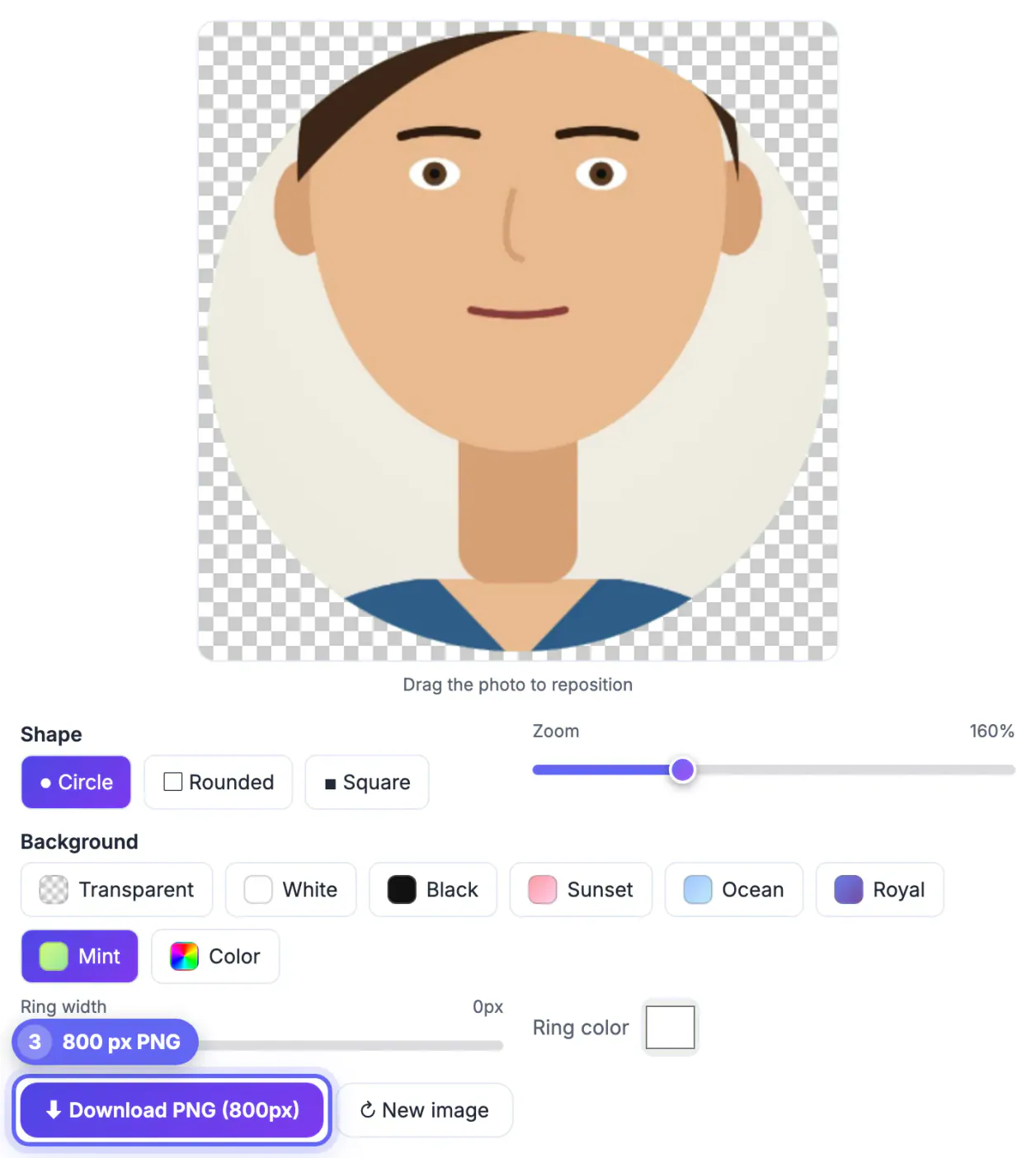
Recruiters skim dozens of candidate cards an hour, and the round thumbnail beside your name is the first thing they see in search results, comments and connection requests. A clear, friendly face signals that the account is real and current. A blurry vacation crop, a logo or an empty gray silhouette signals the opposite, and nobody clicks to find out otherwise.
What recruiters see first on a LinkedIn profile
Your photo appears in at least four sizes: a large circle on your own page, a medium circle in search results, a tiny circle next to every comment and a thumbnail in message threads. The tiny version is the one most people will see, often below 50 pixels wide on a phone. Design for that size and the large one takes care of itself.
LinkedIn suggests uploading at least 400 by 400 pixels and caps the file at 8 MB. Anything smaller gets stretched and softened. An 800 by 800 PNG gives the site room to downscale cleanly on high-density screens without visible blur.
- Face and top of shoulders visible, eyes roughly one third from the top
- Your face taking up around 60 percent of the square
- Plain, uncluttered backdrop in a color that contrasts with your hair
- Recent shot that looks like you on a video call next week
Light and pose with just a phone
Stand facing a window during daylight, about three feet back, with the glass directly in front of you rather than behind. Soft side light from a north-facing window or an overcast sky flatters almost everyone. Avoid overhead ceiling bulbs, which carve dark shadows under the eyes, and never shoot with the window at your back.
Use the rear camera, not the selfie lens, and prop the phone at eye level on a shelf with a ten-second timer. Arm-length selfies distort the nose and chin because the lens is so close. Shoot twenty frames while shifting your chin slightly forward and down; a relaxed half smile usually beats a posed grin.
- Wear a solid color; fine stripes and small checks shimmer when resized
- Match the outfit to your field: a blazer for finance, a clean tee for design
- Wipe the lens first, since pocket smudges cause most soft shots
Framing the circle with the Profile Picture Maker
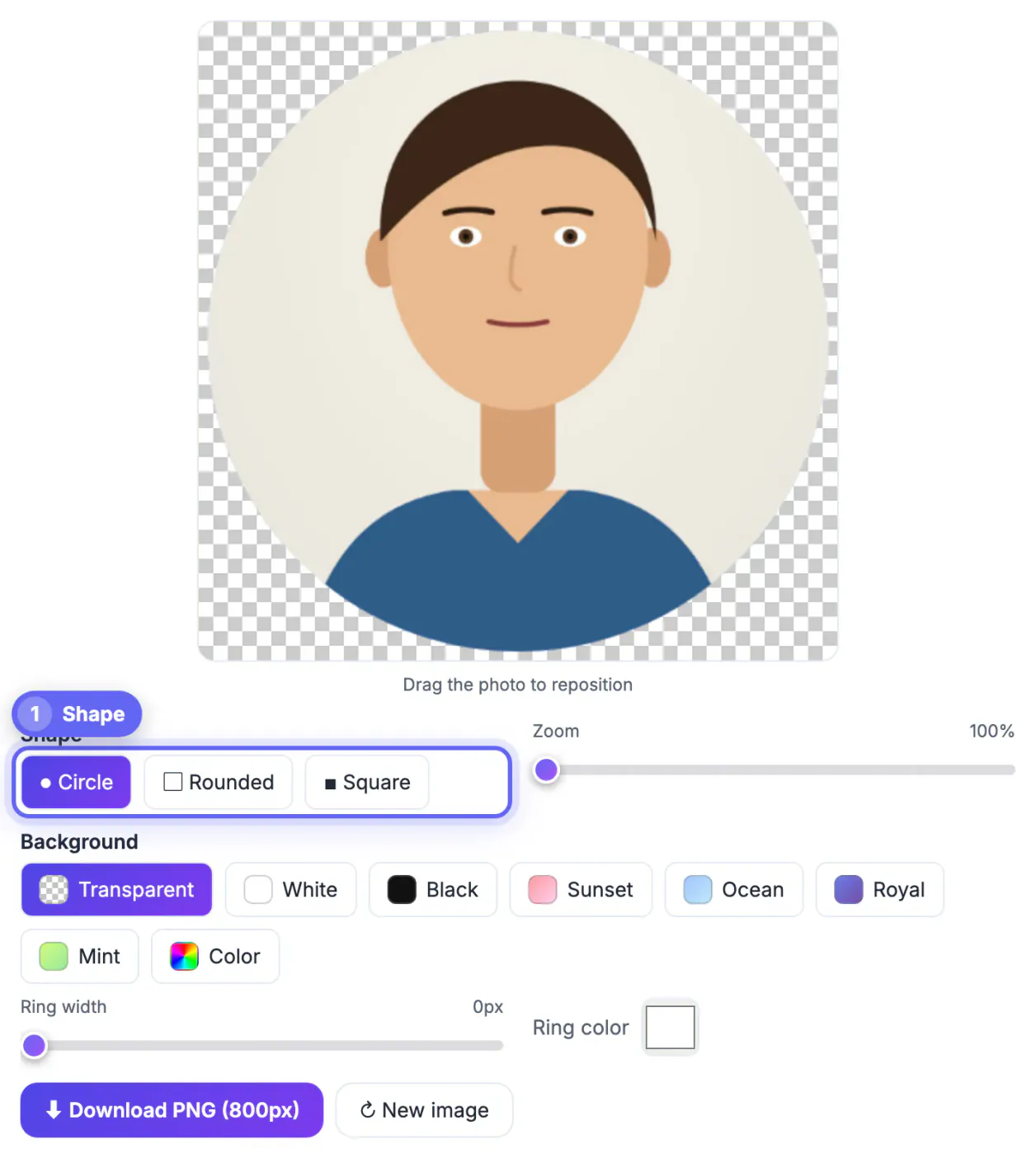
Open the GrabCast Profile Picture Maker and drop in your best frame. Choose the Circle shape so you see exactly what the round crop will keep, then drag the photo to center your face and use the zoom slider, which runs from 100 to 300 percent, until your head and shoulders fill the circle.
If the backdrop is a messy kitchen, run the shot through the AI Background Remover first and download it as a transparent PNG. Back in the maker, pick White, a solid color from the picker, or one of the soft gradients such as Ocean. A pale gray or light blue reads as professional without looking like a passport photo.
Leave the ring width at zero for this platform. The #OpenToWork and #Hiring frames that the network adds sit along the lower edge, and a thick custom border would collide with them. Everything runs in your browser, so the photo never leaves your laptop.
Exporting once and reusing the headshot
Click Download to get an 800 by 800 PNG. That single master file covers most professional uses, so keep it in a folder named after the year you took it and replace it when your appearance changes noticeably, such as a new haircut or glasses.
- Resume header: shrink to around 300 pixels wide and convert to JPG to keep the PDF small
- Email signature: 96 to 120 pixels, hosted image, square or round
- Slack, Teams and Zoom: upload the same square; each app applies its own crop
- Conference badges and speaker pages: send the full 800 px master
One consistent face across every channel helps people recognize you when you finally meet at an interview or an event. If you work in a regulated field such as healthcare or law, check whether your employer has headshot guidelines covering backdrop color or badge visibility before you publish.
Write a matching profile text with this guide to a LinkedIn summary with AI, so the photo and the About section tell the same story.
Step-by-step
Common mistakes to avoid
Pro tips
Frequently asked questions
What size should a LinkedIn profile picture be?
LinkedIn recommends at least 400 x 400 pixels with a file under 8 MB. The Profile Picture Maker exports 800 x 800 PNG, which is double the minimum and stays sharp on high-density phone screens.
Can I use a selfie as my LinkedIn photo?
Yes, if it is framed well. Use the rear camera on a timer rather than an arm-length selfie, because the close lens distorts features. Face a window, fill most of the frame and keep the backdrop plain.
Should I smile in my professional headshot?
A relaxed, natural smile tests well with most viewers because it reads as approachable. A tight posed grin or a serious stare can look stiff. Take several frames and pick the one that looks like you in a friendly meeting.
Does the photo get uploaded to GrabCast?
No. The Profile Picture Maker crops and exports in your browser, and the Background Remover runs its AI model locally too. Your photo stays on your device until you choose to upload it to LinkedIn.
Why does my LinkedIn photo look blurry after uploading?
Usually the source was tiny or heavily compressed, such as a screenshot from a chat app. Start from the original camera file, crop it at 800 x 800 and upload that PNG. If the only copy is small, run it through the AI Image Upscaler first.
A strong LinkedIn profile picture comes from window light, a rear-camera shot at eye level and a crop where your face fills most of the circle. Frame it in the Profile Picture Maker, export one 800 px master and reuse it on your resume, email signature and work chat apps.
Related guides
Browse more: all image guides · Profile Picture Maker