Colored Avatar Ring: Pick a Width and Shade That Pops
To add a colored ring to your avatar that people actually notice, make the border about 5 to 8 percent of the circle's width and pick a shade that contrasts with both your photo and the app's background. Thin hairline outlines disappear once Discord or Slack shrinks the image to 32 pixels.
🙂 Try Profile Picture Maker now — freeOpen →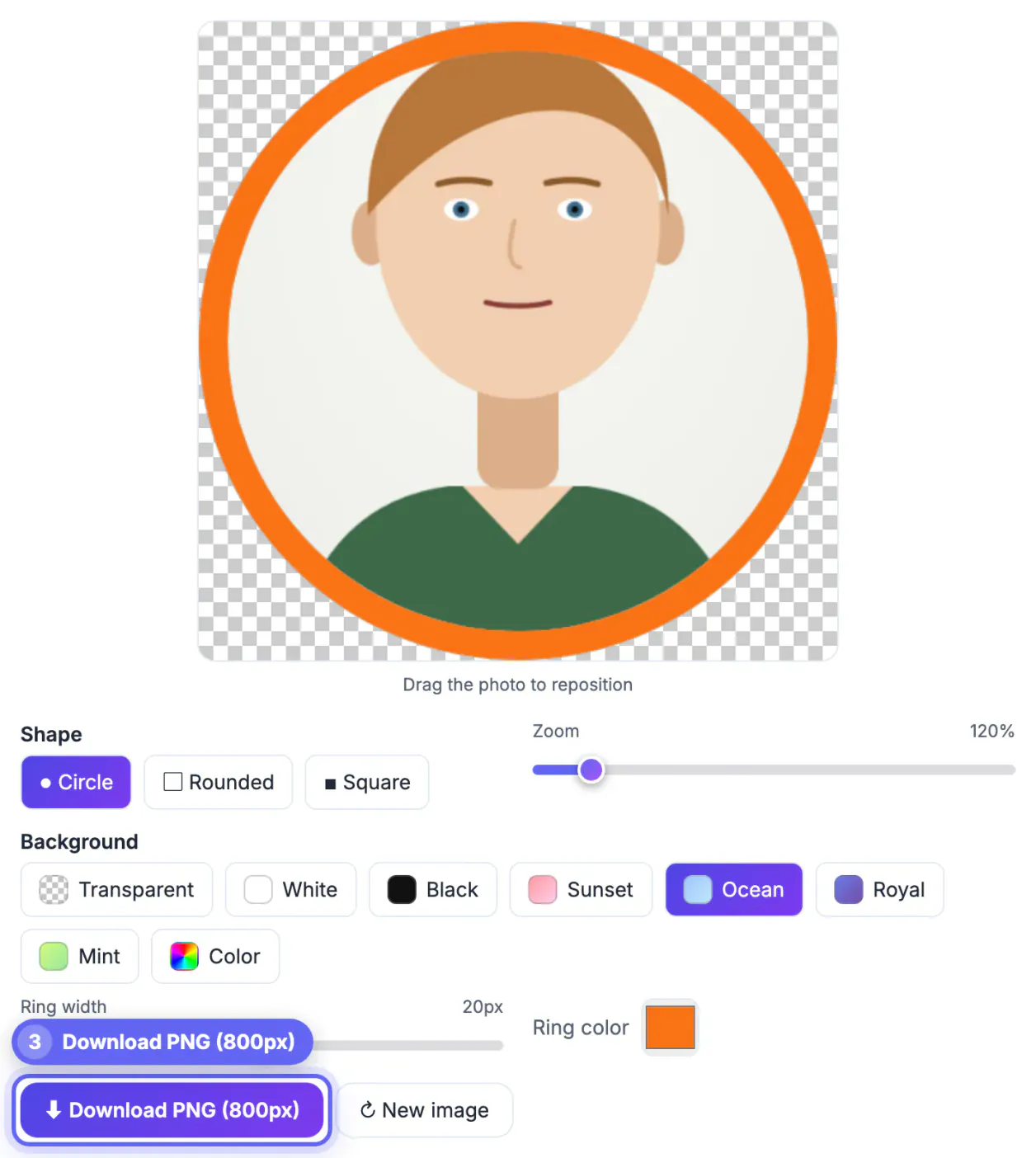
In a busy chat list, dozens of round faces sit side by side. A consistent brand color around yours works like a team jersey: people spot you in a thread before reading the name. Creators, community moderators and small businesses use it to tie accounts together across platforms, and it costs nothing but a minute of setup.
How thick the colored ring should be
Avatars are displayed far smaller than they are uploaded. Discord shows most message avatars at 40 pixels, Slack uses 36 in the sidebar, and X shows 48 in the timeline. A border that looks bold on an 800 pixel canvas can shrink to under one pixel and vanish.
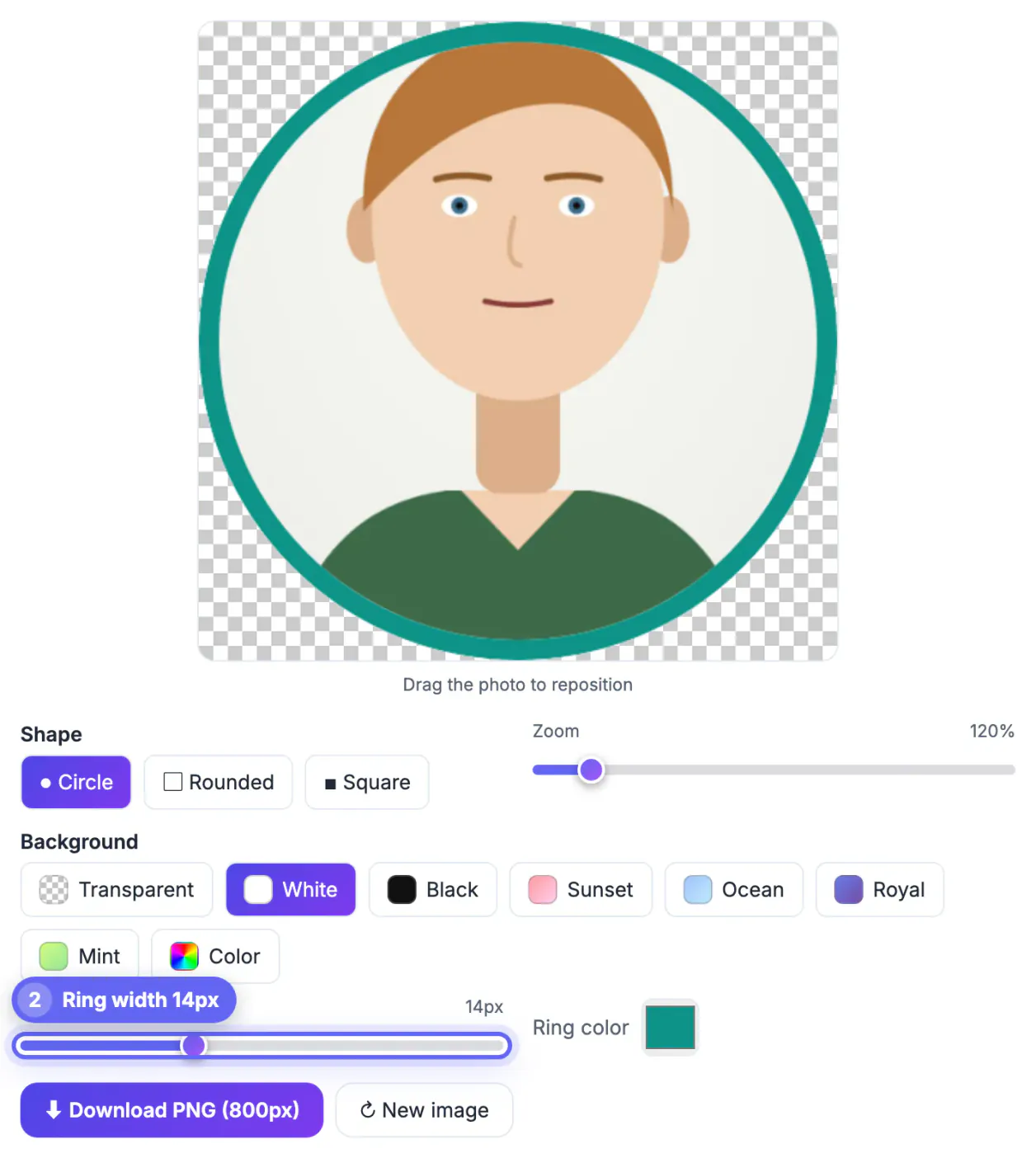
The GrabCast Profile Picture Maker has a width slider from 0 to 40 on its 440 pixel preview, which scales to roughly 0 to 73 pixels on the 800 pixel download. For small chat icons, a slider value between 12 and 20 works well, giving an outline of about 22 to 36 pixels in the export, or 3 to 4.5 percent per side.
- Chat apps and forums: slider 14 to 20, thick enough to see in a crowded list
- Social profiles shown large: slider 8 to 12 for a subtle frame
- Streaming overlays and badges: up to 30 for a sticker-like look
- Anything above 32 starts to crowd the face; zoom the photo in to compensate
Choosing colors that survive light and dark mode
Most people now browse in dark mode at least part of the day, so a single color has to work on near-black and on white. Mid-tone, saturated colors such as a royal blue, coral or emerald hold up on both. Pure white borders glow on dark themes and disappear in light ones; pure black does the reverse.
Pull the hex code from your brand kit and paste it into the color picker. If you do not have one, sample a color from your clothing or background so the outline feels intentional. Avoid the orange-to-pink gradient Instagram uses for unviewed stories, since a lookalike border makes people tap expecting a story.
Building the avatar with the Profile Picture Maker
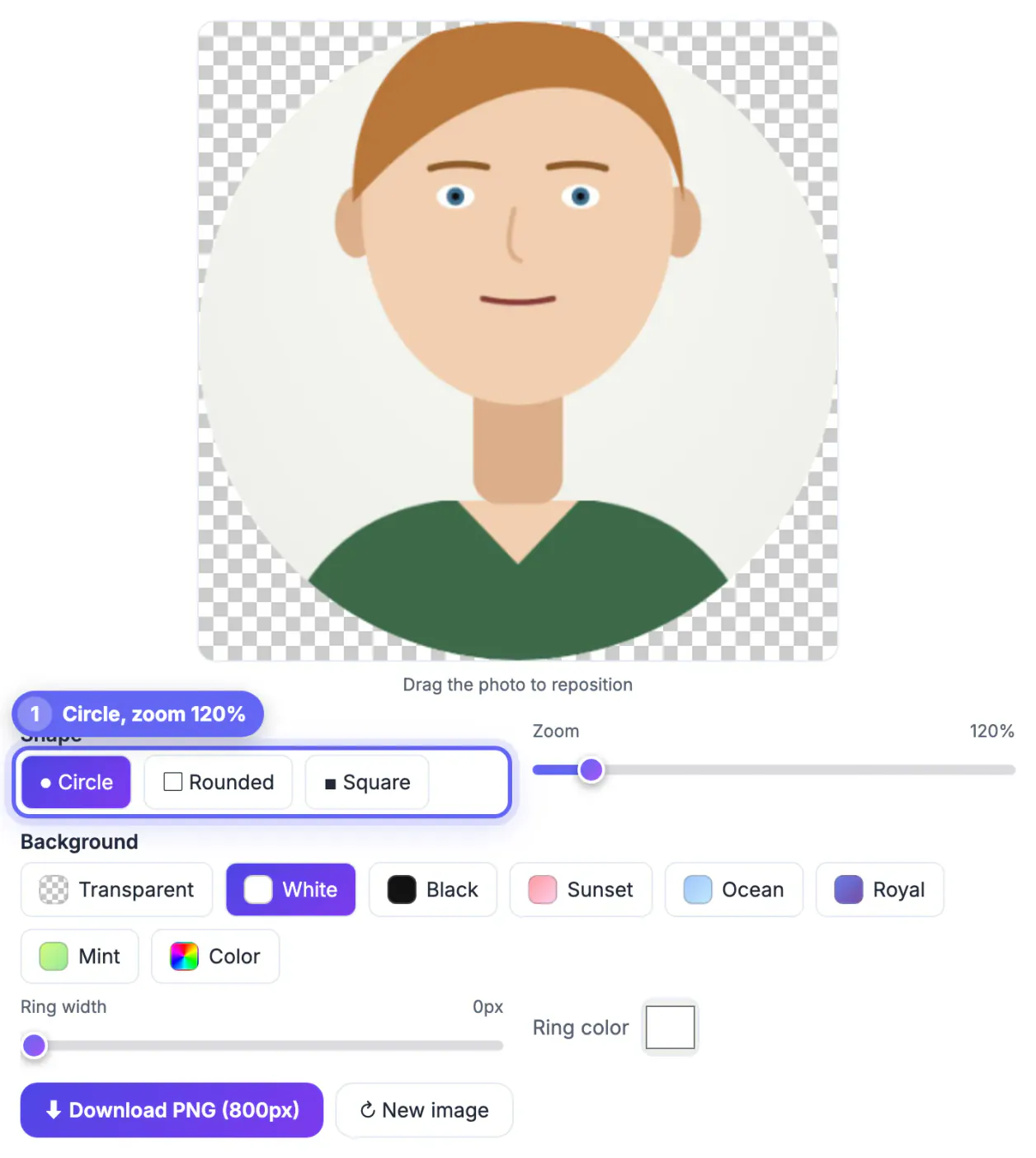
Drop your photo in and choose a shape: Circle for most social networks, Rounded for Slack-style squircles, Square when a platform applies its own mask. Drag to center your face and use the zoom slider up to 300 percent so your head fills the inner area after the border takes its share.
Set the width slider, then click the ring color swatch and pick or paste your shade. The background chips, including Transparent, White, Black, four soft gradients and a custom color, fill the corners outside the circle and anything showing through a cut-out photo. Choose Transparent for platforms that mask the image themselves, so no stray corners appear.
Download produces an 800 by 800 PNG. The work happens on a canvas in your browser; the photo is never sent to a server.
Keeping one look across Discord, X and Slack
Consistency matters more than the exact shade. Use the same photo, color and width everywhere so the border becomes part of your identity. Save the slider value and hex code in a note, because matching by eye six months later rarely works.
- Discord: circle mask; Nitro members can also add decorations that sit over any border you bake in
- X and Instagram: circle; upload the square PNG and let the network crop it
- Slack and Microsoft Teams: rounded square; the Rounded shape previews that result
- WhatsApp and Signal: circle, often viewed tiny, so lean toward the thicker range
Brands with several team members get the most out of this. Give every staff account the same shade and width, and customers instantly know which replies in a busy community server or support thread come from the official team. Moderators can use a second, clearly different hue so their role is visible at a glance without anyone reading a badge or title.
For a round avatar base, the Round Corners & Circle Crop tool shapes the image, and the Remove Image Background tool removes a distracting backdrop first.
Step-by-step
Common mistakes to avoid
Pro tips
Frequently asked questions
How do I add a colored ring to my avatar for free?
Open the GrabCast Profile Picture Maker, load a photo, choose Circle, set the ring width slider above zero and pick a color. Download the 800 x 800 PNG and upload it to your profile. No account or watermark is involved.
What ring width looks best on Discord?
Discord shows message avatars at about 40 pixels, so a slider value around 14 to 20 works well. That gives an outline of roughly 25 to 36 pixels on the 800 pixel export, which still shows as a clear band when shrunk. Check it in both the member list and a message thread, since the sizes differ slightly.
Can I use a gradient ring?
The ring itself is one solid color you choose with the picker. The background presets include gradients, such as Sunset, Ocean, Royal and Mint, which fill the corners and any transparent areas of your photo, not the ring. For a gradient look, cut your photo out with the Background Remover first so the gradient shows behind you.
Will the ring be cut off by the platform's circle mask?
Not if you use the Circle shape, because the ring is drawn inside the square canvas along the same circle most platforms use. On Slack-style rounded squares, preview with the Rounded shape instead.
Is my photo uploaded when I make the avatar?
No. Cropping, the colored border and the export all happen on a canvas in your browser. The file only leaves your device when you upload it to the social network yourself.
Add a colored ring to your avatar by setting the width to roughly 5 to 8 percent of the circle and choosing a mid-tone color that works in light and dark mode. Build it in the Profile Picture Maker, test it at chat-list size and reuse the same settings on every platform.
Related guides
Browse more: all image guides · Profile Picture Maker