Pick a Color From an Image: Exact HEX and RGB Values
To pick a color from an image, load it into a color picker, hover over the spot you want (or tap on a phone), and read the HEX and RGB values of that exact pixel; clicking copies the HEX code. The catch is that one pixel is not always the color you think it is: JPG compression, soft edges and resizing blend neighboring colors. This guide shows where to sample so the code you copy matches the color people actually see, and what to do with it next.
🎨 Try Color Palette & Picker now — freeOpen →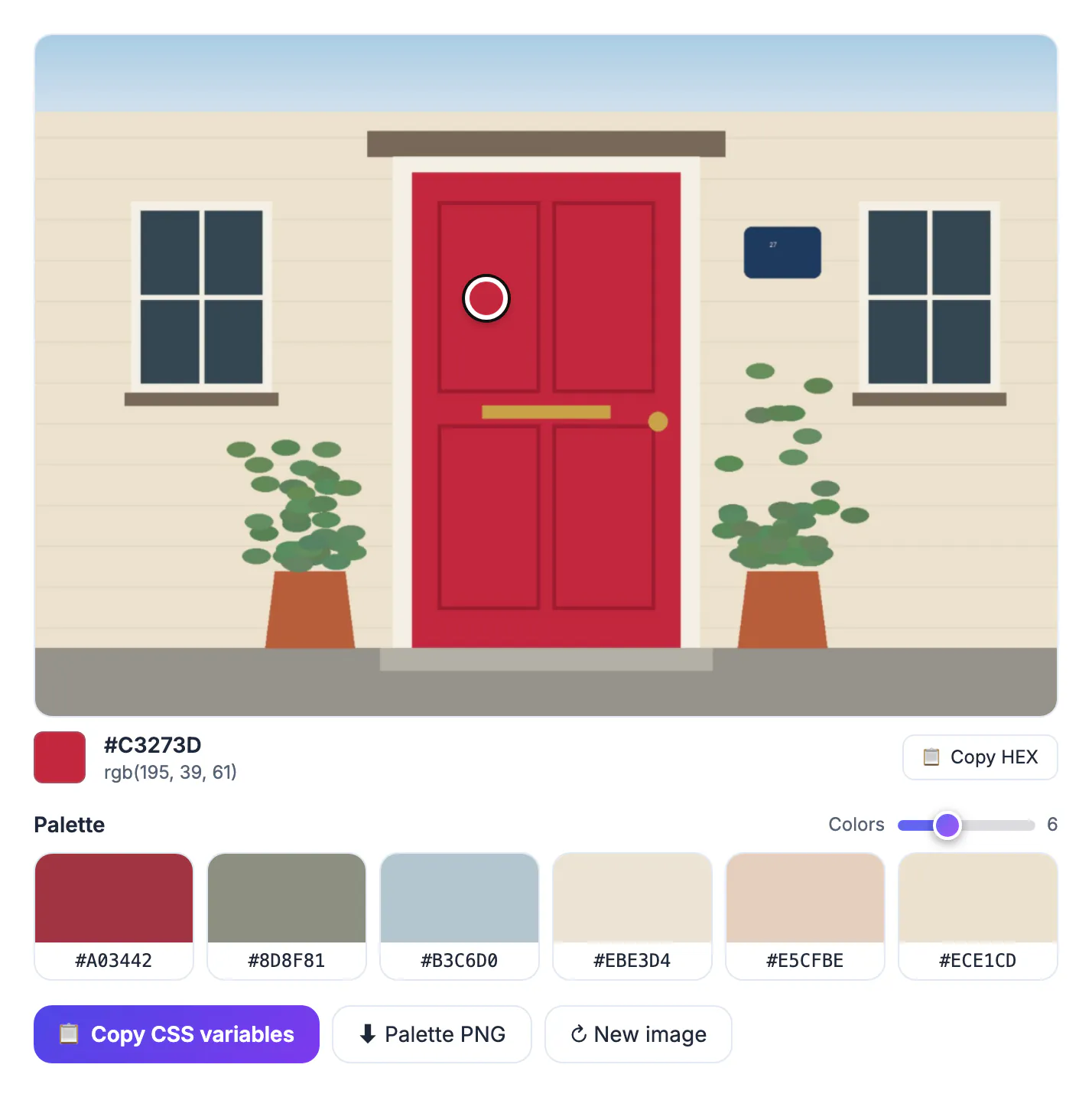
Matching a brand color from a logo, a paint shade from a product photo or a button color from a screenshot all need one precise value, not an average. A slightly wrong value, say #E21E4A instead of #E11D48, shows up when two versions sit side by side on a site or in print.
Eyedropper vs extracted palette: which one you need
GrabCast's Color Palette and Picker does both jobs on the same image, in your browser, without uploading it.
- Pixel picker (eyedropper): reports the exact HEX and RGB of the single pixel under the pointer. Use it for a logo, a UI element or a specific paint or fabric shade.
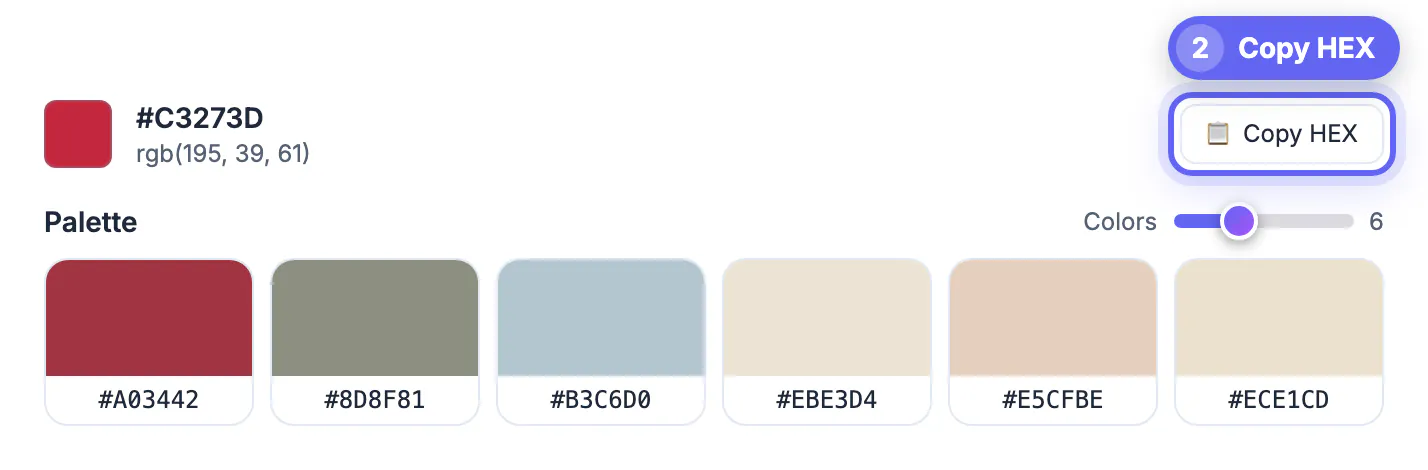
- Extracted palette: groups similar pixels and averages each group into 4 to 10 swatches. Good for the overall mood of a photo, wrong for an exact spec, because an average can be a color that appears nowhere in the image.
If a palette swatch looks close but not right, switch to the picker and sample the object itself.
Why JPG compression and soft edges shift the color you pick
Three things make one pixel differ from its neighbors, even on a flat logo.
- JPG compression stores color at lower detail than brightness, often sharing color across small blocks of pixels, and adds faint ripples near edges. A red logo on white can read #E0204A in the middle and #E86A80 near the border.
- Antialiasing blends the edges of text and shapes with the background so they look smooth. Edge pixels are a mix, never the true color.
- Resizing averages pixels. The picker reads from a display copy of up to 1,200 pixels on the long side, so on big photos thin details blend with their surroundings.
- Lighting gives a painted wall in a photo dozens of real colors.
Pick a color from an image accurately: where to sample
A few habits get you the value that matches what people see.
- Sample from the middle of the largest flat area, several pixels away from any edge or text.
- Hover across the area and watch the HEX value. When it stays the same over a patch, you have found the true color; if it jumps around, it is noise or compression.
- For small details, crop the image tightly first with a crop tool so the area fills the preview, and keep the cropped image under 1,200 pixels so each pixel is read as is.
- Use the original file, such as a logo's PNG export, not a screenshot of a screenshot.
- Transparent areas have no color and read as #000000; sample only the visible parts of a PNG.
The picker has no magnifier, which is why cropping is the practical way to zoom in.
Copy the code and convert it to other formats
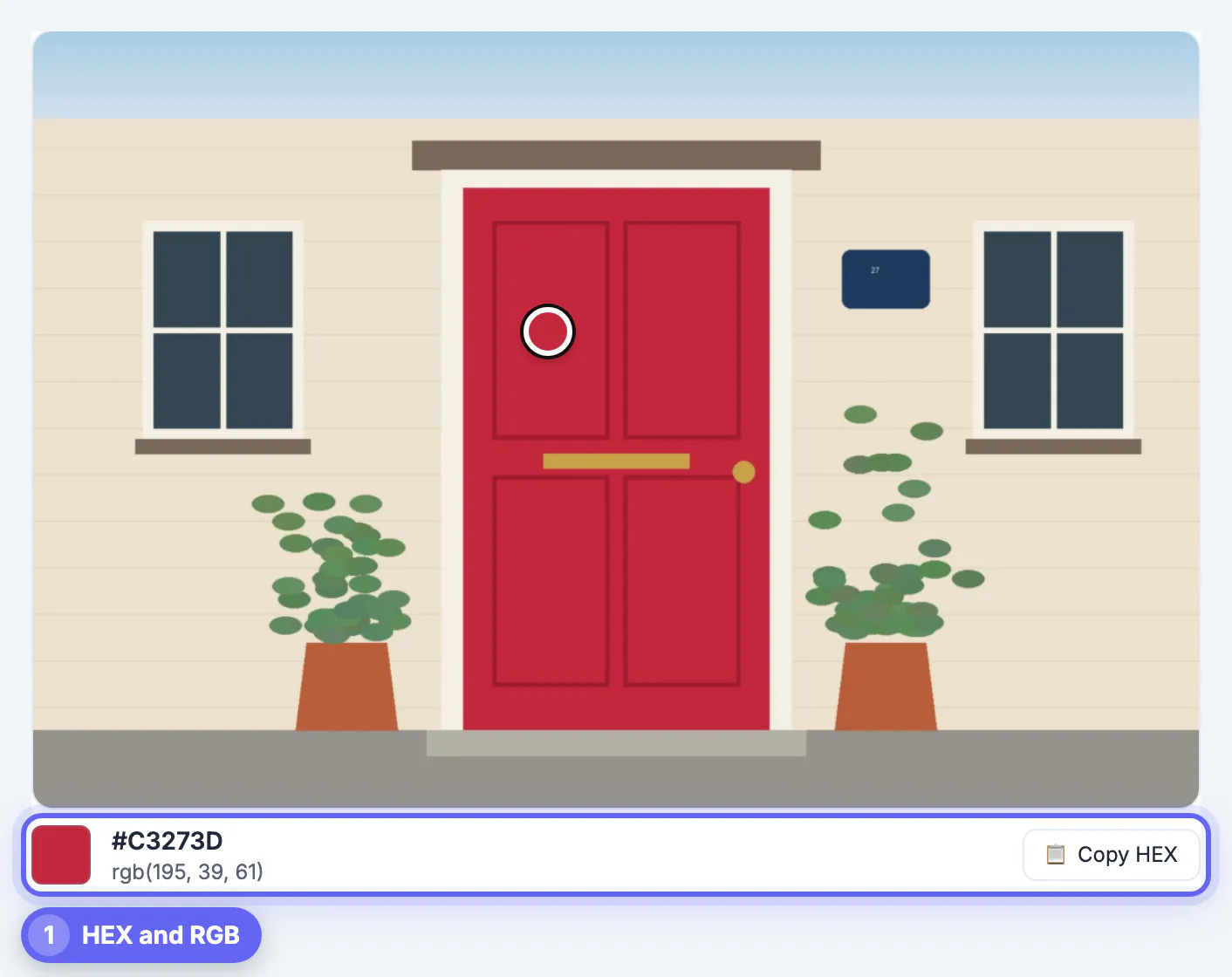
Hovering updates the swatch live; clicking the image locks the color and copies its HEX code. On a phone, tap the spot and use Copy HEX. The RGB value is shown underneath as rgb(r, g, b) for you to select and copy.
- Values are sRGB, the standard for web and most apps, and match what your browser displays.
- For HSL, which is handy for making lighter or darker variants, paste the HEX into the Color Converter.
- For print, treat a screen HEX as a starting point and ask for a proof; screens and ink differ.
- Check contrast before using a picked color for text, especially light colors on white.
Using the picked color in design and code
Once you have the HEX code, paste it into your stylesheet, design tool or brand document. Keep a note of where the color came from, and check that text using it has enough contrast against its background, since a color that looks good in a logo may not work for small copy.
- Save HEX, RGB and a name for each color in a shared palette.
- Check contrast of text and background against accessibility guidelines.
- Use the same value everywhere to avoid slightly different shades.
To convert between formats, converting HEX to RGB and HSL explains the math, and converting RGB to HEX covers the reverse. For a whole image, extracting a color palette from an image finds the dominant colors automatically.
Common mistakes when sampling colors
Avoid picking from photographs of printed items, because lighting changes the result. Do not sample near edges, gradients or shadows, and remember that a screenshot may be color-managed differently from the original file. When accuracy matters, ask for the brand guidelines from the owner of the logo.
Using the picked shade in design and code
Once you have the HEX code, paste it into your stylesheet, design tool or brand document. Keep a note of where the value came from, and check that text using it has enough contrast against its background, since a hue that looks good in a logo may not work for small copy.
- Save HEX, RGB and a name for each shade in a shared palette.
- Check contrast of text and background against accessibility guidelines.
- Use the same value everywhere to avoid slightly different tones.
To convert between formats, converting HEX to RGB and HSL explains the math, and converting RGB to HEX covers the reverse. For a whole picture, extracting a palette finds the dominant tones automatically.
Common mistakes when sampling
Avoid sampling a photograph of a printed item, because lighting changes the result. Do not sample near edges, gradients or shadows, and remember that a screenshot may be managed differently by your display than the original file. When accuracy matters, ask for the brand guidelines of the logo's owner.
Step-by-step

Common mistakes to avoid
Pro tips
Frequently asked questions
How do I get the HEX code of a color in an image?
Load the image into the picker and hover over the color, or tap on a phone. The HEX and RGB values update live; click the image to copy the HEX code.
Why do I get slightly different colors in the same area?
Compression, noise and lighting vary pixel by pixel. Sample a flat area and use the value that repeats.
Is my image uploaded?
No. The image is drawn onto a canvas in your browser and both the picker and the palette read pixels locally.
Can I pick a color from a screenshot?
Yes. PNG screenshots are ideal because they are not lossy. Avoid edges and text.
How do I convert the picked color to HSL?
Copy the HEX and paste it into the Color Converter, which shows HEX, RGB and HSL. The picker itself reports HEX and RGB.
One pixel gives you an exact code, but only if you pick the right pixel. Sample the center of flat areas, confirm the value repeats, crop small details first, and use the original file where you can. The picker gives you HEX and RGB instantly without uploading anything; the Color Converter handles the rest.
Related guides
Browse more: all image guides · Color Palette & Picker