Crop Image to 1:1 Square Free, With Exact Pixels
To crop an image to a perfect 1:1 square, open GrabCast Crop Image, click the 1:1 preset, drag the box over your subject, and download; the width and height come out identical to the pixel, in the same format you started with. Square images are everywhere, from product grids and marketplace listings to podcast covers, album art and profile photos, yet cropping one well is more about composition than clicking a button. This guide covers where squares are still required, how to frame people, products and landscapes inside a square, how to hit exact sizes such as 1080 by 1080 or 3000 by 3000, and which format to save. It all runs in your browser, so the photo stays on your device.
✂️ Try Crop Image now — freeOpen →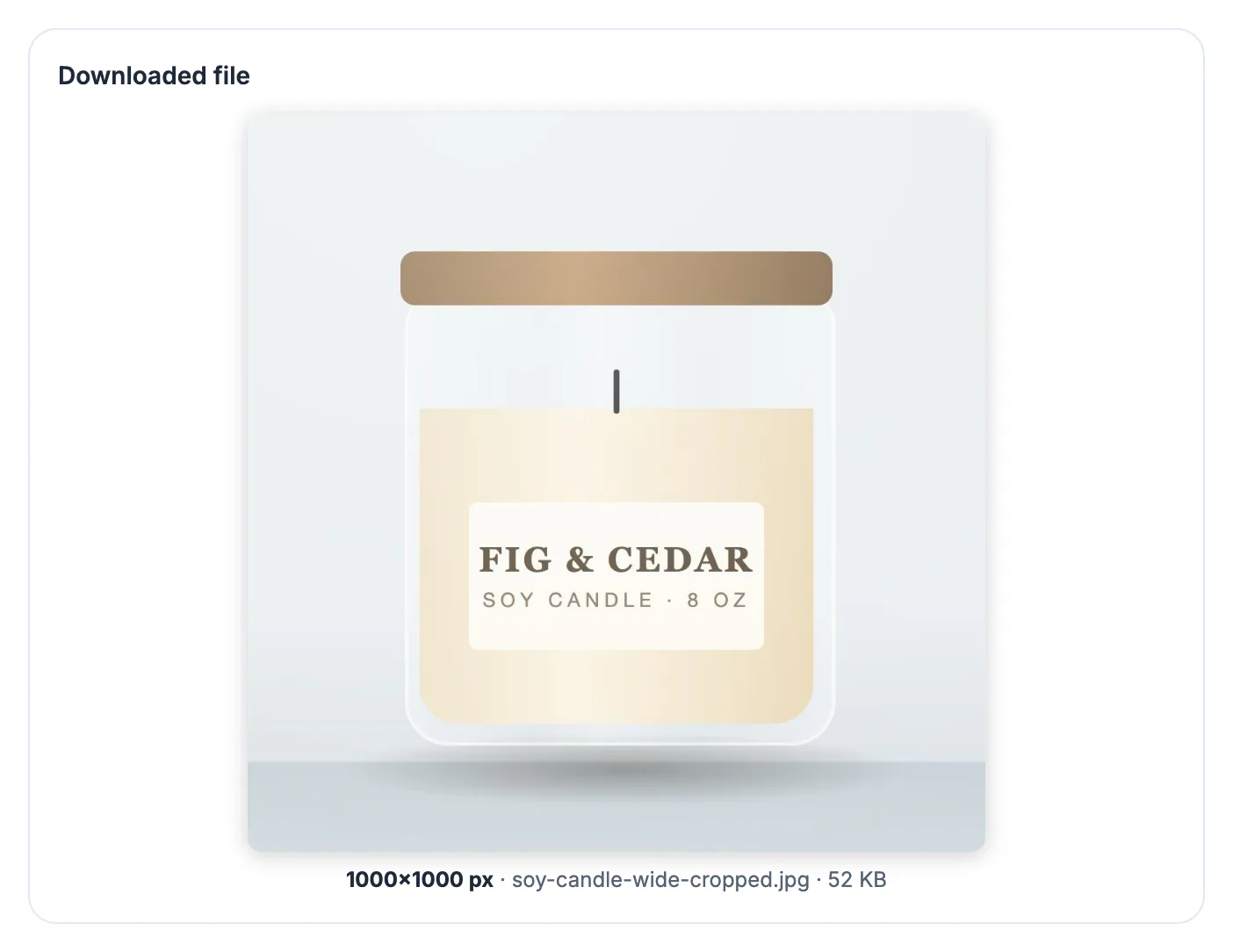
Even as feeds move toward taller portrait formats, the square remains the safe common denominator. Online stores and marketplaces such as Etsy, eBay and Shopify themes display product grids as squares, so an off-ratio photo gets letterboxed or cropped automatically, often badly. Music distributors ask for square cover art, typically 3000 by 3000 pixels, and podcast directories want square artwork between 1400 and 3000 pixels. Profile pictures on LinkedIn, Slack, Gmail and GitHub are uploaded as squares and then masked into circles. When the platform crops for you, it usually takes the center, which can cut off a head, a logo or the product label. Cropping yourself first means you decide what is in the frame, and it lets you upload the same file to several places with confidence. A deliberate square also looks sharper, because you choose which details survive instead of leaving them to an automated center cut.
Crop an image to 1:1 in GrabCast
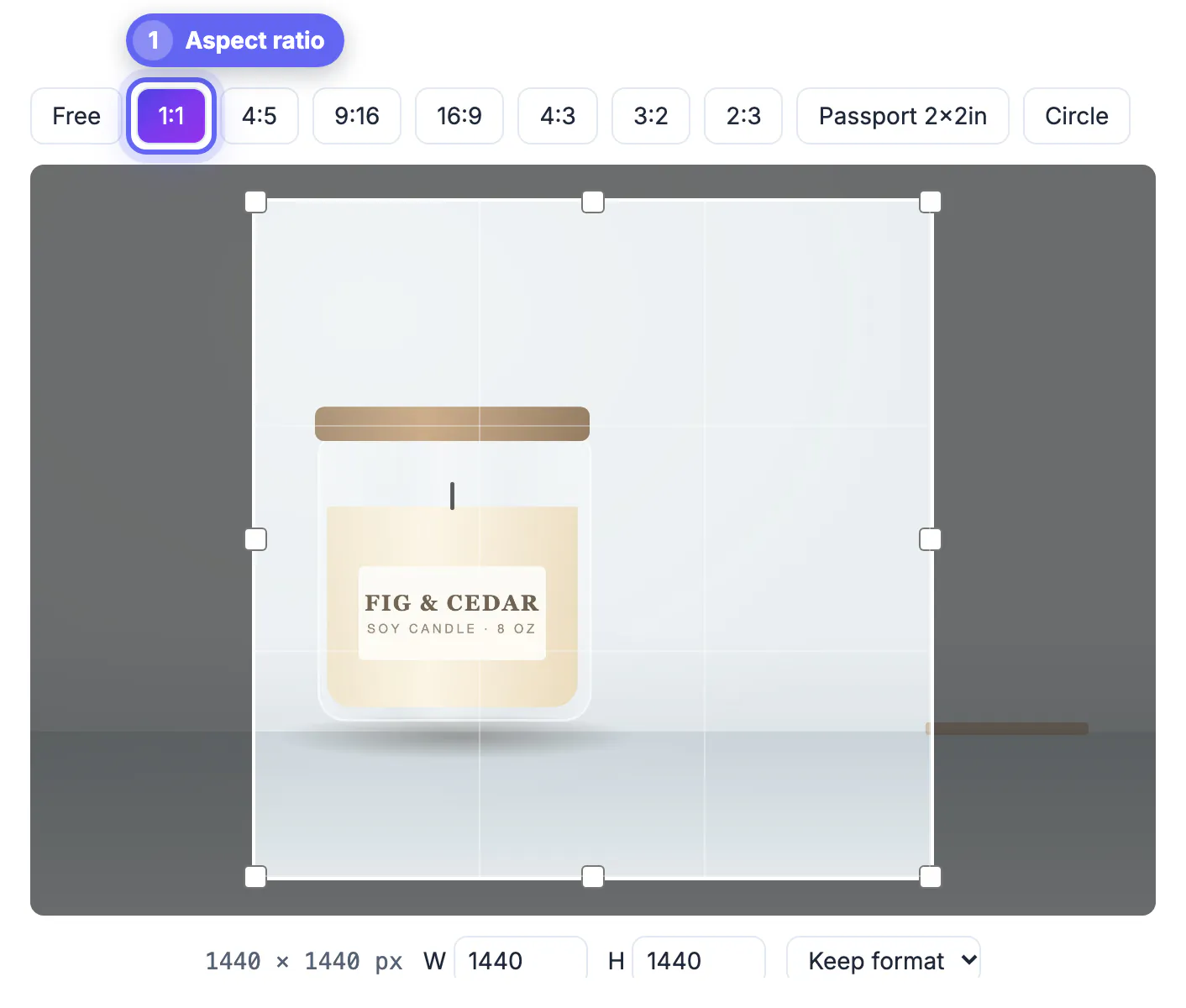
The tool gives you a draggable box with the ratio locked, so every adjustment stays perfectly square.
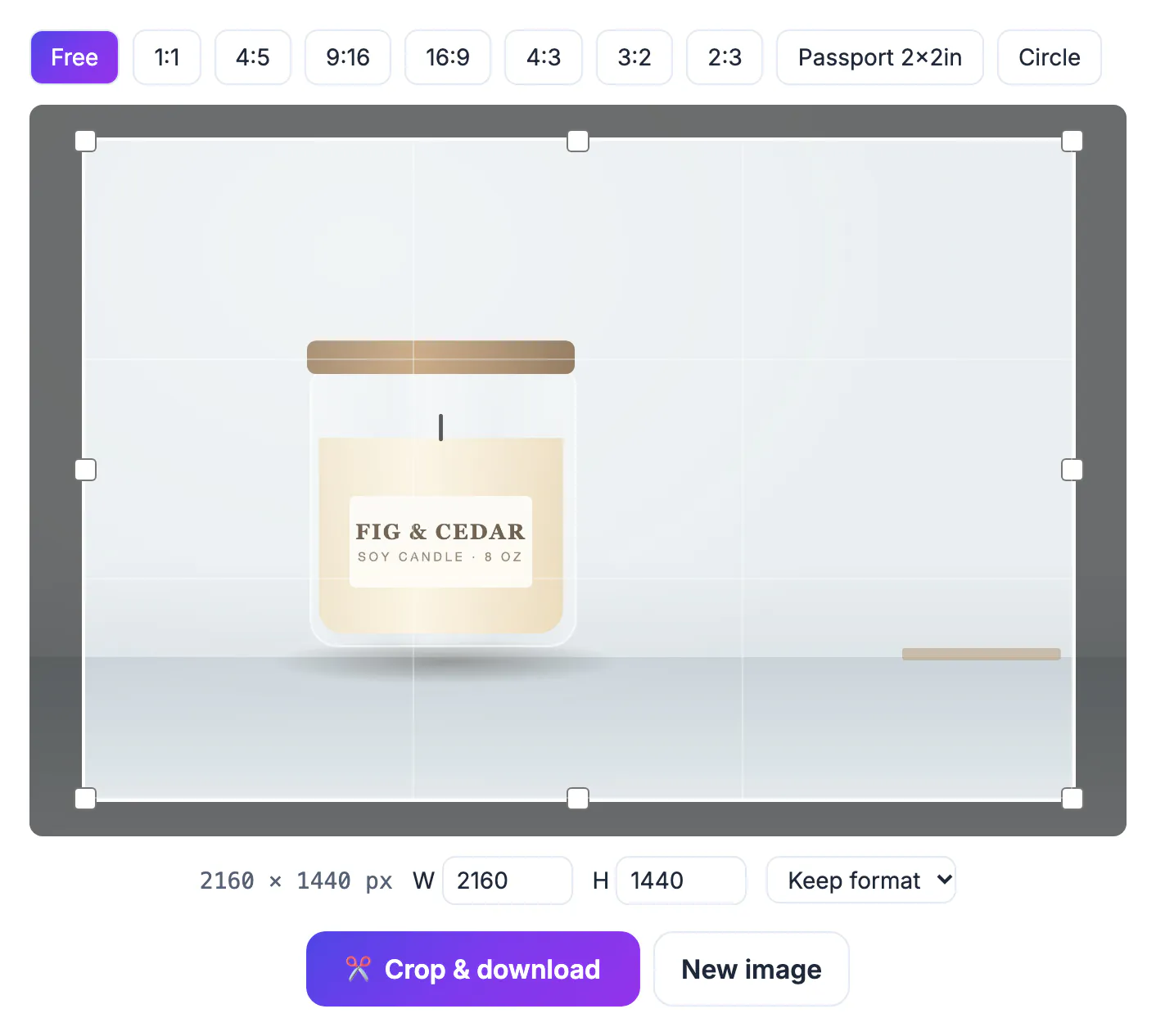
- Drop in a JPG, PNG or WebP and click 1:1; the box starts at 90 percent of the shorter side, centered.
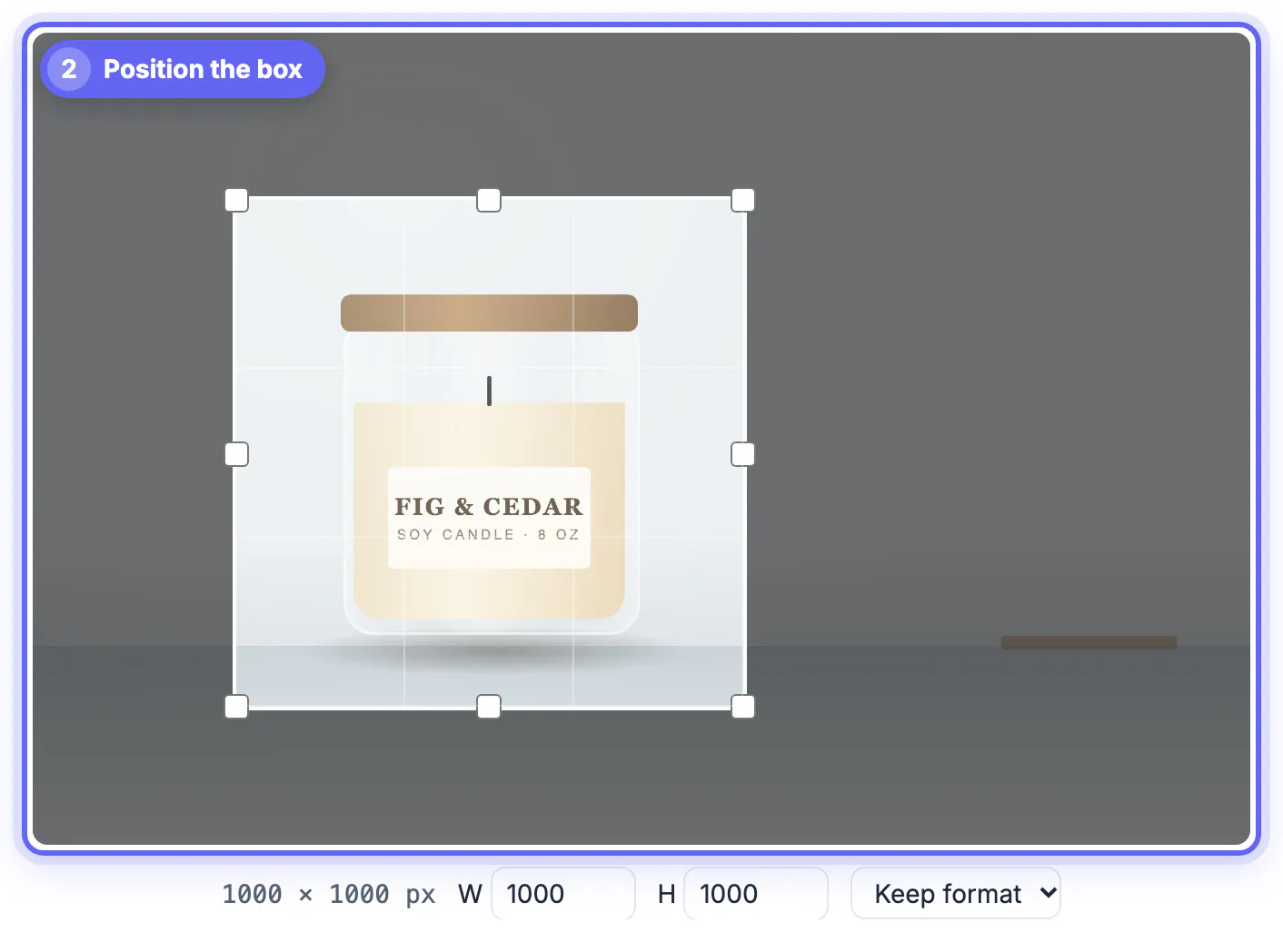
- Drag the box to move it and drag any corner to resize; the thirds grid helps with placement.
- Watch the live readout, such as 2400 x 2400 px, to see exactly what you will get.
- Choose Keep format, or switch to PNG, JPG or WebP, and click Crop and download.
Need a round avatar instead? The Circle preset takes a square, masks it round and saves a transparent PNG, and the Passport preset gives a 2 by 2 inch square for US passport photos.
The shaded area outside the box shows what will be removed, which makes it easy to spot a stray elbow, a distracting sign or a cut-off fingertip before you commit.
Framing different subjects in a square
A square has no dominant direction, so centered compositions feel calm and off-center ones feel intentional. Match the approach to the subject.
- Portraits: put the eyes on the upper third line and leave a little space above the head; do not crop at the chin or the joints.
- Products: center the item, leave 10 to 15 percent margin on every side, and keep labels fully visible for marketplace thumbnails.
- Landscapes: choose one focal point, such as a tree or a peak, and place it on a thirds intersection rather than trying to fit the whole panorama.
- Logos and graphics: center them precisely and leave equal padding so they survive a circular mask.
Group photos are the hardest case. If people are spread across a wide frame, a square will cut someone out, so either choose a tighter subgroup or pick a different ratio such as 4:5 for that image.
Hitting exact pixel sizes
Typing a number into the W or H field sets the selection box to that many pixels of the original photo, and the other field follows automatically because 1:1 is locked. That is ideal when your source is large, for example taking a 1080 by 1080 section from a 4000 by 3000 photo.
If you want the entire square scaled to a specific size instead, cut first at full size, then use the Resize Image tool to scale it down to 1080, 1400 or 3000 pixels. Cropping never adds detail: a 600 by 600 selection enlarged to 3000 by 3000 will look soft, so start with a photo that already has enough pixels on its shorter side.
For consistent listings, note the pixel size you used on the first product photo and type the same value for every other one, so all thumbnails match exactly.
Choosing the format
Keep format is the right default: PNG stays lossless, and JPG or WebP output is re-saved at 95 percent quality, which is visually indistinguishable from the original. Change it only when the destination needs something else.
- JPG: photos for marketplaces, social posts and album art; small files, no transparency.
- PNG: logos, screenshots and circle avatars that need a transparent background.
- WebP: websites and online stores that support it, with smaller files at similar quality.
When unsure, export once in the original format and once as WebP, then compare file size and appearance before uploading the smaller acceptable version.
Squares often end up as avatars, and the Profile Picture Maker is a quick next step.
Step-by-step

Common mistakes to avoid
Pro tips
Frequently asked questions
How do I crop an image to a 1:1 square for free?
Open GrabCast Crop Image, choose the 1:1 preset, move the box over your subject and download. The result has identical width and height in pixels. You can move and resize the box as often as you like before downloading, and nothing is changed until you click the button.
What size should a square image be?
1080 by 1080 pixels suits most social posts, 1400 to 3000 pixels suits podcast covers, and 3000 by 3000 is standard for album art. Check each platform's current guidance, since recommended sizes change occasionally, but those three values cover most needs.
Does cropping reduce image quality?
Not visibly. Cropping removes pixels outside the box; PNG output is lossless, and JPG or WebP is re-saved at 95 percent quality, which looks the same as the original.
Can I make a circle profile picture?
Yes. The Circle preset crops a square and masks it round, and it saves as PNG automatically so the corners stay transparent. Leave generous space around the face so ears and hair are not clipped by the round mask.
Is my photo uploaded when I crop it?
No. The crop happens entirely in your browser, so the image stays on your device. That makes it suitable for personal photos, client shots and unreleased product images.
A square crop is simple to make and easy to get wrong. Lock 1:1, frame the subject with margin, set exact pixels from a large original, and keep the format unless the destination needs PNG or JPG. GrabCast Crop Image does it free in your browser, so you control the frame before any platform does.
Related guides
Browse more: all image guides · Crop Image