Extract a Color Palette From an Image, Then Refine It
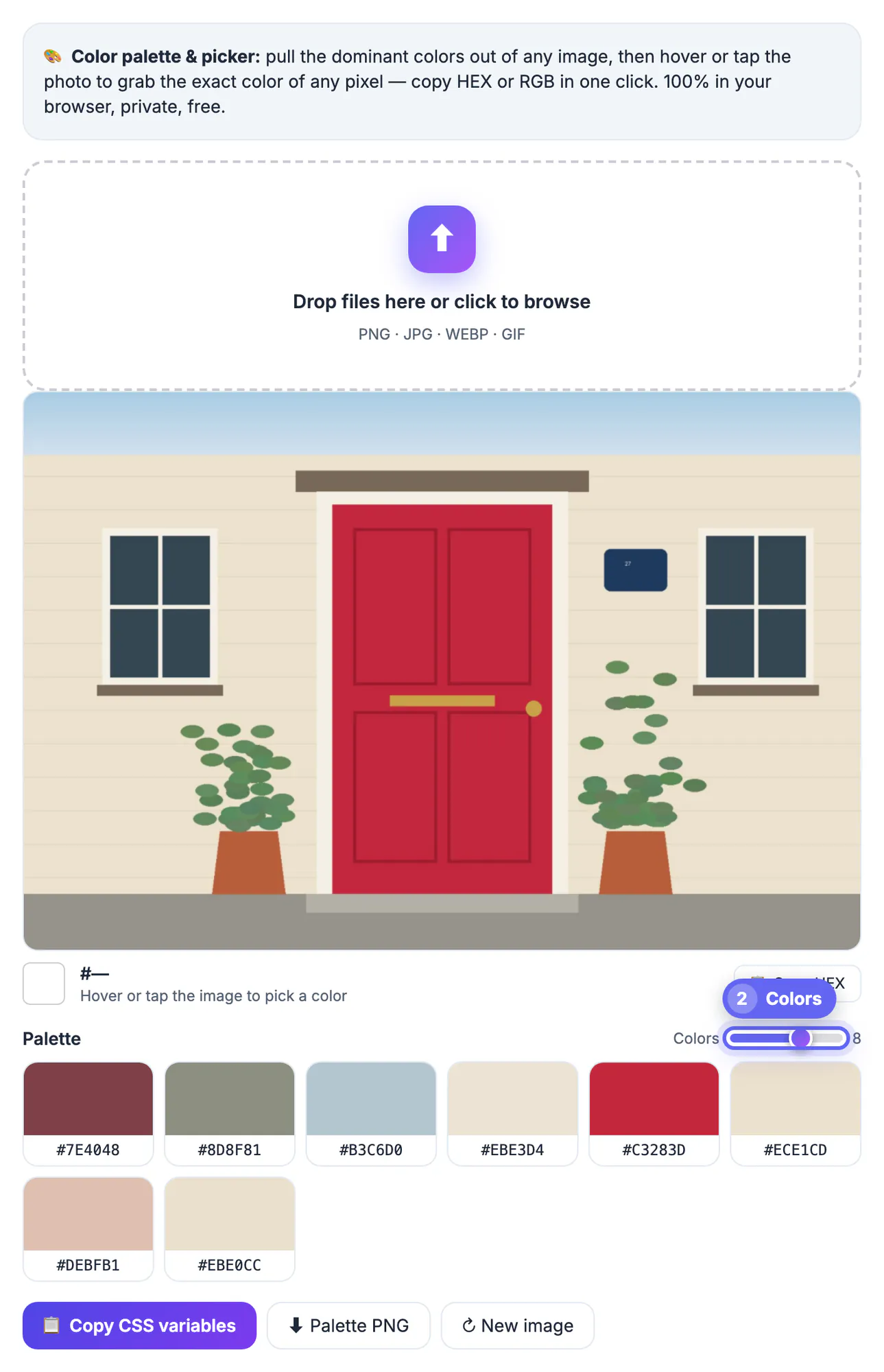
To extract a color palette from an image, drop the picture into GrabCast's Color Palette Extractor, set the Colors slider between 4 and 10, and click any swatch to copy its HEX code, or copy the whole set as CSS variables. Everything happens on a canvas in your browser, so unreleased designs and private photos never leave your device. The quick answer hides a catch, though: an automatic palette is an average of groups of pixels, so a tiny red logo on a big blue sky can vanish while the sky earns three near-identical blues. This guide explains how the extractor decides, how to prepare a photo so the swatches come out cleaner, when to switch to the pixel picker for an exact brand shade, and how to turn raw swatches into a scheme you can actually ship.
🎨 Try Color Palette Extractor now — freeOpen →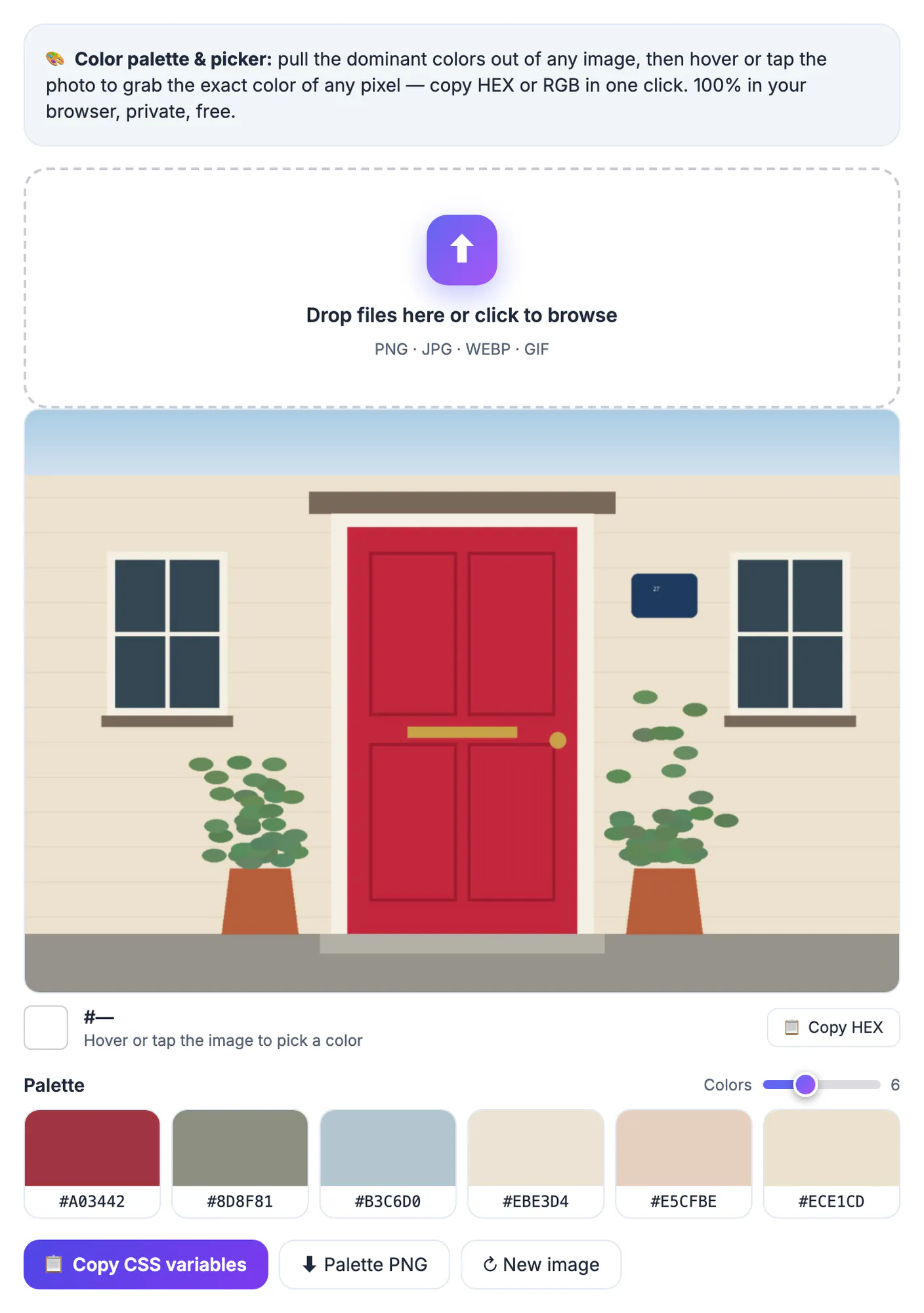
Shades that already sit together in a well-lit photo, a product shot or a piece of art tend to look right together on a page, because the light, the camera and the artist have already balanced them. Starting from that set is faster than spinning a color wheel, and it ties a landing page, a slide deck or a social template back to the imagery it will sit beside. Designers use it to match a website to a hero photo, marketers to keep a campaign on brand when the only reference is a logo JPG, and hobbyists to pull a scheme from a painting or a travel snapshot for a room, a quilt or a wedding invite.
How the extractor decides which colors win
The tool first shrinks your picture to 120 pixels on its longest side, which leaves at most 14,400 pixels to analyze and keeps the result instant even for a 12-megapixel photo. Pixels that are more than half transparent are skipped, so the empty area around a cut-out PNG does not count. It then runs a median-cut algorithm:
- All remaining pixels start in one group, measured by how widely their red, green and blue values spread.
- The group with the widest spread is split in half at its median along its widest channel, and the split repeats until there are as many groups as the slider asks for.
- Each group is averaged into one swatch, so a swatch can be a shade that no single pixel has exactly.
- Each split halves a group by pixel count, so large areas such as sky or a white background can claim several similar swatches, while a small accent gets averaged into a neighbor.
The order of the swatches follows the splitting, not how much of the picture each one covers, so do not read the first swatch as the dominant shade.
Prepare the picture for cleaner swatches
Most disappointing palettes come from the input rather than the algorithm. A few minutes of preparation changes the result more than any setting.
- Crop to the area you care about. A product shot with a large white studio backdrop will spend half its swatches on off-whites and grays.
- For logos, use a PNG with a transparent background, or crop tightly, so the canvas color does not dominate.
- Raise the slider to 10 when a small accent matters. More groups give minority shades a better chance of surviving on their own.
- Heavily compressed JPGs and noisy low-light photos add muddy in-between shades; use the cleanest original you have.
- Smooth gradients such as sunsets come out as evenly spaced steps, which is fine for a gradient palette but not for picking one exact shade.
Any format your browser opens works, including JPG, PNG, WebP and GIF. Screenshots of an app or website are especially good inputs, because their flat fills produce crisp, accurate swatches.
Use the pixel picker when you need one exact shade
An averaged swatch is right for mood and wrong for a brand spec. When you need the precise value of a logo, button or fabric, switch from the palette to the picker.
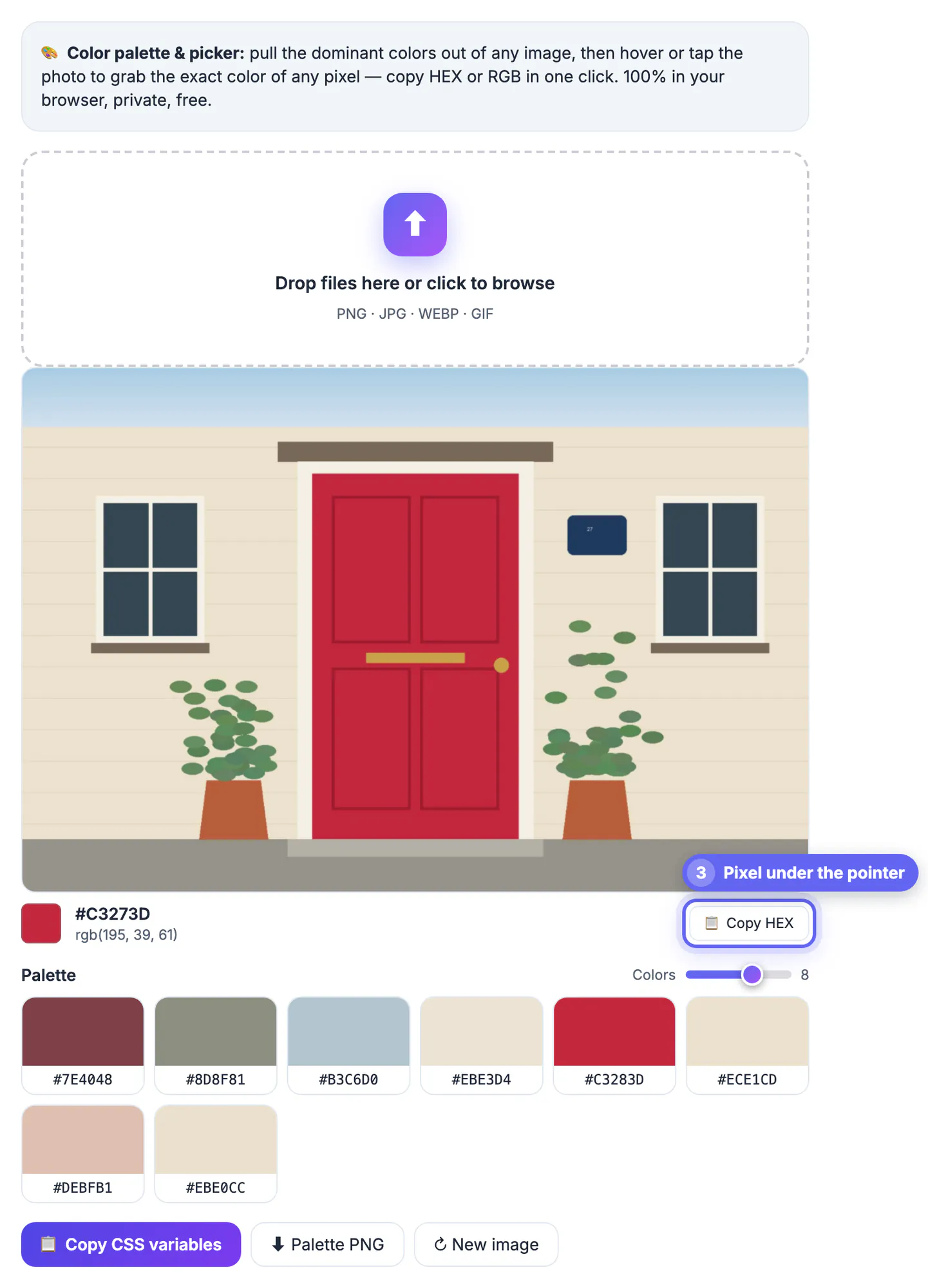
- Hover over the picture, or tap on a phone, to see the HEX and RGB value of the pixel under your pointer.
- Click to lock that pixel and copy its HEX code, or use the Copy HEX button.
- Sample from the flat middle of a shape, not its edge, where anti-aliasing blends it with the background.
- Large pictures are shown at up to 1,200 pixels wide for picking, which keeps the exact values of the pixels you see.
Values are reported in sRGB, the standard for the web. A wide-gamut iPhone photo or a print PDF may show slightly different numbers in a color-managed editor such as Photoshop, and a photo of a printed logo will never match the official code; ask the brand owner for it when accuracy matters.
Turn the extracted palette into a working scheme
Raw swatches are ingredients, not a finished scheme. Give each one a job before you design with it.
- Pick one dark and one light neutral for text and backgrounds; photos almost always provide both.
- Choose one saturated swatch as the primary for buttons and links, and one contrasting accent used sparingly.
- A common starting ratio is 60% neutral, 30% primary and 10% accent across a layout.
- Check every text and background pair for contrast; WCAG AA asks for 4.5:1 for body text, and mid-tone swatches often fail it.
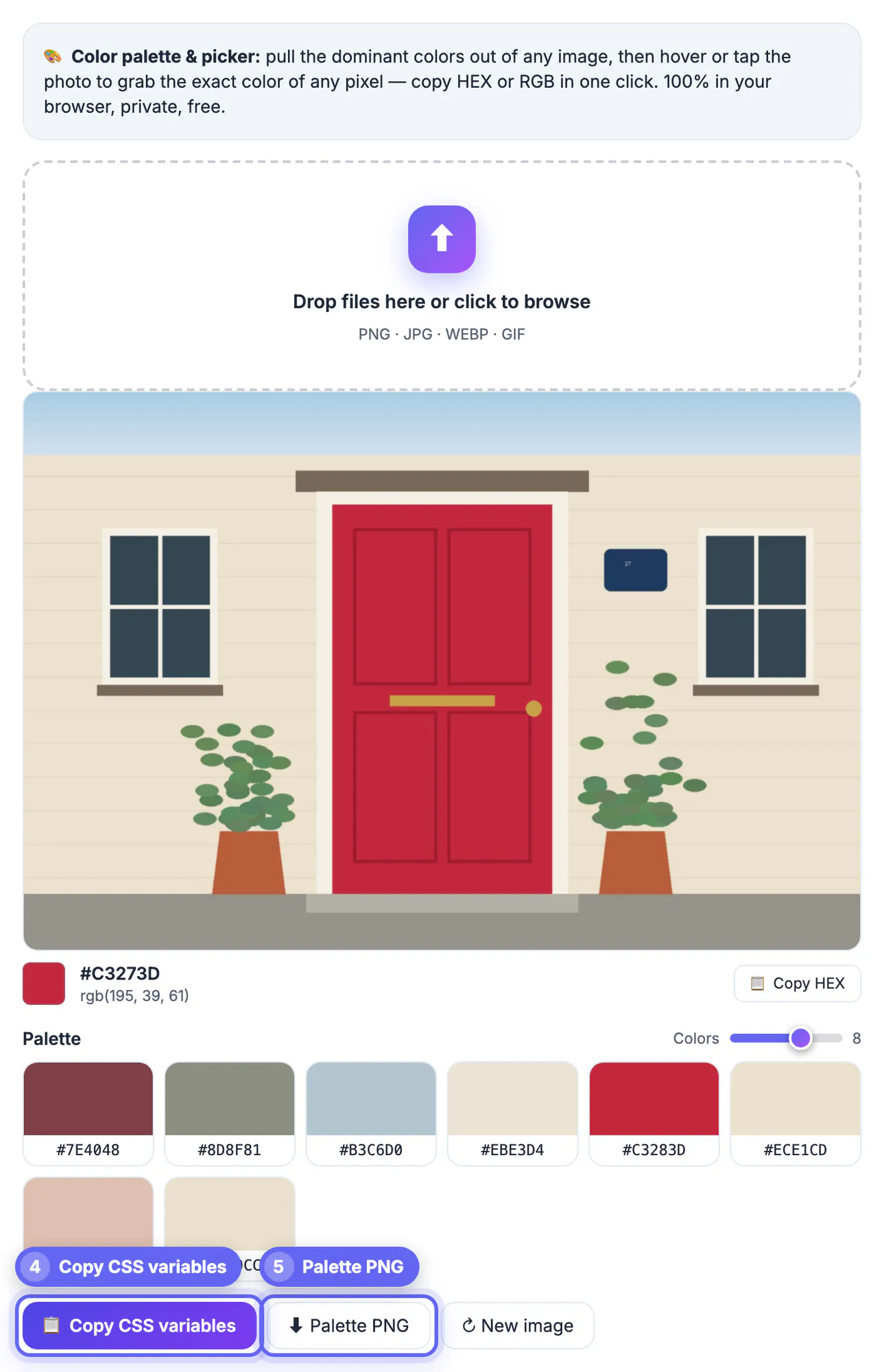
Copy CSS variables gives you a :root block with --color-1 through --color-10; rename them to roles such as --brand or --surface so the stylesheet stays readable. Palette PNG downloads a labeled swatch card for a mood board or a client email, and each HEX code pastes straight into Figma, Canva or Photoshop.
Test the palette for visual accessibility with the Color Blindness Simulator, and try the colours in a CSS Gradient Generator blend.
Step-by-step
Common mistakes to avoid
Pro tips
Frequently asked questions
How does the tool choose the main colors of a photo?
It samples a copy of the picture shrunk to 120 pixels on its longest side, ignores transparent pixels, groups similar pixels with a median-cut algorithm and averages each group into one swatch. Changing the slider re-runs the grouping instantly with 4 to 10 swatches.
Why is a small bright detail missing from my palette?
Each group holds a similar number of pixels, so a small accent is averaged with its neighbors. Crop closer, raise the slider to 10, or use the pixel picker to copy that exact shade.
How do I find the exact HEX code of one spot?
Move your pointer over the picture, or tap on a phone, and the swatch beside it shows that pixel's HEX and RGB. Click to lock and copy it to your clipboard.
Can I use the palette in CSS or a design app?
Yes. Copy CSS variables produces a :root block with --color-1, --color-2 and so on. Single swatches copy as HEX for Figma, Canva or Photoshop, and Palette PNG saves a labeled image.
Is my picture uploaded?
No. It is drawn onto a canvas in your browser and both the palette and the picker read pixels locally, so it is safe for unreleased designs and private photos. There is no sign-up or usage limit.
An extracted palette is a fast, harmonious starting point, not a finished brand spec. Crop the picture, set 4 to 10 swatches, use the pixel picker for exact shades, then give each swatch a role and check contrast. GrabCast's extractor does it all in your browser, with HEX codes, CSS variables and a palette image ready to copy.
Related guides
Browse more: all image guides · Color Palette Extractor