Extract Text From an Image Free: OCR in 20 Languages
To extract text from an image for free, open GrabCast's Image to Text tool, choose the language printed in the picture, drop in a JPG, PNG or WebP under 12 MB, and copy the recognized words or save them as a .txt file. Recognition runs on your own device with the open-source Tesseract.js engine, so a receipt, an ID card or a page of medical notes is never sent to a server. How clean the result is depends far more on the photo than on the software, so this guide covers how the OCR works, how to capture pictures it reads cleanly, what it still gets wrong, and five everyday jobs from photo to finished text.
🔎 Try Image to Text (OCR) now — freeOpen →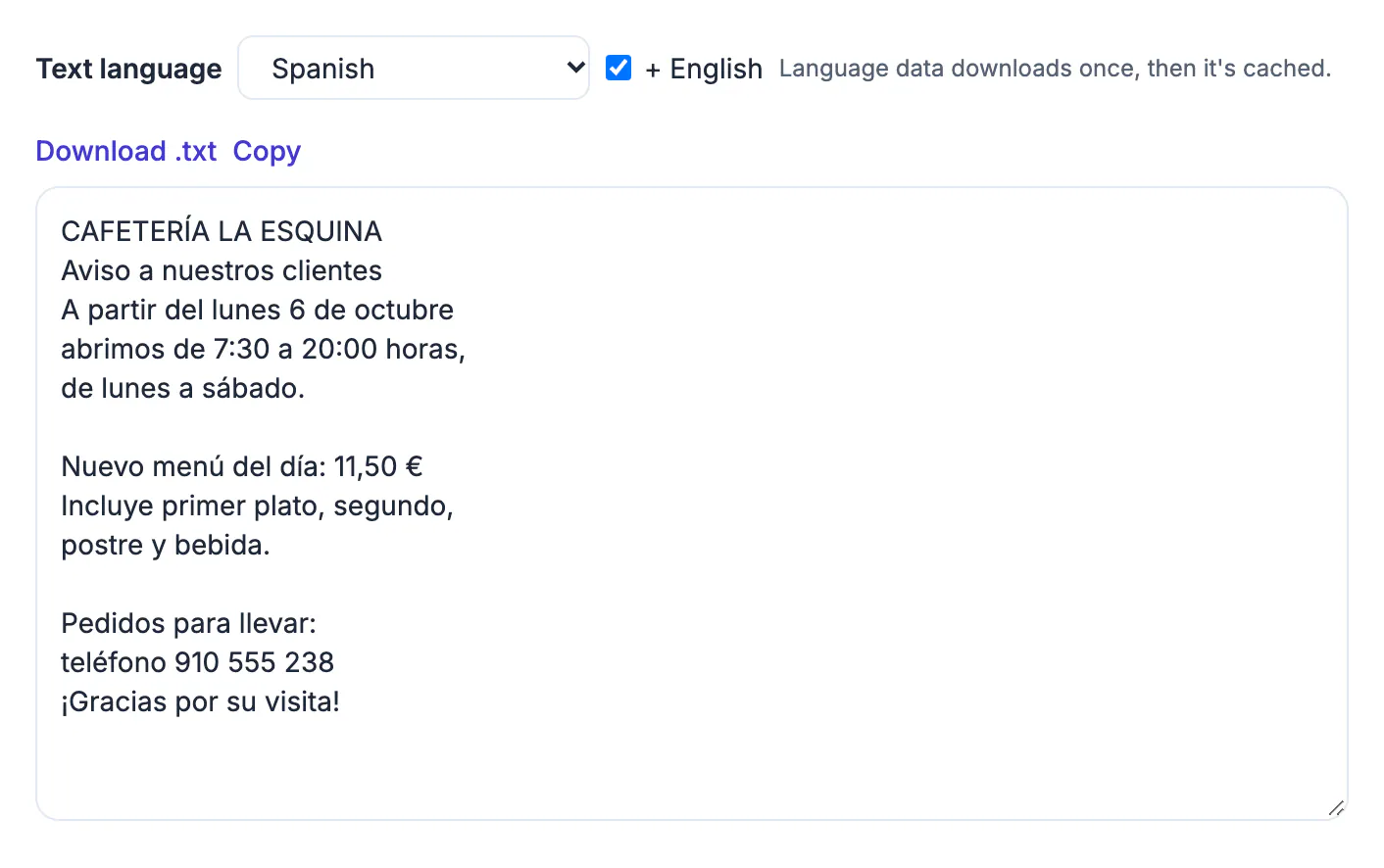
Retyping a 300-word recipe card or a page of meeting notes takes most people five to eight minutes and introduces typos you then have to hunt down. A sharp photo run through OCR takes about ten seconds, and fixing a handful of misread characters is faster than typing everything. The payoff grows with volume: a stack of printed handouts, a folder of receipts for an expense report, contact details from a pile of business cards, or quotes you want from a library book. Once the words are digital you can search them, paste them into a spreadsheet, translate them or have a screen reader speak them aloud for someone with low vision. The only real cost is a quick proofread.
How the free OCR tool extracts text from an image
Tesseract.js finds lines and word shapes in the picture, then a trained neural network guesses each character. The engine and each language's data file download from a public CDN the first time you use them, which is why the first scan is slower; after that they are cached.
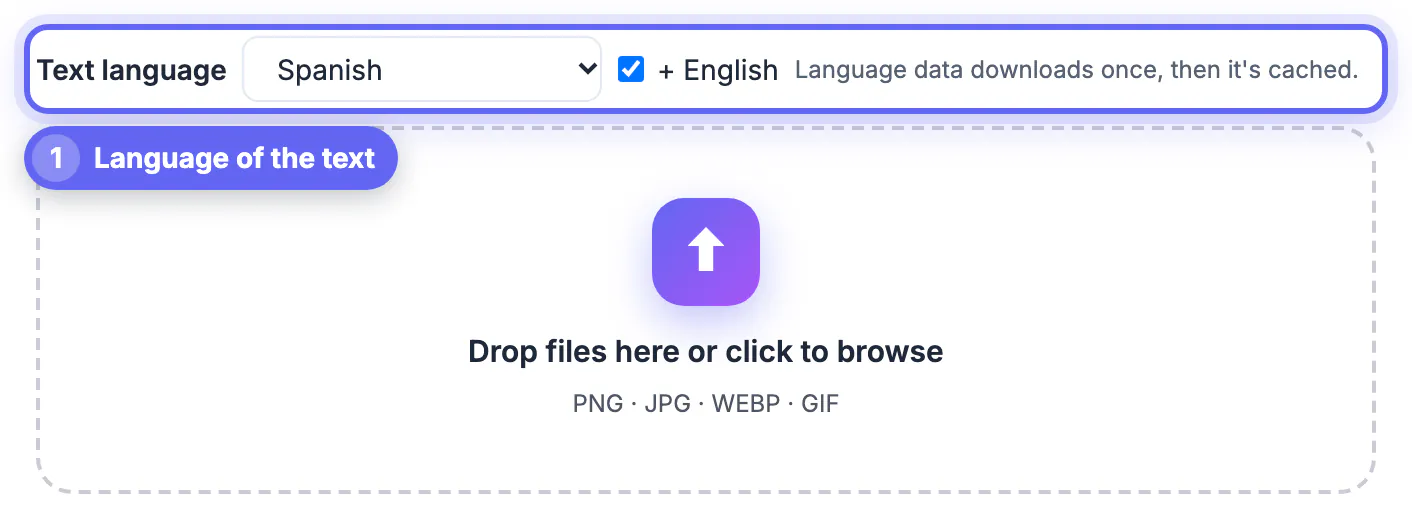
- Twenty languages: English, Spanish, French, German, Italian, Portuguese, Dutch, Polish, Swedish, Turkish, Russian, Ukrainian, Arabic, Hindi, Chinese (Simplified and Traditional), Japanese, Korean, Vietnamese and Indonesian
- A plus English checkbox adds English on top of another language, useful for a Spanish menu with English brand names
- One image per run, under 12 MB; larger files can run out of memory in the browser, especially on phones
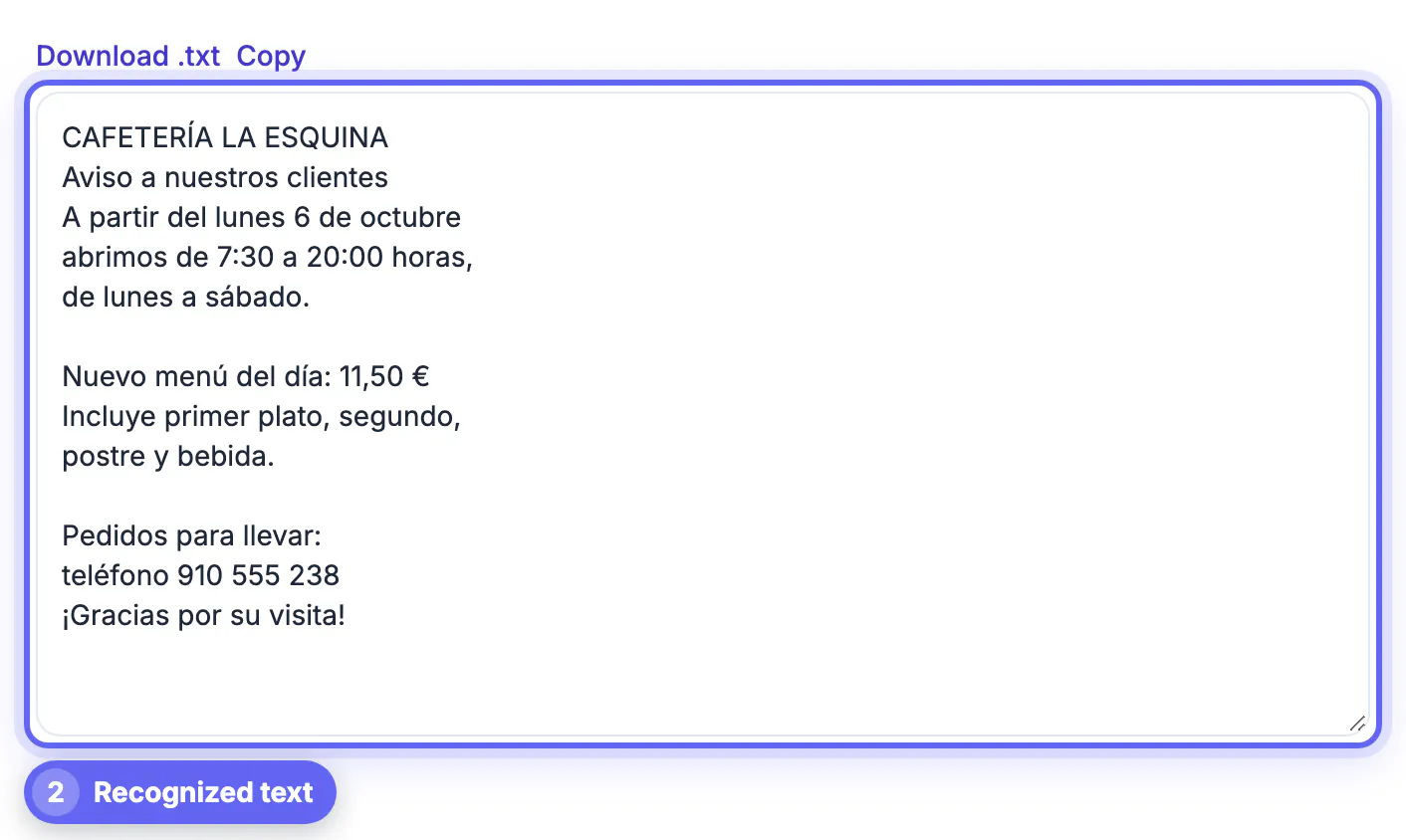
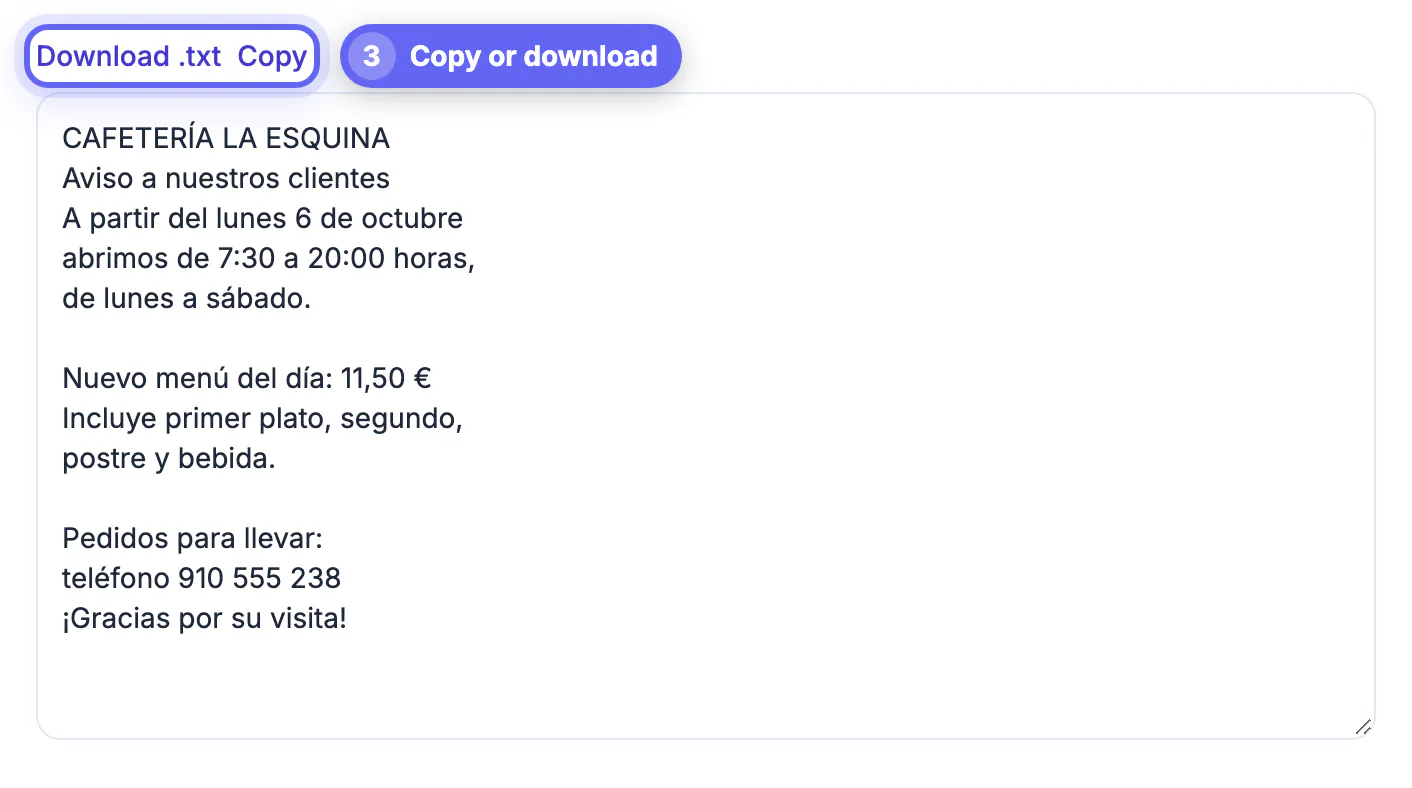
- The result appears in an editable box with Copy and Download .txt buttons
On a recent laptop a full printed page usually finishes in five to fifteen seconds; an older phone may need closer to a minute for a dense page. Nothing waits on a server queue, so busy times of day make no difference.
Photo prep that fixes most recognition errors
Letters need enough pixels. As a rule of thumb, lowercase letters should be at least 20 pixels tall in the image, roughly what a 300 dpi scan gives for normal print. With a phone, move closer instead of zooming digitally, and fill the frame with the paragraph you need.
- Shoot straight on; a page photographed at an angle bends the lines and confuses word spacing
- Use window light and tilt glossy paper or laminated menus slightly to remove glare; turn the flash off
- Crop away the table, fingers and neighboring pages before running recognition
- Raise contrast on faded thermal receipts first; gray print on gray paper reads poorly
- Convert iPhone HEIC photos to JPG if your browser cannot open them
If you can zoom to 100 percent and read a word comfortably yourself, OCR usually can too. If you squint, retake the photo.
What OCR still gets wrong
Handwriting is the biggest weakness. The engine is trained mainly on printed type, so neat block capitals sometimes work while cursive notes usually come back garbled. Decorative poster fonts, logos and text over busy photos fail for the same reason.
Layout is the second limit. Output is plain text in reading order, so tables lose their columns and a two-column magazine page can come back with lines from both columns interleaved. Crop one column or one table block at a time and rebuild the structure in a spreadsheet.
- Classic swaps: 0 and O, 1 and l, 5 and S, 8 and B, and rn read as m
- Wrong language selected: Cyrillic, Arabic or Japanese text read as English comes back as symbols
- Nothing detected at all: usually blur, tiny letters or text on a patterned background
- Fractions and superscripts, such as 1/2 cup or footnote numbers, are easy to misread
Scan the output for words your spellchecker underlines, since most slips create non-words, then check names, product codes and totals against the image. The engine has no dictionary to catch a wrong serial number.
Five everyday jobs, from photo to text
- Recipe card: photograph it flat by a window, crop to the card, then fix measurements by hand, because 1/2 and 1/4 are easy to confuse
- Business card: crop to the card, copy the text, and paste the name, phone and email into your contacts; check every digit of the number
- Receipt for expenses: capture it the same day before the ink fades, then check totals and tax lines digit by digit
- Conference slide: shoot square to the screen and crop the bezel; large sans-serif lettering usually comes back near perfect
- Foreign-language sign or menu: select its language, copy the result, and paste it into the AI Translator
For a screenshot on your computer, skip the camera entirely and drop the image file in. For a multi-page scanned PDF, OCR PDF is the better tool, because it reads every page and gives you a searchable PDF as well as the text.
Step-by-step
Common mistakes to avoid
Pro tips
Frequently asked questions
Is this OCR really free and private?
Yes. It is free with no sign-up and no daily cap, and recognition runs in your browser, so your image is not uploaded. Only the engine and language data download once from a public CDN.
Why is the first scan slower?
The first time you use a language, your browser downloads the OCR engine and that language's data file. Both are cached, so later scans start much faster.
Can it read handwriting?
Only neat block letters, and inconsistently. The engine is trained mainly on printed text, so cursive and quick notes usually need retyping.
Can I extract text from a PDF with this tool?
It reads image files such as JPG, PNG and WebP. For a PDF with selectable text use PDF to Text; for a scanned PDF use OCR PDF, which reads every page in your browser.
Why does my output have random symbols?
Usually the wrong language is selected, the letters are too small, or there is glare or texture behind the print. Pick the right language, crop tighter and reshoot in even light.
Free OCR turns a clear picture into editable words in seconds, and with GrabCast it happens on your device. Choose the right language, fill the frame with the text, avoid glare and angles, proofread the numbers, and send multi-page scans to OCR PDF instead. Retyping becomes the exception.
Related guides
Browse more: all image guides · Image to Text (OCR)