How to Copy Text From a Picture You Cannot Select
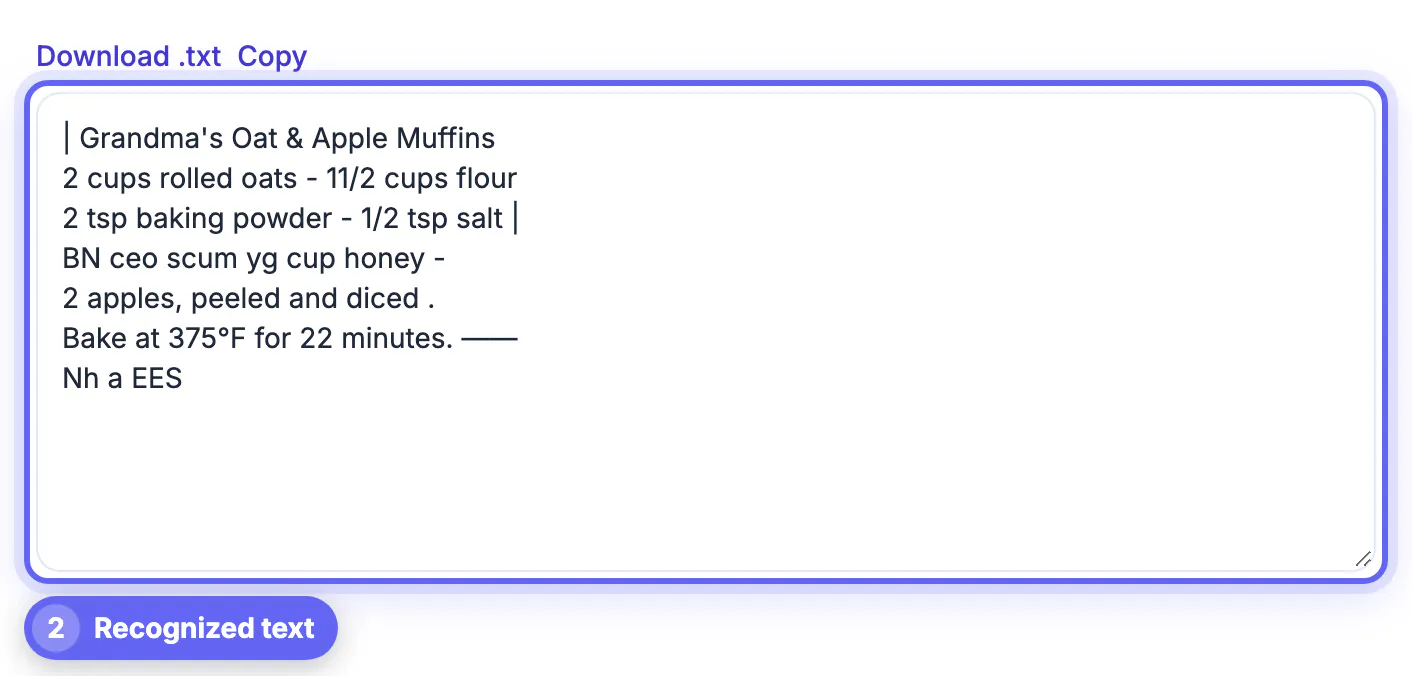
To copy text from a picture, open GrabCast Image to Text, choose the language printed in it, and drop the image in; after a few seconds the words appear in a box you can copy or save as a .txt file. You cannot drag-select those words because a photo or screenshot is just colored dots, so software has to recognize each letter first, a process called optical character recognition, or OCR. Here is how to get clean results from the everyday pictures people actually need words from.
🔎 Try Image to Text (OCR) now — freeOpen →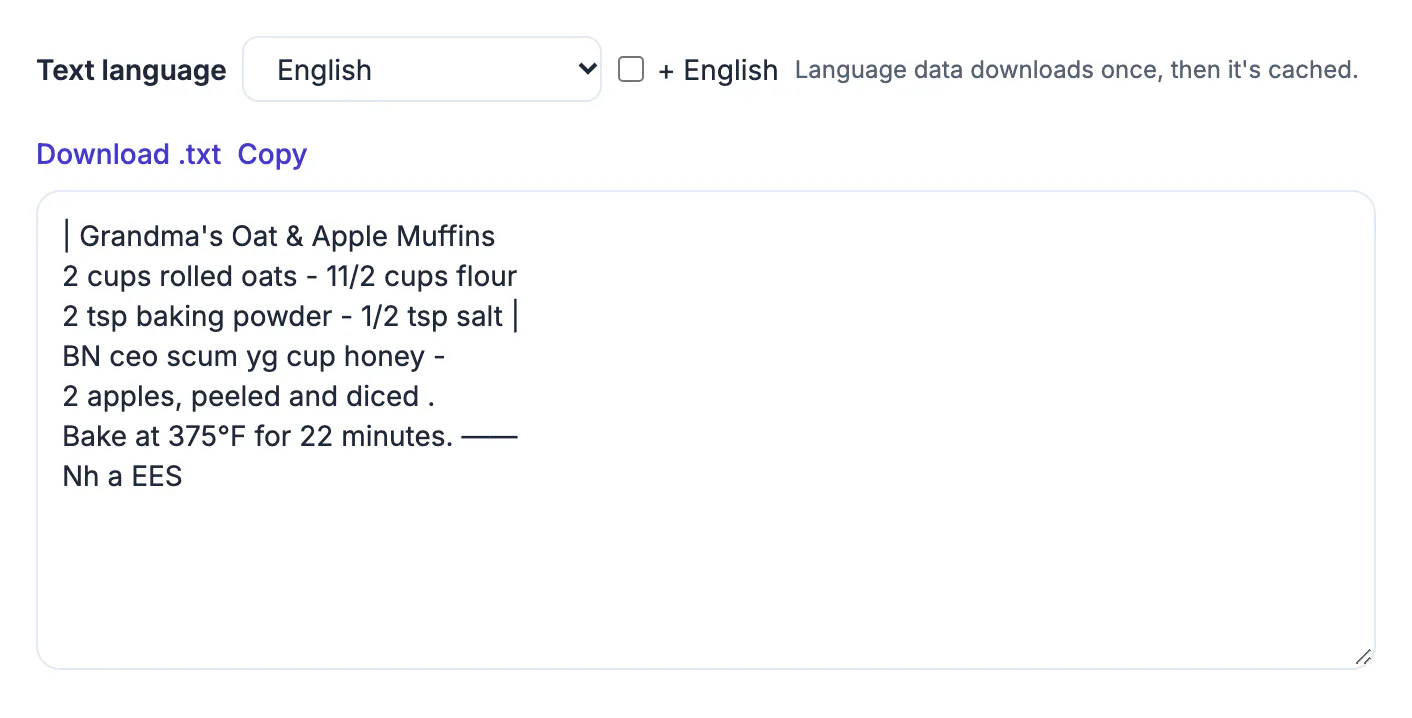
A PDF or web page stores letters as characters your cursor can select. A photo stores only brightness and color for each pixel; the letter A is just a pattern of darker dots with no meaning attached. OCR software looks for those patterns, matches them against models of each alphabet, and rebuilds a string of characters. That is why quality matters so much: the clearer the shapes, the fewer guesses the engine makes. Phones now have built-in options such as Live Text on iPhone and Google Lens on Android, but a browser tool is handy on a laptop, on a Chromebook, or when you want the result as a file. Retyping by hand is where errors creep in: a transposed digit in an invoice number, a missed character in a password, or a misspelled name. Letting software read the characters and then proofreading is faster and usually more accurate for anything longer than a sentence.
Everyday pictures worth running through OCR
Most people reach for OCR in small moments where retyping feels silly or error-prone.
- A router sticker with a 20 character Wi-Fi password you would otherwise squint at
- A photo of a paper receipt you need to paste into an expense spreadsheet
- A conference slide you photographed from the back row
- A recipe card from a relative, a restaurant menu abroad, or a street sign in another alphabet
- A screenshot of an error message you want to search for or send to support
In each case, you get editable characters you can paste into a note, a search box, a translator or a document.
It also helps with accessibility. Someone using a screen reader can hear the contents of a flyer or a scanned notice once the words are pulled out of the picture as real characters.
Pick the right language setting
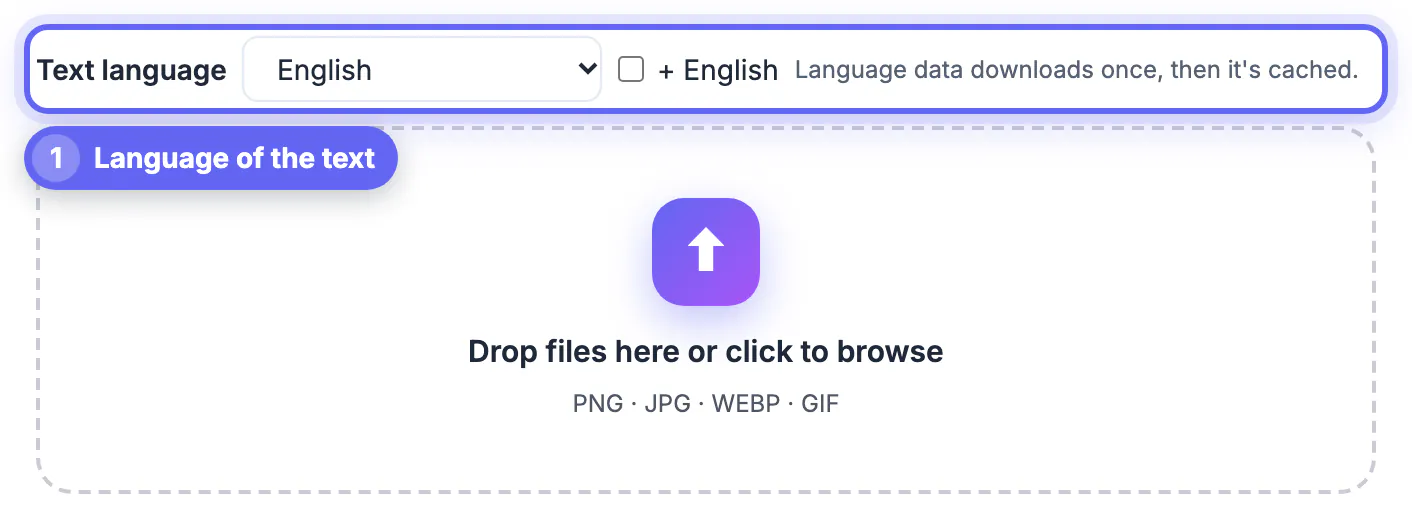
The engine reads one script at a time, so the language menu matters. It offers 20 options, including Spanish, French, German, Italian, Portuguese, Dutch, Polish, Swedish, Turkish, Russian, Ukrainian, Arabic, Hindi, Vietnamese, Indonesian, Japanese, Korean, and Simplified and Traditional Chinese.
- Leave the + English box checked for mixed content, such as a French menu with English prices
- Uncheck it for pure Japanese, Chinese or Arabic pages to reduce stray Latin guesses
- The first run in a new language downloads its data once; after that it is cached in the browser
- Your chosen language is remembered for next time on the same device
If the text you copied is in another language, the AI Translator can translate it, and the Text Cleaner fixes stray line breaks from the scan.
Get cleaner results from the photo itself
Recognition quality depends far more on the input than on any setting. A few seconds of care before snapping saves minutes of correcting afterward.
- Hold the camera parallel to the page to avoid slanted, stretched lines
- Use daylight or a bright lamp and avoid glare from glossy paper
- Crop to the paragraph you need so logos and photos do not produce junk characters
- For small print, move closer rather than zooming the finished photo
- Handwriting is hit and miss; neat block capitals work, cursive usually does not
If the result says no text was found, the letters were probably too small, too blurry or too low in contrast. Retake the shot and try again.
Screenshots are usually the easiest input of all, because on-screen lettering is sharp, straight and high contrast. Photos of printed paper come next, while glossy magazine pages, curved book spines and neon signs are the hardest.
What happens to your picture
The recognition engine, Tesseract, runs in your browser tab, so the photo of a receipt, a pay stub or a medical form is processed on your own device instead of being uploaded to a server.
- Images up to 12 MB are supported; larger ones can exhaust phone memory
- A progress bar shows how far recognition has gone
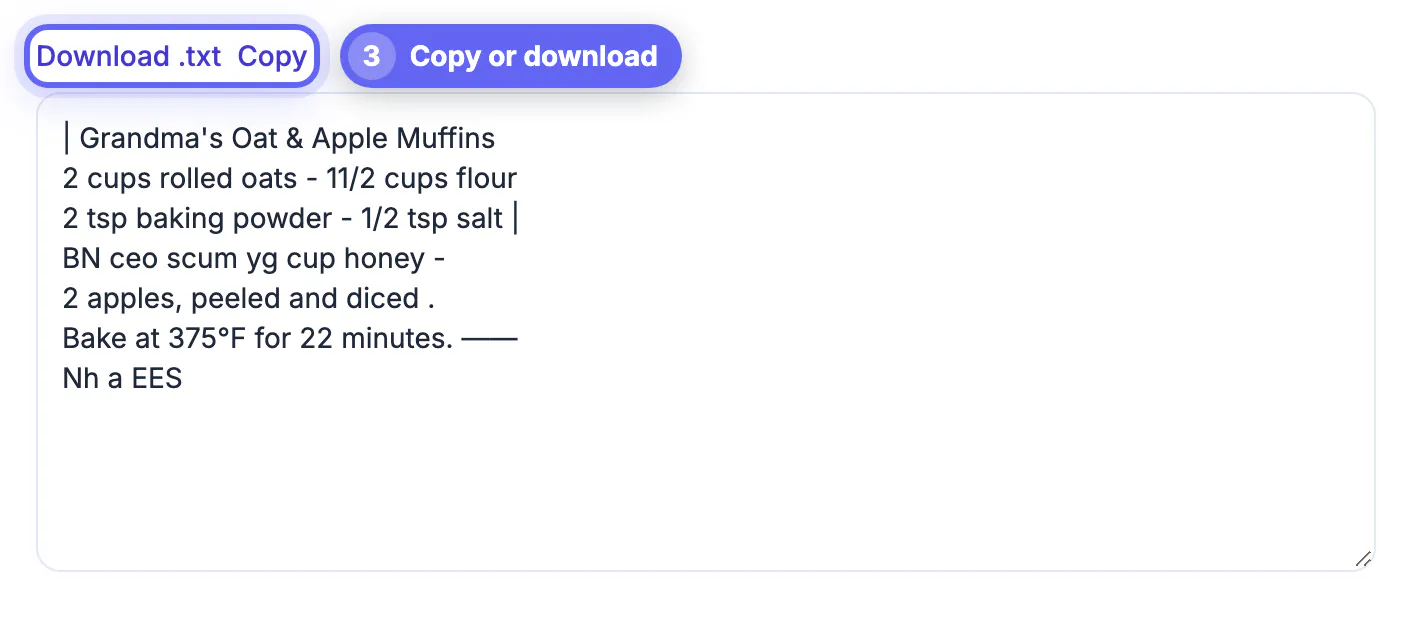
- Copy sends the result to your clipboard; Download saves a .txt file named after the picture
- Tables and columns come out as plain lines, so expect to tidy spacing afterward
Because nothing is uploaded, this is a reasonable option for personal documents such as prescriptions, bank letters or tax forms, where sending a photo to an unknown web service would be unwise.
Step-by-step
Common mistakes to avoid
Pro tips
Frequently asked questions
How do I copy text from a picture on my laptop?
Open Image to Text in your browser, pick the language, and drop the picture in. When recognition finishes, press Copy to put the words on your clipboard. On a phone, the same page works in Safari or Chrome; pick a photo from your library or take a new one when the file picker opens.
Which languages can it read?
Twenty, including English, Spanish, French, German, Portuguese, Russian, Arabic, Hindi, Chinese, Japanese, Korean and Vietnamese. You can combine any of them with English. Pick the language first, because the engine needs the matching alphabet model to recognize characters correctly.
Can it read handwriting?
Neat printed handwriting sometimes works. Cursive and messy notes usually produce many errors, because the engine is trained mainly on printed type. For handwritten notes, a phone app with handwriting recognition or simply retyping may be quicker.
Is my picture uploaded?
No. Recognition runs in your browser, so the image stays on your device. Only the language data is downloaded once the first time you use a language. That also means it keeps working for later pictures even on a slow connection.
Why does the result have strange characters?
Low contrast, blur, glare or the wrong language setting cause most errors. Crop tightly, retake the photo in better light, and check the language menu. Also check that the picture is not rotated sideways, since upside-down or vertical lines confuse the engine.
Pick the right language, feed the tool a sharp, straight, tightly cropped picture, and proofread numbers before you rely on them. It turns any photo or screenshot into words you can copy in seconds. Keep the original picture until you have confirmed every important detail.
Related guides
Browse more: all image guides · Image to Text (OCR)