Screenshot to Text on Any Device: Phone, Mac, PC
To extract text from a screenshot on almost every device, try the built-in option first: Live Text on iPhone, iPad and Mac, Google Lens on Android, or Text actions in the Windows 11 Snipping Tool. When that option is missing, blocked by your IT setup, or weak for your language, GrabCast's Image to Text tool reads the capture inside your browser and hands back copyable words or a .txt file. Captures are also the easiest material for recognition, since pixels come straight off the display with no blur, glare or tilt.
🔎 Try Image to Text (OCR) now — freeOpen →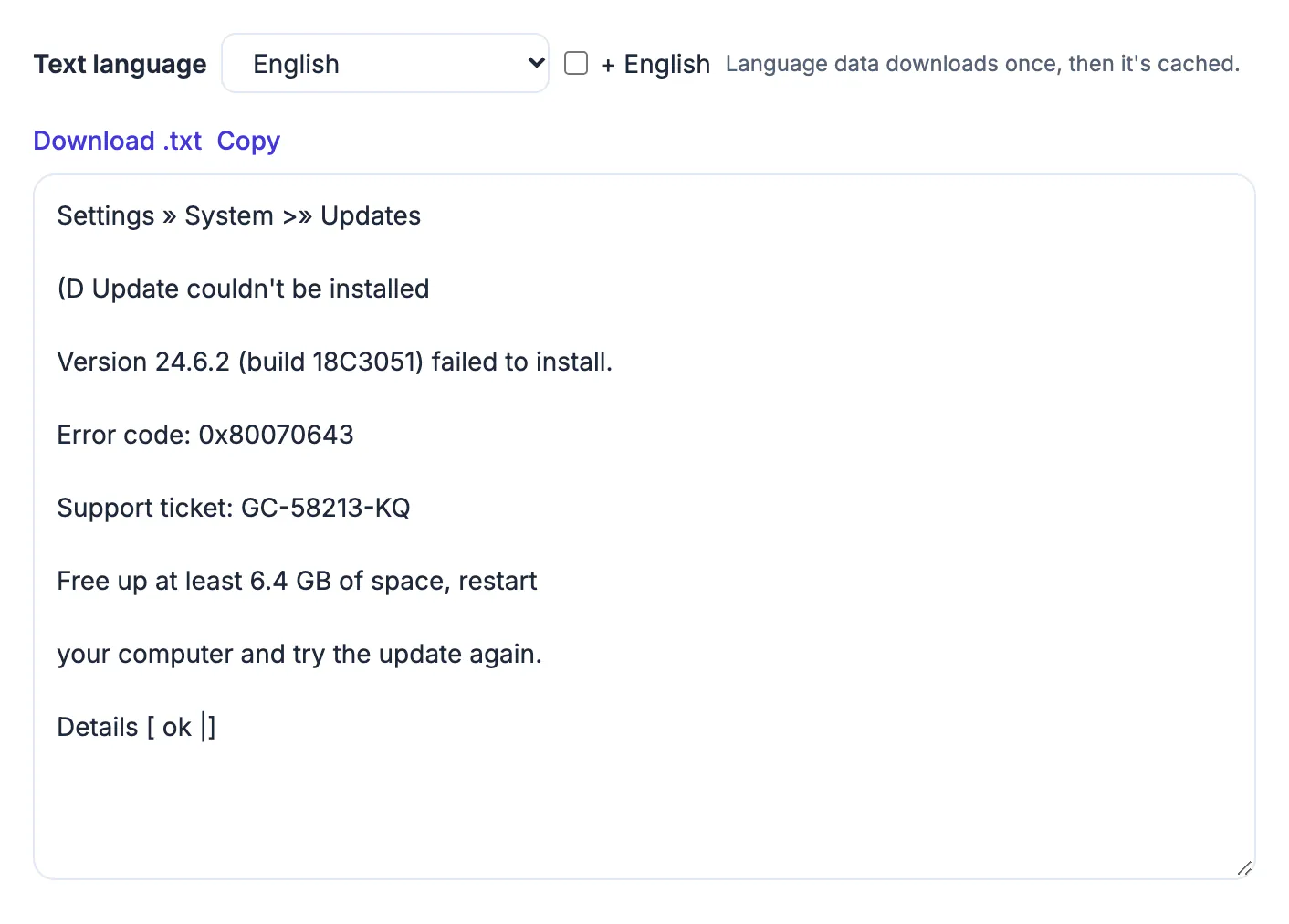
Screenshots trap useful words: an error message you need to paste into a support ticket, a confirmation number from a booking app that blocks copying, a slide someone shared in a video call, or a paragraph from an Instagram caption. Retyping invites mistakes in exactly the details that matter, such as a 16-character order code or a Wi-Fi password. Converting the capture takes seconds and keeps those strings exact, and once the words are digital you can search your notes for them months later instead of scrolling through thousands of photos.
Built-in options on each device
- iPhone and iPad: open the capture in Photos, press and hold on a word or tap the Live Text button, then select and copy. It runs on the handset.
- Mac: open the capture in Preview or Photos on a recent macOS version and drag across the words as if they were a normal document.
- Android: open the capture in Google Photos, tap Lens, then Select all or drag handles and copy. Lens works through Google's servers.
- Windows 11: in the Snipping Tool, open or take a capture and use Text actions to copy all or part of it; Microsoft's free PowerToys add-on also offers Text Extractor on Win+Shift+T.
- Chromebook: open the capture in the Gallery app or in Chrome and use the Google Lens option to select words.
These options are fast for Latin-script languages and short snippets. They vary more for long passages, mixed scripts, or when a work laptop has the feature turned off.
When to extract text from a screenshot in the browser instead
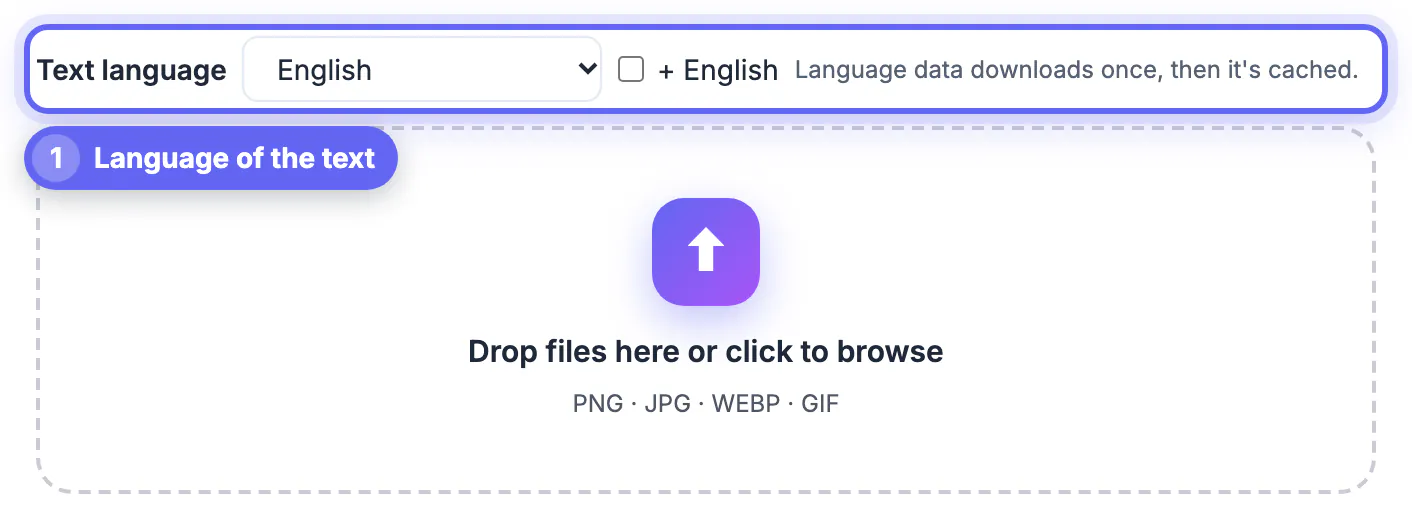
A browser tool is the fallback that behaves the same everywhere: a school Chromebook, a locked-down office PC, an older phone, or a friend's laptop. GrabCast's OCR runs the Tesseract engine locally, so a capture of a bank page or medical portal stays on the machine. You choose among 20 languages, including Arabic, Hindi, Chinese, Japanese, Korean and Ukrainian, and can add English for mixed material.
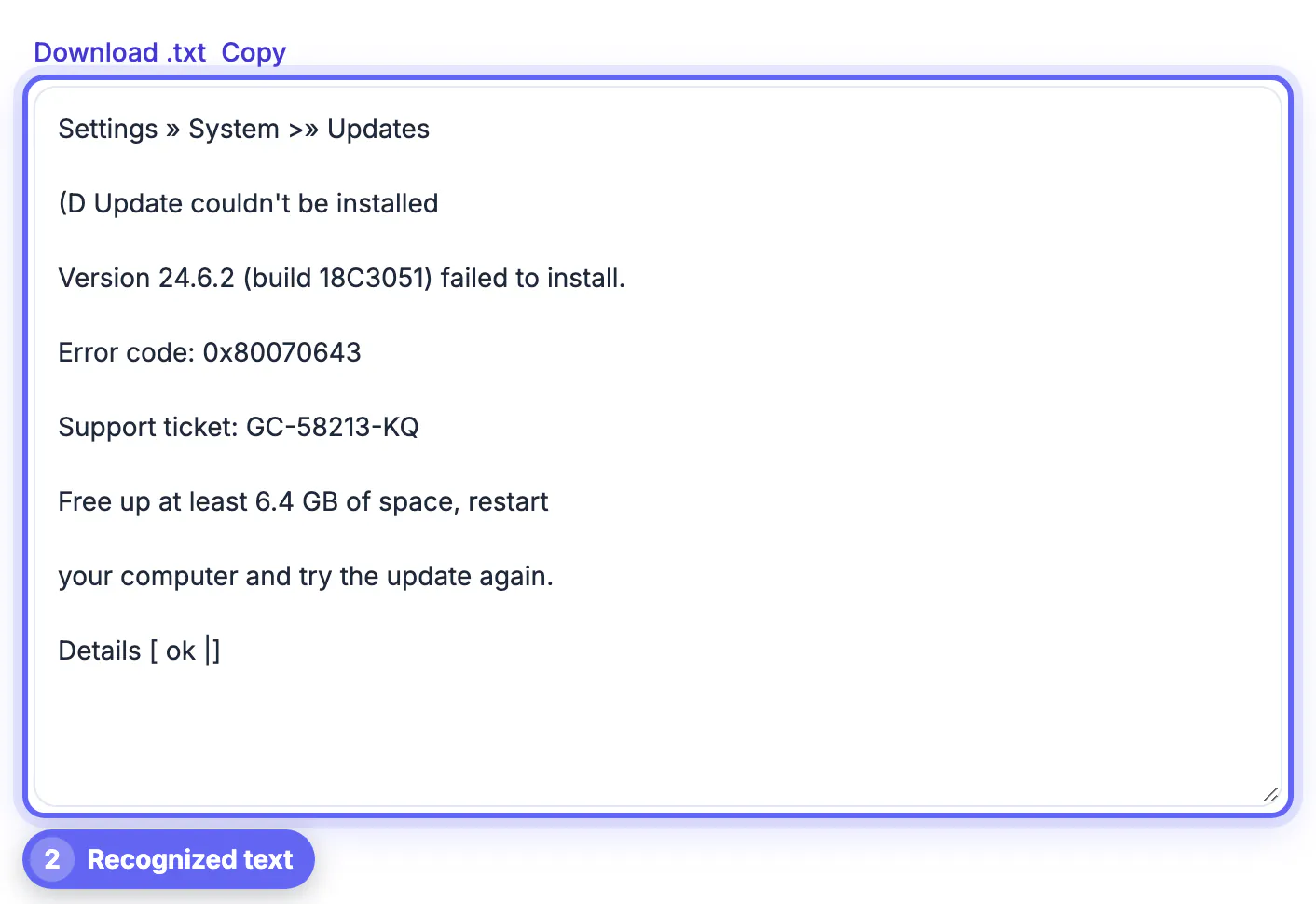
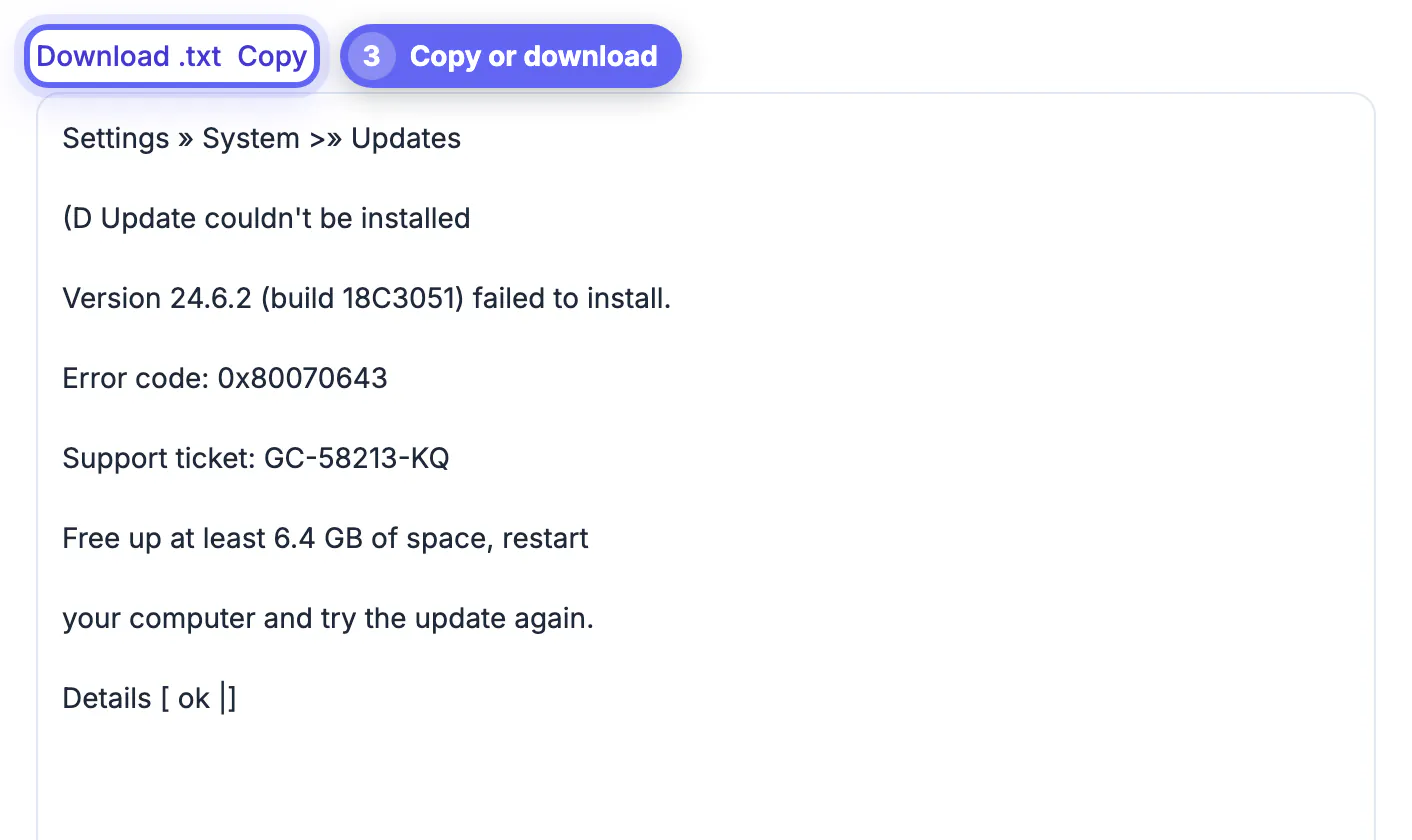
It also produces a plain .txt download, handy when you want the whole capture as a file rather than a clipboard snippet. The trade-off is a one-time language download and a few seconds of processing per capture.
A concrete case: a student on a managed Chromebook receives a Korean vocabulary list as a picture in a class chat. Lens may be disabled by the school, and the chat app offers no way to select the words in a picture. Opening the browser tool, selecting Korean plus English, and dropping in the capture produces an editable list in about ten seconds, ready to paste into flashcards.
Capture habits that make recognition nearly perfect
Recognition accuracy on screen captures is mostly about letter size. Before capturing, zoom the page or app to 150 or 200 percent so small interface lettering becomes large. Capture only the region you need with a region tool such as Shift+Command+4 on Mac or Win+Shift+S on Windows, rather than the whole display.
- Switch the app to light mode when possible; white lettering on black reads less reliably than dark on light.
- Crop out icons, emoji, avatars and toolbars, which the engine may read as stray symbols.
- For chat threads, expect names and timestamps to mix into the lines; crop to the message bubbles alone.
Privacy checks before you share the result
Screen captures pick up more than you intend: a notification banner, another tab title, your email address in a corner, or a coworker's name in a sidebar. When you convert and paste the words elsewhere, all of that comes along. Read the output once and delete lines that do not belong before sending it.
Cloud tools such as Google Lens send the capture to a server to process it. For passwords, account numbers or health details, prefer an on-device option: Live Text on Apple hardware or a local browser tool like GrabCast.
Also think about where the capture itself ends up. Phones sync photo libraries to iCloud or Google Photos by default, so a capture of a one-time code or a recovery key may be stored in the cloud for years. After you have copied what you need, delete sensitive captures from both the library and the Recently Deleted album.
Once the text is out, the Text Cleaner tidies stray breaks, and the AI Translator helps if the screenshot was in another language.
Step-by-step
Common mistakes to avoid
Pro tips
Frequently asked questions
What is the fastest way to pull words from a capture on an iPhone?
Open it in Photos and press and hold on the words, or tap the Live Text button. Select what you need and tap Copy. It works on-device on supported models. On iPad the same steps apply, and on Mac you can drag across the words in Preview.
Does Windows have a built-in way to do this?
Yes. On Windows 11, the Snipping Tool includes Text actions for copying words from a capture. Microsoft PowerToys adds Text Extractor, triggered with Win+Shift+T, for any region on screen.
Is GrabCast's screenshot OCR private?
Yes. Recognition runs in your browser with the Tesseract engine and the capture is not uploaded. Only the language data file downloads once and is then cached.
Why are some characters wrong even on a sharp capture?
Small interface fonts, dark mode, emoji and similar-looking characters cause most errors. Zoom in before capturing, prefer light mode, and crop tightly to the words.
Can it read screenshots in other languages?
Yes. Choose from 20 languages, including Chinese, Japanese, Korean, Arabic and Hindi, and tick plus English for captures that mix two languages.
On most phones and computers, the quickest way to convert a capture is the built-in feature: Live Text, Google Lens or the Snipping Tool. When it is missing, blocked or weak for your language, a browser OCR tool does the same job privately. Either way, zoom before capturing, crop tightly and proofread the details that matter.
Related guides
Browse more: all image guides · Image to Text (OCR)