Event Flyer Text on a Photo: Headline, Date and Place
To turn a photo into an event flyer, put three pieces of text on it in order of importance: a big headline that says what the event is, a clear line with the date, time and place, and at most one short extra detail. In GrabCast Add Text to Image that takes three layers: the Headline preset for the event name, the Caption bar preset for the details, and one plain text layer in an accent color. Our example, a fictional beach cleanup on a sunset photo, used BEACH CLEANUP in Anton at the top, Sat, June 6 · 8–11 am · North Pier Lot on a dark strip at the bottom and a yellow Gloves and bags provided line, exported as a 1600 x 1067 JPG of 231 KB. This guide covers what to write, how to lay it out, how to keep each line readable and how to export for a group chat, a newsletter or a printed notice.
🔤 Try Add Text to Image now — freeOpen →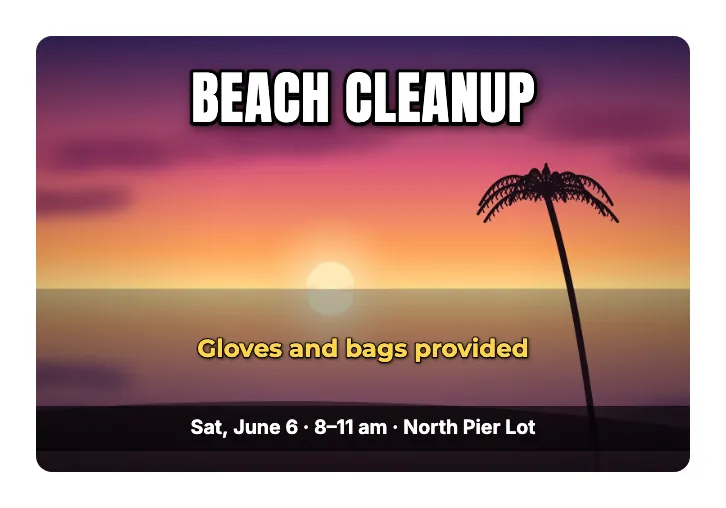
Neighborhood groups, clubs, schools and small businesses announce events in group chats, community pages and on noticeboards, and a picture with the key facts on it gets noticed and shared far more reliably than a paragraph of text. The photo sets the mood, a beach at sunset for a cleanup, a gym floor for a tournament, while the words do the informing. The trap is cramming: a flyer carrying eight lines of small type is ignored on a phone screen. Limiting yourself to a headline, one details line and one extra note forces the choice of what matters, and doing it in a free browser tool means you can update the date or place in a minute when plans change.
What event flyer text needs to say
Write the text before you open any tool; the layout follows from it.
- Headline: the event in two or three words, such as BEACH CLEANUP, BAKE SALE or OPEN MIC. It should be readable from across a room.
- Details line: day, date, time range and place in one line, separated by middle dots, for example Sat, June 6 · 8–11 am · North Pier Lot.
- One extra: the single fact that removes a doubt, such as Free entry, Bring a chair or Gloves and bags provided.
- Leave out long descriptions, sponsor lists and full addresses; put those in the post text or a link where people can copy them.
- Only use photos you took or have the right to use, and avoid pictures in which people can be recognized unless they agreed.
Build the flyer with three text layers
Presets give each line a sensible starting style, and the Layers list keeps them organized.
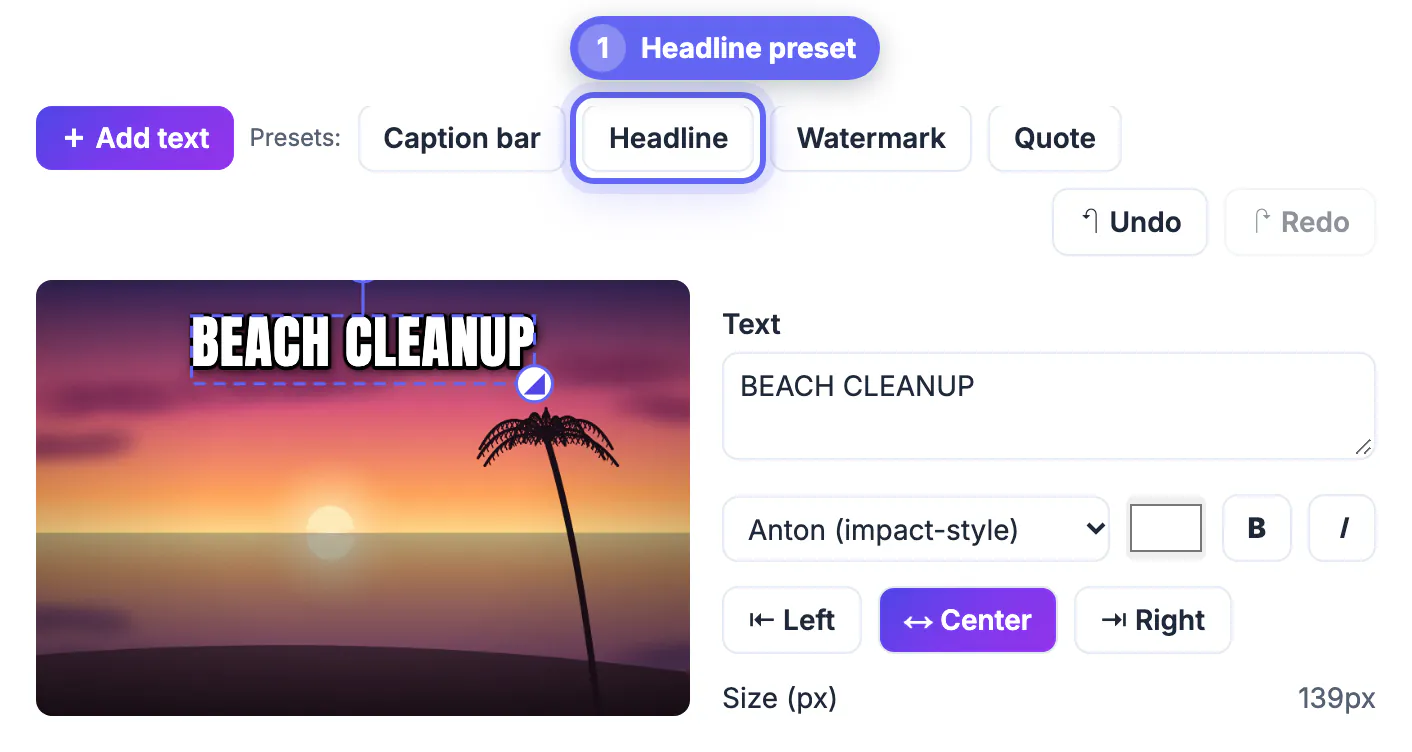
- Delete the default layer, click Headline and type the event name. The preset uses Anton, an impact-style condensed font, with an outline and shadow, near the top of the image.
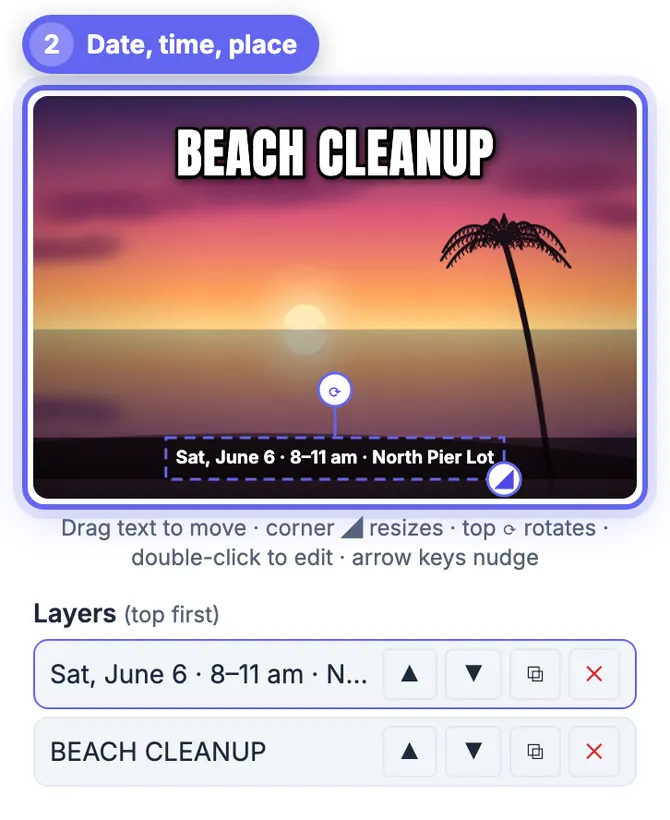
- Click Caption bar and type the details line. It creates a full-width dark strip at 62 percent opacity near the bottom, which stays readable over sand, water or a crowd.
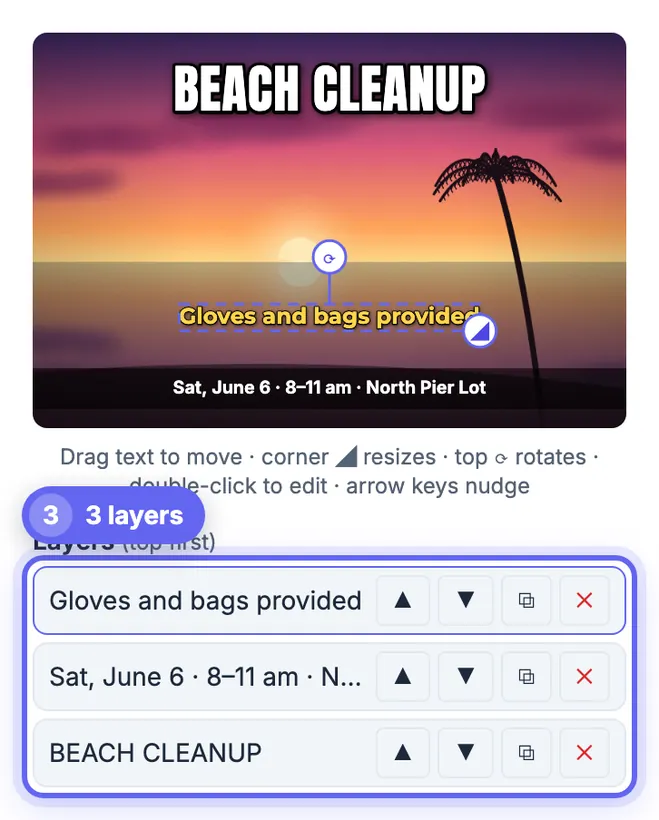
- Click Add text for the extra line, choose a clean font such as Montserrat, set a smaller size and pick an accent color from the photo; we used yellow at 60 pixels.
- Drag each line into place on the canvas. The Layers list shows the top layer first, with arrows to bring a line forward or send it back, a copy button and a delete button.
Layout rules that keep an event flyer readable
A flyer is read in seconds, often at thumbnail size.
- Size in steps: the headline roughly twice the height of the details line, and the extra line smaller again.
- Keep text away from the edges by about 3 to 5 percent of the width so nothing is cut off when apps crop previews.
- Place words over calm areas such as sky or water when you can, and use the strip or a box where the photo is busy.
- Limit yourself to two fonts: a heavy display font for the headline and a clean sans for everything else.
- Check the order in which the eye reads the flyer: what, then when and where, then the extra.
Export event flyer images for chats, email and print
The download is rendered at the photo's full resolution, so start with a decent picture.
- JPG at quality 85 to 90 is the best general choice; our 1600 x 1067 flyer came to 231 KB at 88.
- PNG keeps text edges perfectly sharp but produces much larger files for photos; use it only if the image will be edited again.
- For a printed notice, start from the largest original photo you have; a phone photo of 3000 pixels or more prints far better than a resized copy.
- Need an exact social size, such as a square post or a 9:16 story? Resize or crop the finished image with the Resize Image tool afterward.
- Keep the text in a note: the tool does not save projects, so to change the date later you rebuild the layers on the original photo.
Adding a sign-up link? These event flyer QR tips cover size and placement.
Step-by-step
Common mistakes to avoid
Pro tips
Frequently asked questions
How do I make an event flyer from a photo for free?
Open Add Text to Image, add your photo, use the Headline preset for the event name and the Caption bar preset for date, time and place, add one extra line and download the image.
What should an event flyer include?
The event name, the day and date, the time range and the place. Add at most one extra detail such as cost or what to bring, and put longer information in the post text.
What font is good for a flyer headline?
A heavy condensed font such as Anton, Bebas Neue or Oswald fits a lot of impact into a short headline. Pair it with a clean sans such as Montserrat or Inter for the details.
Can I print the flyer?
Yes, the download keeps the photo's full resolution. For printing, start with the largest original photo you have and export as high-quality JPG or PNG.
Is my photo uploaded?
No. The text is drawn and the image exported in your browser. Only the font files are fetched from a font library when you choose them.
A good photo flyer says three things in order: what, when and where, and one extra. Use the Headline preset for the event, the Caption bar for the details and one accent line, keep to two fonts, check it at phone size and export a JPG at quality 85 to 90.
Related guides
Browse more: all image guides · Add Text to Image