Image to Text OCR vs Scanner App: Which to Use
If the words are already in a screenshot, a saved photo or an image someone emailed you, browser-based image to text OCR is the fastest way to get editable text: drop the file in and copy the result. If you are holding paper, especially several pages, a scanner app wins at capture, because it finds the page edges, flattens the perspective and cleans up shadows before any text is read. Both rely on optical character recognition, so the real question is where your source lives and what you need at the end: plain text to paste, or a clean, searchable PDF to file. This comparison goes through each option honestly, including the free scanner built into your phone and the in-browser tools on GrabCast.
🔎 Try the Image to Text (OCR) tool now — freeOpen →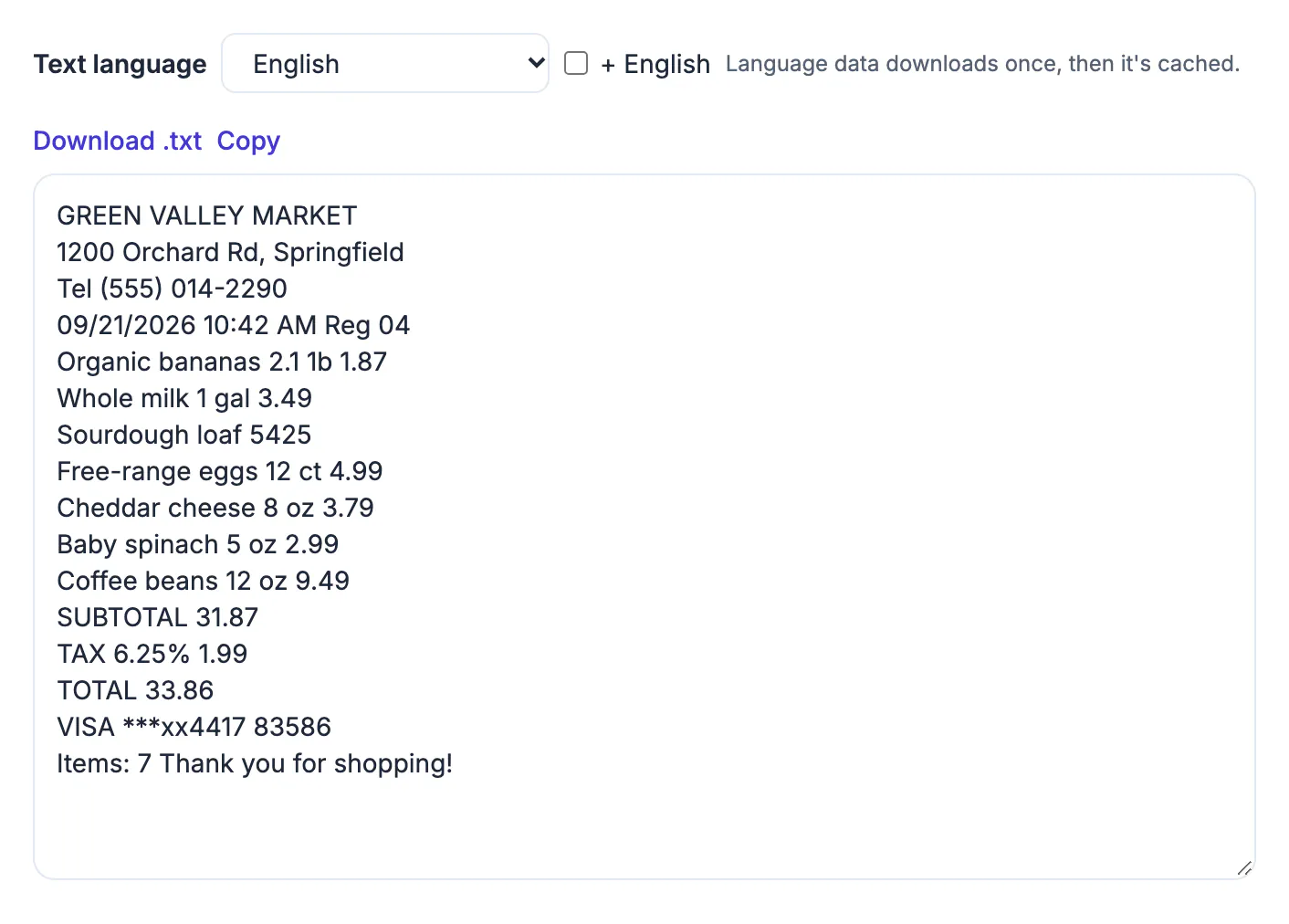
The wrong route adds steps without improving accuracy. Photographing a screenshot that already sits on your laptop, syncing it through a cloud app and exporting it again wastes minutes and makes the image worse, not better. Scanning a 20-page lease one photo at a time into a single-image OCR tool is just as clumsy, and you end up with 20 separate text files instead of one searchable document. Privacy differs as well: some scanner apps save every page to a cloud account by default, which matters for pay stubs, IDs and medical letters. Matching the tool to the source gets you better text, fewer steps and more control over where your documents end up.
Browser image to text OCR: best for files you already have
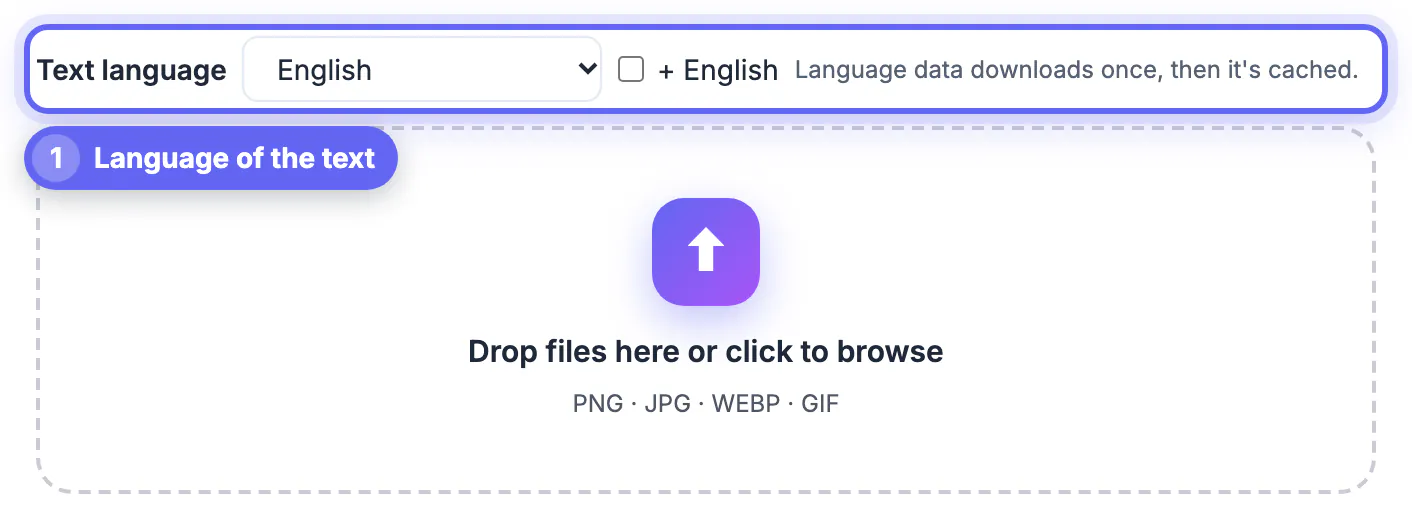
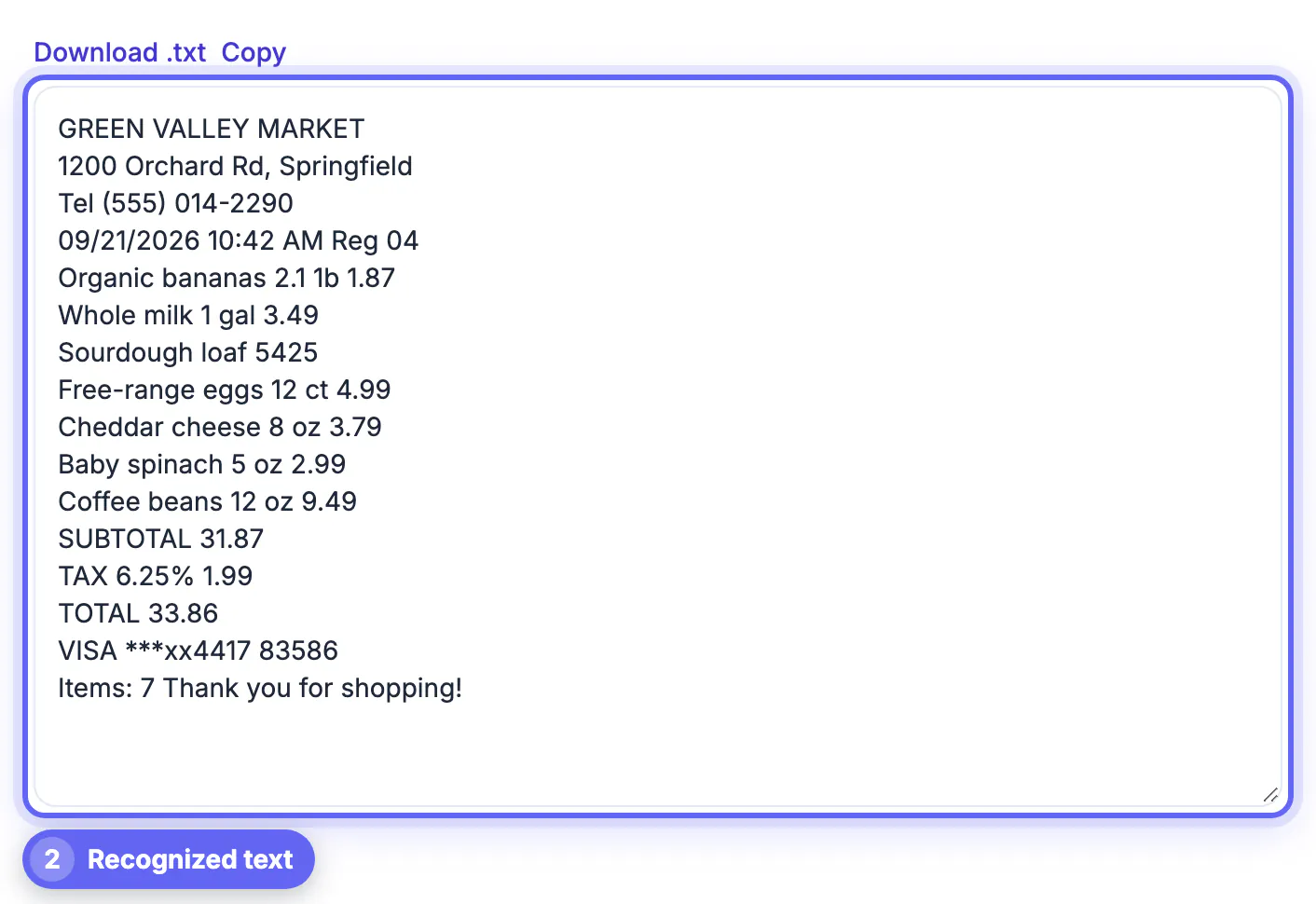
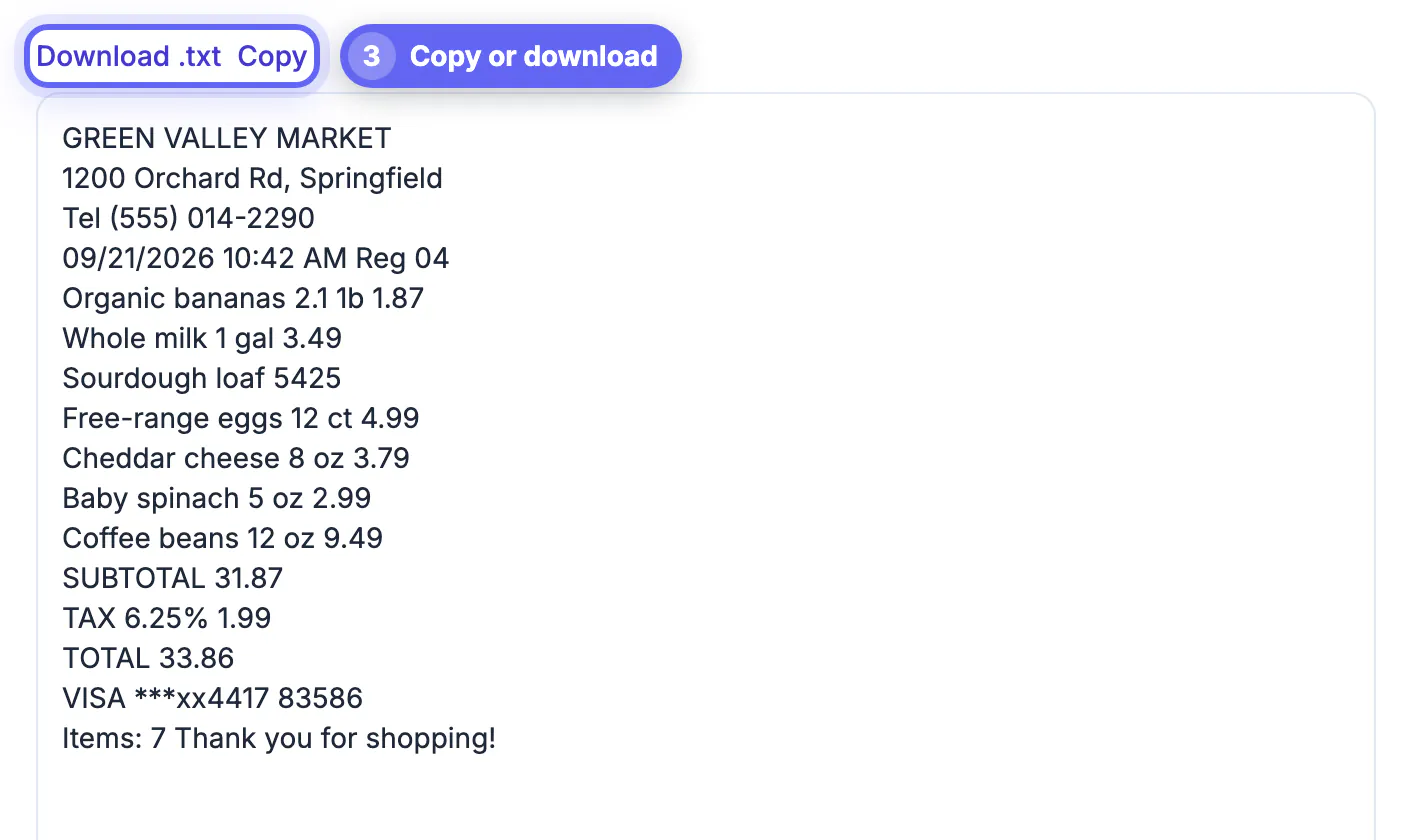
GrabCast Image to Text runs the open-source Tesseract.js engine inside your browser. You pick one of 20 languages, drop in one image under 12 MB, and edit, copy or download the recognized text.
- Ideal sources: screenshots, slides, photos in your camera roll, images in email and pictures saved from the web
- Works in desktop and mobile browsers with no install and no account
- The image stays on your device; only the engine and language data download once
- Output is plain text, ready to paste into a document, spreadsheet or translator
The trade-off is capture. It reads what you give it and does not straighten a crooked page or remove a shadow, so a poor phone photo produces poor text. It also handles one image at a time, which suits a few pictures, not a stack of paper.
What a phone scanner app does better
Scanner apps are built around the camera. The one in Apple Notes (Scan Documents), the scan button in Google Drive and dedicated apps such as Adobe Scan detect page edges, correct perspective, boost contrast and combine many pages into one PDF. Features and storage terms vary, so check the current version of any app you use.
- Great for multi-page paper: contracts, school forms, receipts on the go
- Auto-crop and de-skew give the OCR engine a much cleaner page to read
- Downsides: some need an install or an account, and pages often sync to a cloud by default
- Getting the text itself onto a computer can take an extra share or export step, and some apps put OCR export behind a paid plan
There is also a browser option. GrabCast Scan to PDF uses your phone camera or existing photos, finds the page edges, lets you drag the corners, applies Enhanced, Grayscale, B&W or Original filters and builds a multi-page PDF, all on your device. Its pages are images, so run the file through OCR PDF to make it searchable.
Built-in phone text recognition for quick grabs
Recent phones can pull text straight from the camera or the photo viewer. On iPhone, Live Text lets you press and hold on text in a photo or the camera view and copy it; on Android, Google Lens offers a similar copy option from the camera or Photos.
- Perfect for a Wi-Fi password on a router sticker, a phone number on a flyer or a serial number
- Less convenient for a full page you need to edit, because selecting long passages on a small screen is fiddly
- Language coverage and exact behavior depend on your phone model and software version
- Some recognition may be processed by the platform's servers depending on the feature, so read the settings if privacy matters
For one line of text, the built-in option is usually quickest. For a paragraph or more, saving the photo and running it through a dedicated OCR tool gives you an editable block you can proofread properly.
Which to use, scenario by scenario
- Screenshot of an error message or chat: browser OCR; there is no camera step at all
- One printed page on your desk: phone camera, then browser OCR if you want plain text, or a scanner app if you want a PDF
- A 10-page contract to file and search later: scan to a PDF, then OCR PDF to add an invisible text layer
- A receipt for an expense report: scanner app or Scan to PDF for the image, OCR for the amounts, then check each digit
- A menu or sign in another language: browser OCR with the right language selected, then paste into a translator
Whichever you choose, accuracy rests on the same basics: sharp focus, even light, straight lines and letters at least 20 pixels tall. And proofread the numbers, because every OCR engine confuses 0 and O, 1 and l, and 5 and S now and then.
Step-by-step
Common mistakes to avoid
Pro tips
Frequently asked questions
Is browser OCR as accurate as a scanner app?
On a clean, straight image, results are comparable. Scanner apps mainly win at capture, because edge detection and perspective correction produce a better image for the OCR step.
Which languages does GrabCast OCR support?
Twenty, including English, Spanish, French, German, Portuguese, Russian, Arabic, Hindi, Chinese (Simplified and Traditional), Japanese, Korean and Vietnamese. A plus English option handles mixed text.
Is my image uploaded?
No. Image to Text, Scan to PDF and OCR PDF all process files in your browser. Only the open-source engines and language data are downloaded the first time.
Can any of these read handwriting?
Neat block letters sometimes work; cursive and quick notes are unreliable. Tesseract.js is trained mainly on printed text, and phone features vary by model.
Should I scan documents to PDF first?
For multi-page paper you want to file, yes: scan to a PDF, then add a text layer with OCR PDF. For single screenshots or photos, go straight to Image to Text.
Use browser image to text OCR for screenshots and photos already on your device, a scanner app or Scan to PDF for paper, and your phone's built-in text grab for a single line. Whatever the route, a sharp, straight, evenly lit image and a quick check of the numbers decide how good the text is.
Related guides
Browse more: all image guides · the Image to Text (OCR) tool