1200x630 Open Graph Image: Link Previews That Look Right
An Open Graph image is the picture Facebook, LinkedIn, X, Slack, iMessage and most chat apps show when someone shares your link, and 1200x630 pixels (a 1.91:1 ratio) is the size that displays large and sharp almost everywhere. To make one, resize your graphic to exactly 1200 by 630, keep it light (a few hundred KB), reference it with an og:image tag using a full https address, and refresh the platforms' caches after any change. This guide is for site owners, bloggers and developers, and it covers the tags, the per-platform crops and the caching problems that make previews look broken.
📐 Try Resize Image now — freeOpen →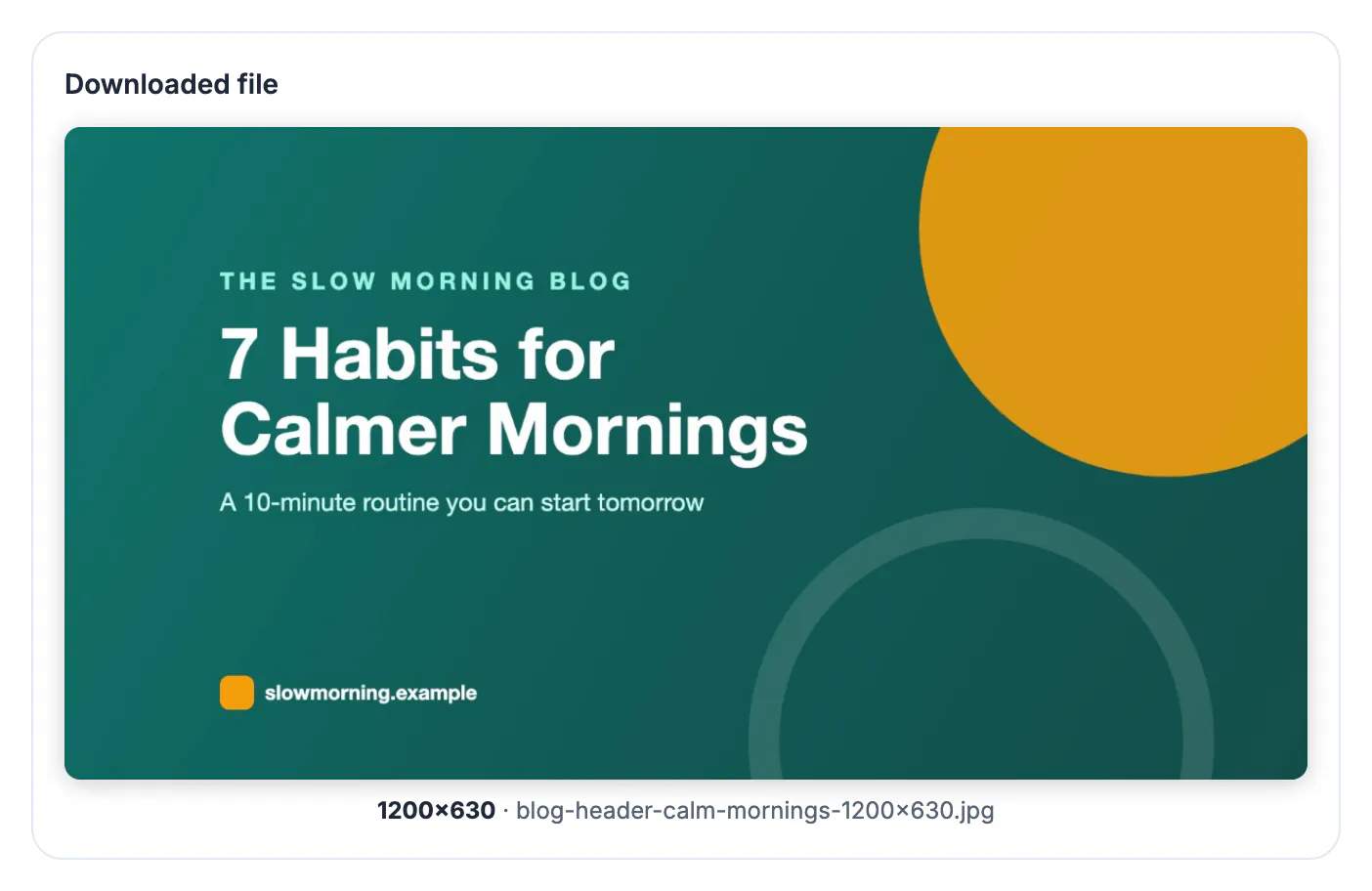
When a link is shared, the preview card is the whole advertisement: a large picture, a title and a line of description. A missing or badly sized og:image produces a tiny thumbnail or a random picture from the page, and shares with a strong picture get noticeably more attention in busy feeds. The fix is cheap and permanent: one correctly sized file per important page, referenced in the page head. Because platforms cache previews, getting it right before the first share saves you from a week of broken cards.
The 1200x630 Open Graph tags that matter
Platforms read a handful of meta tags in the page head. The picture needs an absolute address; a relative path like /img/card.jpg is ignored by some crawlers.
- og:image with the full https:// address of the 1200 by 630 file.
- og:image:width set to 1200 and og:image:height set to 630. Facebook's documentation notes that declaring dimensions lets the picture render on the very first share.
- og:image:alt with a short description for screen reader users.
- twitter:card set to summary_large_image so X uses the big layout; X falls back to og:image when no twitter:image is set.
- WordPress SEO plugins such as Yoast and Rank Math, Shopify themes and most site builders have a social sharing field that writes these tags for you.
Prefer not to hand-write the markup? The Meta Tag & Open Graph Generator can build the og:image snippet for you.
How each platform crops a 1.91:1 card
1200 by 630 is the common denominator, but not every app shows the full rectangle, so keep the essentials in the middle.
- Facebook shows the full 1.91:1 card and recommends at least 1200 by 630; below about 600 by 315 it falls back to a small thumbnail. Files up to 8 MB are accepted, but smaller loads faster.
- LinkedIn suggests 1200 by 627, so a 1200 by 630 file loses a sliver you will never notice.
- X has shown large cards at close to 2:1, trimming about 15 pixels from the top and bottom of a 630 pixel tall picture.
- Some messaging apps show a small square or rounded thumbnail cut from the center; keep your logo and headline inside the middle 630 by 630 pixels.
- WhatsApp is widely reported to skip very heavy files, so aim for under about 300 KB.
Resize the picture to 1200x630 without distortion
Most source graphics are not 1.91:1. A 16:9 slide, a square logo or a tall phone photo all need a decision about what to trim or pad, and making that decision yourself beats letting each platform crop in its own way. GrabCast Resize Image has a Website / OG preset (and a Facebook post preset) that outputs exactly 1200 by 630 pixels.
- Crop to fill trims the top and bottom of a 16:9 banner or the sides of a square, keeping the center.
- Fit + solid background is ideal for a logo or a product cutout: the whole graphic sits on your brand color with no cropping.
- Fit + blurred background works for photos you cannot crop, such as a tall portrait.
- Choose JPG for photos and PNG for flat graphics with text; transparent PNG areas turn white if you export JPG.
- The link resize-image.html?preset=og opens the tool with this preset already selected.
Check the file size on the result card. If it is over a few hundred KB, run it through Compress Image with a target like 200 KB; the dimensions stay 1200 by 630.
Fix stale or broken link previews
The most confusing problem is a correct new picture that platforms keep ignoring. They cache the first version they saw, sometimes for weeks, and a single early share by a colleague testing the page is enough to lock in a draft version. Checking the tags before anyone shares the link is the cheapest fix of all.
- Facebook: paste the URL into the Sharing Debugger and click Scrape Again.
- LinkedIn: run the URL through Post Inspector, which fetches a fresh copy.
- X: the old card preview tool was retired; draft a post with the link to see the current card.
- Change the file name when you replace the picture, for example card-v2.jpg, so no cache anywhere can serve the old one.
- Make sure the file is not blocked by robots.txt, a login wall or hotlink protection, and that the server returns it quickly over https.
Step-by-step
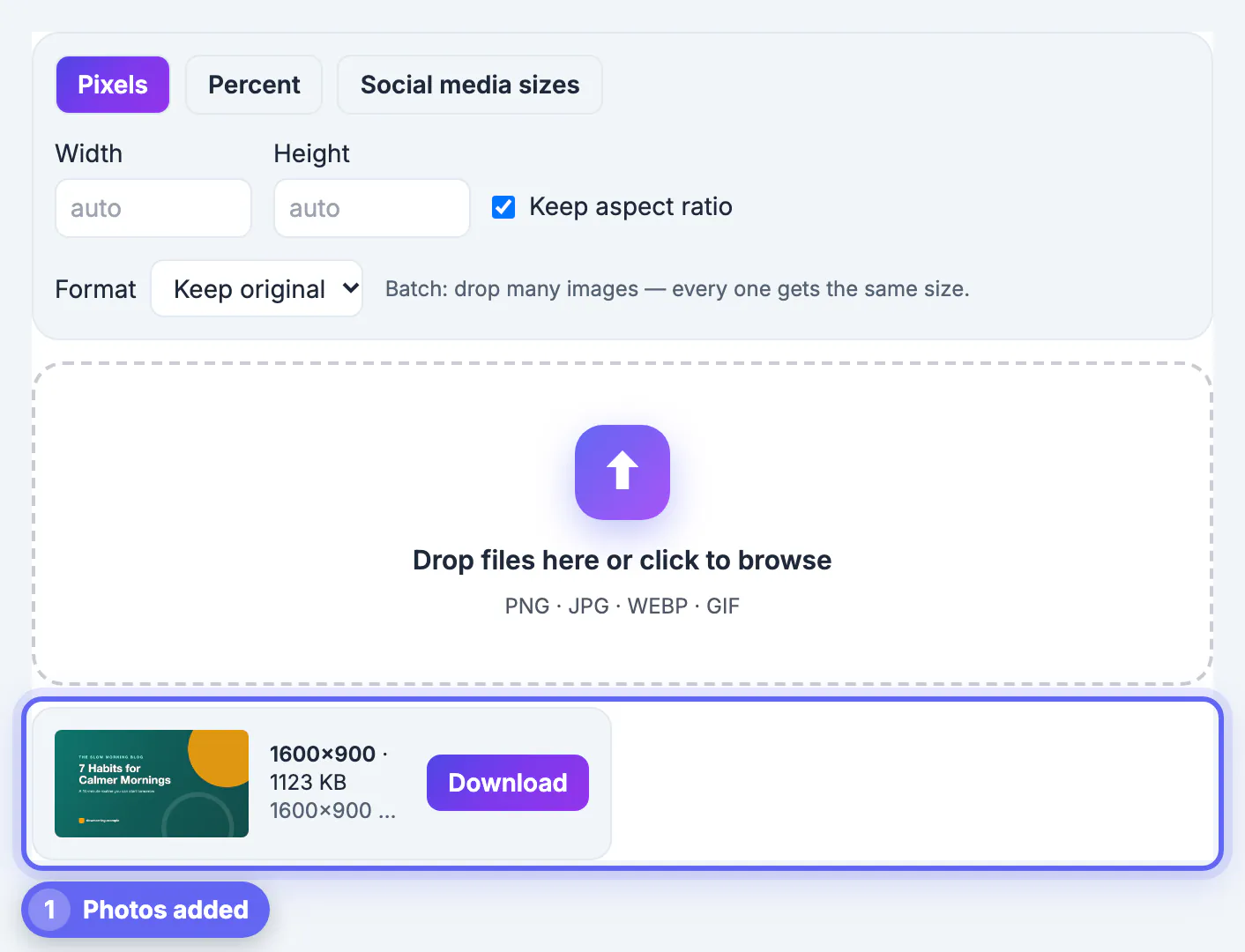
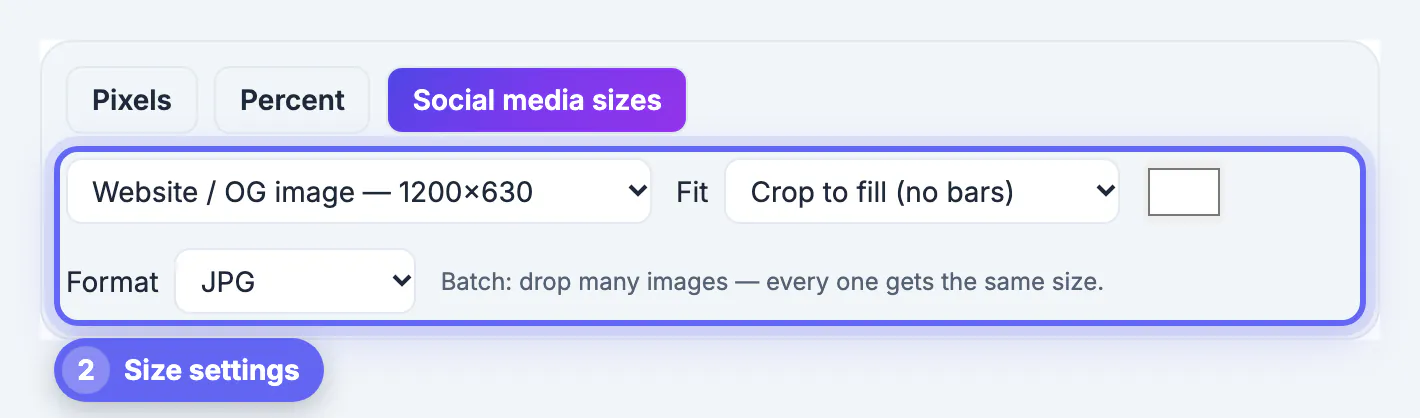
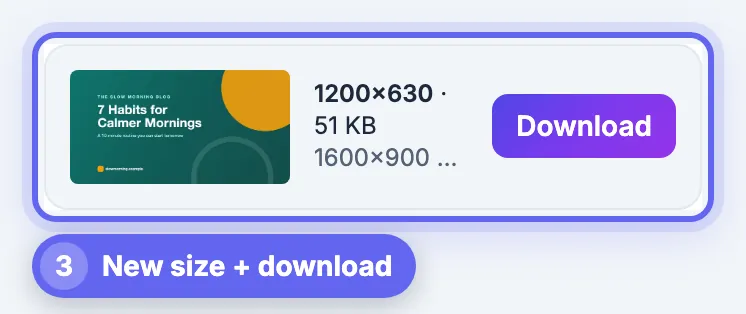
Common mistakes to avoid
Pro tips
Frequently asked questions
What is the best Open Graph image size?
1200 by 630 pixels, a 1.91:1 ratio. It displays as a large card on Facebook, LinkedIn and X and is widely supported by Slack, iMessage, Discord and other apps.
Why does my shared link show an old picture?
Platforms cache previews. Use Facebook's Sharing Debugger and LinkedIn's Post Inspector to fetch a fresh copy, and rename the file when you replace it.
Should the Open Graph picture be JPG or PNG?
JPG for photos, because it stays small; PNG for flat graphics with crisp text. Both are accepted everywhere. Keep the file to a few hundred KB either way.
Do I need a separate picture for X?
Not usually. With twitter:card set to summary_large_image, X uses the og:image. Just keep text away from the very top and bottom, where X may trim.
Is my picture uploaded when I resize it?
No. GrabCast resizes in your browser and the file downloads straight to your device. You upload it to your own site afterward.
A 1200x630 Open Graph picture turns shared links into large, clickable cards. Resize to exactly 1200 by 630, keep the headline and logo centered, stay under a few hundred KB, reference it with an absolute og:image address and size tags, and refresh the platform caches after changes. GrabCast handles the resize free in your browser.
Related guides
Browse more: all image guides · Resize Image