Remove Image Background on Phone: Free, No App Needed
To remove an image background on your phone for free, open GrabCast's Background Remover in Safari or Chrome, pick a photo, and wait a few seconds while an AI model cuts out the subject right on the handset. You can keep the transparent PNG or swap in white, a color, a gradient, a blurred version of the original, or another photo. It works best on pictures of people, so this guide covers what to expect, the settings that matter on mobile, and when your gallery's built-in cutout is the quicker choice.
🪄 Try Remove Background now — freeOpen →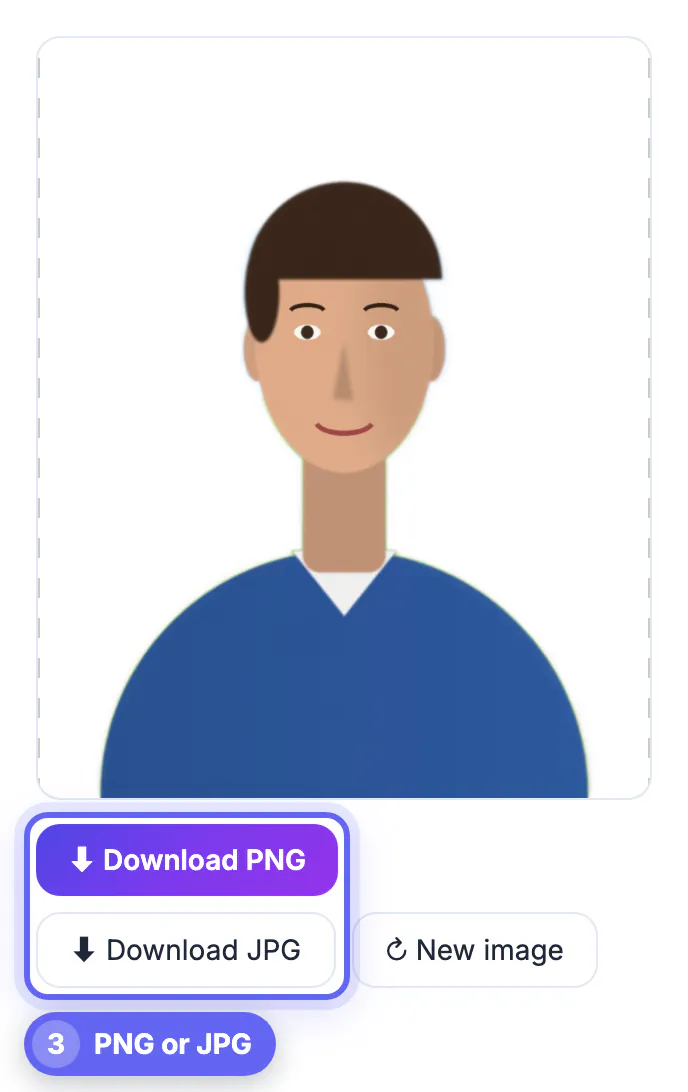
Most cutout apps want an account, a subscription after three free exports, or permission to read your entire photo library. A browser tool asks for one photo at a time and nothing else. Because the model runs on your device, a selfie with your kids or a picture taken inside your home is not sent to a company's server, which matters for photos you would never post publicly. And when you only need a clean headshot once a year for a LinkedIn update or a club roster, there is nothing to uninstall afterward. Browser tools also update silently, so there is never an app-store update to install first.
What happens when you remove the background
The first run downloads the AI model once and caches it, so start on Wi-Fi; later runs skip that step. The tool then shrinks a working copy of your photo to 1,024 pixels on the long side, predicts which pixels belong to the person, and scales that mask back up to your full picture, up to 4,096 pixels on the long side.
- On browsers with WebGPU support, the graphics chip does the work; otherwise the processor handles it, which is slower but still usually under half a minute.
- The model used is a portrait matting model, trained to separate people, including hair, from what is behind them.
- No upload happens at any step; the finished file saves straight to your downloads or Files app.
A typical 12-megapixel handset photo is 4,032 by 3,024 pixels, so it passes through at full size. Panoramas and 48- or 200-megapixel shots are scaled so the long side is 4,096 pixels, which is still more than enough for a profile picture, a flyer or a slide.
Choosing a new backdrop on a small screen
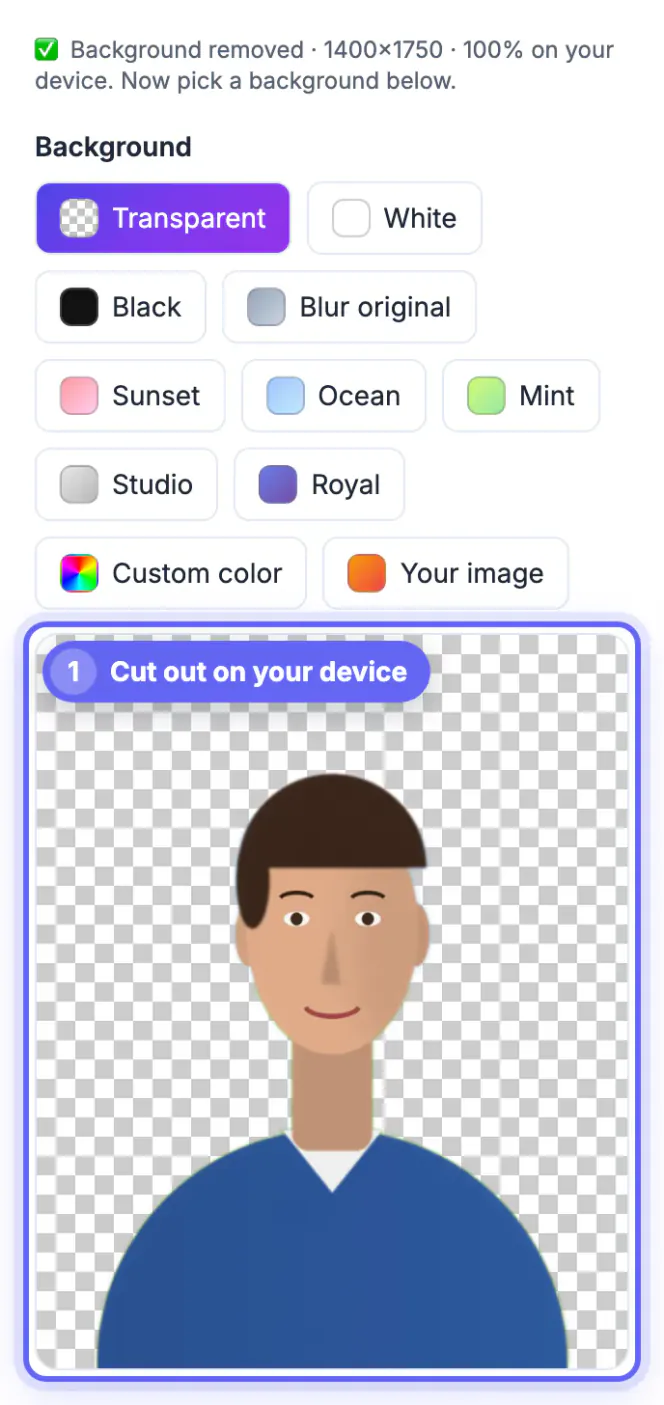
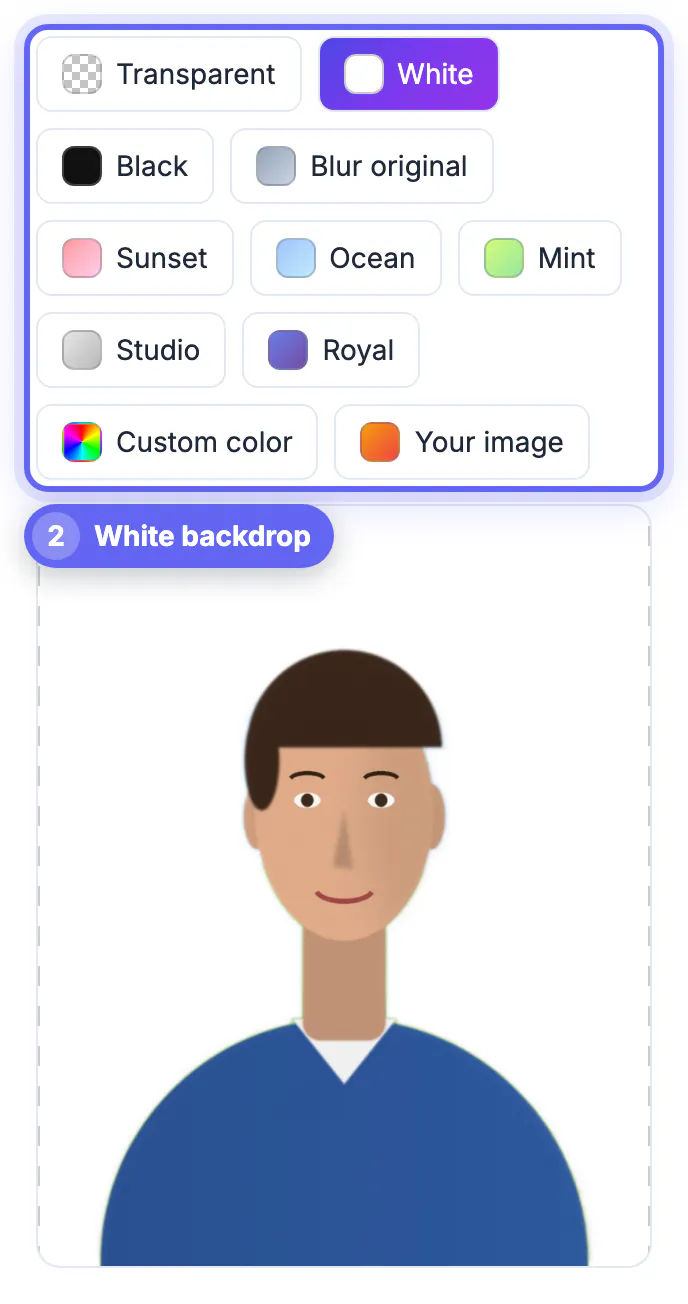
After the cutout, a row of chips lets you preview options instantly: Transparent, White, Black, Blur original, five gradients named Sunset, Ocean, Mint, Studio and Royal, a custom color picker, and Your image for dropping the person onto another photo.
Match the choice to where the picture goes. White or Studio gray suits a resume, LinkedIn or a company directory. A soft gradient suits a dating profile or a podcast guest card. Blur original keeps the real setting but softens it, a portrait-mode look that feels natural in group chats. Save as PNG to keep transparency for design apps, or JPG for a smaller file where transparency turns white.
Using Your image for a new setting works best when light matches. A person lit from the left pasted onto a beach lit from the right looks fake at a glance. Pick a backdrop with similar brightness and direction of light, and prefer slightly blurred scenes, which hide small differences in focus between the person and the new setting.
If you need a clean photo for a profile, see how to make a professional profile picture, or make a white background transparent for simple graphics.
Honest limits: people work best
Because the model was trained on portraits, it is most reliable on one or two people facing the camera. Pets, products, cars and furniture sometimes come out with missing edges or leftover floor, and busy scenes such as a crowd may keep extra people.
- Fine hair against a similar-colored wall can look thin or haloed.
- Objects the person holds, like a mug or phone, may be partly cut away.
- Very dark or backlit photos give the model less contrast to work with.
Official photos are a separate case: US passport rules and many visa or ID offices do not accept digitally altered backgrounds, so shoot those against a real plain wall instead.
When your gallery's built-in cutout is faster
On an iPhone or iPad with iOS 16 or later, you can touch and hold the subject in Photos to lift it off and copy or share it. Many recent Android galleries, including Samsung's, offer a similar long-press cutout. These are ideal for quick stickers and pasting into messages.
The browser tool earns its place when you need a new backdrop rather than just a lifted subject, a full-resolution file, a consistent look across several team headshots, or when you are on an older handset without the built-in feature.
A quick way to decide: if the result is going into a message thread in the next minute, long-press in your gallery. If it is going onto a website, a printed badge or a slide deck where it will be seen large, use the browser tool, check the edges at 200 percent zoom, and keep the PNG as your master copy.
Step-by-step
Common mistakes to avoid
Pro tips
Frequently asked questions
Does this work on iPhone and Android?
Yes. It runs in modern mobile Safari and Chrome. Newer handsets finish in a few seconds; older ones can take up to half a minute on larger photos.
Is my photo uploaded anywhere?
No. The AI model runs in your browser on your device. Only the model file downloads once from a public source, and your picture never leaves the handset.
Why are the edges rough on my pet or product photo?
The model is designed for portraits of people. Animals and objects work sometimes, but results vary; a plain, contrasting backdrop in the original helps the most. For product shots, a white sheet of poster board behind the item gives the model the best chance.
What resolution is the result?
The same as your photo, up to 4,096 pixels on the long side. Larger photos are scaled down to that limit to keep phones from running out of memory.
Is it free, and is there a watermark?
It is free with no sign-up and no watermark on PNG or JPG downloads. You can process as many photos as you like, one at a time, without daily limits.
For portraits, a browser cutout on your phone gives a clean, full-resolution result with no app, no account and no upload. Start on Wi-Fi, shoot against a plain wall, choose a backdrop that fits where the picture is going, and fall back on your gallery's built-in lift feature for quick stickers.
Related guides
Browse more: all image guides · Remove Background