Best Free Image Resizer: 10 Options Compared
The best free image resizer in 2026 depends on the job: Squoosh gives the most control over one photo, PowerToys and Preview are the fastest way to batch files already on your computer, GIMP and Photopea handle resizing inside real editing, and GrabCast is the quickest in-browser option for social-media sizes and batches without uploading anything. Canva, Adobe Express and iLoveIMG are convenient when you already use them, with the trade-offs noted below. This comparison is written for people who resize pictures every week, for listings, posts, newsletters or client work, and it sticks to what each product actually does rather than invented scores.
📐 Try Resize Image now — freeOpen →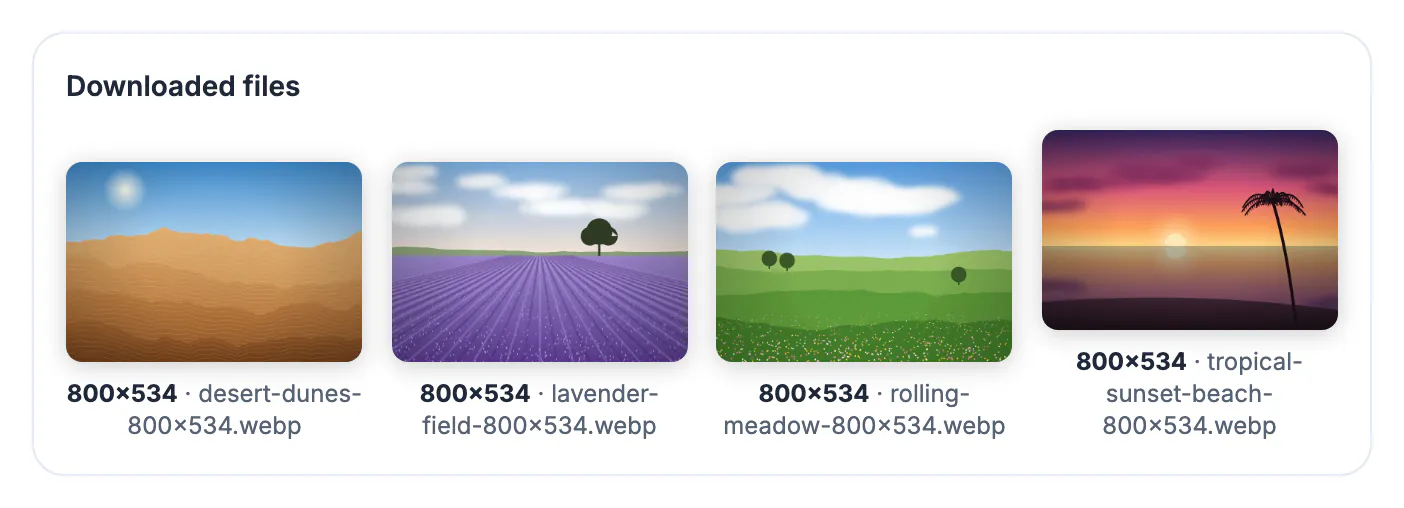
Resizing sounds like one feature, but people mean different things by it. A shop owner needs forty product shots at 2000 pixels by Friday; a social media manager needs one photo at five platform sizes; a developer wants the smallest possible WebP at 1200 pixels wide. Tools optimized for one of these are clumsy at the others. Judging on the same five questions, where does the file go, how many at once, can you type exact pixels, what happens when the shape changes, and is anything added to the output, makes the right pick obvious for your own work.
How the resizers were judged
Each option was assessed on the same practical criteria, using publicly documented features. Prices and plan limits change often, so they are described in general terms rather than quoted.
- Privacy: does the photo stay on your device, or is it uploaded to a server to be processed?
- Batch: can you resize dozens of files in one pass, and do you get them back as a ZIP or folder?
- Precision: can you set exact width and height, a percentage, or a named preset like 1080 by 1350?
- Shape changes: when the target ratio differs from the original, can you crop to fill, pad, or pick the focal point?
- Output: is there a watermark, a sign-in wall before download, or forced recompression you cannot control?
The ten picks, in one line each
All of these are free to use in some form. Where a free plan has meaningful limits, that is noted.
- Squoosh (Google Chrome Labs): open source and runs in the browser, with side-by-side before and after, a choice of resampling methods and codecs like MozJPEG, WebP and AVIF. The web app works on one picture at a time.
- iLoveIMG: quick batch resizing by pixels or percentage in the browser, but files are uploaded to its servers, and the free tier has usage limits.
- Adobe Express: free social-size presets and a polished editor; it runs on Adobe's cloud and may ask you to sign in before downloading.
- Canva: custom-size designs are free, but the one-click resize of a finished design to other formats has been part of the paid plans.
- Photopea: a free, ad-supported, Photoshop-style editor in the browser with a full Image Size dialog, good when resizing is part of a bigger edit.
- Preview (Mac): Tools, then Adjust Size, works on many selected pictures at once, with no install at all.
- Microsoft PowerToys Image Resizer (Windows): a free add-on that puts Resize pictures in the File Explorer right-click menu, with saved size presets.
- GIMP 3: the free open-source desktop editor, with Scale Image and precise interpolation choices; batch work needs plugins or scripts.
- IrfanView (Windows): a tiny viewer with a capable batch conversion and resize dialog, free for non-commercial use.
- GrabCast Resize Image: in the browser with no upload, sixteen social and screen presets, batch with ZIP download, and three ways to handle a shape change.
Where each option falls short
Fair comparisons include the downsides. None of these is a bad tool; each is simply built for a different person.
- Upload-based services like iLoveIMG and Adobe Express are fast, but client photos or ID scans leave your device, which some contracts and workplaces do not allow.
- Squoosh has the best quality controls here but no batch mode in its web app, so forty files means forty rounds.
- Desktop tools such as Preview, PowerToys, GIMP and IrfanView are private and quick, yet none of them knows social platform sizes unless you save your own presets.
- Canva and Adobe Express are design tools first; resizing a plain photo there takes more clicks than a dedicated resizer.
- GrabCast's presets crop from the center with no focal-point control, JPG and WebP export at a fixed 90 percent quality, and output is capped at about 60 megapixels per file.
What GrabCast's resizer does, exactly
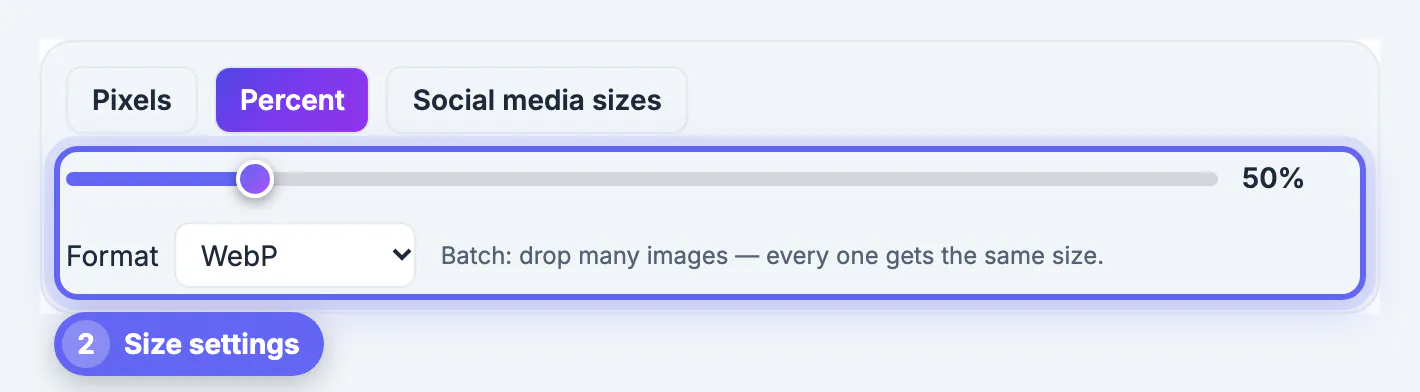
GrabCast Resize Image has three modes. Pixels takes a width and height, with Keep aspect ratio on by default, so typing only a width calculates the height. Percent is a slider from 5 to 300 percent. Social media sizes lists sixteen presets, including Instagram 1080 by 1080, 1080 by 1350 and 1080 by 1920, YouTube thumbnail and banner, Facebook, X, LinkedIn and Pinterest sizes, a 1200 by 630 link-preview size, Full HD, 4K and a 600 pixel passport square.
- For presets you choose Crop to fill, Fit with a blurred background, or Fit with a solid background color.
- Format can stay the same or switch to JPG, PNG or WebP; transparent areas become white in JPG.
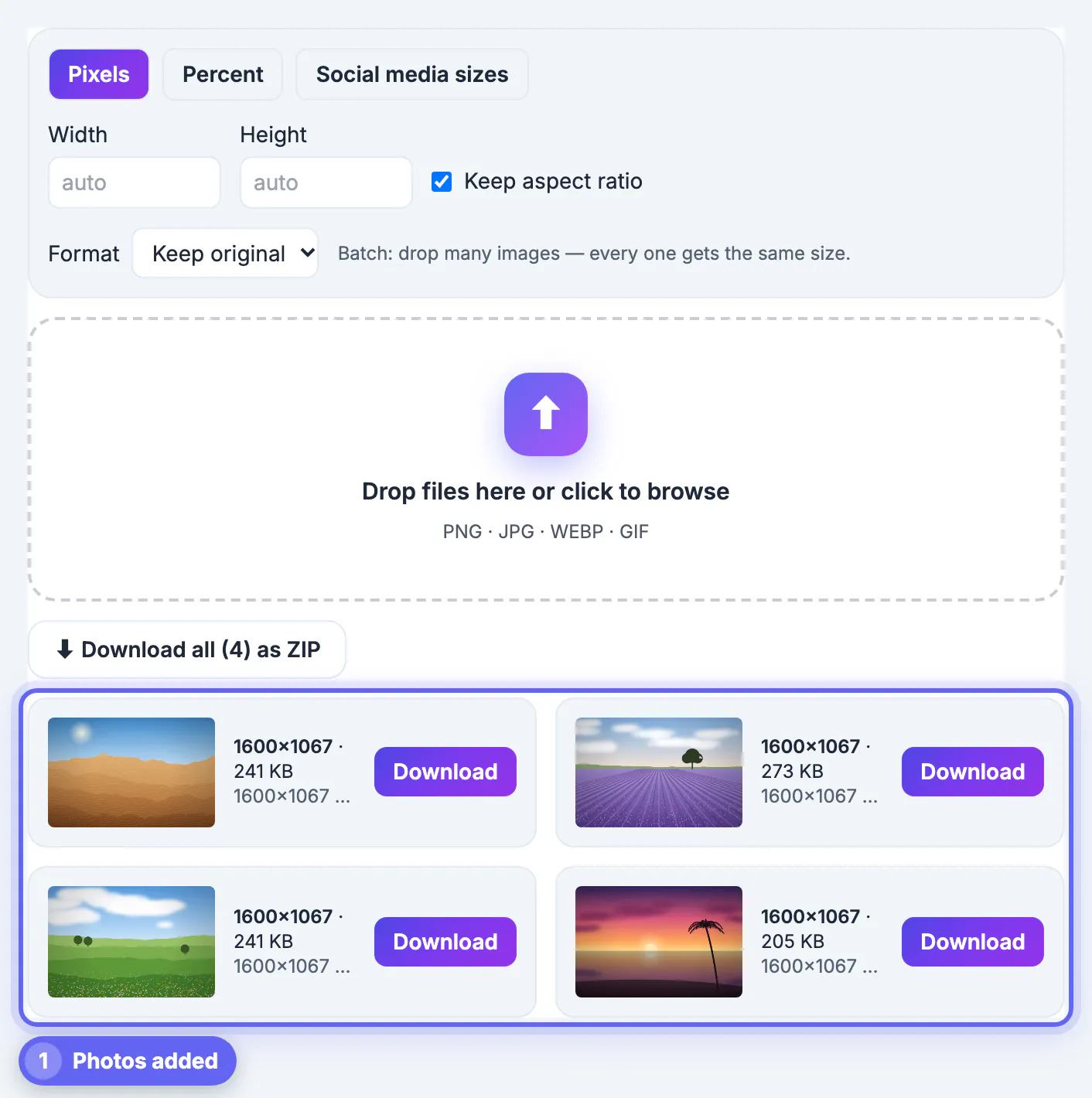
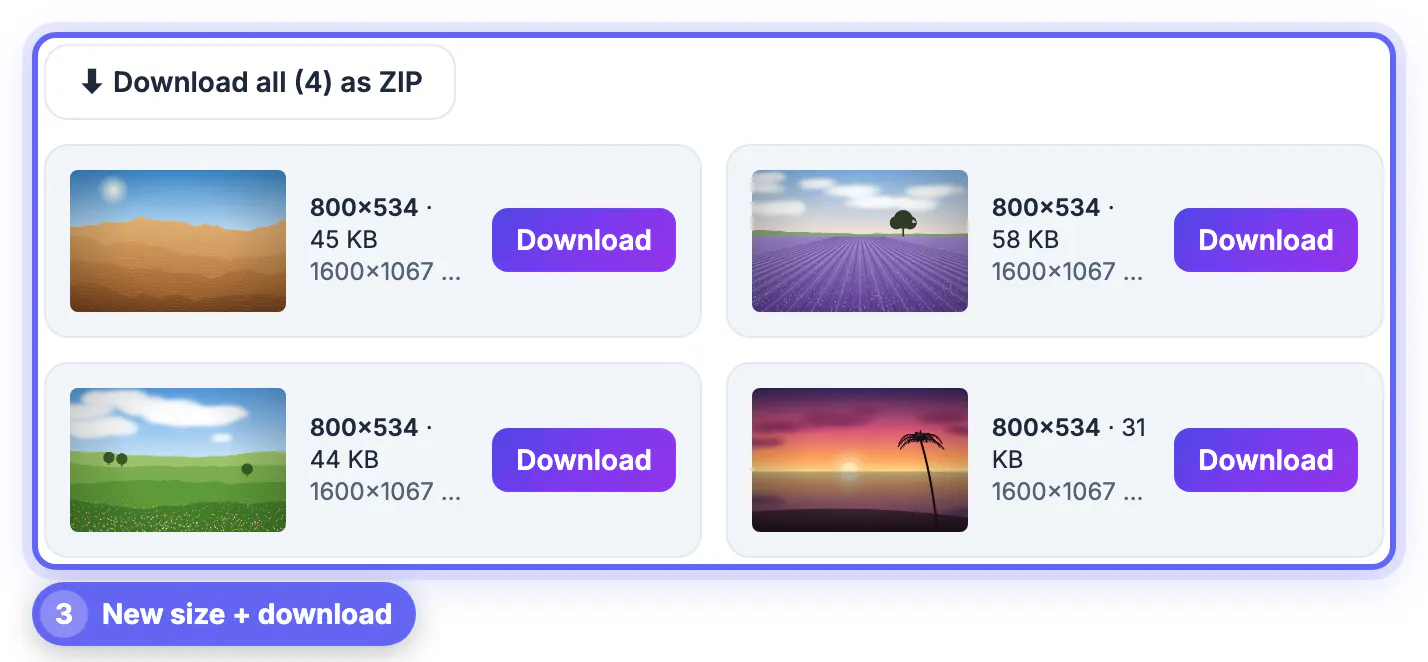
- Drop many files and each gets the same size, with a Download all as ZIP button and file names ending in the new dimensions.
- Large reductions are scaled down in halving steps to avoid jagged edges and moire.
- It does not enlarge with AI; for small originals, the separate AI Image Upscaler doubles resolution first, also in the browser.
Honest verdict: pick Squoosh for squeezing one hero picture to the smallest file, PowerToys or Preview for bulk work on your own computer, GIMP or Photopea when resizing is part of editing, and GrabCast when you want social sizes and batches in a browser without uploading.
After resizing, the Compress Image tool can shrink the file further if it is still too big.
Step-by-step
Common mistakes to avoid
Pro tips
Frequently asked questions
What is the best free image resizer overall?
There is no single winner. Squoosh offers the finest control for one file, PowerToys Image Resizer and Mac Preview are best for local batches, and GrabCast suits private, preset-based resizing in the browser. Match the tool to the job.
Which free resizers do not upload my photos?
Squoosh, Photopea and GrabCast process pictures inside the browser, and desktop tools like Preview, PowerToys, GIMP and IrfanView work offline. Services such as iLoveIMG and Adobe Express process files on their servers.
Can a free resizer make a small photo bigger without blur?
Standard resizing can only stretch the pixels you have, so enlargements soften. An AI upscaler reconstructs some detail; GrabCast has a separate 2x AI Image Upscaler that runs in the browser, and results depend on the source.
Does GrabCast add a watermark or need an account?
No. Resize Image is free with no account and no watermark, and the resized files are generated on your device.
Which resizer is best for social media sizes?
Tools with built-in presets save the most time. Adobe Express and GrabCast both offer platform presets; GrabCast also crops or pads to the new shape and batches many files at once without uploading them.
The best free image resizer is the one that fits your job: Squoosh for fine control over a single file, Preview or PowerToys for fast local batches, GIMP or Photopea when you are editing anyway, and GrabCast for private social-size resizing and ZIP batches in the browser. Upload-based services are convenient but not for sensitive photos.
Related guides
Browse more: all image guides · Resize Image