Resize Image to 1920x1080 for Slides, Video and Desktops
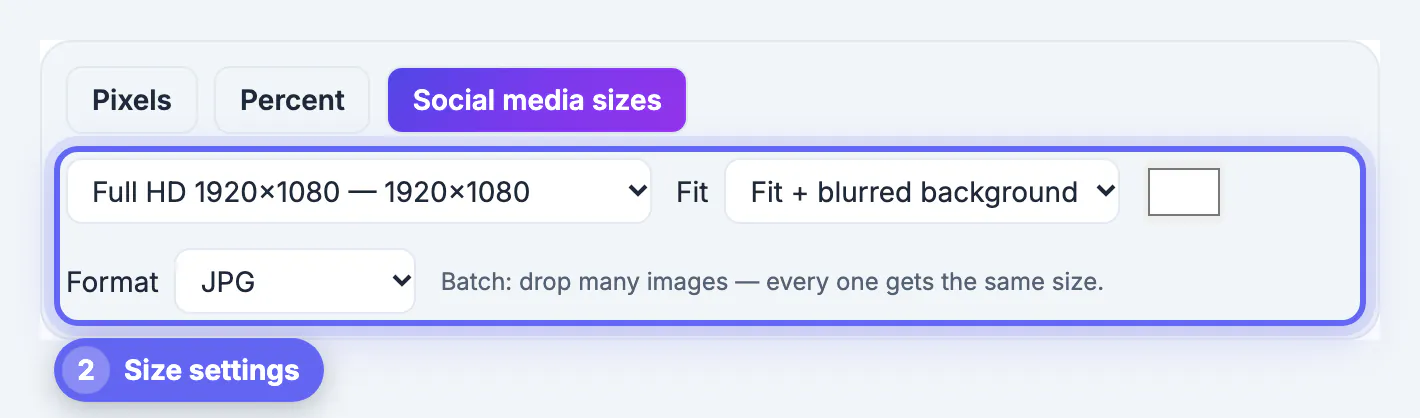
To resize image to 1920x1080, pick the Full HD preset in Resize Image and choose how to handle the shape: crop to fill for edge-to-edge coverage, or fit with a blurred background to keep the whole picture. 1920 x 1080 is the 16:9 standard behind 1080p video, most presentation templates, Zoom virtual backgrounds and a huge share of desktop monitors. The size is easy; the real decision is what happens to a 4:3 or vertical photo that does not match that shape.
📐 Try Resize Image now — freeOpen →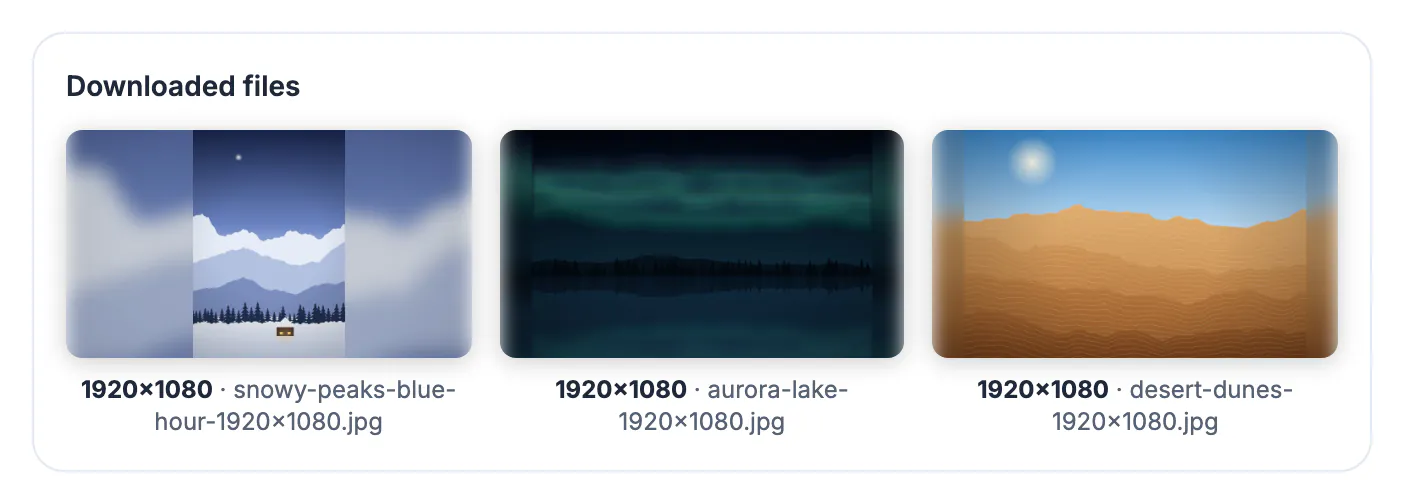
Full HD packs 2,073,600 pixels into a 16:9 frame, and a lot of software assumes it. PowerPoint and Google Slides use 16:9 as the default slide shape, and a 1920 x 1080 background fills a slide exactly with no stretching. Video editors such as Premiere Pro, DaVinci Resolve and CapCut default to 1080p timelines, so a still at that size drops in without scaling. Zoom recommends virtual backgrounds of at least 1280 x 720 and 1920 x 1080 is the common choice. OBS scenes, digital signage and plenty of 24-inch monitors run at the same resolution. Matching it removes a whole class of problems: black bars, stretched faces and unexpected cropping by the receiving app. Teachers building lecture decks, event staff preparing lobby screens, video editors assembling a slideshow and remote workers choosing a tidy call background all run into the same size. Preparing images at exactly 1920 x 1080 before they reach the software gives you control over the crop, instead of accepting whatever automatic scaling each program applies.
Where 1920x1080 fits and where it does not
Full HD is a safe default for most 16:9 destinations, but a few common slots use other sizes.
- Slide backgrounds in 16:9 PowerPoint, Keynote and Google Slides decks
- Zoom, Teams and Google Meet virtual backgrounds
- Stills and title cards on 1080p video timelines, plus OBS scene backgrounds
- Wallpapers for 1080p monitors and TVs
- YouTube thumbnails are 16:9 too, but a 1280 x 720 JPG under 2 MB is the safest upload from any device; channel banners use 2560 x 1440
For 1440p and 4K monitors, use the 4K 3840 x 2160 preset instead; a 1080p wallpaper stretched onto a 4K screen looks soft.
Fill, blur-fit or solid background
Most photos are not 16:9. Resize Image offers three ways to reach 1920 x 1080, and each suits a different picture.
- Crop to fill: covers the frame edge to edge; a 4:3 photo loses about 25 percent of its height
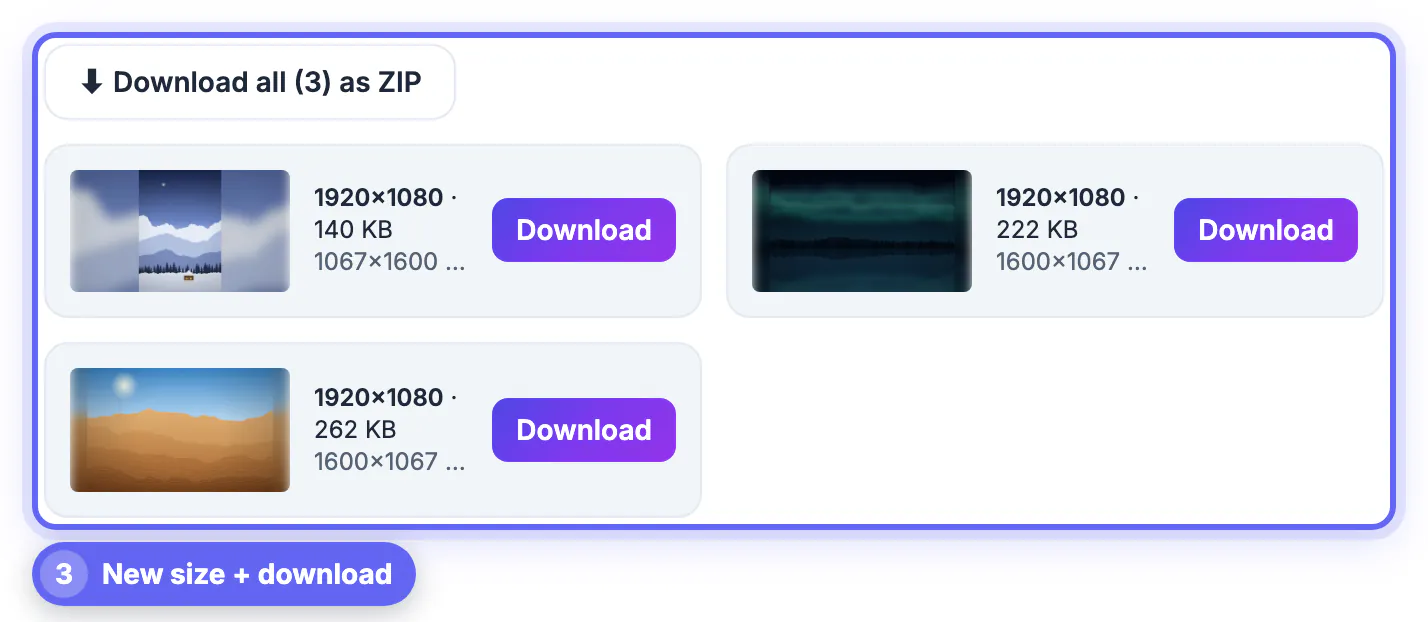
- Fit with blurred background: keeps the entire picture and fills side bars with a softened copy
- Fit with solid background: keeps the entire picture on a color you choose, ideal behind slide text
- A 4:3 image fitted into 1920 x 1080 occupies 1440 x 1080, leaving 240-pixel bars on each side
- A vertical phone photo fitted in occupies only about 608 x 1080, so blur-fit looks far better than fill
For landscapes with sky or water, crop to fill usually works. For documents, charts and group photos, fit preserves what matters.
Starting sizes: downscale, upscale, or both
How sharp the result looks depends on the source resolution.
- 12 MP phone photo (4032 x 3024): downscales cleanly; the tool reduces in steps to avoid moire
- 4K frame (3840 x 2160): exactly twice 1080p, a perfect half-size reduction
- 1280 x 720 source: needs a 1.5x enlargement and will look slightly soft
- Anything under about 1000 pixels wide: use it small on the slide rather than as a full background
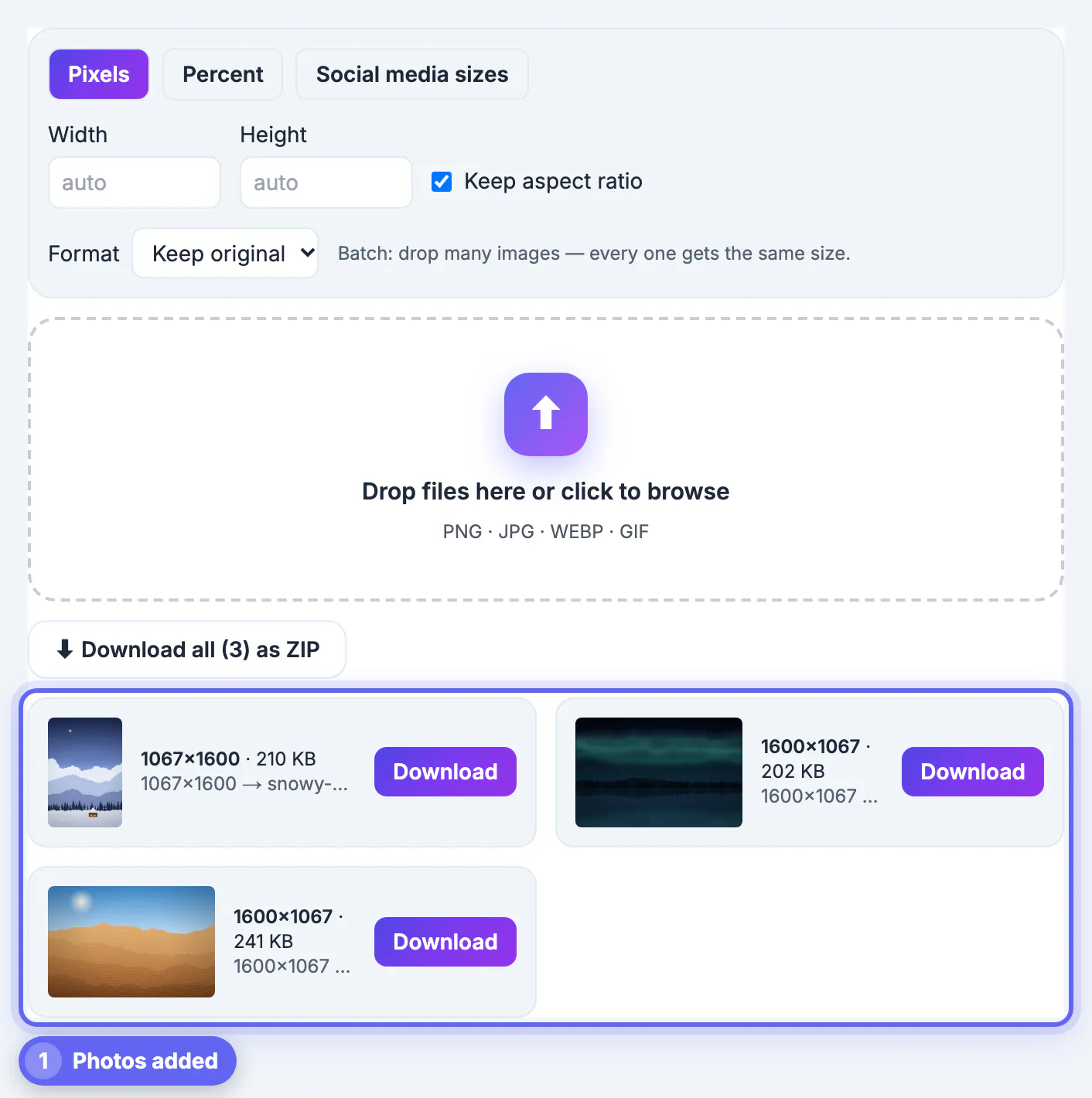
For whole slide decks or a folder of wallpapers, drop every file in at once and download them as a ZIP.
Format and file size at 1080p
A 1920 x 1080 image can be 200 KB or 6 MB depending on content and format, which matters when a deck or email gets heavy.
- JPG photo backgrounds usually land between 300 KB and 900 KB
- PNG suits slides with text, logos or flat color but can reach 1 to 3 MB
- WebP gives the smallest files for web pages; older Office versions may not accept it
- If a deck feels sluggish, check for 4000-pixel images that were placed and shrunk on the slide
Pair Resize Image with Compress Image if an upload form enforces a size limit.
Not sure which format suits your deck or page? This WebP vs JPG comparison explains the trade-offs.
Step-by-step
Common mistakes to avoid
Pro tips
Frequently asked questions
What aspect ratio is 1920x1080?
16:9. It is the same shape as 1280 x 720, 2560 x 1440 and 3840 x 2160, so images scale between them without distortion. Any 16:9 file scales cleanly to fit a 1080p screen or slide.
How do I resize a 4:3 photo to 1920x1080 without stretching?
Use crop to fill to trim the top and bottom, or fit with a blurred or solid background to keep the whole photo. The blurred option usually looks more natural than black bars on a video timeline or slide.
Is 1920x1080 good for a YouTube thumbnail?
Yes, it is 16:9. YouTube now recommends up to 3840 x 2160 and accepts files up to 50 MB from YouTube Studio but only 2 MB from the mobile app, so the 1280 x 720 Resize Image thumbnail preset remains the safe choice for any device. Export JPG around 300 to 900 KB to stay well inside the limit.
Can I resize many images to 1920x1080 at once?
Yes. Drop a batch into Resize Image; every file gets the same size, and you can download them together as a ZIP. This is handy for event slideshows where dozens of photos must share one size.
Does resizing happen on a server?
No. Resize Image processes files in your browser, so the images stay on your device. That keeps unreleased slides and personal photos private while you work.
Use the Full HD preset for 16:9 slides, video stills, virtual backgrounds and 1080p wallpapers. Crop to fill landscape photos, blur-fit vertical ones, and switch to 3840 x 2160 for 4K screens or 1280 x 720 for YouTube thumbnails.
Related guides
Browse more: all image guides · Resize Image