Horizontal Video in a Vertical Frame, Nothing Cut Off
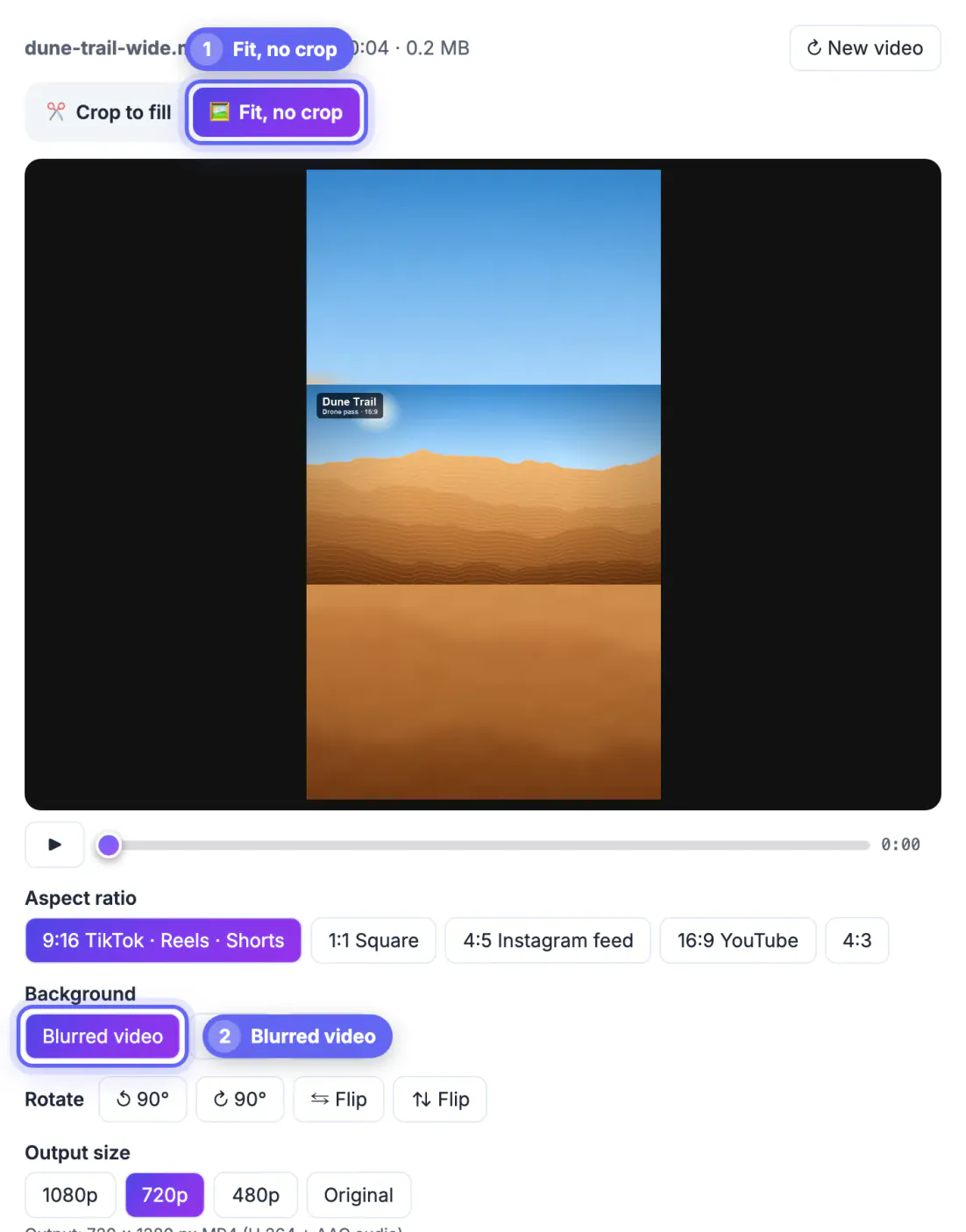
Sometimes a horizontal video cannot be cropped for a vertical frame: a panorama, a slide with text at both edges, or two people standing far apart. Fit it instead. The whole 16:9 picture sits in the middle of a 9:16 canvas, and the empty space above and below is filled with a blurred copy of the same footage or with plain bars. GrabCast's Crop & Resize Video does this in its Fit, no crop mode and shows the result live before you export. Below, a 960 × 540 dune clip goes through all three background options, with the numbers that explain how much of the screen your picture will actually occupy.
📐 Try Crop & Resize Video now — freeOpen →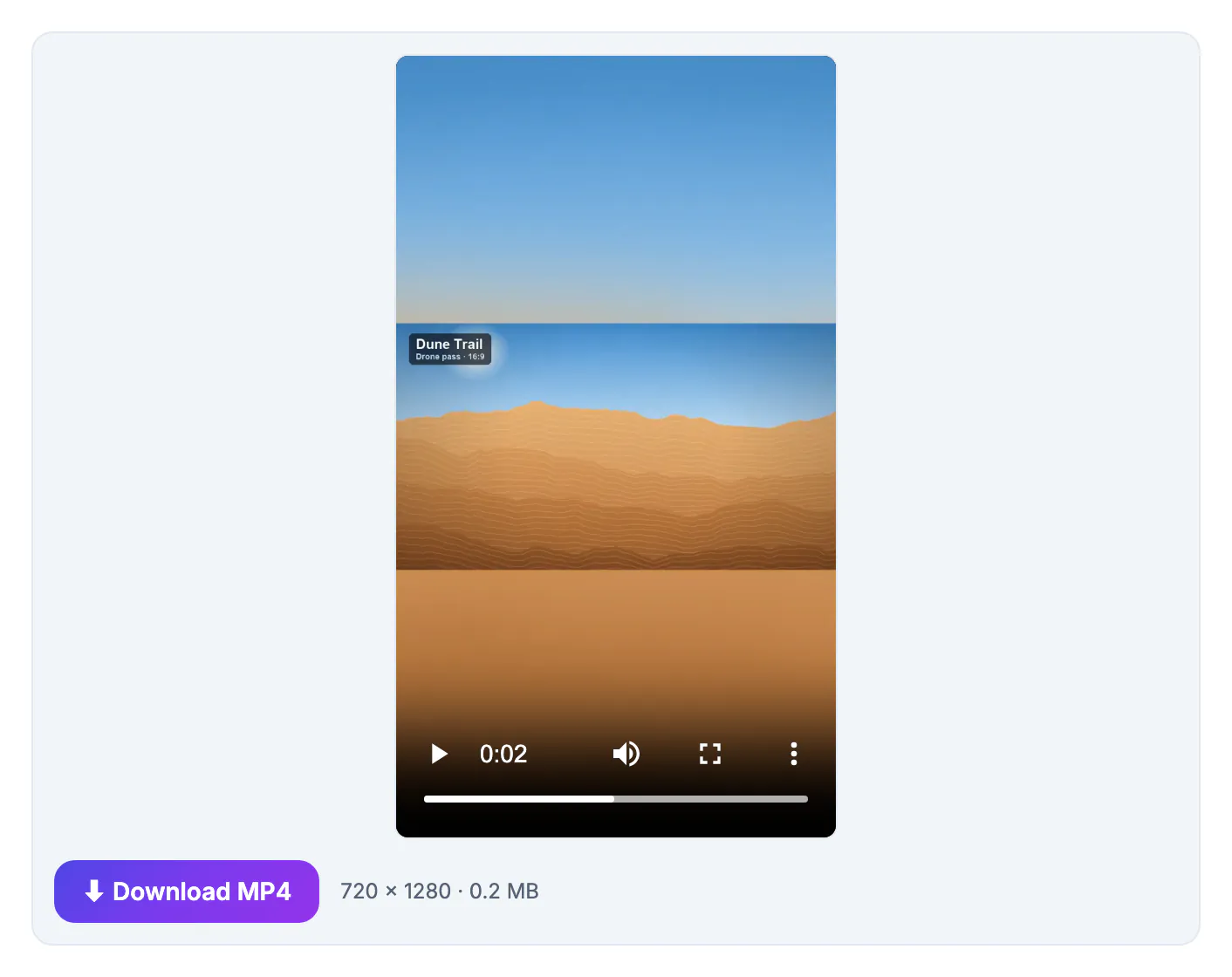
A 9:16 crop keeps about a third of a landscape frame. That works for a single speaker and fails for anything wide by nature: a drone pass over a coastline, a whiteboard, a band on a stage, a product demo where the hands and the screen sit at opposite ends. Cut those down and the viewer loses the context that made the shot worth posting. Fitting keeps 100 percent of the image at the cost of size, since the picture fills the full width of the phone but only about 32 percent of its height. The fill around it decides how professional that looks. A blurred copy of the video carries the colors of the scene to the edges of the screen, so the frame reads as one image rather than a small rectangle floating in a black box. Plain black or white bars are cleaner for text-heavy material, where a moving blur behind a slide would be distracting.
Blurred background, black bars or white bars
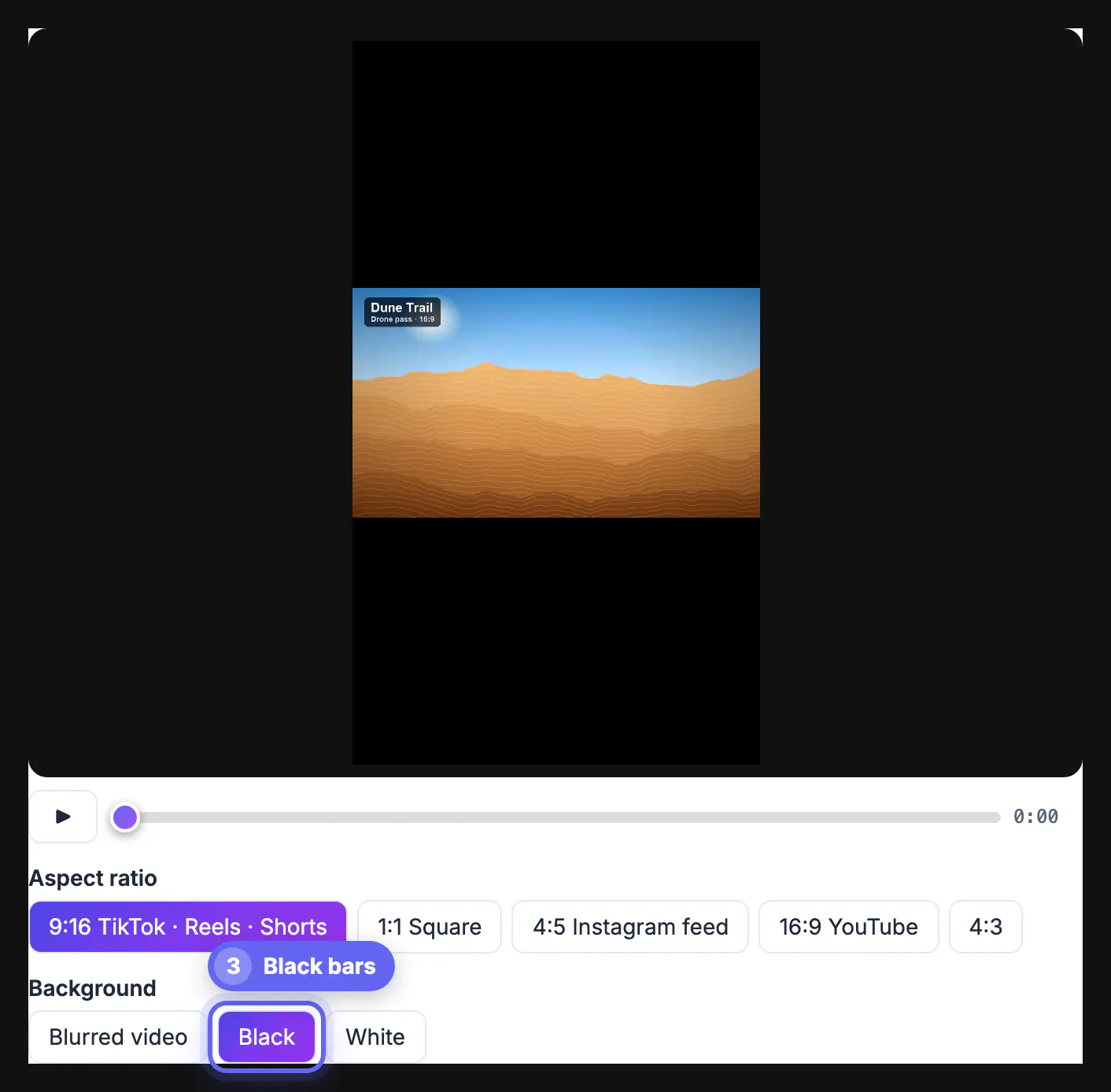
The Background buttons appear as soon as you switch to Fit, no crop, and the preview redraws instantly when you change them.
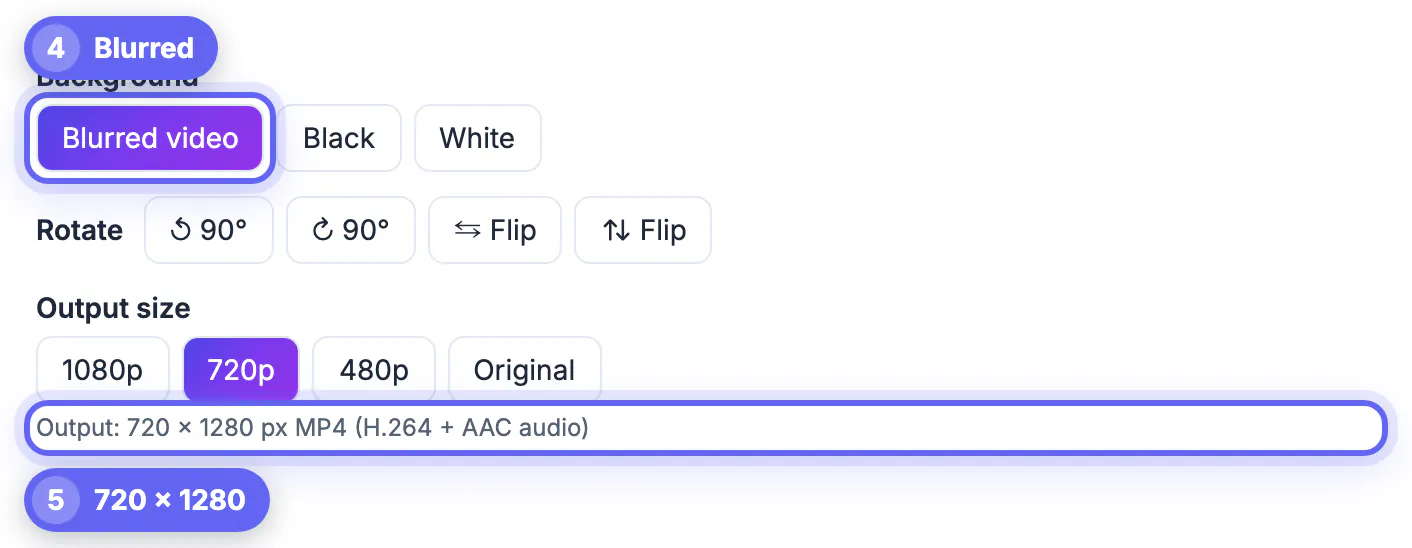
- Blurred video scales a copy of the clip to fill the frame, blurs it heavily and places the sharp original on top, centered.
- Black suits night footage, film-style edits and anything that will be watched in dark mode.
- White suits bright product shots, documents and slides with a white background, where the bars blend into the content.
- The blur follows the motion of the video, so a moving shot gets a moving background rather than a frozen frame.
- Whichever option you pick, nothing from the original picture is cut away.
A quick way to decide: pause the clip on its busiest frame and ask whether anything important sits outside the middle third. If it does, fitting is the safer choice.
What a fitted 16:9 clip looks like on a 9:16 screen
Knowing the proportions helps you decide whether Fit is worth it or whether a partial crop would be better.
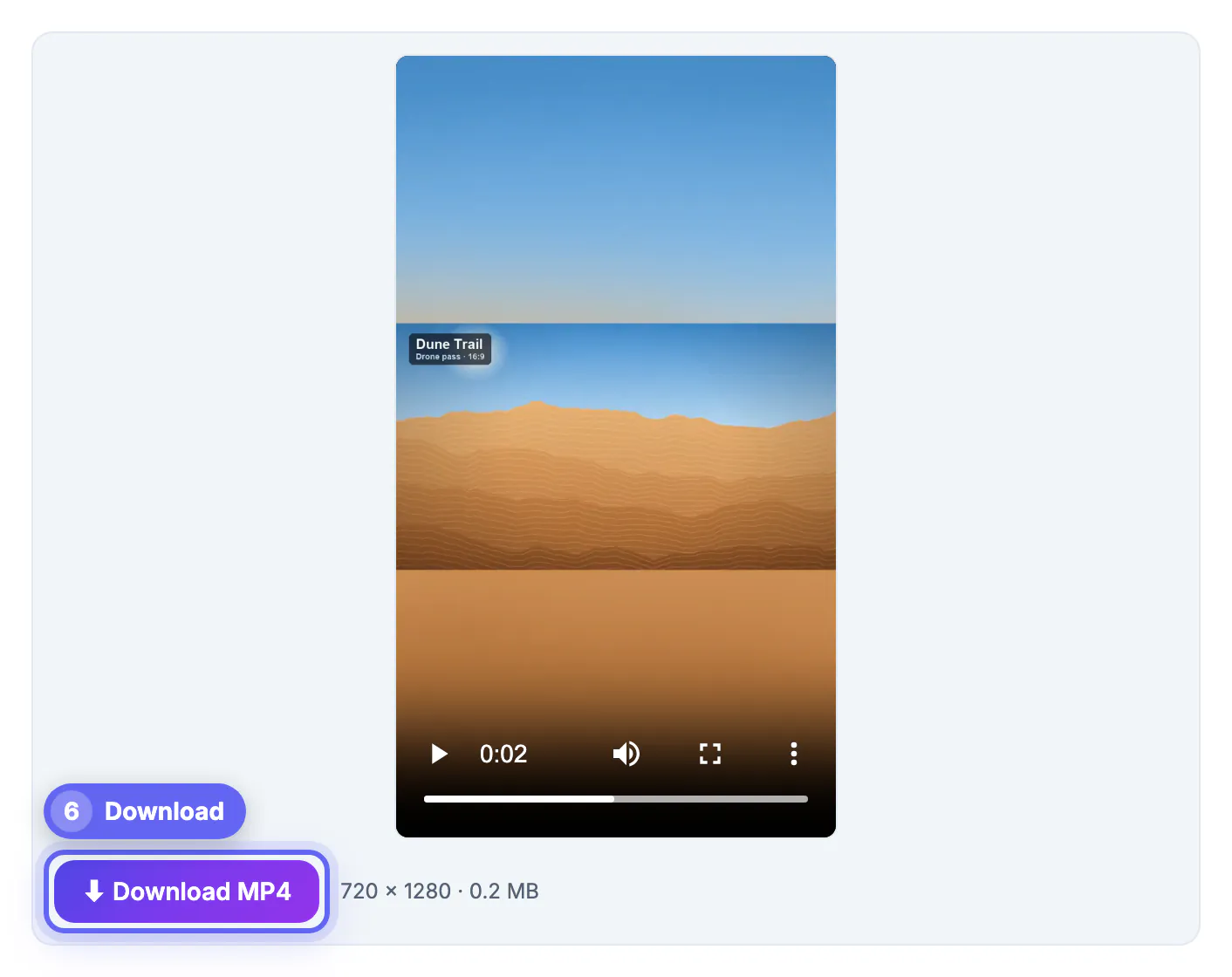
- At 720p the canvas is 720 × 1280; the fitted 16:9 picture is 720 × 405, so it covers about 32 percent of the screen height.
- At 1080p the canvas is 1080 × 1920 and the picture is 1080 × 608.
- The remaining space splits evenly above and below, roughly 438 pixels each at 720p, which leaves room for a caption above and the app's buttons below.
- 4:5 is a middle ground for the Instagram feed: the same picture fills a larger share of a 720 × 900 canvas, with thinner bands.
- Fit also works in the other direction, placing a vertical clip inside a 16:9 frame for YouTube with blurred sides.
Those proportions also explain why fitted clips work best when the action is large in the frame. A distant subject that already looks small in landscape becomes tiny once the whole picture shrinks to a third of a phone screen.
Rotate, flip and mute in the same export
Fit mode combines with the other controls, so one export can fix several problems at once.
- The two 90° buttons turn the picture before it is fitted, useful for footage filmed with the phone held the wrong way.
- The two Flip buttons mirror the image horizontally or vertically, handy for selfie-camera text that reads backwards.
- Remove audio exports a silent MP4, useful when you will add music inside the social app instead.
- The Output line always shows the final size, for example Output: 720 × 1280 px MP4 (H.264 + AAC audio).
- The export keeps the source frame rate and length, and uses H.264 at CRF 23 with AAC audio at 128 kbps.
Because all of these options are applied in one pass, the video is re-encoded only once, which keeps quality higher than chaining several separate tools.
When a fitted horizontal video beats a crop
Neither option is always right. Pick per clip, based on what the viewer needs to see and read.
- Choose Fit for landscapes, group shots, screen recordings, slides and anything with text near the left or right edge.
- Choose Crop to fill for a single talking head, a close-up or any shot with one clear subject that fits in a third of the width.
- If a clip mixes both, split it with the Video Trimmer and treat each part separately before joining them again.
- Test on a phone: open the exported file in your gallery app to judge how small the fitted picture really looks.
- For a whole set of clips with different shapes, Merge Videos offers the same blurred-background fit across every clip.
Step-by-step
Common mistakes to avoid
Pro tips
Frequently asked questions
How do I make a horizontal video vertical without cutting anything off?
Switch to Fit, no crop and choose 9:16. The full picture is placed in the middle of a vertical frame and the space above and below is filled with a blurred copy of the video or with black or white bars.
Is the blurred background a still image?
No. It is made from the video itself, so it moves with the footage and matches its colors throughout the clip.
What resolution should the vertical version be?
1080 × 1920 at 1080p is the standard for TikTok, Reels and Shorts. 720 × 1280 is accepted everywhere and exports about twice as fast.
Can I fit a vertical video into a horizontal frame?
Yes. Choose 16:9 in Fit mode and the vertical clip is centered in a wide frame with blurred, black or white sides, which suits YouTube and presentations.
Does the video leave my computer?
No. The fit and the export run locally in your browser using ffmpeg compiled to WebAssembly; only the engine itself is downloaded once.
When every part of a wide shot matters, fit it instead of cropping it. A blurred fill makes a 16:9 clip feel at home on a vertical screen, black or white bars keep text readable, and a quick look on a real phone tells you whether the picture is big enough.
Related guides
Browse more: all video and audio guides · Crop & Resize Video