Movavi Video Editor vs Free Editors: Who Should Pay
Movavi Video Editor is a paid desktop editor, and the honest question is whether your projects need one. For many jobs they do not: a single cut, a caption pass or a quick trim runs free in a browser tab, CapCut covers short social edits, and DaVinci Resolve gives professional colour and audio tools at no cost. A paid desktop editor starts to make sense when you want a simple offline timeline without a steep learning curve. This guide compares the options by the job, so you can decide who should pay and who should stay free. Prices, trial limits and feature sets change, so check each vendor's current page before you commit. Disclosure: some links below are affiliate links, and GrabCast may earn a commission at no extra cost to you.
✂️ Try the Video Trimmer now — freeOpen →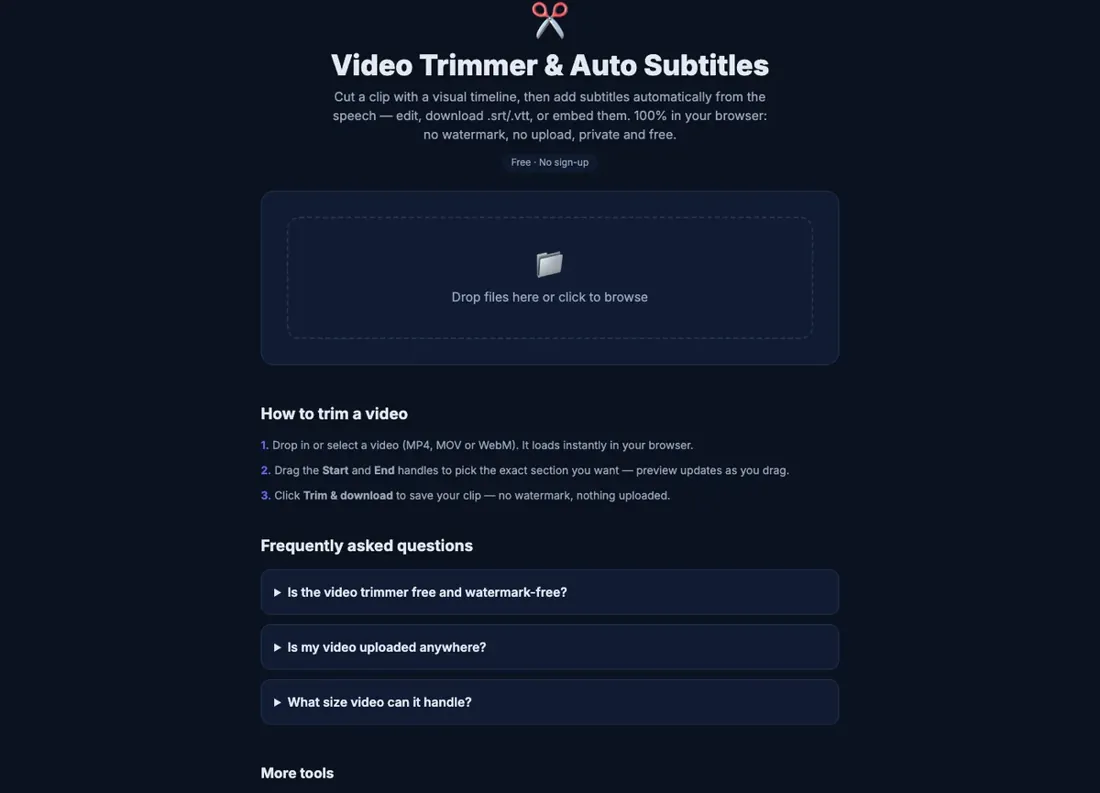
Free editors are not worse editors; they ask for different things from you. A browser tool asks for nothing but a file and a few minutes. CapCut asks for an account and some patience with changing plan tiers. DaVinci Resolve asks for a powerful computer and time to learn a professional interface. A paid consumer editor such as Movavi asks for money and, in return, aims at a gentler learning curve and an offline project on your own machine. Whether that trade is worth it depends on how often you edit, how long your projects run, and how much friction you can tolerate. Someone who edits twice a year should almost never pay. Someone who assembles a weekly twenty-minute video with music, titles and many clips may reasonably want a dedicated, offline editor and a calmer interface.
Start with the job: cut, caption or full edit
Sort your work into three buckets before comparing any software.
- One continuous cut or a caption pass: use the free browser Video Trimmer. It needs no install, no account and adds no watermark, and your file stays on your device.
- Short social edits with effects and templates: CapCut's free tier is built for this, with a multi-track timeline on phone and desktop. Check its plan page, because some effects and AI tools sit behind a subscription.
- Long, multi-clip projects: this is where a real timeline editor earns its place, whether it is DaVinci Resolve, Movavi Video Editor or another desktop tool.
Most people discover they sit in the first two buckets. If that is you, stay free and spend nothing.
What Movavi Video Editor offers, from its own page
We have not tested Movavi hands-on, so this section only repeats what the vendor publishes. Its product page describes a desktop editor for Windows 10 or 11 (64-bit) and macOS, with a multi-clip timeline, titles, filters and transitions. It also lists features such as automatic subtitles, AI noise removal and silence removal. A free trial exists, and the vendor states limits on it such as a watermark on exports, so run your own footage through the trial before paying.
That feature list matters because it targets tedious jobs: cleaning background hiss from a voice track, trimming dead air from a talking video and adding captions without typing them. Whether the results meet your standard is something only your own test export can answer.
Movavi Video Editor is a paid desktop editor for Windows and Mac. It fits long projects, offline editing and a gentler learning curve than a professional suite. Try the free options first, then test the trial on your own footage and check the current price and limits.
See Movavi plans →CapCut and DaVinci Resolve: what free really covers
CapCut is the closest free rival for everyday creators. It runs on phone, desktop and web, has templates, animated captions and a multi-track timeline, and is widely used for TikTok and Reels edits. The trade-offs are an account, cloud features tied to sign-in and a free tier whose boundaries shift over time.
DaVinci Resolve is the heavyweight: a free edition with professional editing, colour grading and audio tools. It rewards learning but asks a lot of your computer and your patience. If you want grading and sound design, nothing at this price comes close. If you want to drop clips on a timeline tonight, the interface can feel like too much.
For a direct look at the browser trimmer against CapCut, see Free Video Trimmer vs CapCut.
Who should pay for a desktop editor, and who should not
Paying is reasonable when several of these are true at once:
- You edit regularly, so the licence cost spreads across many projects.
- Projects run long, with many clips, voiceover, music and titles that outgrow a browser tool.
- You want to work offline on a laptop, with project files saved locally.
- You found Resolve too heavy and want a simpler interface.
- You need 4K export and a smoother editing experience on an ordinary computer; check that the trial handles your own files.
Staying free is the right call if you cut one clip at a time, if CapCut already covers your edits, or if you have time to learn Resolve. Free is also right when your footage is sensitive and you prefer it never leave the device, which is how the browser trimmer works.
A low-risk way to decide in one afternoon
Take one real project, ideally a ten-minute video you have already edited. Rebuild the rough cut in the browser trimmer or CapCut and note where you got stuck. Then try the same project in the trial of any paid editor you are considering, watching for watermarks, export limits and how long each step takes. If the paid tool saves you real time on your own footage, the licence may be worth it. If the free route worked, you have your answer and kept your money.
Whatever you choose, keep original files untouched and export a short test clip first, so you see exactly what the output looks like before you commit to a workflow.
Step-by-step
Common mistakes to avoid
Pro tips
Frequently asked questions
Is Movavi Video Editor better than CapCut?
Neither is better for everyone. CapCut is free, strong for short social edits and runs on phone and desktop. Movavi is a paid desktop editor aimed at offline projects with a gentler learning curve. Pick by the job and test each on your own footage.
Does Movavi Video Editor have a free trial?
Its product page describes a free trial with limits, such as a watermark on exports. Terms change, so read the current download page before you rely on it.
Which operating systems does Movavi Video Editor support?
Its page lists Windows 10 and 11 (64-bit) and macOS. Check the current system requirements for your exact version before downloading.
Can a free browser editor replace a desktop editor?
For cuts, trims and captions, yes. For long projects with many clips, music and titles, a timeline editor is more comfortable, whether free like DaVinci Resolve or paid.
Is DaVinci Resolve really free?
It has a free edition with professional editing, colour and audio tools. It needs a capable computer and some learning time, and a paid Studio version exists with extra features.
Stay free for single cuts, captions and short social edits, using the browser trimmer or CapCut. Consider a paid desktop editor such as Movavi only when long, offline, multi-clip projects justify it, and test the trial on your own footage first.
Related guides
Browse more: all video and audio guides · the Video Trimmer