Windows Screen Recording Free With No Download
To record your screen on Windows for free without downloading anything, you already have three options: Xbox Game Bar (Win+Alt+R), the Snipping Tool's Record mode on Windows 11, or a browser tool such as GrabCast's Screen Recorder in Chrome or Edge. Game Bar captures one program at a time and cannot capture the desktop or File Explorer; Snipping Tool grabs a region you draw; the browser option captures a whole display, one window or a single tab, and can mix system sound, your microphone and a webcam bubble into one MP4. This guide helps you pick the right one, then covers clean captures of meetings, multi-monitor setups and long sessions.
🎥 Try Screen Recorder now — freeOpen →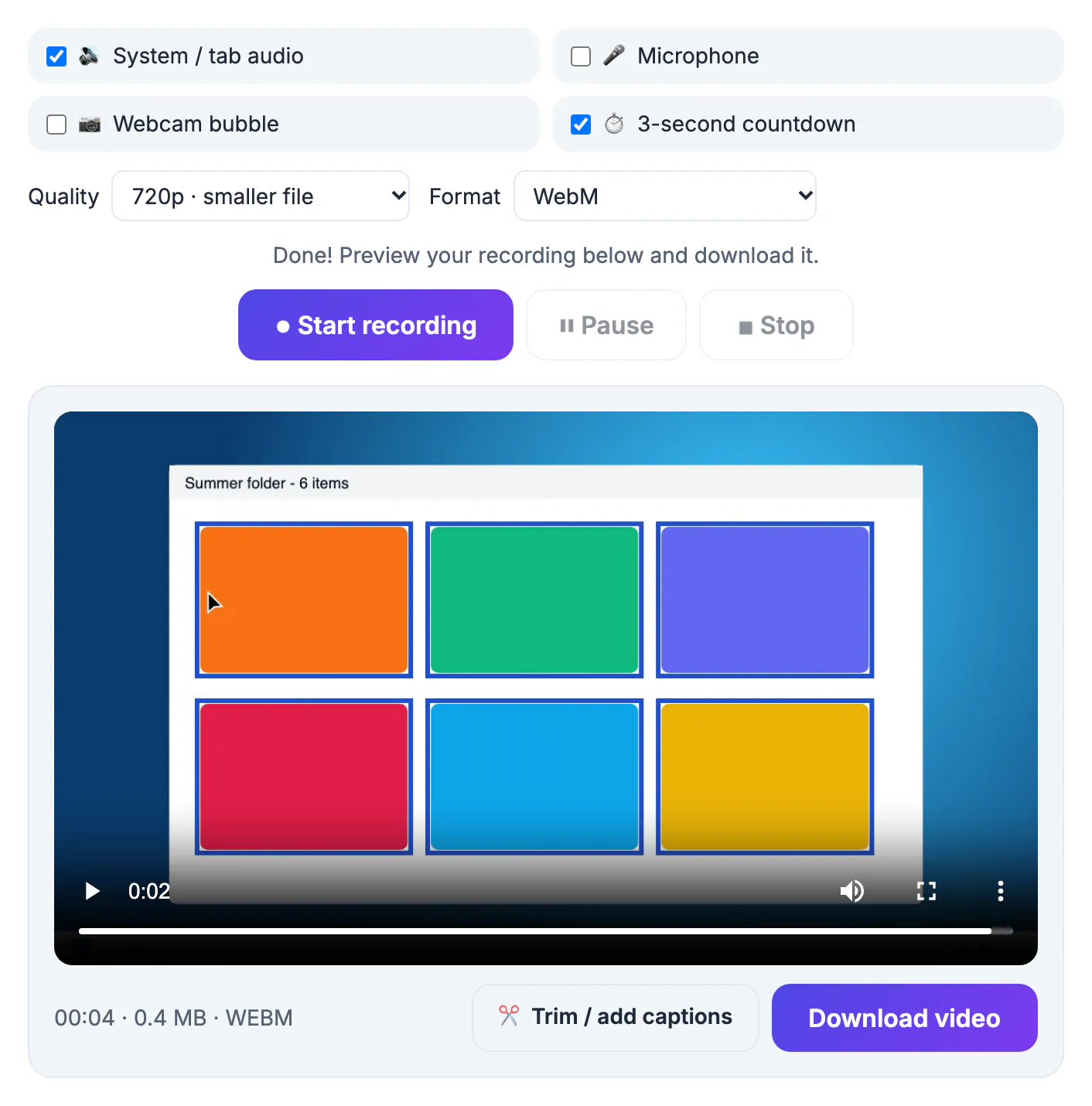
Windows ships with capable basics, but each has a catch. Game Bar was designed for games, so it records only the active program and refuses to capture the desktop, and on many company laptops it is switched off by policy. Snipping Tool's recording is handy for short clips of a region, yet it offers no webcam overlay and fewer quality choices. Clipchamp, preinstalled on Windows 11, is really an editor and asks you to sign in with a Microsoft account. Installing OBS solves everything but needs admin rights and time to configure scenes and encoders. A browser tab sits in the middle: nothing to install, works on locked-down PCs that allow Chrome or Edge, and covers most everyday captures in two clicks. Typical jobs include a bug report for a developer, a walkthrough for a new hire, a narrated slide deck, or a copy of a webinar replay you are allowed to keep, none of which justify an afternoon of OBS configuration.
Game Bar, Snipping Tool or a browser tab on Windows
All three are free and need nothing new on the machine. Match the tool to what you are capturing.
- Xbox Game Bar: press Win+G, then Win+Alt+R to start; best for a single game or program, cannot capture the desktop or File Explorer.
- Snipping Tool on Windows 11: switch to video mode, drag a region and start; recent versions add microphone and system sound options.
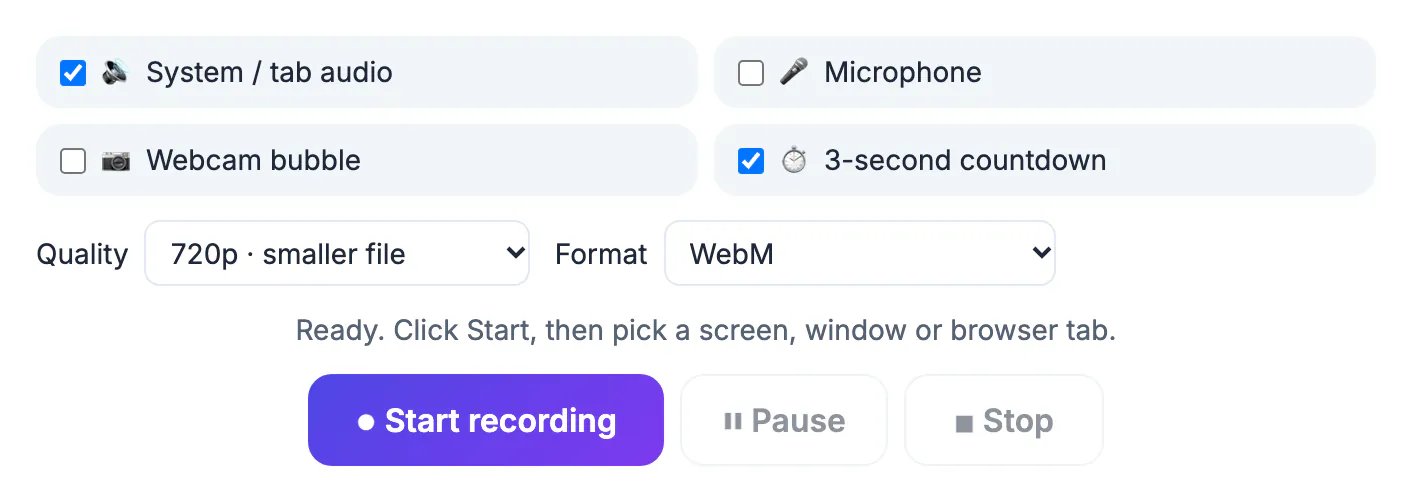
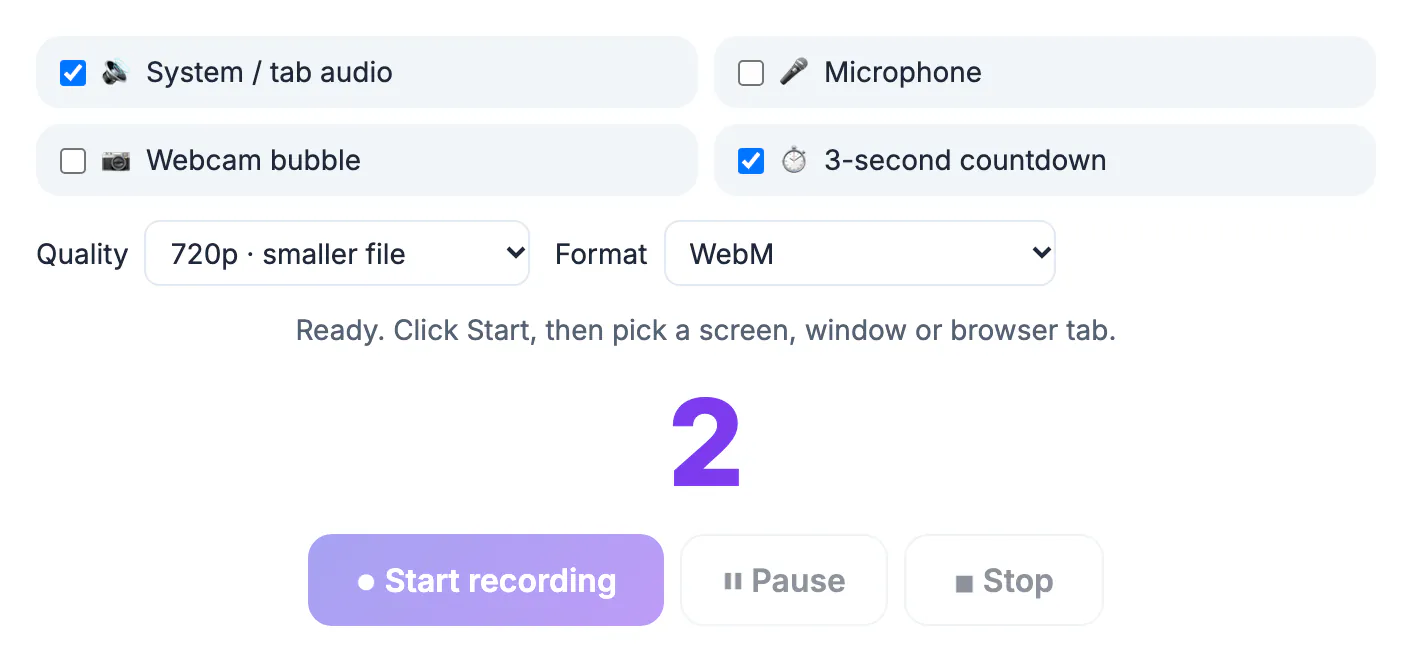
- GrabCast Screen Recorder: choose an entire monitor, a window or a browser tab, with pause and resume and a three-second countdown.
- Only the browser option adds a webcam bubble, in any corner, as a circle or rounded square, in Chrome or Edge.
- Quality presets are 1080p at 30 or 60 fps, or 720p, saved as MP4 in current Chrome and Edge.
Capture system audio and your mic together
Chrome and Edge can capture computer sound, but only in certain sharing modes. Get this right before an important session.
- When sharing an Entire screen, turn on the Also share system audio switch in the browser dialog.
- When sharing a Tab, the dialog offers Also share tab audio, which keeps only that tab's sound.
- Sharing a single Window usually includes no sound at all, so pick Entire screen when the audio matters.
- Tick Microphone as well and the tool mixes both sources into one audio track automatically.
- Do a ten second test with a video playing and your voice speaking, then play it back before the real session.
Capturing a meeting you do not host
Zoom, Teams and Meet reserve their own capture buttons for hosts, but a participant can still keep notes of what appears on their own display. Do it openly and legally.
- Announce the capture at the start; several US states, including California, require every party's consent.
- Share the Entire screen with system audio on, or other voices will be missing from the file.
- Turn on Do Not Disturb in Windows so toast notifications and chat previews stay out of the frame.
- Pick 720p for long calls; at roughly 30 MB per minute, an hour runs near 1.8 GB instead of about 3.6 GB at 1080p.
- Afterwards, transcribe the file in AI Studio to get searchable notes without rewatching the whole call.
Multi-monitor setups, scaling and where files go
Laptops and desk setups vary widely, so a few settings save retakes and wasted sessions.
- With two or more monitors, the sharing dialog shows each display separately; pick the one where the action happens.
- Laptops often use 125 or 150 percent display scaling; the capture targets about 1080 lines of height, so text stays readable.
- Long captures are held by the browser until you download them, so keep free disk space and close heavy tabs.
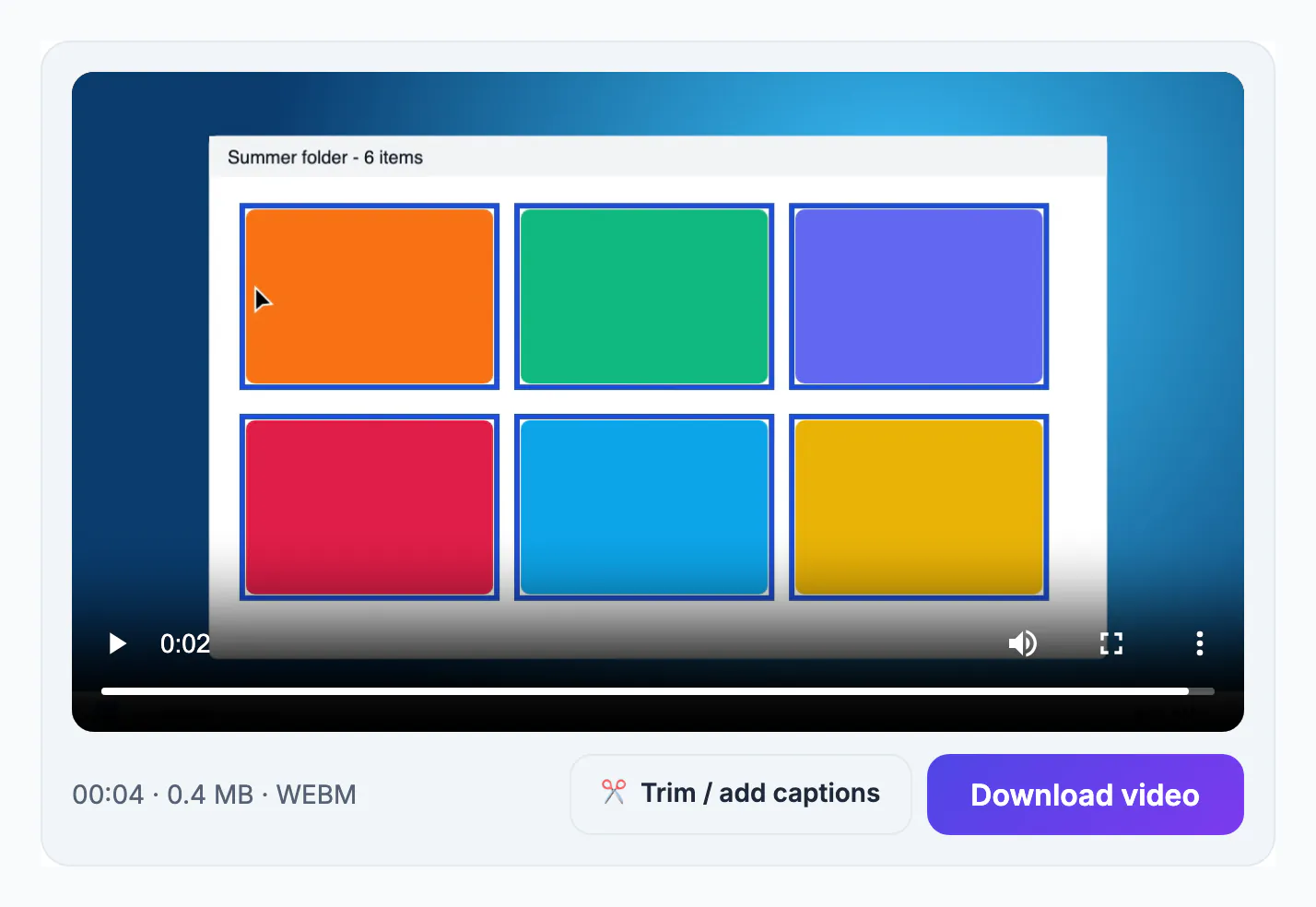
- Files land in your Downloads folder, named with the date, and open in Media Player or the Photos app.
- Download the file, then use the Trim / add captions button to open the Video Trimmer, load it and cut the ends before sharing.
Step-by-step
Common mistakes to avoid
Pro tips
Frequently asked questions
Does Xbox Game Bar record the whole desktop?
No. It records the active program or game, and it will not start on the desktop or in File Explorer. Use Snipping Tool's Record mode or a browser recorder for full-screen captures.
Why is there no sound in my recording?
Most often the system audio switch was off in the sharing dialog, or a single window was shared, which carries no audio. Choose Entire screen with system audio, or a tab with tab audio.
Does it work on Windows 10?
Yes. The browser recorder works in current Chrome, Edge or Firefox on Windows 10 and 11. The webcam bubble needs Chrome or Edge, and MP4 output depends on the browser; Firefox may offer WebM instead, which still plays in Chrome, Edge and VLC.
Is anything uploaded or watermarked?
No. The capture is assembled in your browser and downloaded straight to your PC with no logo, account or upload. Sharing it later is entirely your choice.
Can I record a Zoom call if I am not the host?
Technically yes, because you are capturing your own display rather than using Zoom's record button. Ethically and often legally, tell everyone first and use the file for your own notes rather than sharing it further without permission.
Windows already includes Game Bar and Snipping Tool, but a browser recorder fills their gaps: full desktop or tab capture, mixed system and mic audio, a webcam bubble and MP4 export, with nothing to install and nothing uploaded.
Related guides
Browse more: all video and audio guides · Screen Recorder