Transcribe a Zoom Recording or Meeting, Free and Private
To transcribe a Zoom recording, open the folder Zoom saved after the call, take the audio-only M4A file, and drop it into GrabCast AI Studio, which runs OpenAI's Whisper model in your browser and returns a transcript you can export as TXT, SRT, VTT or Word. It is free, needs no account, and the meeting audio never leaves your computer. The same method works for any Zoom meeting you recorded, whether it was a one-on-one client call, a 40-person all-hands or a recorded webinar. This guide covers where Zoom puts local and cloud files, how Zoom's own transcripts compare with a Whisper transcript, which model to choose for your laptop, and the consent rules that apply before you record or transcribe anyone.
💻 Try AI Studio now — freeOpen →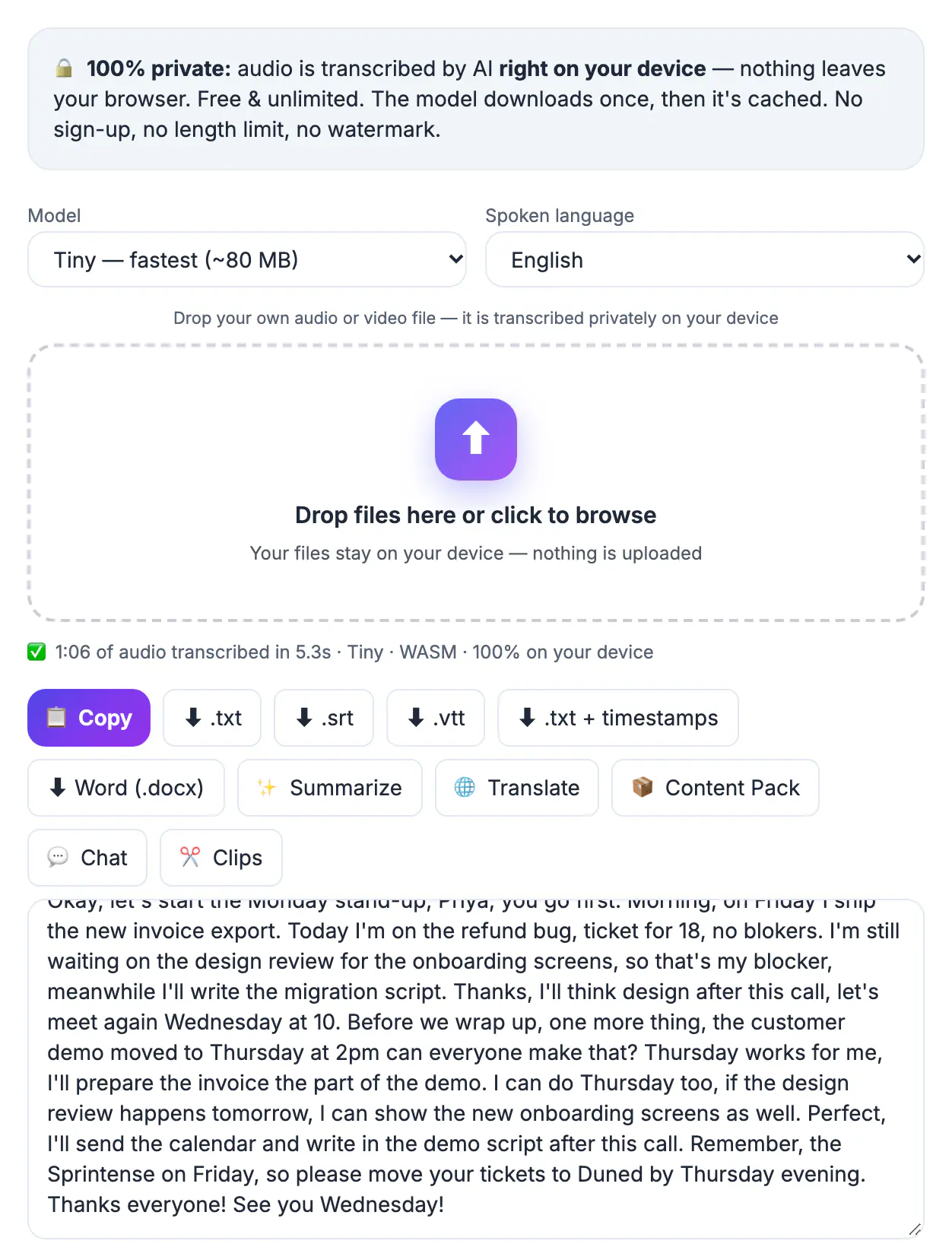
A single Zoom meeting usually produces several files, and the one you choose affects speed, memory and even whether the transcript runs at all. The combined MP4 carries video and sound, while the audio-only M4A holds just the conversation at a fraction of the size. AI Studio decodes the soundtrack into memory as 16 kHz mono audio, which works out to roughly 230 MB of RAM per hour of audio before the speech model starts. That is comfortable on a 16 GB laptop but tight on an older Chromebook with a dozen tabs open. Some video encodings also cannot be decoded by a browser at all, whereas M4A almost always can. Starting with the lean audio file saves minutes on every call and avoids the most common failure, which is a tab that freezes halfway through a 90-minute recording.
Find the Zoom recording file you should transcribe
Where the file lives depends on whether the meeting was recorded to your computer or to the Zoom cloud. Menu labels move between Zoom versions, so treat these as landmarks rather than exact click paths.
- Local recordings: the desktop app saves them by default to a Zoom folder inside Documents on both Windows and Mac, with one subfolder per meeting named by date, time and topic. Zoom converts the files after the meeting ends, so let that progress bar finish before you open anything.
- Which file: inside that folder you will typically find an MP4 with video and an M4A with audio only. Transcribe the M4A. A one-hour M4A is often only a few dozen megabytes, while the matching MP4 can run to several hundred.
- Cloud recordings: on paid plans, recordings appear in the Recordings area of the Zoom web portal. The host can download the MP4 and, depending on account settings, a separate audio-only file.
- Moved folder: if someone changed the save location, the Recordings list in the desktop app has an option to open the folder directly.
If only an MP4 exists and AI Studio reports that it cannot decode it, run it through GrabCast Audio Converter to extract a mono 64 kbps M4A or MP3, then transcribe that smaller file.
How to transcribe a Zoom meeting in AI Studio
AI Studio loads a Whisper model once, caches it in your browser and then processes audio on your own processor or graphics chip. Four models are offered, and the right one depends on your hardware more than on the meeting.
- Tiny, about 80 MB: the quick option for older laptops or a first rough pass.
- Base, about 210 MB: the default and a sensible choice for most clear, single-language meetings.
- Small, about 300 MB: noticeably better with accents, jargon and product names.
- Large-v3 Turbo, about 560 MB: the most accurate, but it needs WebGPU with 16-bit float support, which in practice means a recent Chrome or Edge on a modern graphics chip.
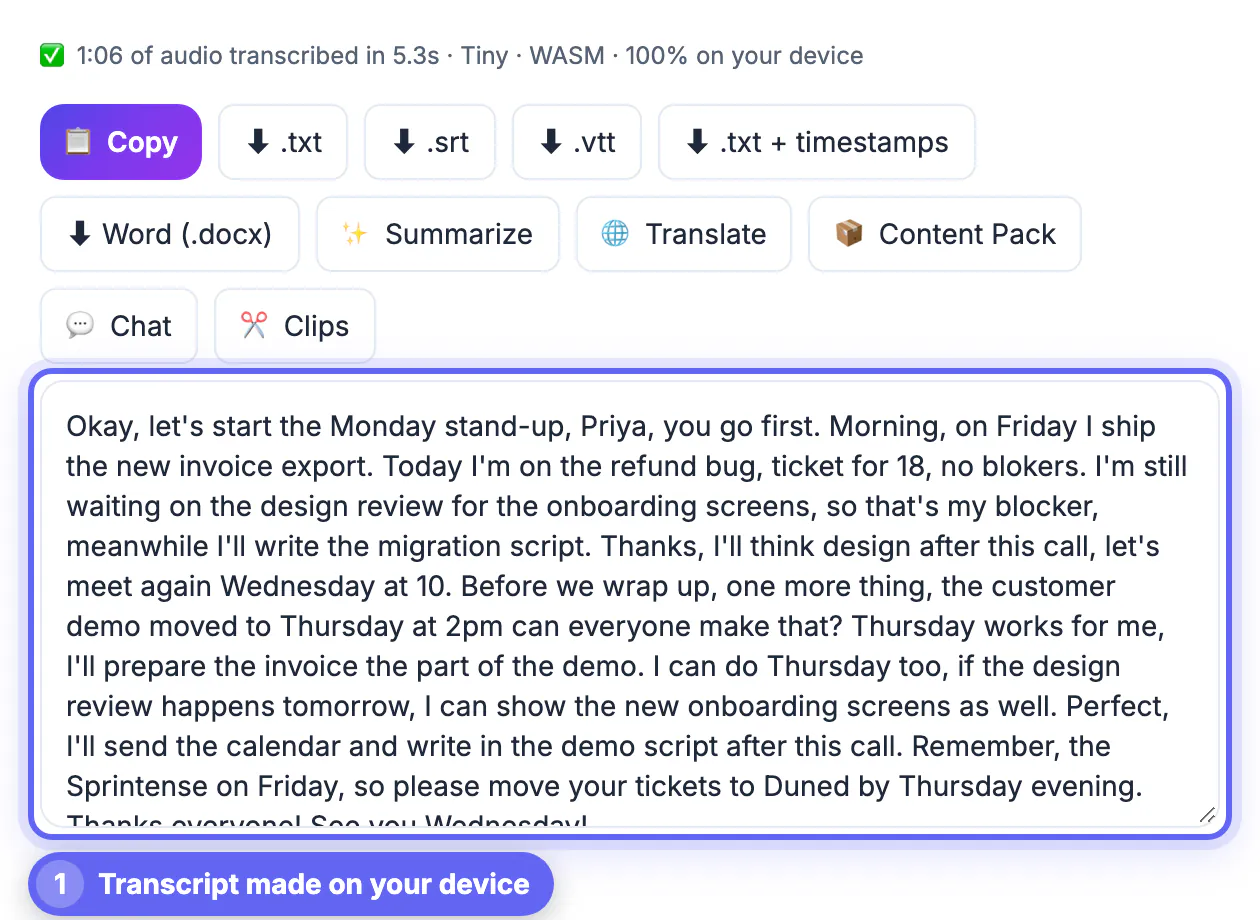
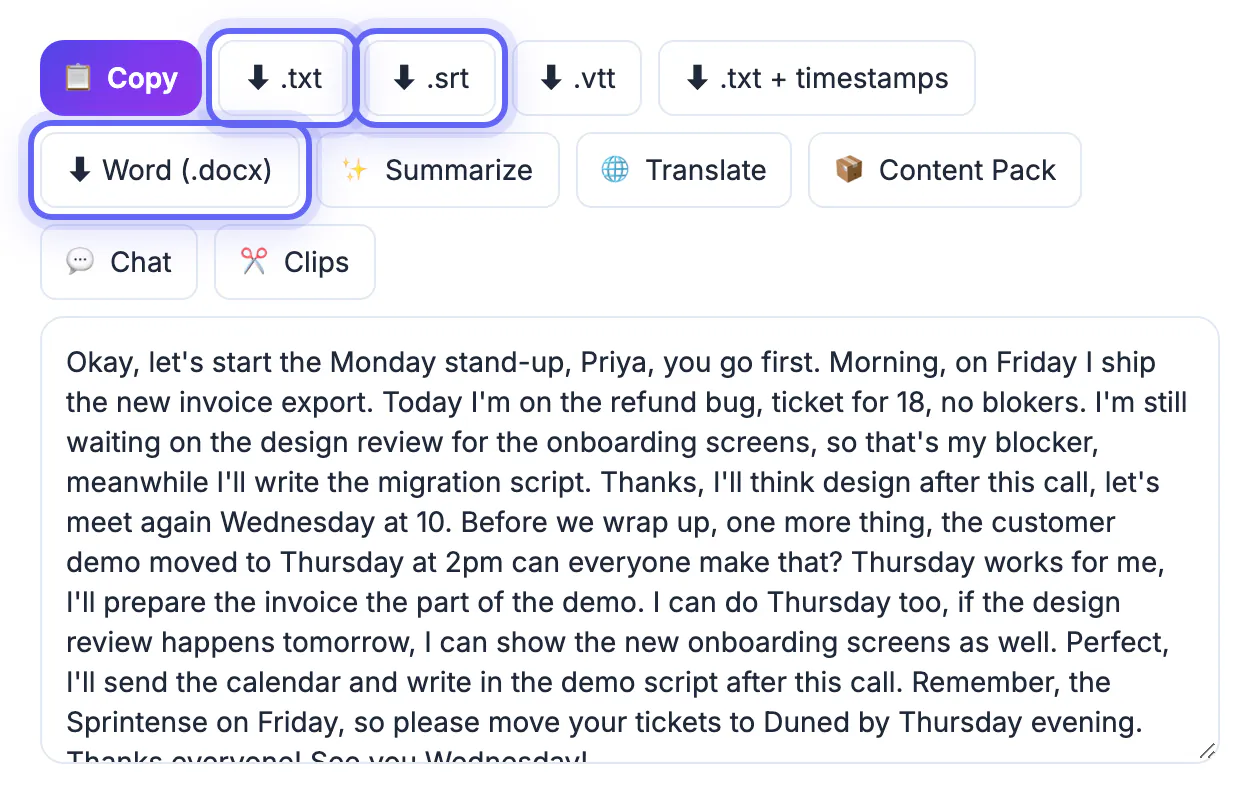
Set the spoken language if you know it; auto-detect is usually fine but can guess wrong on a call that opens with small talk in another language. Long files are cut into pieces of roughly 60 seconds at the quietest moment near each boundary, so words are not chopped in half. While it runs you see a live transcript and an estimate of the time remaining. When it finishes you can copy the text or download plain text, SRT or VTT captions, text with [mm:ss] timestamps, or a Word document.
Zoom's built-in transcripts versus a Whisper transcript
Zoom has its own speech features, and it is worth knowing what they cover before you run anything else. Availability depends on your plan and on what your account admin has switched on, so check your own settings.
- Automated captions can be turned on during a live meeting, and hosts may allow participants to save the caption text afterward.
- Audio transcripts for cloud recordings are available on eligible paid plans. They appear next to the recording in the web portal and usually include speaker names from the Zoom display names.
- Local recordings do not get a Zoom cloud transcript, which is the most common reason people look for another way to transcribe a Zoom meeting.
- AI summaries from Zoom's assistant, where offered, are processed on Zoom's servers and follow your organization's data settings.
A practical approach: if Zoom already produced a transcript, keep it for the speaker names, and run a Whisper transcript when you need better punctuation, a Word file, subtitles for the recording, or a copy that was produced without sending audio to another service.
Consent, cleanup and meeting notes people will use
Zoom shows a recording notice, but a notice is not the same as meeting every legal requirement. This is general information, not legal advice. US federal law and most states allow recording with one party's consent, while several states, including California, Florida, Pennsylvania and Washington, generally require all parties to agree. In the EU and UK, data protection law expects a lawful basis and clear information before people are recorded or transcribed. The simple habit that covers most cases is to say at the start that the call is being recorded and transcribed, and why.
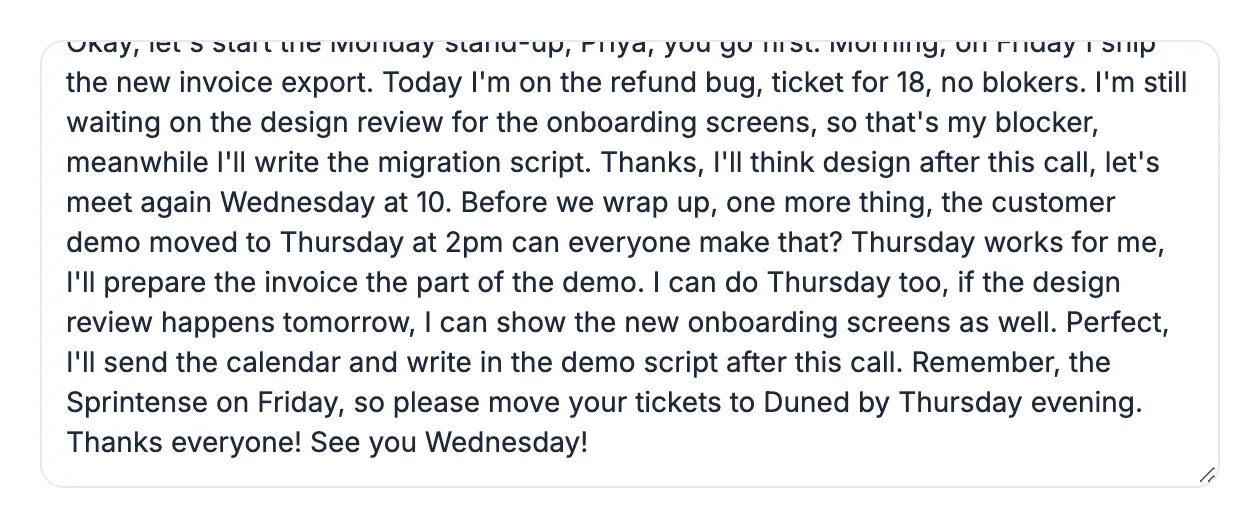
- Read the transcript once at normal speed, fixing names, figures and acronyms; Whisper has no speaker labels, so add them where who said what matters.
- Use the timestamped text file to jump back into the recording and confirm any sentence you plan to quote.
- Rename exports with the date and topic, such as 2026-03-14-client-kickoff.txt, so desktop search finds them later.
- AI Studio's Summarize and Translate buttons, and the AI Content Pack, send text to a cloud AI; skip them for confidential calls.
Step-by-step
Common mistakes to avoid
Pro tips
Frequently asked questions
Where does Zoom save local recordings?
By default in a Zoom folder inside Documents on Windows and Mac, with one subfolder per meeting. You can view or change the location in the desktop app's recording settings, and the app's Recordings list can open the folder for you.
Can I transcribe a Zoom meeting on the free plan?
Yes. Free accounts can record locally, and a local recording can be transcribed in AI Studio at no cost. Zoom's own cloud transcripts need an eligible paid plan.
Is my meeting audio uploaded anywhere?
Not during transcription. Whisper runs in your browser and the audio stays on your device. The optional Summarize, Translate and Content Pack features send the text to a cloud AI.
Does the transcript show who is speaking?
No. AI Studio outputs words and timestamps without speaker labels. Add names by hand, or use a Zoom cloud transcript alongside it if your plan provides one.
Can I transcribe a meeting held in Spanish or another language?
Yes. Choose the language from the dropdown or leave it on auto-detect. Test a two-minute excerpt first, and use Small or Large-v3 Turbo for heavy accents or mixed-language calls.
Transcribing a Zoom recording is mostly about choosing the right file and the right model. Take the audio-only M4A from the meeting folder or the web portal, pick a Whisper model your computer can handle, and let AI Studio produce the transcript on your own device. Tell participants they are being recorded, check names and figures against the timestamps, and your meeting archive becomes something people can actually search.
Related guides
Browse more: all video and audio guides · AI Studio