Lecture Recordings Into Study Notes That Stick
To transcribe a lecture into study notes, record the class, run the audio through AI Studio so Whisper turns it into text on your own device, then reshape that transcript into an outline, recall questions and a summary. The transcript is raw material; the notes you build from it, in your own structure, are what actually help you remember the material at exam time.
🎙️ Try AI Studio now — freeOpen →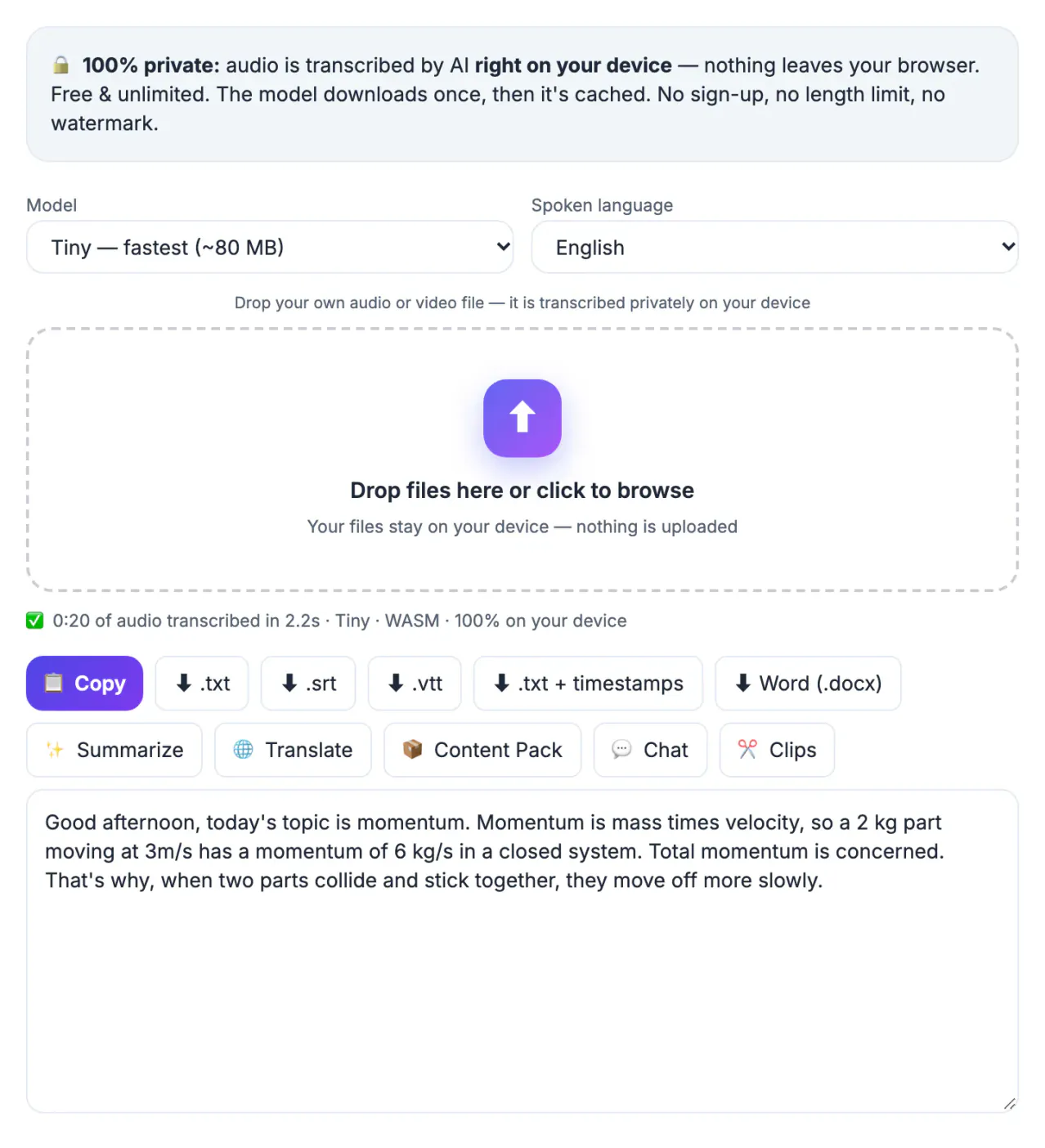
A 50-minute class produces roughly 6,000 to 7,500 words of transcript, far more than anyone rereads before a test. Research on learning keeps pointing the same way: rereading feels productive but builds little memory, while retrieval practice, which means answering questions without looking, builds a lot. The transcript's value is that it frees you from frantic typing in class so you can listen and think. Afterward, it becomes a searchable source for turning the professor's explanations into compact notes, flashcards and practice questions. That second step, done within a day or two, is where most of the learning happens. Students with accommodation needs, second-language learners and anyone who struggles to write quickly benefit most, but almost every learner gains from listening more and typing less.
Recording the class properly
Accuracy starts with the recording, not the AI model. A phone in your backpack at the back of a lecture hall picks up rustling, coughs and ventilation hum. A phone on the desk in the first rows picks up the professor.
- Check your school’s recording policy and ask the instructor if you are unsure
- Sit near the front or near a speaker if the room uses amplification
- Use the Voice Recorder with noise reduction, or your phone’s voice memo app
- Many courses post recordings on the learning platform; use those when they exist
Quality in, quality out: a clear recording can cut editing time by half compared with a muffled one. It is worth spending thirty seconds on a quick test at the start of the semester, then reusing the same seat and setup for every session.
Choosing the right model to transcribe your lecture
AI Studio runs Whisper in your browser. The model downloads once, is cached, and then processes audio on your laptop, so a recording of your class never goes to a transcription company.
- Tiny (about 80 MB): quick first pass for clear, slow speakers
- Base (about 210 MB): the balanced choice for most classes
- Small (about 300 MB): better with accents, fast speech and technical vocabulary
- Large-v3 Turbo (about 560 MB): best accuracy on a recent GPU with 16-bit WebGPU support
Leave the language on auto-detect unless the course is taught in a language different from your browser setting. For language courses that switch often, pick the main teaching language manually to avoid mixed output.
Turning the transcript into study notes
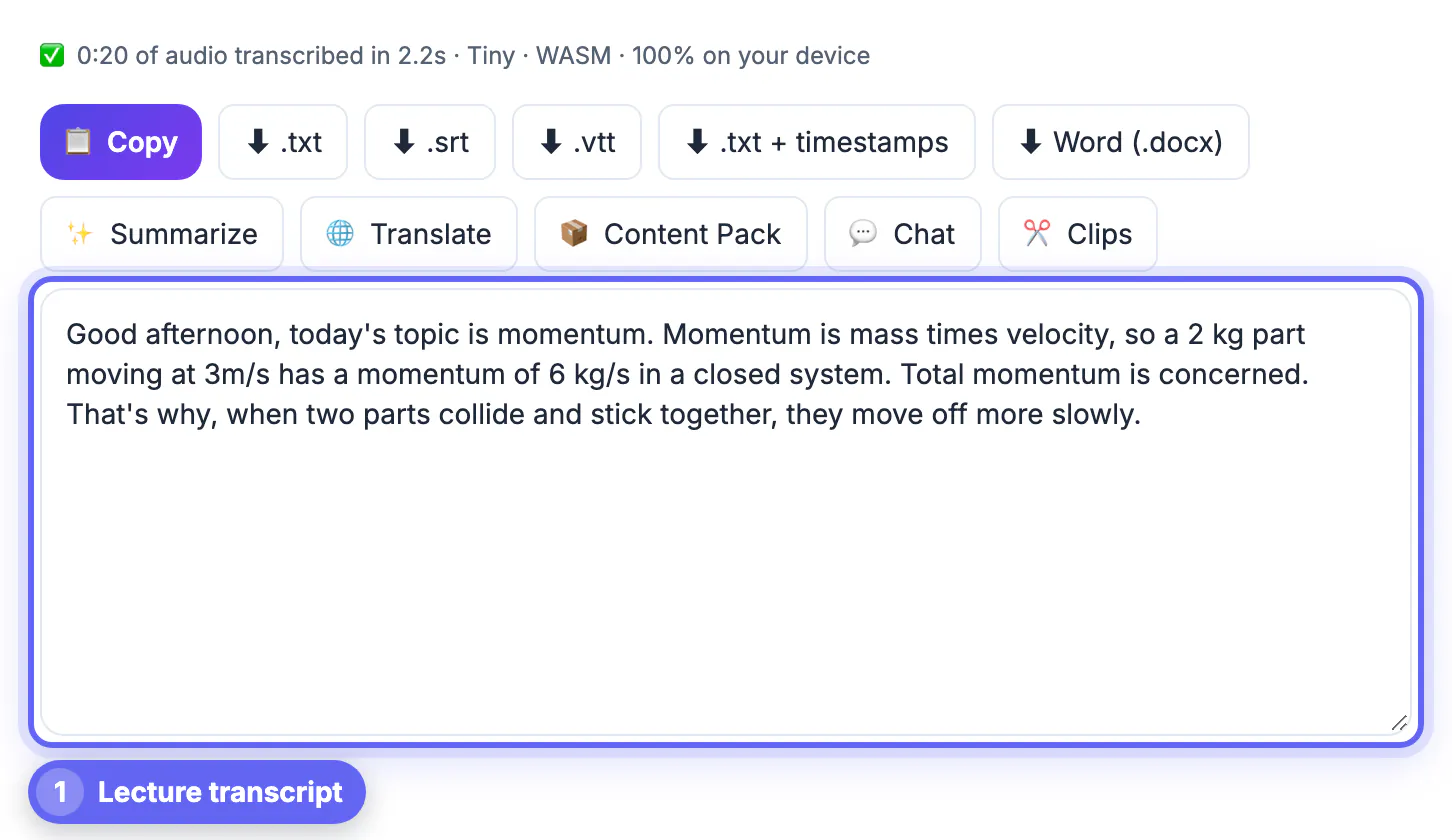
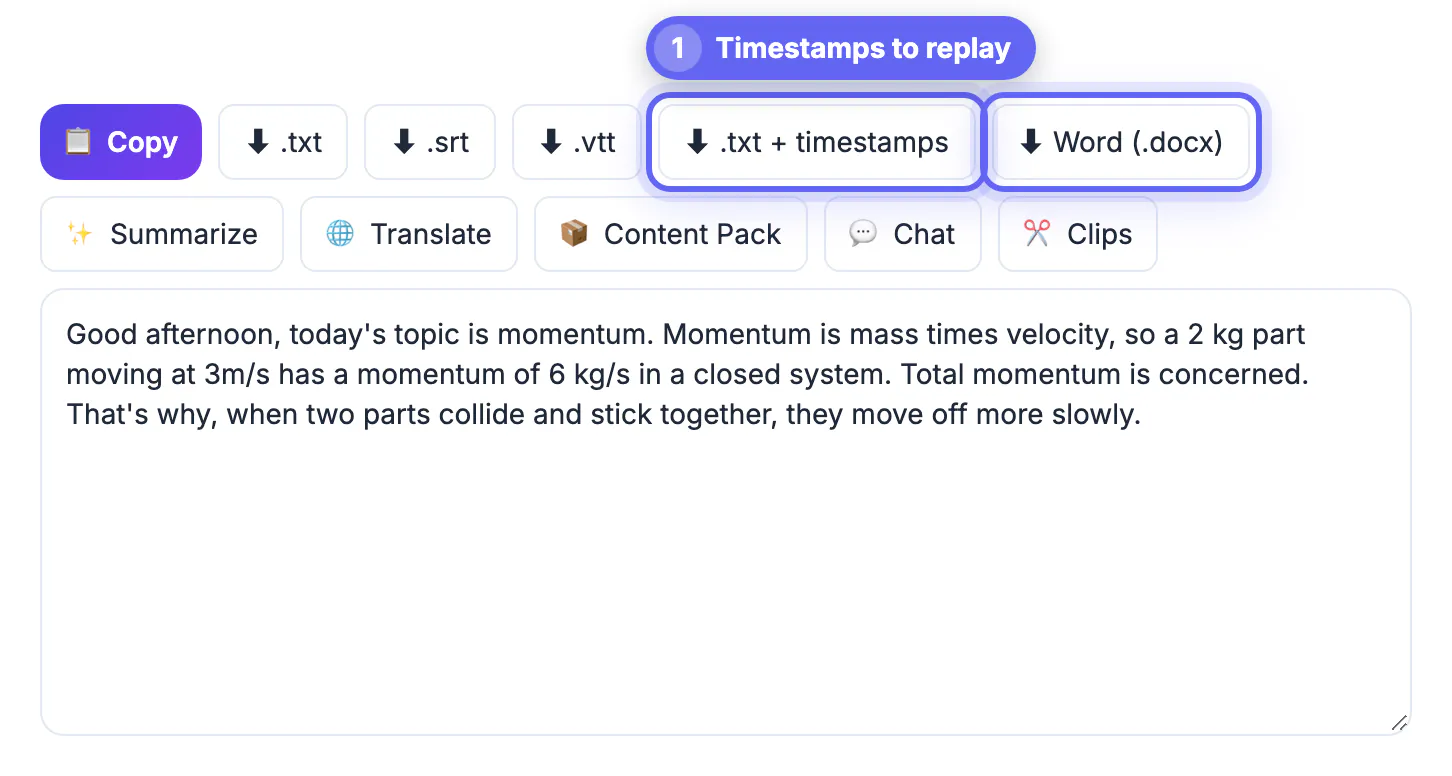
Download the TXT with timestamps or a Word document and then rebuild it in a structure your brain can use. The Cornell layout works well: questions on the left, key ideas on the right, a short summary at the bottom.
- Skim for signposts like there are three reasons or this will be on the exam
- Write one heading per topic and three to five bullet points under each
- Convert every key idea into a question you can answer from memory
- Keep timestamps next to confusing sections so you can replay the explanation
Timestamps turn the document into an index. When a concept feels shaky during revision, jump straight to that minute of the recording instead of rewatching the whole session.
To boil a long transcript down to the main points, the AI Summarizer gives you a first pass you can then rewrite in your own words.
Using AI help without skipping the thinking
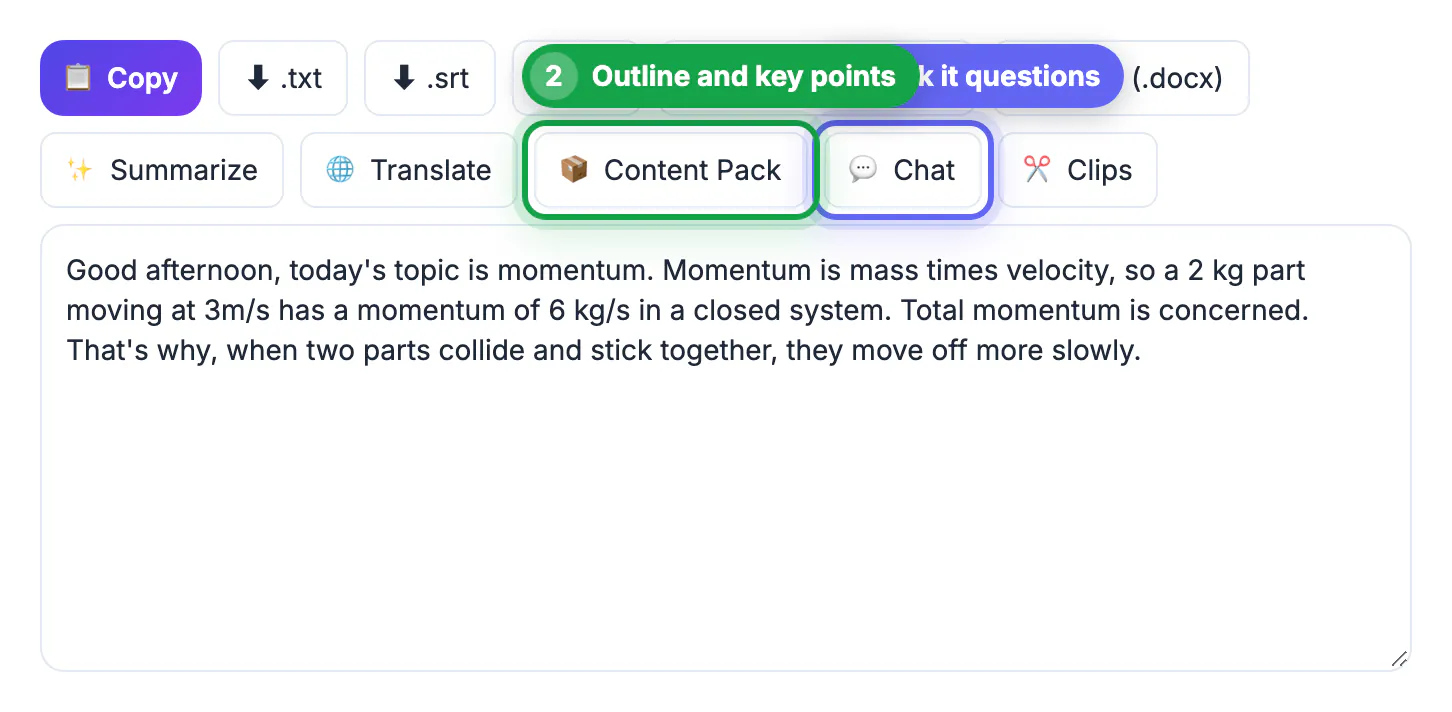
After transcription, buttons for Summarize, Content Pack and Chat appear. They use a cloud AI model, so the transcript text is sent out of your browser for that step, even though the audio was never uploaded.
- Content Pack can produce key points, chapters and a practice quiz in one go
- Chat is useful for asking where the professor explained a specific concept
- Check formulas, dates and names against the slides; speech models mishear symbols
- Write the final notes yourself; generated summaries are a starting point, not a substitute
Treat AI output like a classmate’s notes: helpful for spotting gaps, but always verified against the slides, the textbook and your own understanding before an exam relies on it.
Step-by-step
Common mistakes to avoid
Pro tips
Frequently asked questions
Is it legal to record and transcribe my lectures?
It depends on your school and state. Many universities allow personal recordings for study, and disability accommodations often guarantee it, but some instructors restrict it. Check the syllabus or ask before recording. When in doubt, a quick email to the instructor explaining that the recording is only for personal review usually settles the question, and many professors appreciate being asked.
Does my lecture audio get uploaded?
No. AI Studio runs Whisper inside your browser, so the recording stays on your device. Only the optional Summarize, Content Pack, Chat and Translate steps send transcript text to a cloud AI service. The model is cached after the first download, so the next session starts much faster.
Which model should I pick for technical classes?
Start with Small for engineering, medicine or law, where vocabulary is dense. If your laptop has a recent GPU with WebGPU support, Large-v3 Turbo gives the best accuracy. Tiny is fine for a quick first pass if you only need to search for a topic.
Can I get subtitles for a recorded lecture video?
Yes. After transcription you can download SRT or VTT caption files, which work in most video players and learning platforms. Captions help you review while commuting or when rewatching at higher playback speeds. Instructors can also post them alongside class videos to support students who are deaf or hard of hearing.
How long does a 50-minute class take to transcribe?
On a modern laptop with WebGPU, Base usually finishes well within the class length. Tiny is faster; Small and Large-v3 Turbo take longer but reduce corrections. Keep the laptop plugged in and the tab visible, because background tabs can be slowed down.
Transcribe a lecture into study notes by recording cleanly, letting Whisper do the typing on your own device, then turning the transcript into questions you answer from memory. Keep each week's outline short and review it often; small regular sessions beat one long cram. Share only what your course permits, and keep personal recordings private.
Related guides
Browse more: all video and audio guides · AI Studio