Transcribe a Microsoft Teams Meeting Free in Your Browser
To transcribe a Microsoft Teams meeting when nobody clicked Start transcription, download the recording MP4 from OneDrive or SharePoint and drop it into GrabCast's AI Studio, which runs Whisper inside your browser and exports TXT, SRT, VTT or DOCX. The file stays on your computer, which suits confidential calls, and a one-hour call typically finishes in minutes on a recent laptop.
💼 Try AI Studio now — freeOpen →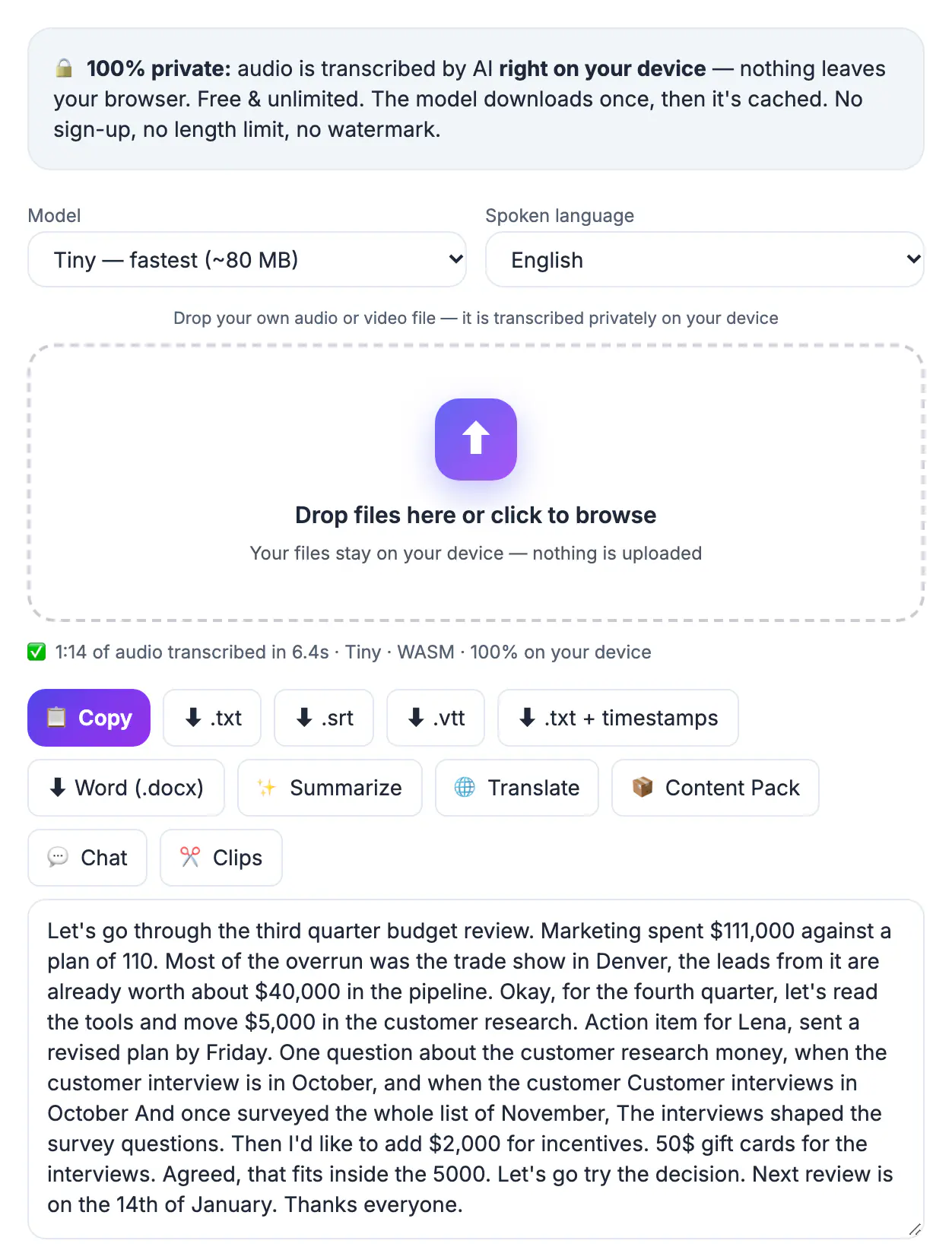
Teams can generate its own live transcript, but only if the organizer or a presenter switched it on during the call, the tenant allows it, and the license includes it. Miss that moment and the recap shows a recording with no text at all. Even when a Teams transcript exists, it sits behind the recap tab, speaker names are sometimes wrong for dial-in or room-system attendees, and the recording it belongs to may be deleted automatically. Making your own copy gives you a permanent, searchable document you control, in formats that paste cleanly into Word, Confluence, a CRM or a ticket.
Where Teams stores the recording now
Recordings moved out of classic Stream in 2021 and 2022, and the location now depends on the kind of call.
- Scheduled or ad hoc calls outside a channel: the OneDrive of the person who pressed Record, in a folder named Recordings
- Channel calls: the SharePoint site behind that team, under Files, then the channel folder, then Recordings
- Fastest route: open the call's chat or the Recap tab in the Teams calendar entry and click the recording tile
- From the viewer, the ellipsis menu or the Open in OneDrive or SharePoint link exposes the Download option
- Guests and external attendees usually cannot download; ask the organizer to share the file or download it for you
If the tile says the recording is still processing, wait; a long call can take a while to become available after it ends.
Search inside OneDrive for the date or the call title if the chat has scrolled away, since the file name includes both.
Recordings from calls hosted by another company live in that organization's tenant, not yours, so you will only see them if the host shares a link with download rights.
Download before the expiry date
Many organizations apply an automatic expiration to new Teams recordings, and the Microsoft default has been 120 days. Admins can shorten, lengthen or remove it.
- Check the expiration notice in the recording's details pane in OneDrive or SharePoint
- Owners get an email warning shortly before deletion, but it is easy to miss in a busy inbox
- Deleted files go to the recycle bin for a limited period, typically up to 93 days, before they are gone for good
- Download the MP4 now if the call contains decisions, commitments or customer requirements
- Respect your company's retention and privacy policy; some recordings are meant to expire on purpose
A one-hour Teams recording is usually a few hundred megabytes at 1080p. You only need the sound for text, so a large file is fine; AI Studio reads the MP4 directly.
Legal and compliance teams sometimes hold recordings under a litigation hold, which overrides the normal expiry. If a download link is disabled or grayed out, that restriction is intentional, so check with your admin before trying to work around it.
How to transcribe a Microsoft Teams meeting in AI Studio
AI Studio runs OpenAI's Whisper model on your own device, so a confidential board or HR discussion never passes through a third-party transcription server.
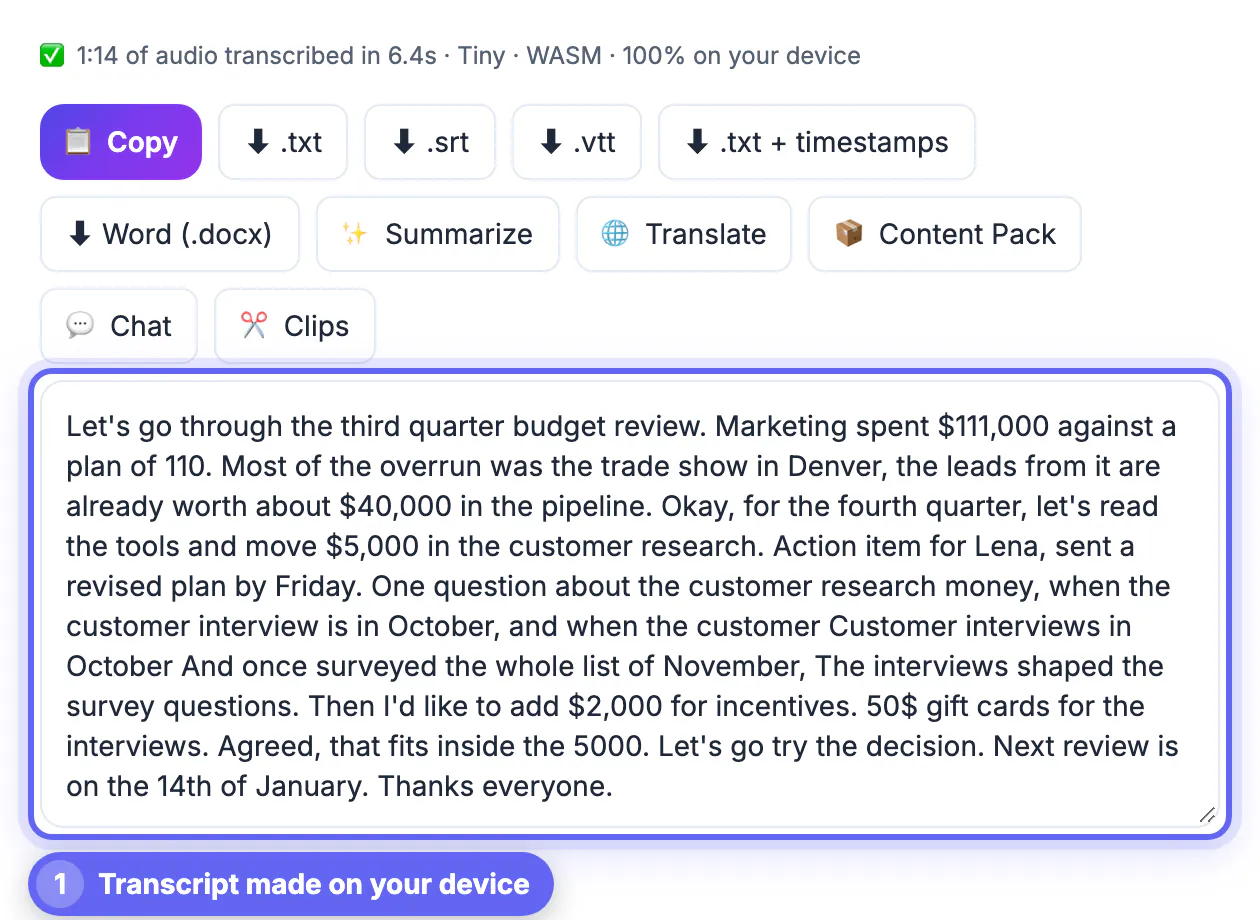
- Drop the MP4 into AI Studio; audio is read straight from the file
- Pick a model: Tiny or Base for a fast draft, Small for accuracy, Large-v3 Turbo for accents, jargon and cross-talk
- Set the spoken language, or leave auto-detect on for mixed-language calls
- The model downloads once and is cached, then processing runs locally, using WebGPU in Chrome or Edge for speed
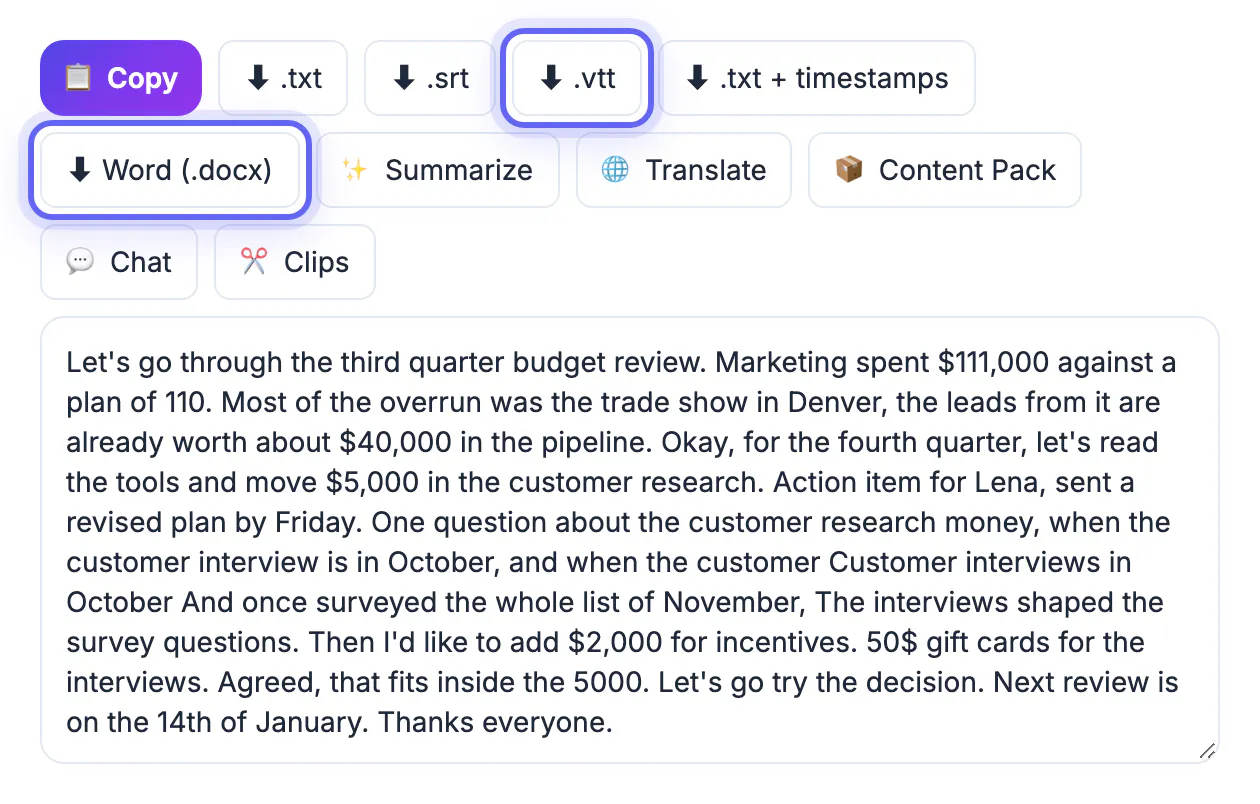
- Export TXT for notes, DOCX for Word, or SRT and VTT if you want captions on the recording itself
Whisper produces text with timestamps but does not label who spoke. For minutes that need attribution, add speaker names while you review, using the Teams attendee list as a guide.
On an older laptop without WebGPU, start with Base; it is several times faster than the large models and often good enough for a clear internal call.
Edit the raw text into minutes people read
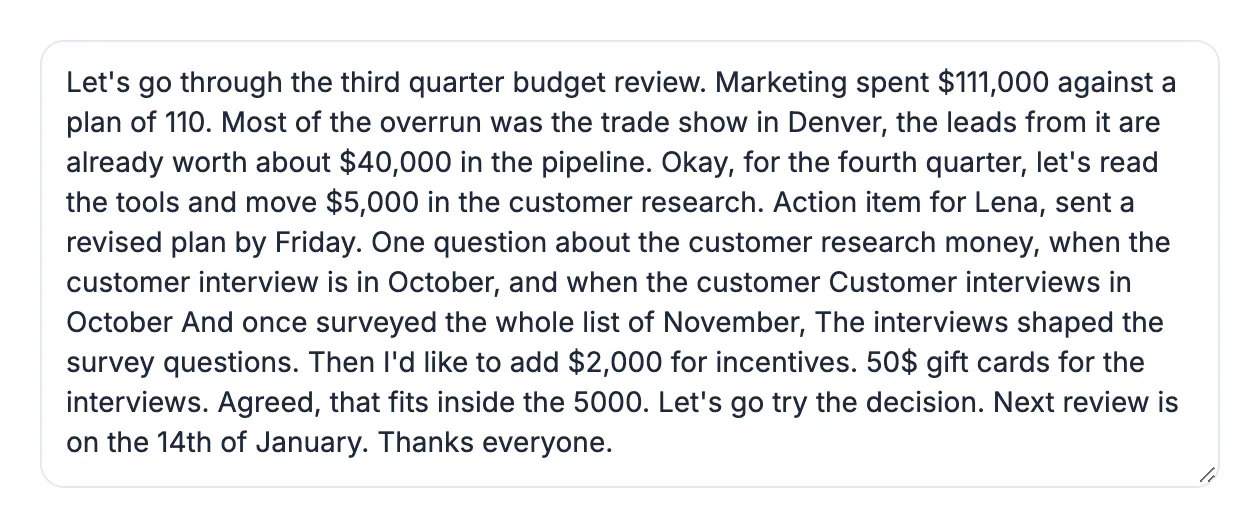
A verbatim transcript of a 60-minute call runs 8,000 to 10,000 words. Nobody reads that, so the real value comes from a tidy pass afterward.
- Search for names, product terms and acronyms Whisper may have misspelled, and fix them with find and replace
- Delete greetings, screen-sharing chatter and audio checks from the first and last few minutes
- Pull out decisions, owners and due dates into a short action list at the top
- Keep the timestamped SRT or VTT as a reference so anyone can jump to the original moment
- Share the DOCX in the same channel so the record lives next to the conversation
If you want an automatic summary, paste the cleaned text into the AI Content Pack; note that it uses a cloud AI service, unlike the local transcription step.
A simple template helps teams adopt the habit: date and attendees, three to five decisions, an action table with owner and due date, open questions, and a link to the timestamped file. Filled in right after the call, it takes about ten minutes.
To turn a long transcript into short minutes, paste it into the AI Summarizer and then edit the result by hand.
Step-by-step
Common mistakes to avoid
Pro tips
Frequently asked questions
Can I get a transcript if Teams transcription was never turned on?
Yes. Download the recording MP4 and run it through AI Studio. It creates a full transcript afterward, with timestamps, in TXT, SRT, VTT or DOCX.
Where are Teams recordings saved?
Recordings of regular calls are saved to the organizer's or recorder's OneDrive in a Recordings folder. Channel call recordings go to the team's SharePoint site under the channel's files.
Is the recording uploaded when I transcribe it?
No. AI Studio runs the Whisper model in your browser, so the audio and the transcript stay on your computer.
Does it identify each speaker?
No. Whisper outputs text and timestamps without speaker names, so add labels while you edit, using the attendee list and the timestamps to guide you.
How accurate is it?
On clear audio the larger models are very accurate. Heavy cross-talk, poor laptop mics and dense jargon lower accuracy, so choose Small or Large-v3 Turbo for important calls.
To transcribe a Microsoft Teams meeting, grab the MP4 from OneDrive or SharePoint before it expires, run it through Whisper in AI Studio on your own device, then trim, label speakers and share minutes people will read.
Related guides
Browse more: all video and audio guides · AI Studio