Add Background Music to a Video Without Drowning Voices
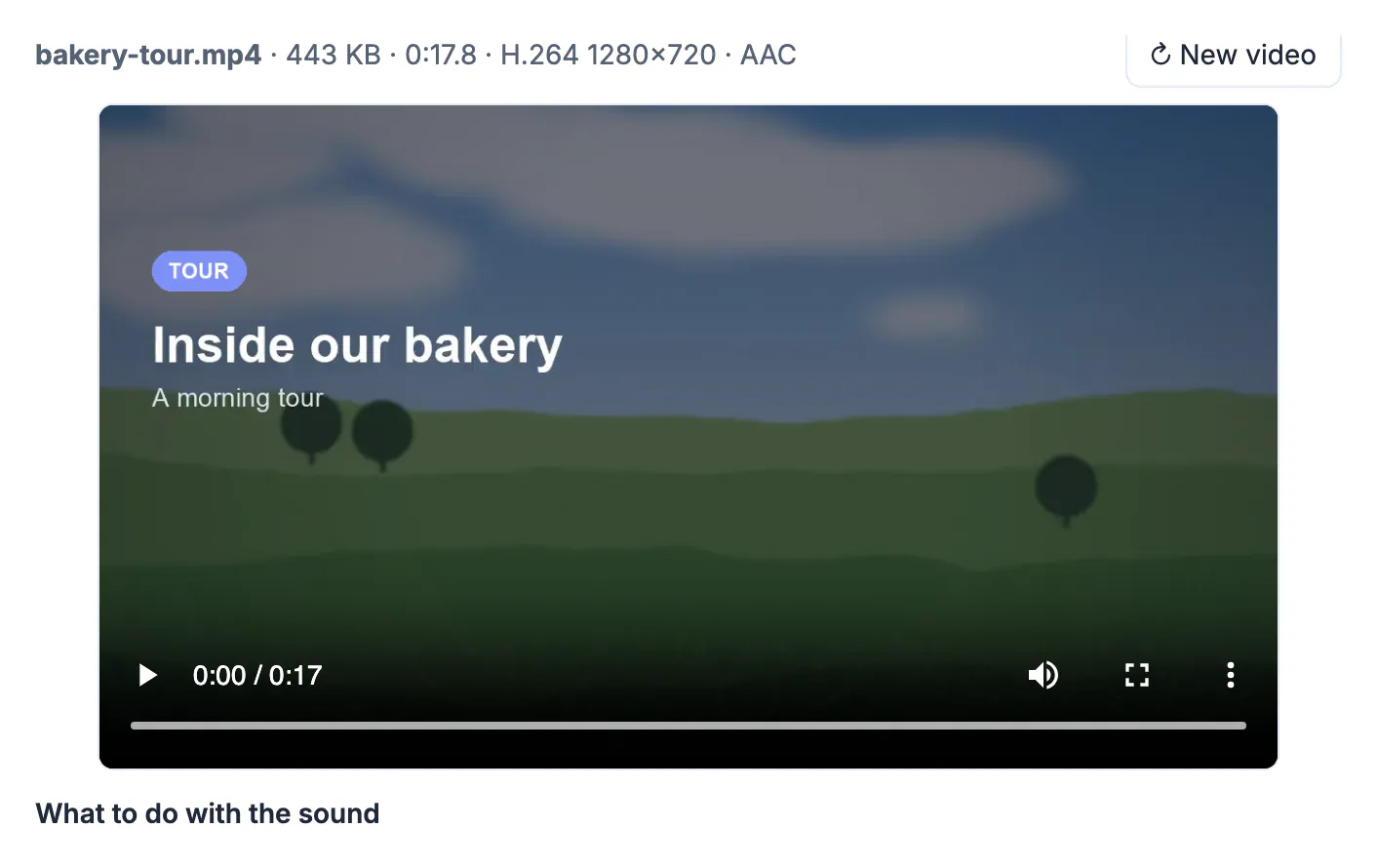
To add background music to a video and still hear the people speaking, mix the song in rather than replacing the soundtrack. Keep the original sound at full level, bring the song down to roughly a third of its volume, add a short fade at each end, and let it loop if it is shorter than the clip. This guide walks through those settings on a 17.8-second bakery tour, explains why the numbers work, and covers the problems people hit most: a song that swamps the narration, an abrupt ending, and a file that suddenly takes ages to save.
🎼 Try Add Music to Video & Mute now — freeOpen →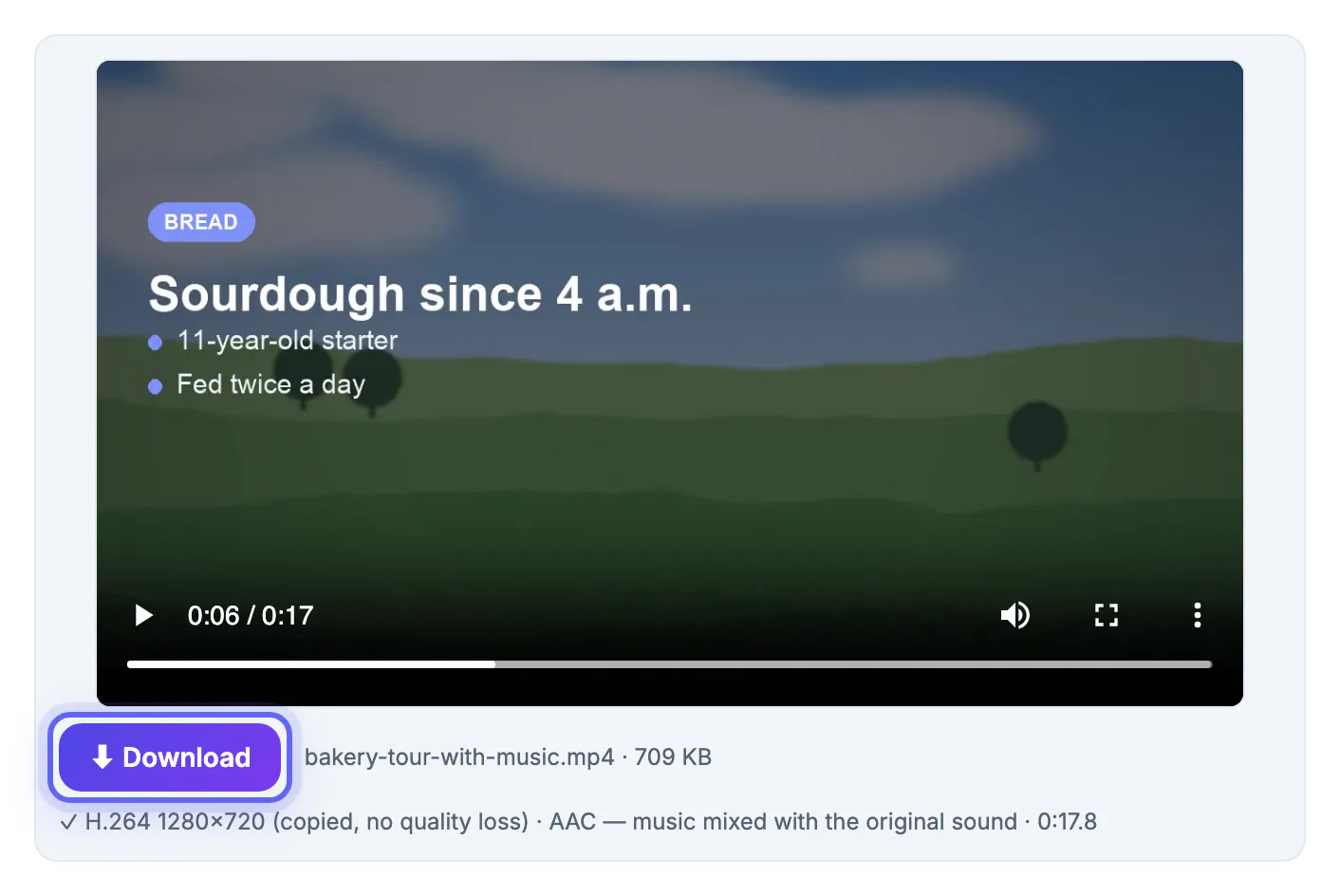
A quiet bed of chords makes a phone clip feel finished and covers small gaps and room noise. The catch is balance. Most songs are mastered loud, so dropped in at full level they sit on top of speech and viewers turn the sound off. Replacing the audio entirely avoids the clash but throws away the narration, the sizzle of an oven, the laugh at the end. Mixing lets you keep both, as long as the song sits clearly underneath.
Replace, mix or mute: pick the right sound option
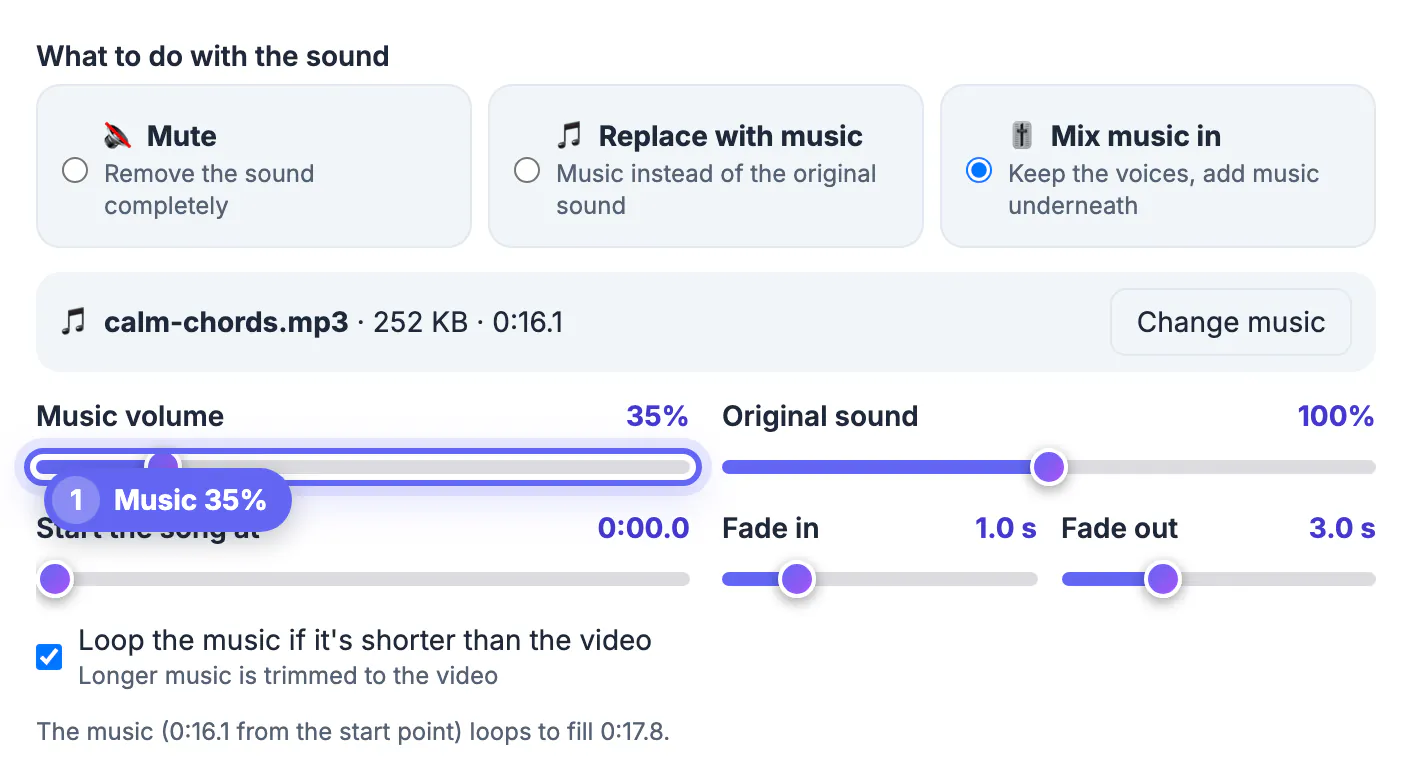
The GrabCast tool offers three choices under What to do with the sound. Mute removes all audio. Replace with music swaps the original track for your song, which suits silent B-roll, drone shots or a slideshow. Mix music in keeps the voices and adds the song underneath, and that is the option to use whenever someone talks on camera.
Replace is selected when the page opens, so switch to Mix before adjusting anything. If your clip has no sound of its own, Mix simply adds the song, and the page tells you so.
Balance the levels so speech stays clear
Two sliders control the balance: Music volume and Original sound, each from 0 to 200%. Leave Original sound at 100% and lower the song first. Speech sits in the middle of the frequency range, exactly where most pop and acoustic tracks are busiest, so the song has to be noticeably quieter than it sounds right on its own. Good starting points:
- Talking to camera, tutorials, interviews: song at 20 to 35%.
- Walk-through tours with light narration: 30 to 45%.
- Clips with only ambient sound: 50 to 80%, since nothing needs to cut through.
- Quiet phone recording: raise Original sound to 130 to 150% before you touch the song.
In the bakery example the song is set to 35% with the original at 100%. Hit Preview to hear the balance; it plays the clip with the new mix, though the fades are not included in the preview.
Fades, start point and looping
Fade in runs from 0 to 5 seconds (1 s by default) and Fade out from 0 to 10 seconds (2 s by default). A one-second fade in is enough to stop the song from bursting in; a longer fade out of 3 seconds or more makes the ending feel intended rather than cut off.
Start the song at skips a slow intro so the part you like lines up with your opening shot. The checkbox Loop the music if it's shorter than the video is ticked by default; longer songs are trimmed to the clip length either way. The line under the settings tells you exactly what will happen, for example that the 0:16.1 song loops to fill 0:17.8.
Looping works best with tracks that have a clean, steady ending. If the loop point lands on a jarring jump, move the start point a few seconds forward or back and listen again, or choose a longer song so it never has to repeat. For clips that end on a spoken line, a fade out of 3 to 5 seconds lets the last sentence land while the song drifts away underneath it.
Pick the part of a song you want with the Audio Cutter, and even out loudness with the Volume Booster.
Keeping picture quality and a fast save
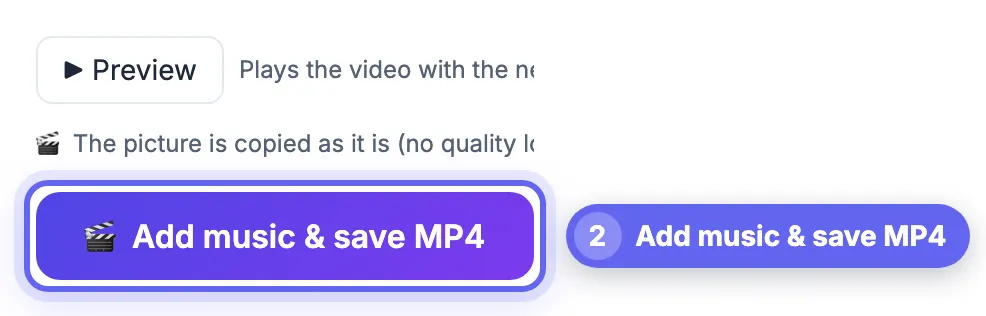
After you press Add music & save MP4, the page mixes the sound in your browser and, when the picture is already H.264, copies it without re-encoding. The note above the button says whether the picture is copied as it is (no quality loss) or converted to H.264 MP4, which takes longer. The bakery clip came out as a 709 KB MP4, H.264 1280x720 copied untouched, with AAC sound.
MOV, WebM and MKV files are accepted too. Very large files can hit your browser's memory limit, and the page warns you when a file is above the size it expects to handle, so trim long footage first.
Choosing background music you are allowed to use
Uploading a track to your own clip on your own device is fine, but publishing it is a different matter. Commercial songs on YouTube, Instagram or TikTok can trigger a copyright claim, a muted upload or lost monetization.
- Use royalty-free or Creative Commons libraries and check whether attribution is required.
- Use your platform's own licensed music library when posting there.
- Keep the license or download receipt with the project files.
- Pick instrumental tracks for talking clips; lyrics compete with speech even at low levels.
Step-by-step
Common mistakes to avoid
Pro tips
Frequently asked questions
How loud should background music be under talking?
Usually 20 to 35% of its own level with the original sound at 100%. Preview it on phone speakers; if you have to concentrate to follow the words, lower the song another 5 to 10 points.
Will adding music reduce the quality of my clip?
Not when the picture is already H.264: it is copied as it is and only the sound is new. Other codecs are converted to H.264 MP4 so the file plays everywhere.
What if the song is shorter than the clip?
Keep Loop the music if it's shorter than the video ticked and it repeats to fill the length. Untick it and the rest of the clip plays without the song.
Can I remove the original sound completely instead?
Yes. Choose Replace with music to swap it for the song, or Mute to save the clip with no sound at all.
Is my footage uploaded to a server?
No. The mixing and saving run in your browser, so the clip and the song stay on your device.
Choose Mix music in, keep the original sound at 100%, bring the song down to about a third, fade it in and out, and preview on a phone speaker. You get a finished-sounding clip where every word is still easy to follow, saved as an MP4 without re-encoding the picture.
Related guides
Browse more: all video and audio guides · Add Music to Video & Mute