Remove Background Noise From a Voice Recording Free
To remove background noise from a voice recording for free, open the file in a browser-based noise reduction tool, let it measure the noise in a quiet pause, choose a strength that matches how loud the noise is, and save the cleaned copy in the same format. For a phone voice memo with a fan, air conditioner or café chatter behind it, the Strong preset usually does the job in one pass. This use-case guide walks through a real example: a 34-second iPhone-style M4A memo recorded next to a loud fan, cleaned without installing an app or uploading the file.
🎧 Try Audio Noise Reduction now — freeOpen →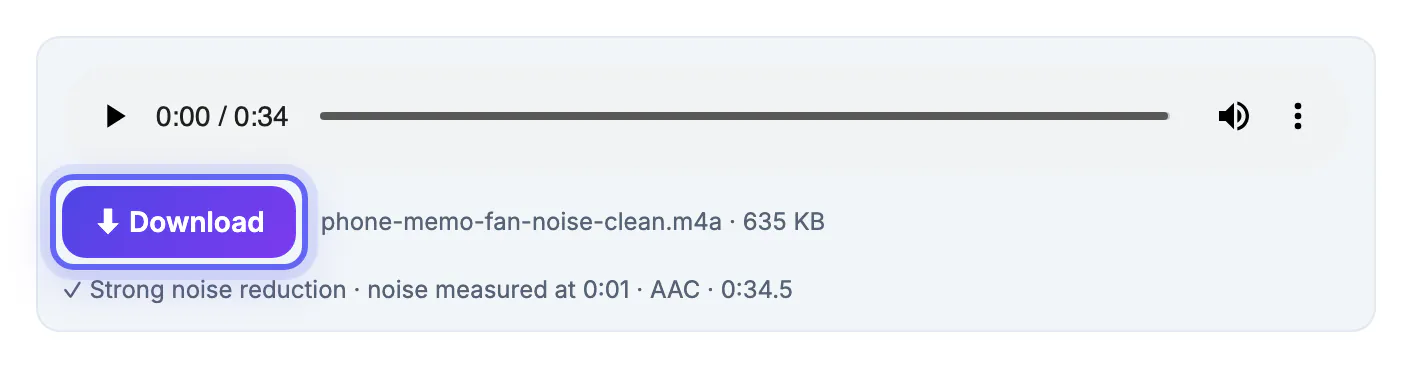
Voice memos and quick interviews happen in kitchens, cars, offices and cafés, with a phone lying on the table. Phone microphones are sensitive and apply automatic gain, so in the pauses they turn the background up. The result is clear speech sitting on a bed of fan rumble that makes the file tiring to listen to, and harder for transcription tools to understand.
Example: a voice memo recorded next to a fan
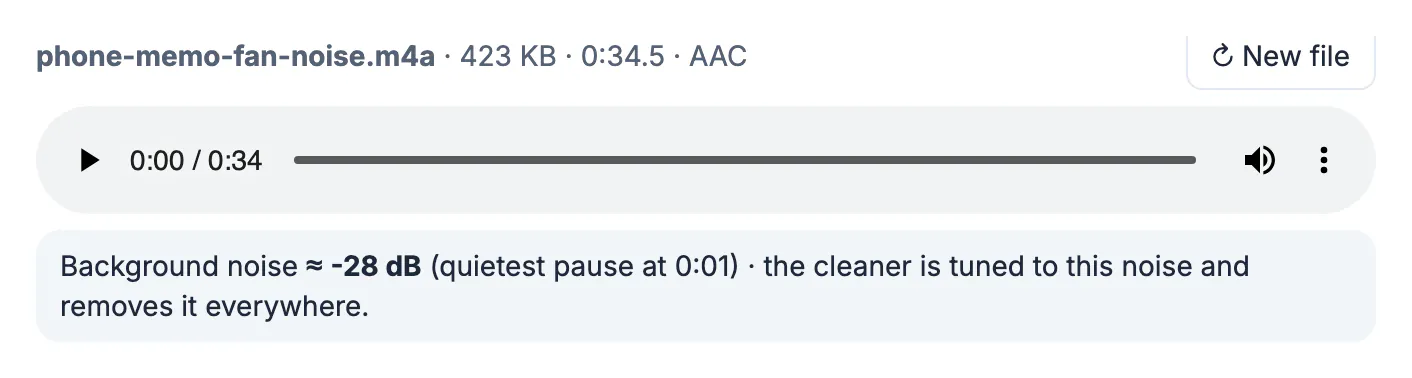
The example file, phone-memo-fan-noise.m4a, is 423 KB and 34.5 seconds long in AAC format. After loading, the meter reads Background noise about -28 dB, found in the quietest pause at 0:01. For comparison, a quiet room measures around -60 to -50 dB, so -28 dB means the noise is loud and steady.
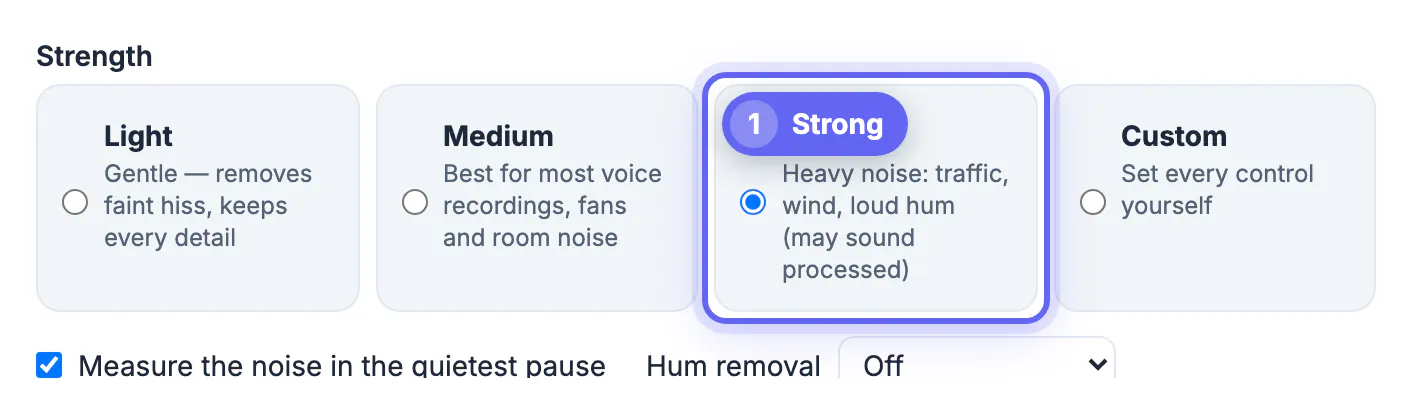
That number decides the strength. Below about -50 dB, Light is enough. Between -50 and -35 dB, Medium handles most fans. Louder than that, as here, start with Strong, which the tool describes as for traffic, wind and loud hum.
Pick the strength that matches the noise
- Light: gentle, removes faint hiss and keeps every detail. Use it for files that are already decent.
- Medium: the default and the best for most voice recordings, fans and room noise.
- Strong: for heavy noise. It cuts more low rumble and high hiss and applies more reduction, which may sound processed on soft speakers.
- Custom: set noise reduction, noise floor, low-cut, high-cut and hum removal yourself when a preset is not quite right.
Keep Measure the noise in the quietest pause ticked so the cleaner is tuned to your actual background. If the recording has no pause at all, the tool tracks the noise level automatically instead.
Save in the right format for where it is going
Under Save as you can pick MP3, M4A (AAC) or WAV. For a phone memo, M4A keeps the same format your phone uses, plays everywhere and stays small: the cleaned example is 635 KB. Choose WAV if you will edit the interview further in another app, and MP3 if a podcast host or form only accepts MP3.
Press Remove noise & save. The summary under the Download button confirms the strength used, where the noise was measured, the format and the length, so you can keep track when you clean several memos.
Need a different file type? The Audio Converter helps, and the Volume Booster lifts a soft voice.
Interviews: extra steps before you transcribe or publish
- Play the whole file on headphones. Strong settings can smear soft consonants; if the guest sounds watery, redo it with Medium.
- If two people were recorded on one phone, the quieter speaker suffers most from strong settings. Check that person specifically.
- Clean before transcribing. Speech-to-text tools make fewer mistakes on a calmer file.
- Keep the original. Noise reduction cannot be undone on the exported file, and you may want a different setting later.
- Ask permission before recording someone and follow your local consent rules for interviews.
Capture cleaner audio next time
Move away from fans, fridges and windows, and turn off the air conditioning for a few minutes if you can. Hold the phone 15 to 30 cm from the speaker's mouth rather than across the table, because the voice gets louder while the room stays the same. Soft furnishings such as curtains, a sofa or a closet full of clothes absorb echo. Leave two seconds of silence at the start so the noise measurement has a clean sample to work with.
Sharing the cleaned memo
Once the file sounds right, think about who will play it and on what. Messaging apps such as WhatsApp, Signal and iMessage accept M4A attachments directly. Email works too, since a half-minute clip is well under typical attachment limits. For a longer interview, share a cloud link instead of an attachment, and name the file with the date and the guest so it is easy to find later.
If the clip is headed for a podcast episode or a video, keep the WAV version for the edit and create the compressed copy only at the end. When a colleague will transcribe it, send the cleaned version and mention roughly where each topic starts, which saves them scrubbing through minutes of audio to find a quote.
Private material deserves care as well. Medical details, addresses or phone numbers mentioned in passing should be trimmed out before the file travels further, and shared folders should be limited to the people who actually need access. Delete old copies from chat threads once the final version is stored safely.
Step-by-step

Common mistakes to avoid
Pro tips
Frequently asked questions
How do I remove background noise from a voice memo for free?
Open the memo in a browser-based noise reduction tool, let it measure the noise in a pause, choose Medium or Strong, and save as M4A. No app or account is needed.
Does it work with iPhone voice memos?
Yes. iPhone voice memos are M4A files with AAC audio, which the tool opens directly and can save back to M4A.
Can I clean an interview with two speakers?
Yes, but check the quieter speaker carefully. If that voice starts to sound watery, step down from Strong to Medium.
Will noise reduction improve transcription?
Usually. Speech-to-text tools misread fewer words when steady background noise is lowered, especially on phone recordings.
Is my recording uploaded?
No. The recording is processed in your browser and never leaves your device, which matters for private interviews.
Read the background noise level, match the strength to it, keep M4A for phone memos, and listen before you share. A noisy voice recording becomes clear in under a minute, for free and without uploading anything.
Related guides
Browse more: all video and audio guides · Audio Noise Reduction