Video Summary Workflow: Long Recording to Key Points
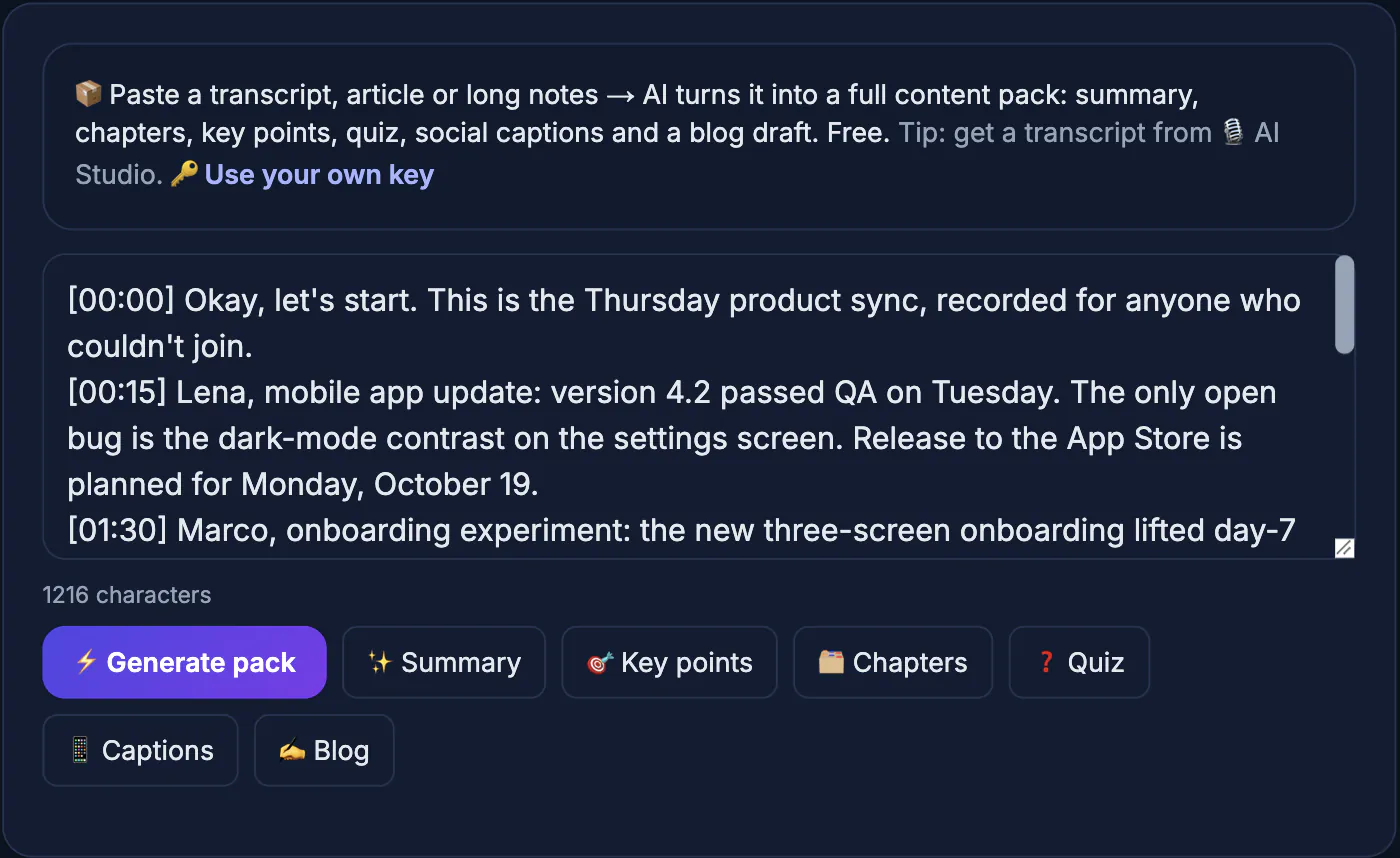
The fastest reliable way to turn a video into a summary is to get a written transcript first and summarize the text, not the footage. With GrabCast you save or open the recording, transcribe it with Whisper running in your browser, then press Summarize or open the AI Content Pack to get key points, chapters and a short recap you can actually check.
📦 Try AI Content Pack now — freeOpen →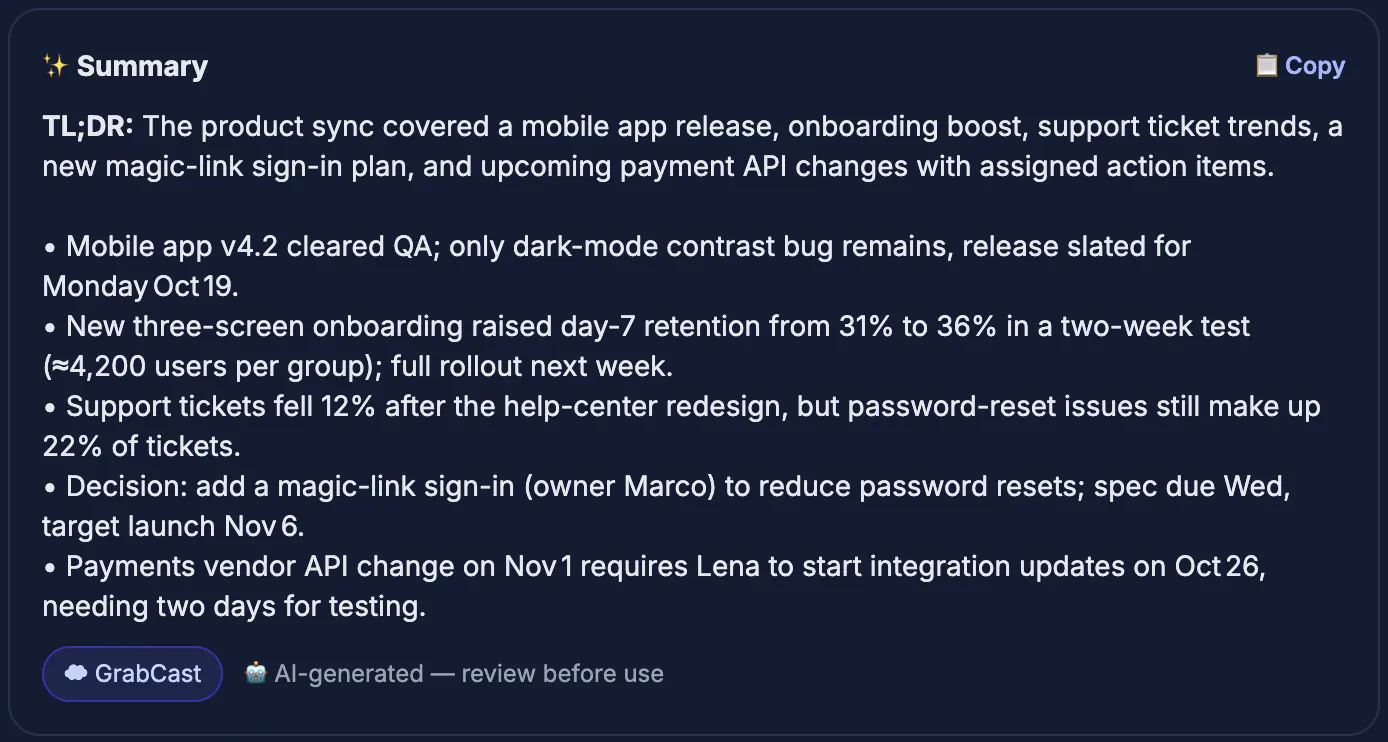
A 60-minute webinar holds roughly 8,000 to 9,000 spoken words, and rewatching it at 2x speed still costs half an hour. A transcript turns that hour into something you can search, skim and quote. It also makes the summary verifiable: when an AI recap claims the speaker promised a launch in March, you can press Ctrl+F and confirm the exact sentence. Summaries generated without a transcript, from memory or from a title and description, tend to drift. Working text-first keeps the output grounded in what was actually said and lets you reuse the same transcript later for captions, quotes, show notes or a blog post. Written recaps also help colleagues who missed the call, people who read faster than they listen, and anyone relying on text for accessibility.
Stage one: get the recording onto your device
Start from a file you are allowed to use: your own Zoom export, a company all-hands, a lecture you recorded, or a public talk you have permission to process. If it already lives on your own channel or account, get it back through the platform's official download rather than a third-party site.
- YouTube Studio's Download option returns your own uploads as MP4; YouTube Premium offline copies stay inside the app and cannot be transcribed
- Facebook and Instagram include your posted videos in Download your information, and Google Takeout covers your whole YouTube channel
- Audio Converter can extract a much smaller audio file from your video when you only need the words
- Local recordings from your phone or a meeting app can skip this step entirely
Keep the original filename or add the event date, such as 2026-09-12-all-hands.mp3, so the transcript and recap stay easy to match later on.
Stage two: transcribe privately in the browser
Open AI Studio and drop in the MP4, MP3, M4A or WAV. The Whisper speech model downloads once, is cached, and then processes the audio on your own hardware, using WebGPU for speed where your browser supports it.
- Tiny (about 80 MB) is fastest and fine for a clear single speaker
- Base (about 210 MB) is the balanced default for most talks and meetings
- Small (about 300 MB) handles accents, crosstalk and jargon noticeably better
- Large-v3 Turbo (about 560 MB) is the most accurate but needs a recent GPU with 16-bit WebGPU support
Leave the language on auto-detect unless the speaker switches languages mid-talk; in that case, pick the main language manually for steadier results. A clean speaker close to the microphone matters more than the model size.
Stage three: condense the text into a video summary
Once the transcript appears, the result panel offers several follow-up buttons. These use a cloud AI model, so the text you send leaves your device, even though the transcription itself did not.
- Summarize gives a short recap you can paste into an email or Slack
- Content Pack returns a summary, chapters, key points, a quiz, social captions and a draft blog post
- Chat lets you ask targeted questions, such as what deadlines were mentioned
- Export TXT, SRT, VTT or Word first, so you keep a full record alongside the condensed version
How to check the summary before you share it
An AI recap is a draft, not a source. Two minutes of checking prevents the classic mistake of forwarding a confident but wrong claim to your whole team.
- Search the transcript for every number, date and name the recap mentions
- Watch for merged speakers; Whisper does not label who said what
- Add the timestamp of each key point so readers can jump to the original
- Cut anything confidential before pasting text into a cloud tool or a shared doc
For recurring meetings, save the checked recap in the same shared folder every week. After a month, the stack of short notes becomes a searchable decision log that nobody had to write by hand.
Step-by-step
Common mistakes to avoid
Pro tips
Frequently asked questions
Is the transcript created on a server?
No. AI Studio runs Whisper inside your browser, so the audio and video stay on your device. Only the optional Summarize, Content Pack, Chat and Translate steps send the transcript text to a cloud AI model. Transcripts stay in the browser tab until you copy, export or send them, and nothing is saved to a GrabCast account during this step.
How long does a one-hour recording take to transcribe?
It depends on the model and your hardware. With WebGPU on a recent laptop, Base often finishes in well under the running time; Tiny is quicker, and Small or Large-v3 Turbo take longer but make fewer errors. Keep the tab open and the laptop plugged in during long jobs, since browsers slow down background tabs.
Can I summarize a YouTube video I do not own?
Only process content you have permission to use, and respect the platform's terms. For a public talk you merely want to understand, watching with YouTube's own captions may be the simpler route. Internal training videos and recordings of your own calls are the cleanest cases: you own them, and nobody else's rights are involved.
What length should a good summary be?
A useful rule is about 5 percent of the transcript: roughly 400 words for a one-hour meeting, or five to eight bullets plus a list of decisions and action items. Always include decisions, owners and deadlines, because those are what readers actually act on.
Can I summarize a video from Instagram or Facebook?
Yes, if it is yours. GrabCast does not fetch videos from links, so use the original file from your phone or request a copy with the platform's Download your information tool, then transcribe that file in AI Studio. For a clip you do not own, ask the creator for permission and a copy first.
Turn a video into a summary by going text-first: get the file, transcribe it privately with Whisper, then condense and verify the recap against the transcript before you share it. Keep the full transcript as the source of truth; the recap is only a shortcut to it.
Related guides
Browse more: all video and audio guides · AI Content Pack