Transcript to Summary, Chapters & Captions in One Pass
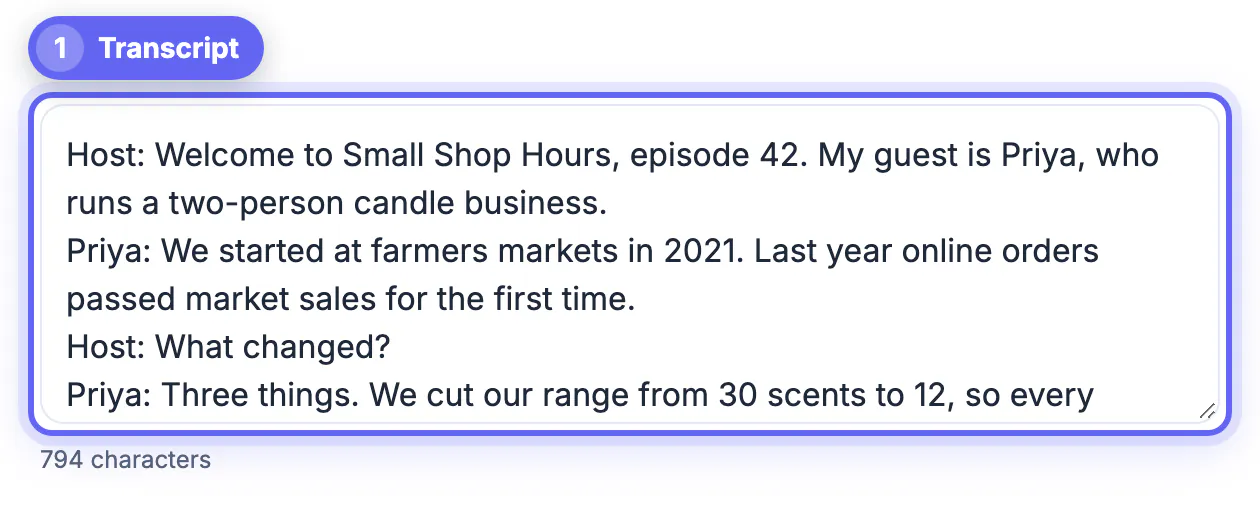
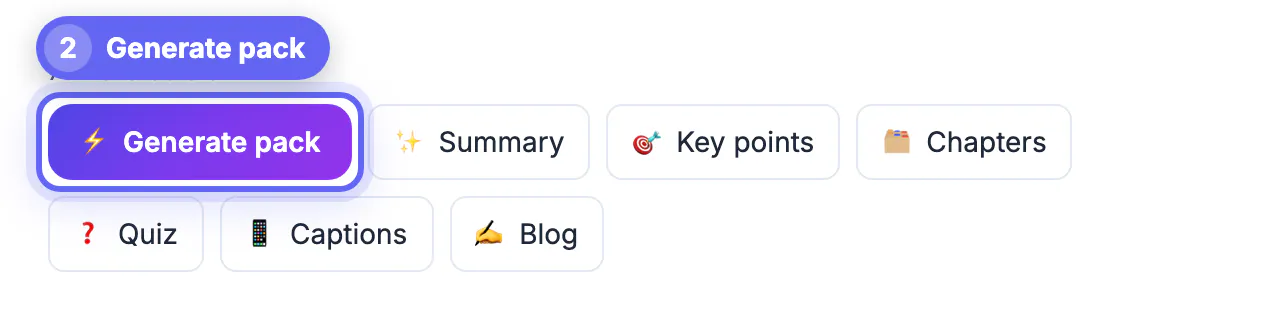
Going from transcript to summary, chapters and captions takes one run in GrabCast's AI Content Pack: paste the text of an episode, webinar or lecture, press Generate pack, and six labeled drafts come back together. You get a one-line TL;DR with five bullets, key takeaways, a chapter outline, social captions for X, LinkedIn and Instagram, a five-question quiz and a short blog post. The drafting takes a minute; the part that protects your reputation is checking names, numbers and timestamps before anything is published, and this guide shows how to do that quickly.
📦 Try the AI Content Pack now — freeOpen →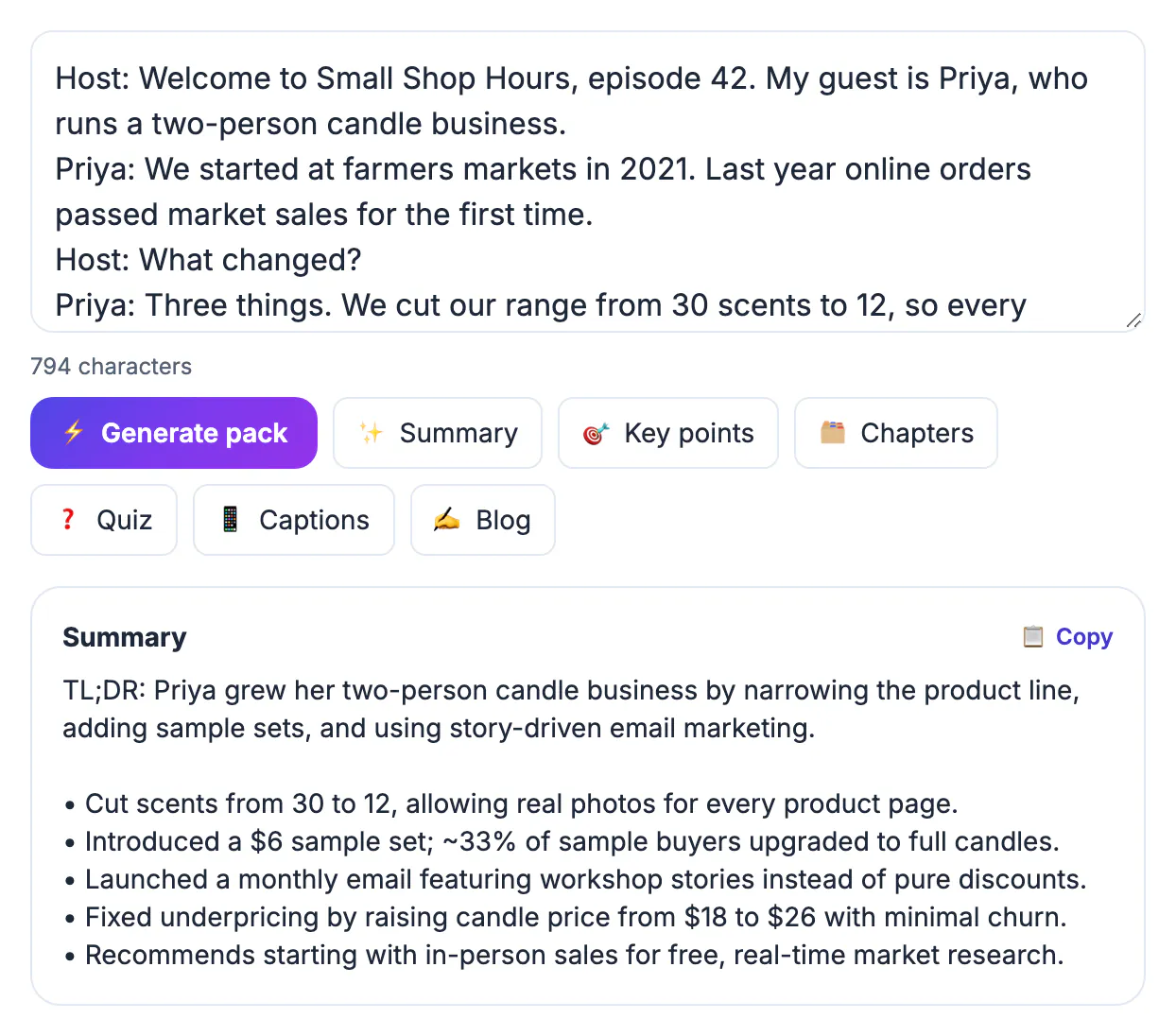
When the summary is written on Monday and the captions on Thursday, they drift. A statistic gets rounded differently, a guest's surname is spelled two ways, and a social post promises something the episode never said. Generating every asset from the same transcript in the same run keeps the facts aligned, and reviewing six drafts side by side is faster than writing each from scratch. A creator publishing weekly can realistically save two to three hours per episode, and that time can go into promotion, guest outreach or simply recording the next one.
Prepare the text before you paste it
The output can only be as accurate as the input. Ten minutes of cleanup pays for itself, because every error you leave in spreads to all six drafts at once.
- If you only have audio or video, transcribe it first in AI Studio, which runs the Whisper speech model inside your browser and exports TXT, SRT, VTT or DOCX.
- Correct names, brands and jargon that speech recognition misheard, such as Kubernetes, a product code or a guest's surname.
- Add speaker labels like HOST and GUEST so quotes in the blog draft are attributed to the right person.
- Delete sponsor reads and housekeeping chatter so they do not turn into a chapter or a quiz question.
Plain text and subtitle files both work. If you paste an SRT or VTT, the tool compacts each caption into a single line with an [mm:ss] marker, which saves space and keeps timing next to each point. The minimum is a couple of sentences, and the practical maximum is around 60,000 characters, roughly an hour of speech. Articles, lecture notes and meeting minutes work just as well as transcripts; the tool does not care where the text came from.
What one run produces, and how long input is handled
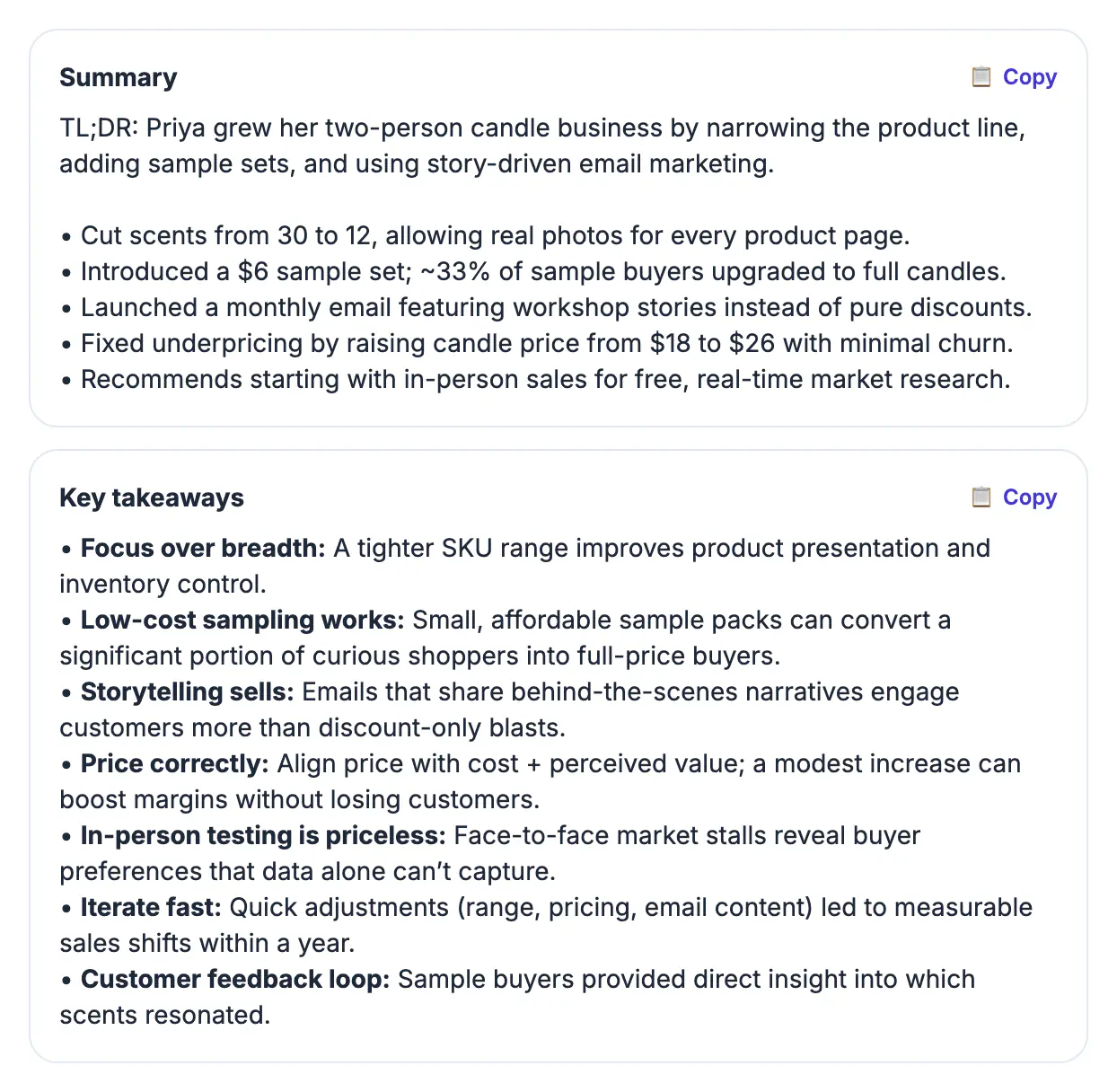
Generate pack asks for all six sections in a single request and splits the reply into separate cards, each with its own copy button. The per-section buttons regenerate just one card, handy when the quiz is weak but everything else is fine.
- Summary: a one-line TL;DR followed by five bullets, ideal for a show-notes opener or an email teaser.
- Key takeaways: five to eight bullets that work as a carousel outline or a slide at the end of a webinar.
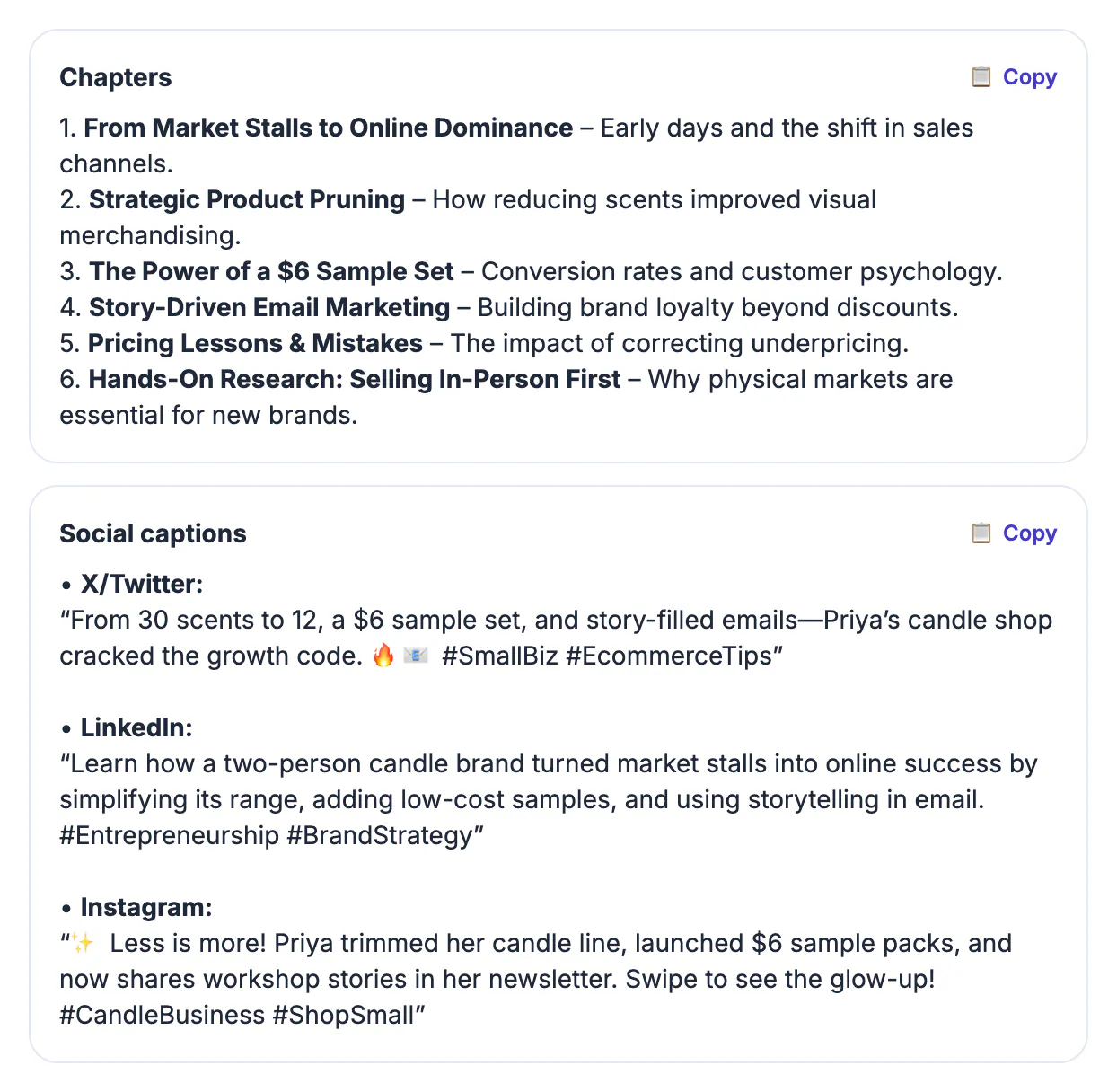
- Chapters and quiz: a short ordered outline of the topics, plus five questions each followed by its answer.
- Social captions and blog post: one caption each for X, LinkedIn and Instagram with two or three hashtags, and a titled draft of three or four short paragraphs.
Short inputs go to the model whole. Longer ones are read in parts of about 6,000 characters, each condensed into notes that keep names, figures, quotes and timestamps, and those notes feed the final writing step; a progress line shows Reading part 3 of 8 as it goes. The trade-off is honest to state: on an hour-long transcript the writer sees condensed notes, not every sentence, so a specific figure mentioned once at minute 43 can be left out. If one detail matters, check that it survived. Text beyond the limit is skipped, and the result ends with a note saying how much was analyzed.
Transcript to summary, chapters and captions: checking each output
Each asset fails in its own way, so review them with different questions rather than one quick skim.
- Summary: does every claim appear in the source, with numbers stated the way the speaker said them rather than rounded up.
- Chapters: the outline gives titles in order, and timestamps only when the input carried them; YouTube needs the first at 0:00, at least three chapters and each at least ten seconds long, so match every heading to the real moment.
- Social captions: trim to each platform's style and confirm the hook is something the episode truly delivers.
- Quiz and blog draft: delete any question with an ambiguous answer, and rewrite the blog opening in your own voice.
Work down the cards in that order, since the summary is the fastest to verify and catches most factual drift before you reach the longer pieces. A good habit is to keep the source text open in a second window and search it for every number and proper noun in the drafts. Anything you cannot find in the source should not be published.
Social captions are not subtitles, and other limits
The word caption means two different things, and confusing them leads to the wrong tool. This tool writes social posts, the text that sits beside a video. On-screen subtitles, the words synced with or burned into the picture, come from the Video Trimmer's Auto Subtitles tab, which exports an .srt file or embeds styled captions.
- Unlike GrabCast's in-browser media tools, this one sends your text to a cloud AI service, so leave out confidential client calls, medical details and anything under NDA.
- It is free and needs no account; at busy hours a request can fail, so wait a moment and retry, or add your own API key to run it on your own account.
- It replies in the language of the source, so a Spanish transcript yields Spanish drafts; translate afterward if you need both.
- The Content Pack button in AI Studio carries the transcript over for you, so there is no copy and paste; very long inputs are read in parts up to about 60,000 characters.
Use both together: subtitles keep muted viewers watching, social posts persuade them to press play. For accessibility, review subtitles line by line, because automatic text is a starting point rather than a finished transcript.
Step-by-step
Common mistakes to avoid
Pro tips
Frequently asked questions
Is the AI Content Pack free?
Yes. It uses a free AI text service with no account required. It can be slow or busy at peak times, in which case retry after a short wait.
Does it create video subtitles?
No. It writes social media captions. For synced subtitles, use the Auto Subtitles tab in the Video Trimmer, which exports an .srt file or burns captions into the video.
How long can the transcript be?
Up to about 60,000 characters, roughly an hour of speech. Longer text is read in parts and combined; anything past the limit is skipped and the result says so.
Is my text private?
No. It is processed by a cloud AI to produce the pack, so avoid pasting confidential or sensitive material. The text you paste is also kept in this browser so a refresh does not lose it.
Will the chapters have correct timestamps?
Only if the input had timing, such as an SRT, and even then treat them as a draft. Confirm each one against your video before publishing.
Clean the transcript once, generate all six drafts in one pass, then spend your time verifying facts, names and timestamps instead of writing each asset from scratch. On hour-long inputs, double-check any single figure that matters, and keep confidential material out of cloud AI tools.
Related guides
Browse more: all AI guides · the AI Content Pack