YouTube Chapters From a Transcript: Timestamps Fast
To write YouTube chapters from a transcript, get a copy of the spoken text with timestamps, mark each point where the topic changes, and paste those times with short titles into the description, starting at 0:00. A timed transcript turns a 40-minute tutorial into something you can skim in five minutes, so the job takes a fraction of the time it takes to rewatch. This walkthrough is for tutorial makers, podcasters and course creators who want chapters that help viewers jump to the part they came for, and that follow the format YouTube needs to display them.
📦 Try AI Content Pack now — freeOpen →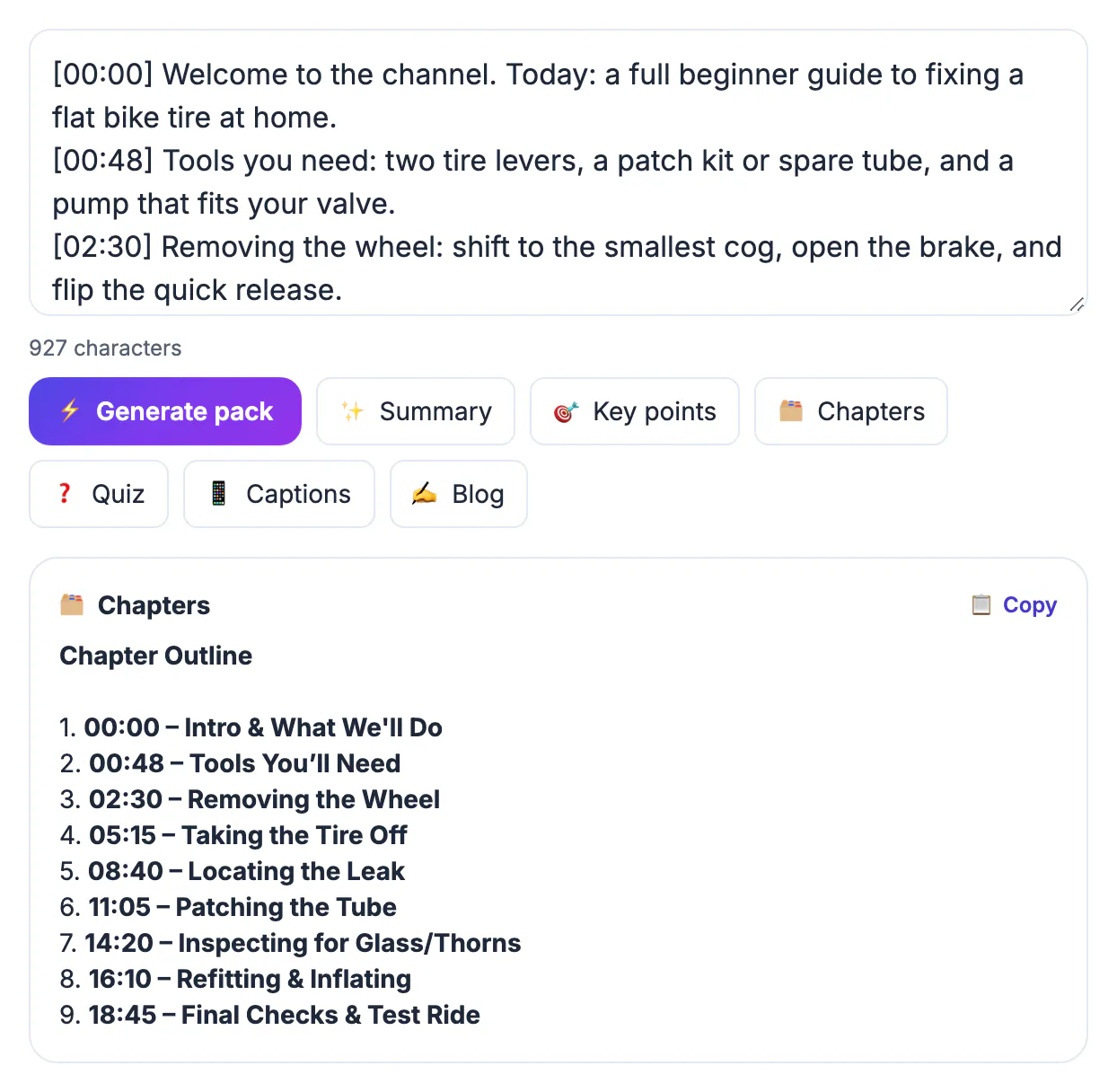
Chapters split the progress bar into labeled segments, show a list of sections under the player, and can appear as key moments in Google search results, which gives a long upload several extra ways to be found. Viewers who can jump straight to the part that answers their question are less likely to leave in frustration, and returning viewers use them to find a single step again. For creators, the exercise itself is useful: if you cannot name five distinct sections in a 30-minute tutorial, the structure probably needs work before the next recording.
Follow the format YouTube requires
Chapters only appear when the list in your description meets a few rules. Get any of them wrong and the platform silently ignores the whole list, which is the most common reason people think chapters are broken.
- The first timestamp must be 0:00, even if the intro is only a few seconds long
- You need at least three timestamps, listed in ascending order
- Each chapter must be at least 10 seconds long
- Put each timestamp at the start of its own line, followed by a space and the title
Use minutes and seconds such as 4:35, or hours for long uploads such as 1:02:10. YouTube may also generate automatic chapters; your own list in the description takes priority, and you can turn automatic ones off in the upload settings if they pick awkward break points.
Get a timed transcript to work from
You need text with times attached, not a plain block of words. There are three practical ways to get it, depending on whether you have the original file:
- Your own recording on disk: drop it into AI Studio, which transcribes on your device, and export the TXT with timestamps
- An upload with captions: the Show transcript panel under the description lists every line with its time
- Your own upload without captions: download it from YouTube Studio's Content page, optionally extract the audio with Audio Converter, then transcribe that file in AI Studio
- Your own channel: YouTube Studio lets you download your caption track as an SRT file with timings
The timestamped TXT export is the easiest format for this job, because each line starts with a clock time such as [00:04:35] followed by the words spoken at that moment. Copying from the Show transcript panel is quick too, but make sure timestamps are switched on in its menu before you copy; without them you get the words alone, which is fine for reading but not for chapter work.
Spot the topic shifts in the text
Read the transcript quickly, looking for the sentences where the speaker moves on. These are usually easy to see in text even when they are subtle on screen. Watch for signposting phrases such as next, let’s move on, the second thing, a quick recap or now that we have. Each of those is a candidate chapter boundary.
Aim for one chapter every three to eight minutes in a typical tutorial or interview. A 40-minute upload with six to ten sections is easy to scan; 25 sections turn the list into noise. Merge tiny segments into their neighbor rather than creating chapters of 15 or 20 seconds.
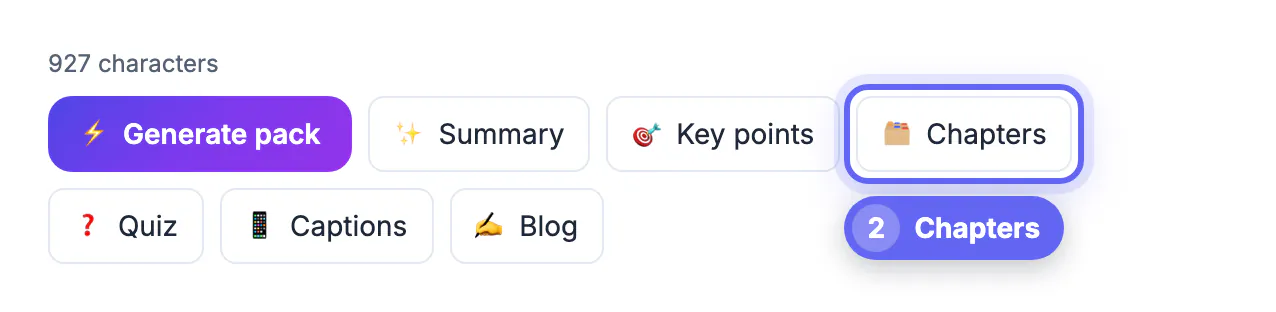
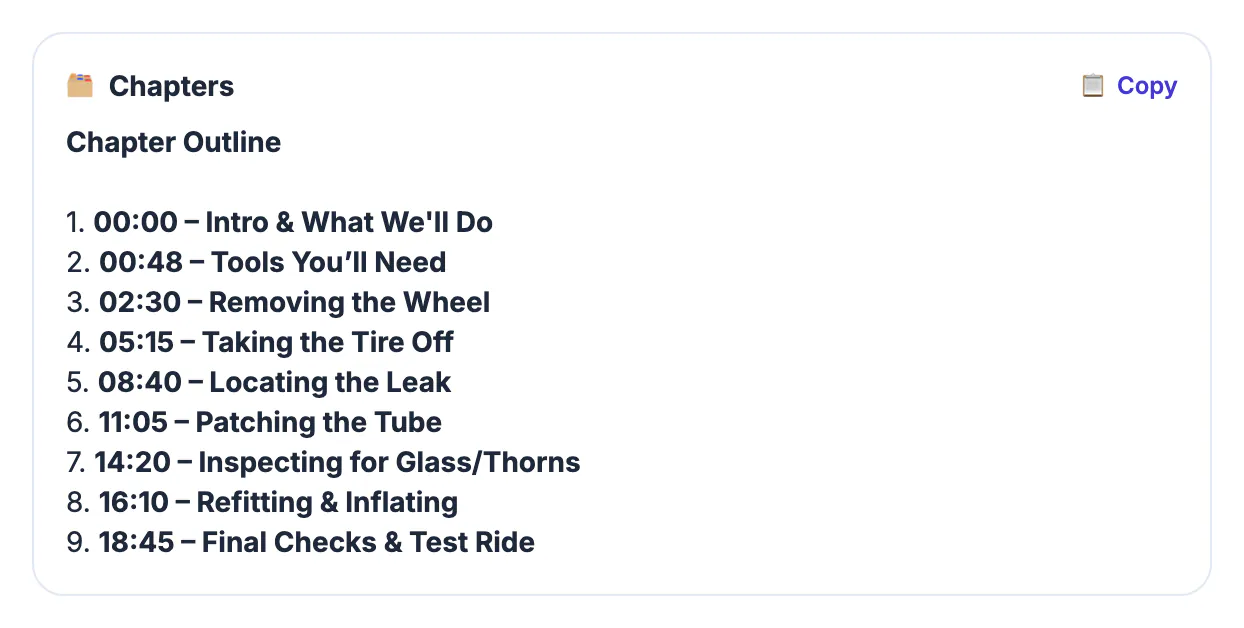
If you want a first pass, paste the transcript into the AI Content Pack and use the Chapters button. It proposes an outline of short section titles in order, which you then match to times by searching the transcript. The Content Pack uses a cloud AI model and reads roughly the first 4,500 characters, so for a long upload paste it in parts.
Write chapter titles people actually click
Titles are small but they do a lot of work. Viewers scan them in the list under the player, and Google can show them as key moments. Good ones describe the outcome of the section in three to six words.
- Prefer specific over generic: Export settings for 1080p beats Settings
- Use the words viewers search for, such as reset password, not your internal jargon
- Keep them parallel in style, for example all starting with a verb
- Skip clickbait; a title that promises more than the section delivers costs trust
Before publishing, click each timestamp in the description preview to check it lands on the start of the right sentence. Shift any that cut in mid-word by a second or two so the chapter opens cleanly.
Step-by-step
![Timed transcript of a 19-minute bike tire repair video pasted in, with topic changes at [02:30], [05:15], [08:40] and [11:05]](img/steps/ai-content-pack/bike-chapters-01.webp)
Common mistakes to avoid
Pro tips
Frequently asked questions
Why are my chapters not showing?
Check the format first: the list must start at 0:00, contain at least three timestamps in ascending order, and each section must be at least 10 seconds. Also make sure each timestamp is at the start of a line.
How many chapters should an upload have?
One every three to eight minutes works well for most tutorials and interviews. A 30-minute upload often lands at five to eight sections.
Can AI write my chapters?
The AI Content Pack can propose an ordered outline of titles from a transcript, which saves time. You still need to match titles to exact timestamps and check each one, and it reads only about the first 4,500 characters at a time.
Do I need the original video file?
No. If the upload already has captions, the Show transcript panel lists them with times, and YouTube Studio lets you download your own caption track. If it has none, download your own upload from YouTube Studio and transcribe that file in AI Studio.
Do chapters help SEO?
They can. Google sometimes shows chapters as key moments in search results, which gives a long upload more entry points. Clear, descriptive titles make that more likely.
Chapters are a formatting job plus a reading job: get a timed transcript, mark the topic shifts, write short specific titles, start at 0:00 with at least three entries, and click every timestamp before you publish.
Related guides
Browse more: all video and audio guides · AI Content Pack