Transcribe a YouTube Video to Text: 3 Legitimate Routes
To transcribe a YouTube video to text, start with the transcript YouTube already provides: under the video, expand the description and click Show transcript, then copy the lines you need. If the video is on your own channel, YouTube Studio lets you download its caption track as a subtitle file, and if your own upload has no captions or weak automatic ones, you can transcribe your original file privately with GrabCast AI Voice-to-Text Studio. Those three routes cover nearly every situation without third-party grabber sites, which break YouTube's terms. Below you will find how each route works on desktop and phone, which one suits students, researchers and creators, and how to clean the text so quotes and timestamps hold up.
🎧 Try AI Voice-to-Text Studio now — freeOpen →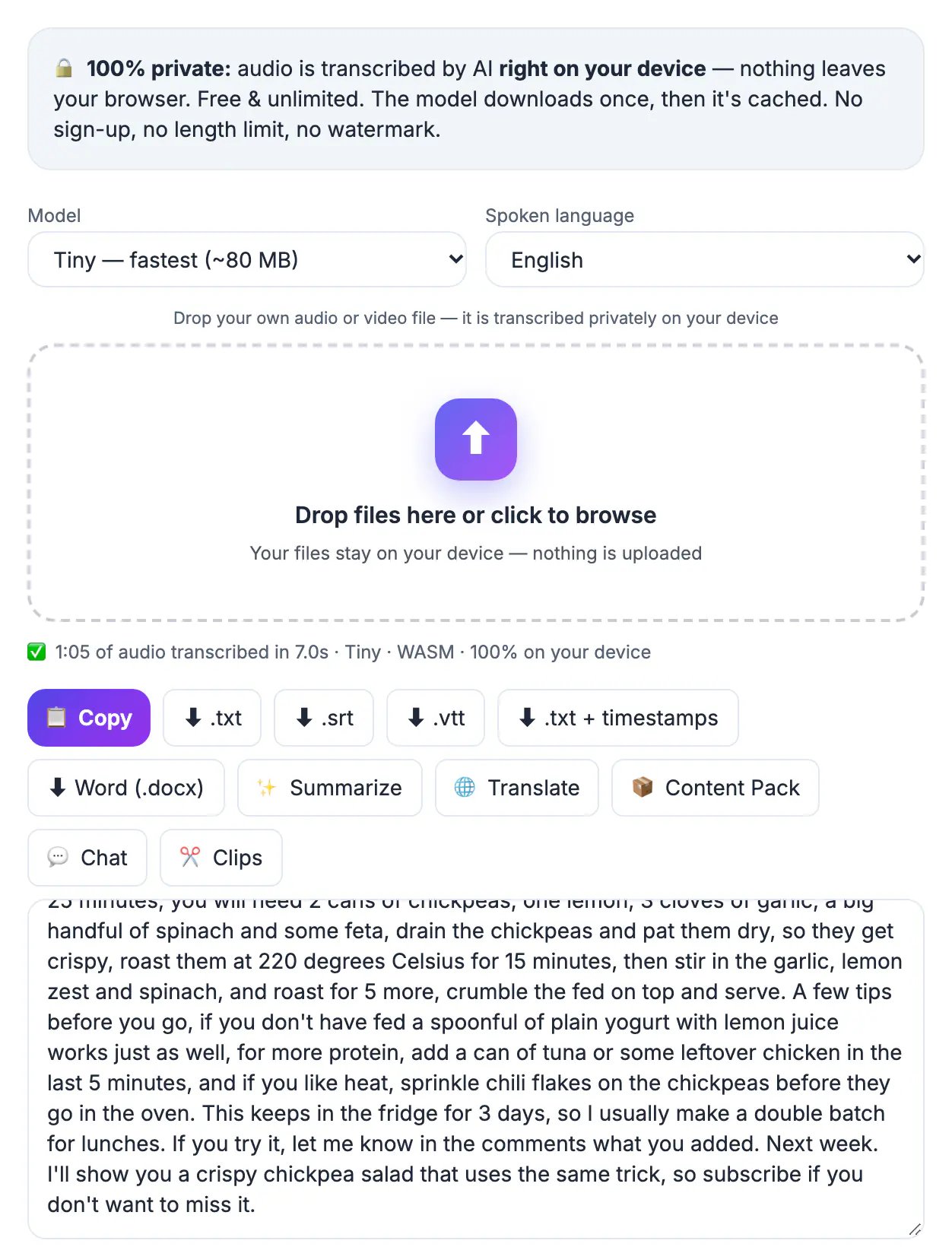
The right route depends on two questions: whose video is it, and what do you need the text for? For someone else's lecture, interview or news clip, the built-in transcript is the legitimate source; you read it inside YouTube and quote short passages with attribution. For your own channel, you control the caption files and the original footage, so you can download, correct and re-upload them. Students usually want searchable notes, researchers want exact wording with timestamps, and creators want show notes, blog drafts or better captions. Picking the route first saves time, because the quality ceiling is different: automatic captions often lack punctuation and misspell names, while a fresh Whisper transcript of your own clean audio usually reads far better.
Route 1: open YouTube's Show transcript panel
On a computer, open the video, click ...more below the title to expand the description, scroll to the end and click Show transcript. A panel opens beside the player with every caption line and its timestamp, and clicking a line jumps the video to that moment.
- Use the panel's menu to toggle timestamps off before you copy, so you get clean paragraphs.
- If the video has several caption tracks, a language selector at the bottom of the panel lets you switch between them.
- In the mobile app, the same option usually appears near the end of the expanded description, although copying long passages is easier on desktop.
- Press Ctrl+F or Cmd+F to search the page for a keyword and find the moment you remember.
The panel only appears when a video has captions, either uploaded by the creator or generated automatically. Automatic tracks are labeled as auto-generated and often lack punctuation, so treat them as a guide to where something was said, then listen before you quote it.
Route 2: download your own captions from YouTube Studio
For videos on your own channel, YouTube Studio gives you the caption file directly. Sign in, open Subtitles in the left menu, choose the video, then use the options menu on the language track to download it.
- YouTube offers common formats such as SubRip (.srt), SubViewer (.sbv) and WebVTT (.vtt); all open in a plain text editor.
- Edit an automatic track in Studio first if you only need a few names corrected.
- For a clean text version, remove the numbered lines and timestamps with find and replace, or keep them if you are writing chapters.
- Menu names change occasionally, so check YouTube Help if an option has moved.
This route is also the fastest way to build YouTube chapters: the caption timestamps tell you exactly where each topic starts.
Route 3: transcribe your own YouTube video to text privately
When your video has no captions, or the automatic ones are poor, transcribe the original file. Use the export from your editing app, or download your own upload from YouTube Studio via Content, the three-dot menu and Download, which gives you an MP4 of your video.
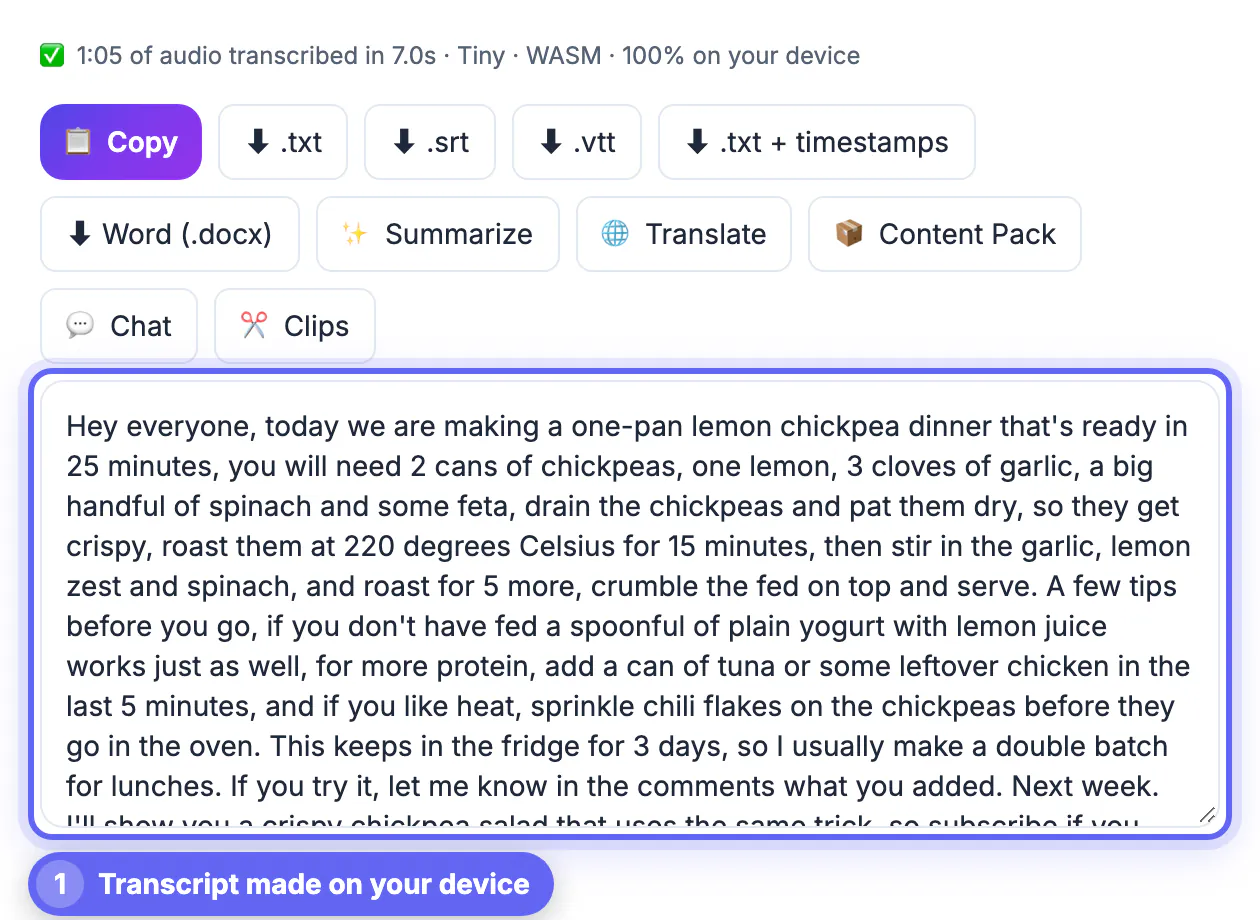
- Drop the file into GrabCast AI Voice-to-Text Studio. It runs OpenAI's Whisper in your browser, so the audio stays on your device.
- Choose Tiny for a quick draft, Base for everyday accuracy, Small for accents and jargon, or Large-v3 Turbo on a recent Chrome or Edge with WebGPU.
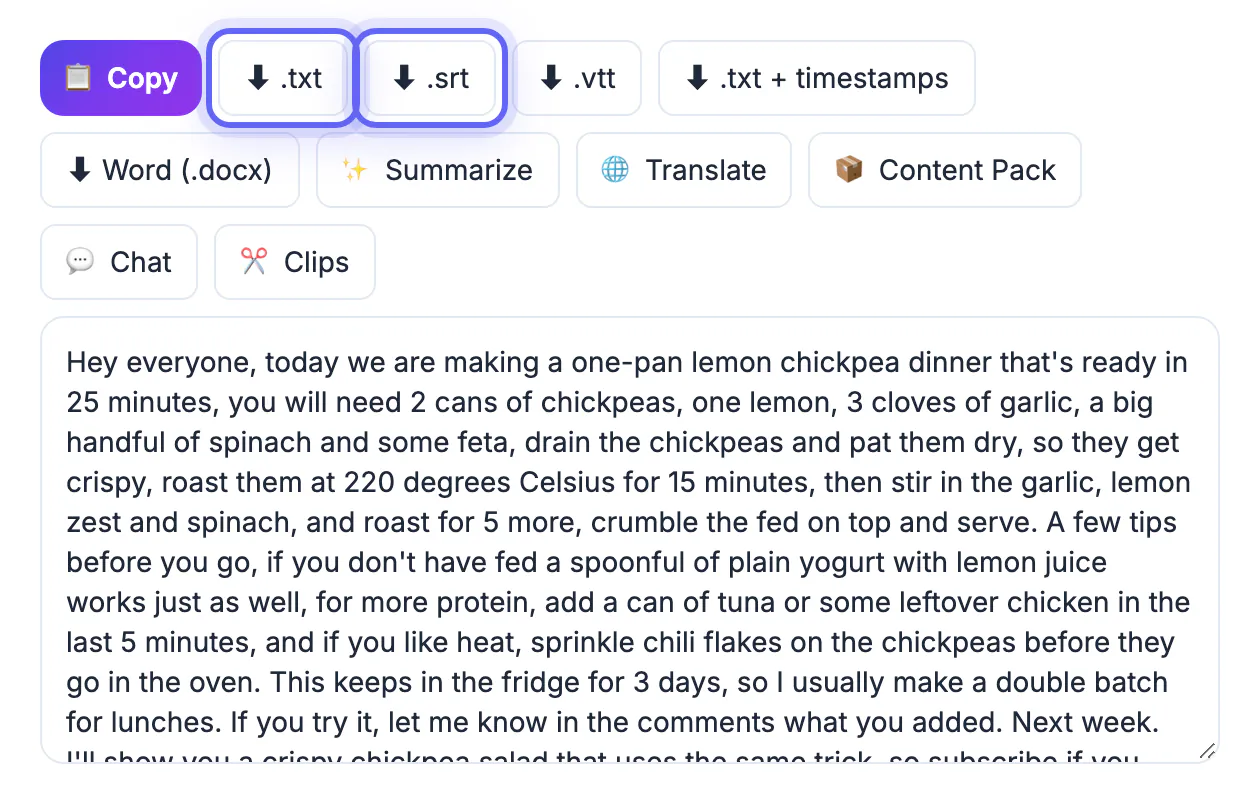
- Export plain text for notes, SRT or VTT for subtitles, text with timestamps for chapters, or DOCX for editing in Word.
- Upload the corrected SRT back in Studio's Subtitles page to replace weak automatic captions for every viewer.
If a large video export will not decode in the browser, extract the audio with the Audio Converter and transcribe that smaller file instead.
Clean up the text and quote it properly
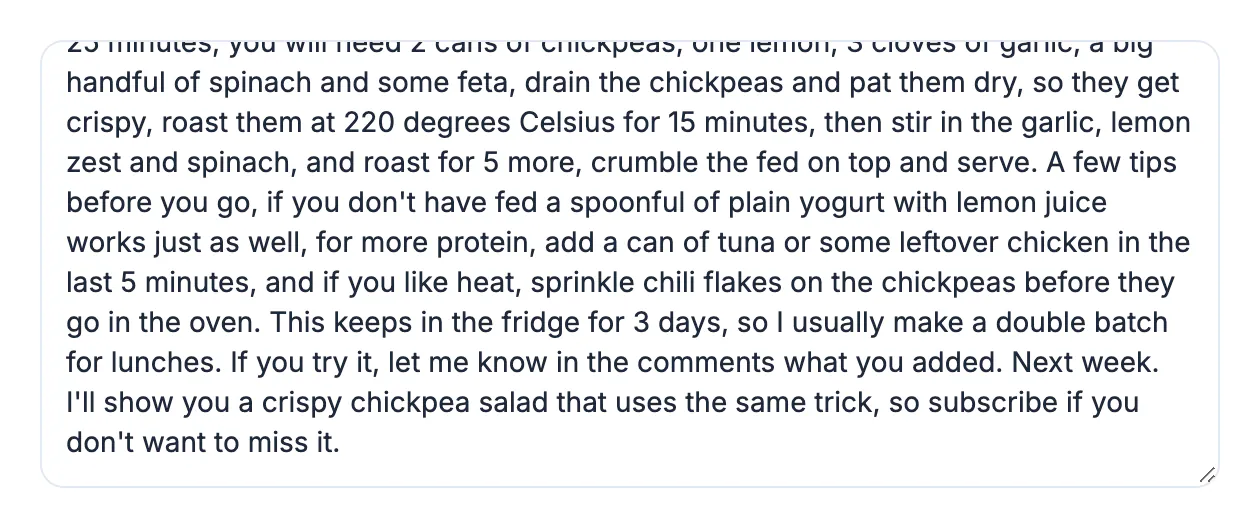
Every transcript needs one proofreading pass, and automatic captions need more. Read at normal speed, fix names, numbers and technical terms, and mark anything uncertain with its timestamp so you can check it against the video.
- Students: keep timestamps in lecture notes so you can rewatch the explanation behind each point.
- Researchers: cite the channel, video title, upload date and timestamp for every quotation, and keep quotes short.
- Creators: turn your own cleaned transcript into chapters, a description or a blog post.
- Everyone: do not republish another creator's full transcript; short quotes with attribution are a different matter from copying the whole work.
If a video you need has no transcript at all and is not yours, ask the creator. Many will add captions or share notes, and it is the only legitimate way to get text they have not published.
Once you have the text, it is worth you removing the filler words before you quote or publish it.
Step-by-step
Common mistakes to avoid
Pro tips
Frequently asked questions
How do I see the transcript of a YouTube video?
Under the video, expand the description with ...more and click Show transcript. It appears when the video has captions, and each line links to its moment in the video.
Can I download captions from someone else's video?
YouTube only offers caption downloads to the channel owner in Studio. For other videos, read and copy from the Show transcript panel, or ask the creator for a transcript.
What if the video has no transcript?
If it is your video, transcribe your original file in AI Voice-to-Text Studio. If it belongs to someone else, contact the creator, since there is no legitimate shortcut.
Is browser transcription private?
Yes. AI Voice-to-Text Studio runs Whisper on your device, so your video's audio never leaves your computer. Optional Summarize and Translate buttons send text to a cloud AI.
Which export format should I choose?
TXT for notes, text with timestamps for chapters and citations, SRT or VTT for subtitles, and DOCX for editing in Word or Google Docs.
Read and copy captions with Show transcript, download your own caption files from YouTube Studio, and transcribe your own uploads privately when captions are missing or poor. Proofread before quoting, keep timestamps for anything you cite, and ask creators directly when the text you need is not published.
Related guides
Browse more: all video and audio guides · AI Voice-to-Text Studio