Quiet Recording? Make It Louder Without Distortion
To make a quiet recording louder without distortion, drop it into GrabCast's Volume Booster, read the peak and average level it measures, press Max without limiting (or choose a gain), and click Boost & save. A 48-second interview that peaked at -24.7 dBFS came back almost 20 dB louder, with its peaks still below full scale, and the file was processed in the browser rather than uploaded.
🔊 Try the Volume Booster now — freeOpen →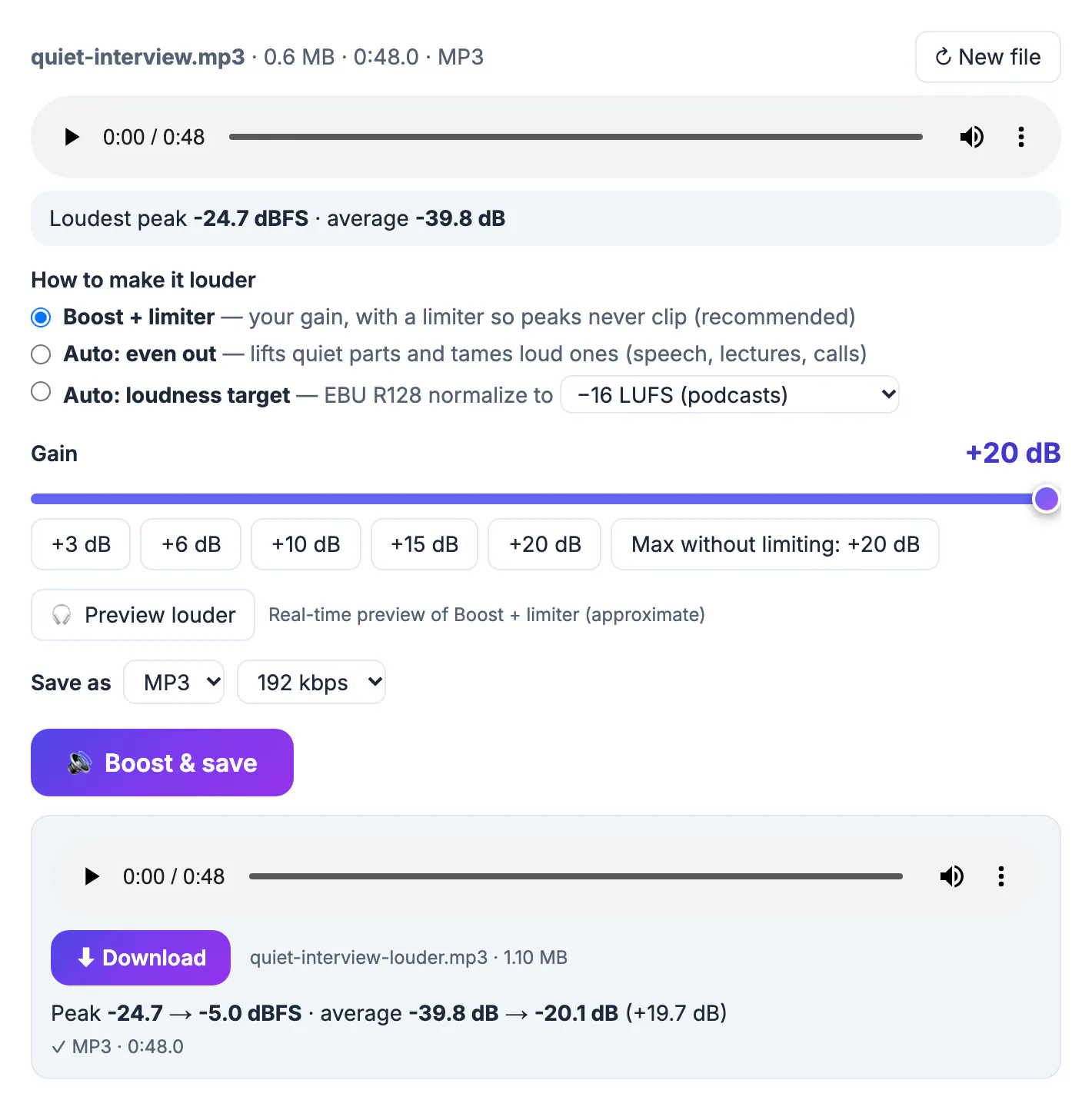
Quiet audio is usually a distance problem, not a microphone problem. A phone left in the middle of a table during an interview, a laptop mic across a classroom, or a recorder with automatic gain turned off all capture the voice at a low level. On playback you crank the volume, and the next file you play blasts your ears. Simply multiplying the audio by a large number fixes the average level but risks pushing the loudest moments past digital full scale, which is what causes harsh crackle. The safe way is to know how much headroom the file has, use it, and let a limiter handle anything beyond that.
Read the meter before you make a recording louder
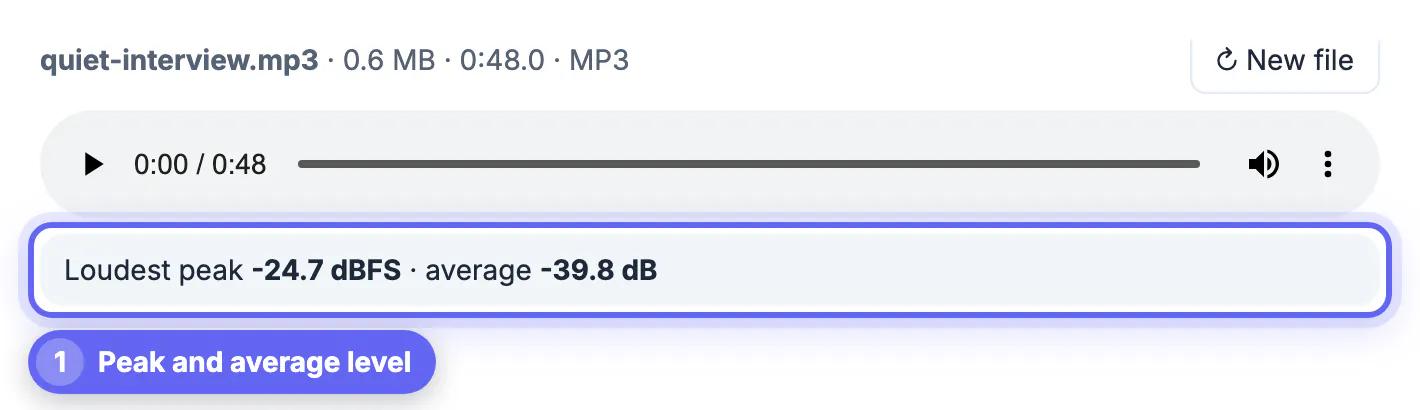
As soon as a file is loaded, the Volume Booster measures two numbers and shows them above the controls.
- Loudest peak, in dBFS: how close the highest point of the waveform comes to digital full scale, which is 0 dBFS
- Average, in dB: the mean level of the whole file, which is what your ears judge as loud or quiet
- In the example, quiet-interview.mp3 showed a loudest peak of -24.7 dBFS and an average of -39.8 dB, a very quiet file
- When the peak is already close to 0, the meter warns that any boost will rely on the limiter
- The file name, size, length and codec appear above the player, so you can confirm you loaded the right take
The gap between the peak and 0 dBFS is your headroom. A file peaking at -24.7 dBFS can be raised by more than 20 dB before its loudest moment reaches the top, which is why this recording was a good candidate for a plain gain boost.
As a rough guide, spoken audio that averages below about -30 dB on this meter will sound quiet on a phone, and a file averaging around -20 dB sounds comfortably present. Those are rules of thumb, not standards, but they tell you quickly whether a boost is worth doing.
Max without limiting: the cleanest boost
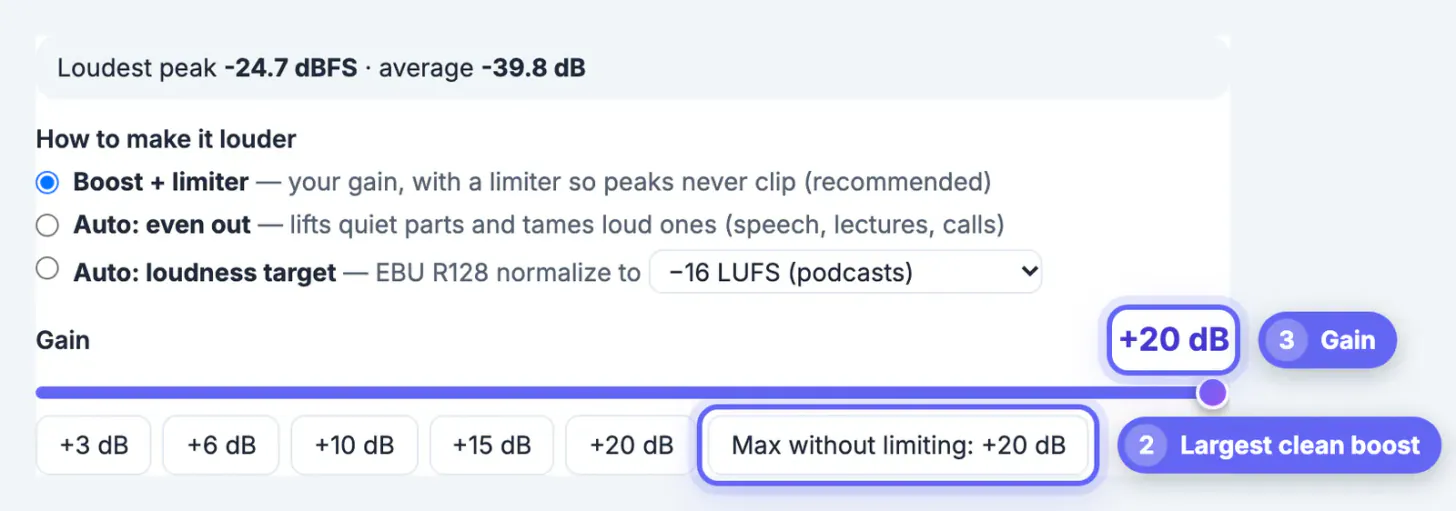
When a file has spare headroom, the booster adds a button labeled Max without limiting with the largest gain that keeps the peaks about 1 dB below full scale. It is capped at the slider's maximum of plus 20 dB.
- For the interview, the button read plus 20 dB, the cap; the exact headroom was a little larger
- Pressing it sets the Gain slider, which runs from minus 20 to plus 20 dB in half-decibel steps
- Quick buttons for plus 3, 6, 10, 15 and 20 dB are there when you want a round number
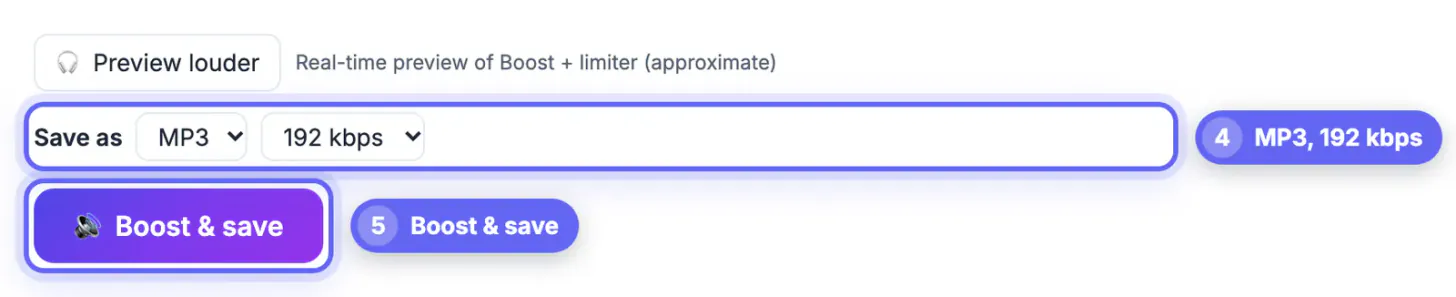
- Preview louder plays the file through a live gain and limiter so you can compare with the original before saving
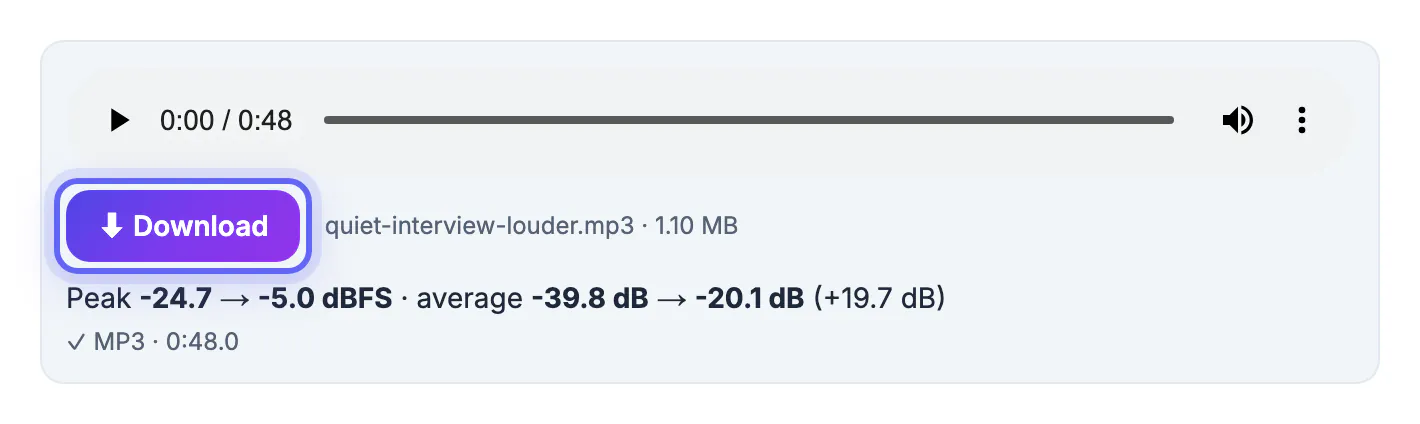
- The result showed peak -24.7 to -5.0 dBFS and average -39.8 to -20.1 dB, a rise of 19.7 dB
A gain at or below the Max without limiting value is a pure volume change: the shape of the waveform stays the same, just bigger. The limiter still runs, but it has little or nothing to catch.
Boost + limiter or Auto: even out?
The booster has three ways to make audio louder. Two of them are useful for everyday quiet recordings.
- Boost + limiter applies exactly the gain you choose; a look-ahead limiter holds peaks just under full scale, so even plus 20 dB does not hard-clip
- Very large boosts past the headroom make loud moments sound squashed, so use the smallest gain that makes the quiet parts clear
- Auto: even out uses a dynamic normalizer that lifts quiet passages and tames loud ones, which suits lectures, calls and interviews where one voice is far from the mic
- Auto: loudness target normalizes to -14, -16 or -23 LUFS, useful when a platform expects a specific loudness
- Only Boost + limiter has the live preview; for the auto modes, listen to the result after saving
For the interview example, where both speakers were quiet by a similar amount, a single gain was the right tool. If one speaker had been loud and the other a whisper, Auto: even out would have narrowed that gap in a way a single gain cannot.
Noise, formats and what a boost cannot fix
Raising the level raises everything in the file, including things you did not want to hear.
- Background hiss, air conditioning and room echo get louder by the same amount as the voice
- A recording that was already distorted when captured stays distorted; boosting cannot rebuild clipped peaks
- Audio can be saved as MP3, M4A or WAV, with 128 to 320 kbps for the compressed formats; the interview came back as quiet-interview-louder.mp3 at 1.10 MB
- Only the first audio track is processed and embedded cover art is not kept
- Measuring and boosting run in the browser with ffmpeg compiled to WebAssembly, downloaded once (about 32 MB) and cached
If the recording is quiet because the speaker was far away, the next one will be better with the phone closer; 6 to 12 inches from the mouth is a good starting point for a voice memo.
Boosting also lifts noise, so try the Audio Noise Reduction tool first. Need another file type? The Audio Converter helps.
Step-by-step
Common mistakes to avoid
Pro tips
Frequently asked questions
Will boosting the volume distort my recording?
Not with Boost + limiter. A look-ahead limiter keeps peaks just under full scale, so there is no hard clipping even at plus 20 dB, though very large boosts can sound compressed.
How much louder can I make a file?
The gain slider goes up to plus 20 dB. The Max without limiting button shows the largest boost that needs no limiting at all.
Is my recording uploaded?
No. Measuring and boosting run in your browser with ffmpeg compiled to WebAssembly, and the result downloads directly to your device.
Can I make audio quieter too?
Yes. Drag the gain below 0 dB, down to minus 20 dB; the saved file gets a -quieter suffix.
What does the average number mean?
It is the mean level of the whole file in decibels. It is a quick guide to how loud the file sounds, and it rises by roughly the gain you apply.
Read the peak first, then use the headroom: Max without limiting gives the cleanest boost, the limiter makes bigger boosts safe, and Auto: even out handles uneven voices. A boost cannot remove noise or undo distortion, so record closer next time, but for a quiet file it is a one-click fix.
Related guides
Browse more: all video and audio guides · the Volume Booster