How to Add Word-by-Word Captions to a Video (Free)
Word-by-word captions show a short line of text and highlight each word at the moment it is spoken, or pop one word at a time onto the screen. They are the caption style you see on most talking videos on TikTok, Reels and Shorts, because they keep the eye moving with the voice. To add word-by-word captions to a video you need timings for every single word, not just for each sentence, and a renderer that draws the highlight frame by frame. This guide walks through it with GrabCast's free Text-Based Video Editor, using a 20-second cooking tip as the example: transcribe, pick a style, preview it on the video, then burn the captions into an MP4 or download them as a subtitle file.
📝 Try the Text-Based Video Editor now — freeOpen →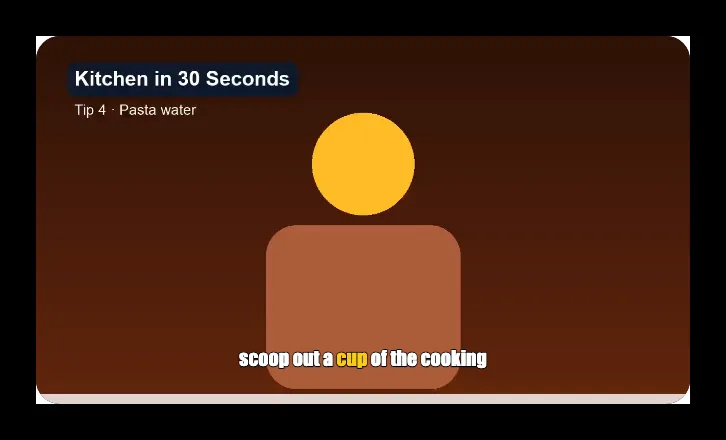
Many people start short videos with the sound off, so the words on screen carry the first seconds. A full sentence at the bottom of the frame is easy to skip; a highlight that moves with the voice pulls the eye along and makes the pace of the video visible even without sound. Word timing also fixes a common problem with auto-generated subtitles: long cues that stay on screen after the speaker has moved on. There are trade-offs. Highlighted captions are busier than plain subtitles, so they suit short tips, hooks and punchy explainers better than a calm documentary. For accessibility, a plain subtitle file is still worth offering alongside, and you get both from the same transcript.
What you need for word-by-word captions
Three things decide how good the result looks:
- Word timestamps. A normal subtitle file only times whole lines. The highlight needs the start and end of each word, which the Whisper speech model can produce.
- Short lines. Two lines at most, about 32 characters each, and a new caption after each sentence or pause, so nothing wraps into a block of text.
- A readable style. Heavy fonts with an outline, a contrasting highlight colour, and a position clear of the app's buttons.
Accuracy matters as much as looks. Proper nouns, brand names and numbers are where speech models slip most often, so plan a quick proofread of the transcript before styling anything.
The Text-Based Video Editor handles all three: it transcribes on your device with word timings and splits the captions into cues of at most two lines and about 1.8 seconds each.
Choose a caption style that fits the video
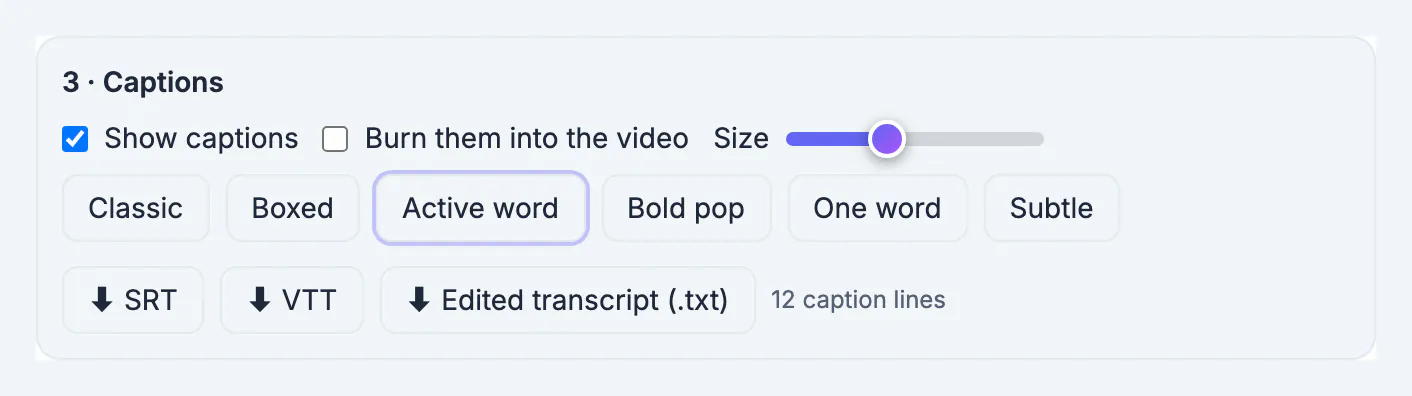
After transcribing, the Captions panel offers six styles, and the preview on the video updates as you click:
- Active word: a white line at the bottom with the spoken word in yellow, the classic word-by-word look.
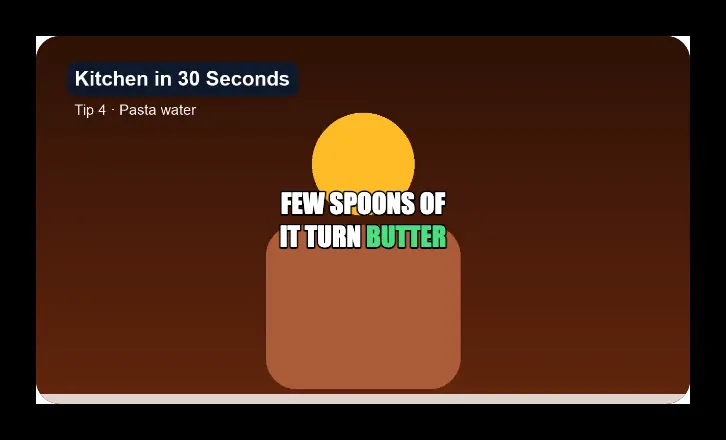
- Bold pop: large capitals in the middle of the frame, with the current word in green. Good for hooks.
- One word: a single big word at a time in the middle. Very fast to read, best for short clips.
- Classic, Boxed and Subtle: calmer line captions with an outline, a dark box or a soft shadow, for longer talks.
A size slider scales the text. For a vertical video, Bold pop and One word sit in the middle of the frame, which keeps them away from the like and comment buttons on the right and the description at the bottom. For more on placement per app, see captions for TikTok and Instagram Reels.
Fix the words before you add captions
Captions repeat the transcript exactly, so edit the text first.
- Click a word to hear it; if the model misheard a name or a term, the caption will show the same mistake.
- Cut fillers and false starts in the transcript first; the captions follow the edited video, so removed words never appear.
- Check numbers and units: a spoken one cup may be written as 1 cup or one cup; pick one and stay consistent.
In the pasta example, the captions ran to 12 caption lines for 20 seconds of speech. The Active word style highlighted cup in scoop out a cup of the cooking water, and Bold pop showed FEW SPOONS OF IT TURN BUTTER with butter in green.
Burn the captions in or export a subtitle file
There are two ways to deliver captions, and the choice depends on where the video goes.
- Burn them into the video: tick the box and export. The captions become part of the picture, so they show everywhere, including apps that do not accept subtitle files. This is the usual choice for TikTok, Reels and Shorts.
- SRT or VTT file: download it and upload it next to the video, for example on YouTube or in a course platform. Viewers can switch the captions off, and search engines can read them.
- Both: burn a styled version for social apps and keep the SRT for YouTube and your own site.
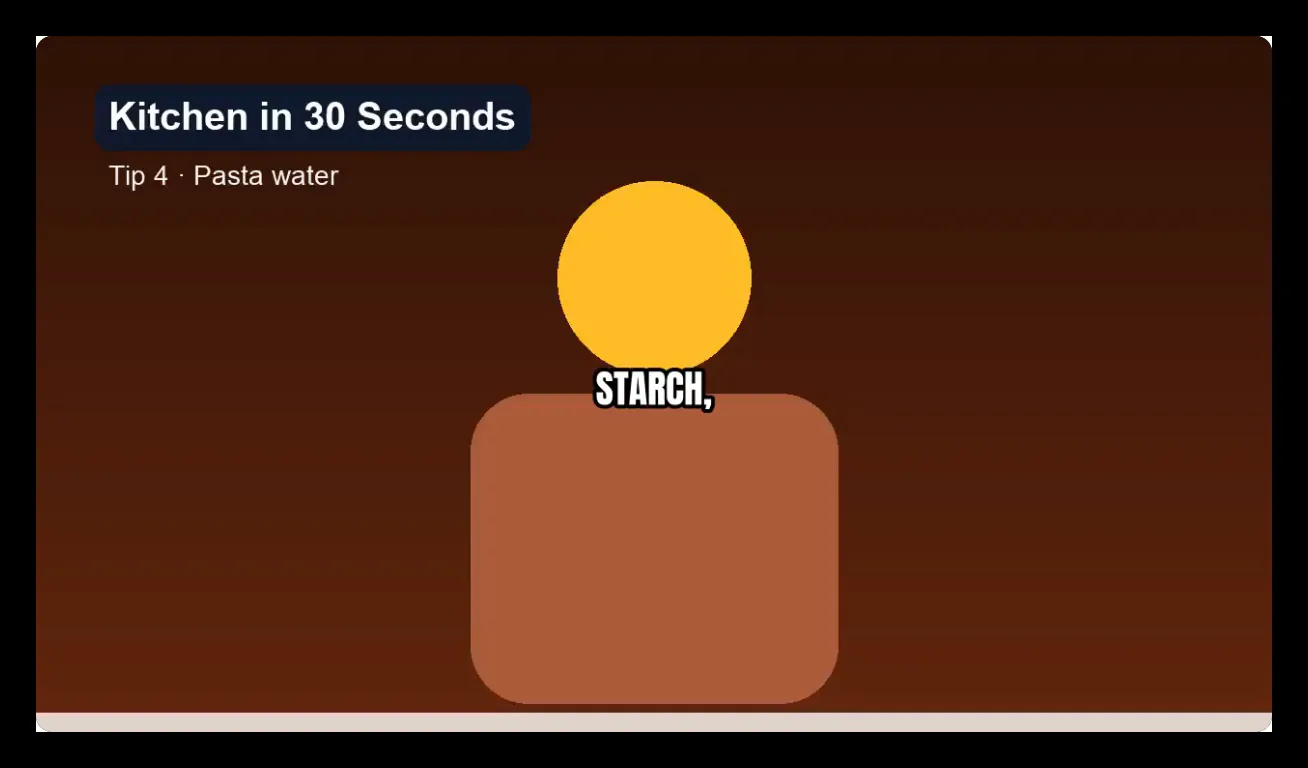
Export renders the MP4 in your browser with no watermark. The example, exported with the One word style burned in, shows STARCH on its own in large capitals as the narrator says it. If you only have a subtitle file and a plain video, adding subtitles to a video covers that route.
Before posting, watch the export on a phone at normal brightness. Yellow highlights on a pale background, or thin outlines over a busy kitchen scene, can disappear on a small screen. If that happens, switch to Boxed, which puts a dark panel behind the line, or raise the size slider a step and export again. Checking takes a minute and saves reposting.
Step-by-step
Common mistakes to avoid
Pro tips
Frequently asked questions
What are word-by-word captions?
Captions that highlight each word as it is spoken, or show one word at a time, instead of a full static sentence. They need a time for every word.
Can I make word-by-word captions for free without a watermark?
Yes. The Text-Based Video Editor transcribes, styles and burns in the captions in your browser, with no watermark and no sign-up.
Which caption style is best for TikTok and Reels?
Bold pop or One word in the middle of the frame is the easiest to read and stays clear of the app's buttons. Active word works well for longer explanations.
Can I edit the captions?
The captions come from the transcript, so you change them by editing the transcript: cutting words, fillers or retakes removes them from both the video and the captions.
Does it work for languages other than English?
The speech model transcribes many languages; choose the spoken language before transcribing. The optional precise word timing is English only.
Word-by-word captions need word timings, short lines and a bold, readable style. Transcribe the video on your device, clean the transcript, pick Active word, Bold pop or One word, and burn them in for social apps while keeping an SRT for everywhere else.
Related guides
Browse more: all video and audio guides · the Text-Based Video Editor