Video Captions for Accessibility: A WCAG Checklist
To add captions to a video for accessibility, you need text that is accurate, synchronized with the speech, complete from start to finish, and placed where it does not cover important content. Auto-generated captions are a fast first draft, not the finished product. This guide is for teachers, HR teams, nonprofits and public-sector communicators who publish training, announcements or lectures and need them to work for deaf and hard-of-hearing viewers, as well as for anyone watching on mute. It covers the standard most organizations are measured against, what good captions contain, and a practical workflow with free tools.
🔤 Try AI Studio now — freeOpen →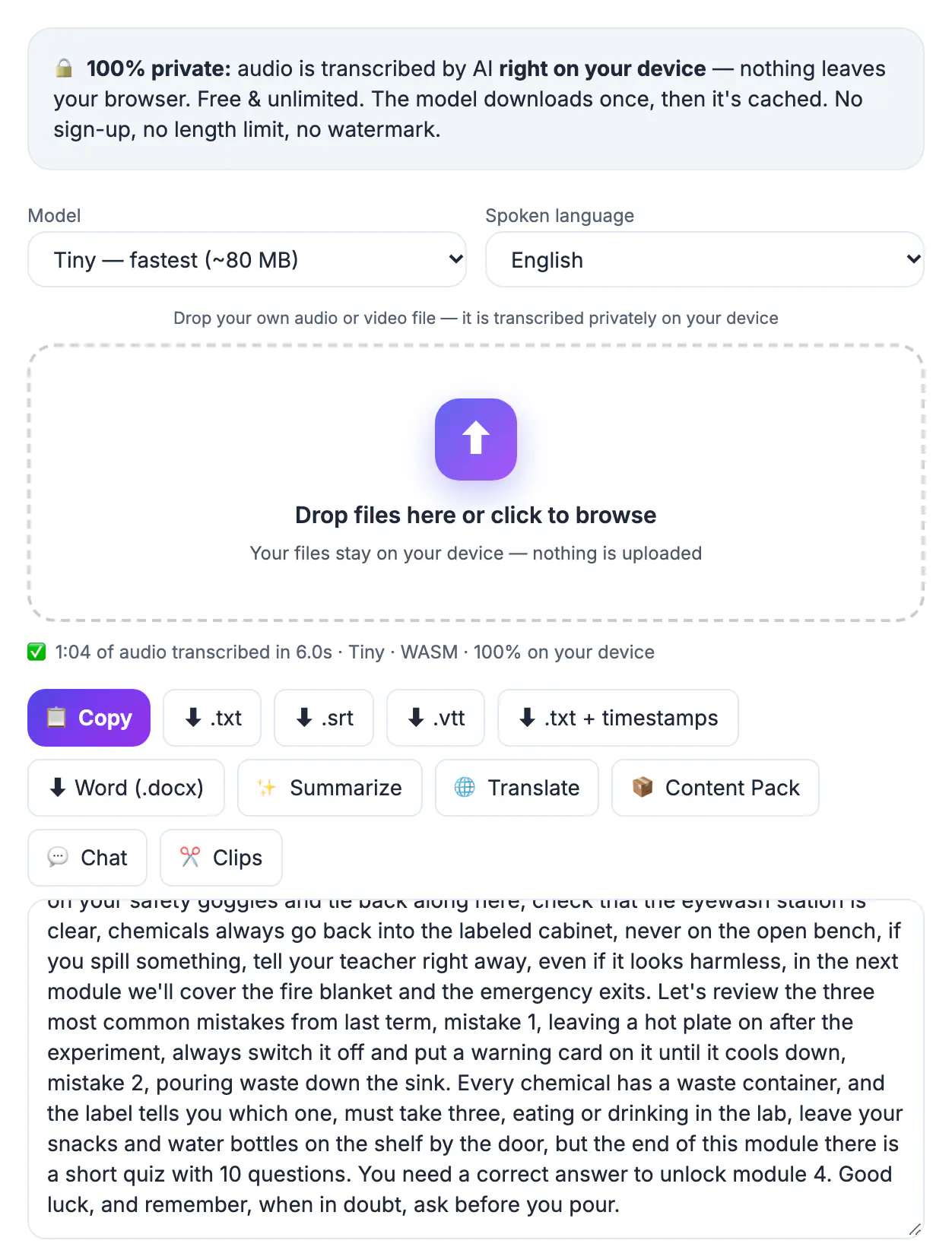
Roughly one in seven American adults reports some trouble hearing, and captions are the only way many of them can follow a recording at all. They also help people watching in a second language, viewers in a quiet office or a noisy train, and learners who absorb information better when they can read along. On the compliance side, WCAG 2.1 Success Criterion 1.2.2 requires captions for all prerecorded audio in synchronized media at Level A, the most basic tier. Schools, public agencies and many companies use WCAG as their benchmark, and the European Accessibility Act has applied to many consumer services since June 2025.
What WCAG actually asks of your captions
WCAG does not prescribe a font or a color. It asks that the information in the audio is available as text, in time with the picture. Captioning guidelines from the Described and Captioned Media Program and the FCC’s caption quality rules for television fill in the practical detail. Together they point to four qualities:
- Accurate: the words match what was said, including names, numbers and technical terms
- Synchronous: each caption appears as the words are spoken and stays long enough to read
- Complete: captions run from the first word to the last, including the closing remarks
- Well placed: text never hides a speaker’s face, a name lower-third or on-screen data
Live streams fall under a separate criterion, 1.2.4, at Level AA. For recorded content, the goal is simple: someone who cannot hear the audio should get the same information as someone who can.
Include more than the spoken words
Captions are not the same as a transcript of dialogue. Deaf and hard-of-hearing viewers also need the sounds that carry meaning. Add them in square brackets on their own line, and keep them short:
- Speaker identification when the speaker is off screen or changes, for example [Dr. Patel]
- Meaningful sounds such as [phone rings], [applause] or [alarm beeping]
- Music cues that set tone, such as [upbeat music] or [music fades]
- Tone that changes meaning, for example [sarcastically] or [whispering]
Do not caption every cough or chair creak. Include a sound when a hearing viewer would react to it or when the story depends on it.
Make captions easy to read
Readable captions follow a few well-established conventions. Keep each caption to one or two lines of about 32 to 42 characters, and break lines at natural phrase boundaries rather than mid-phrase. Leave each caption on screen long enough to read comfortably, generally at least a second and a half, and avoid pushing reading speed much above about 160 to 180 words per minute for general audiences.
Contrast matters as much as timing. White or yellow text with a dark outline or a semi-transparent box stays legible over bright and busy backgrounds. If you are styling burned-in captions, check the pairing with the Color Contrast Checker; WCAG asks for a contrast ratio of at least 4.5 to 1 for normal text.
Use sentence case and standard punctuation. All-caps captions are harder to read in long runs, and missing punctuation makes it hard to tell where one thought ends and the next begins.
Draft, correct and deliver with free tools
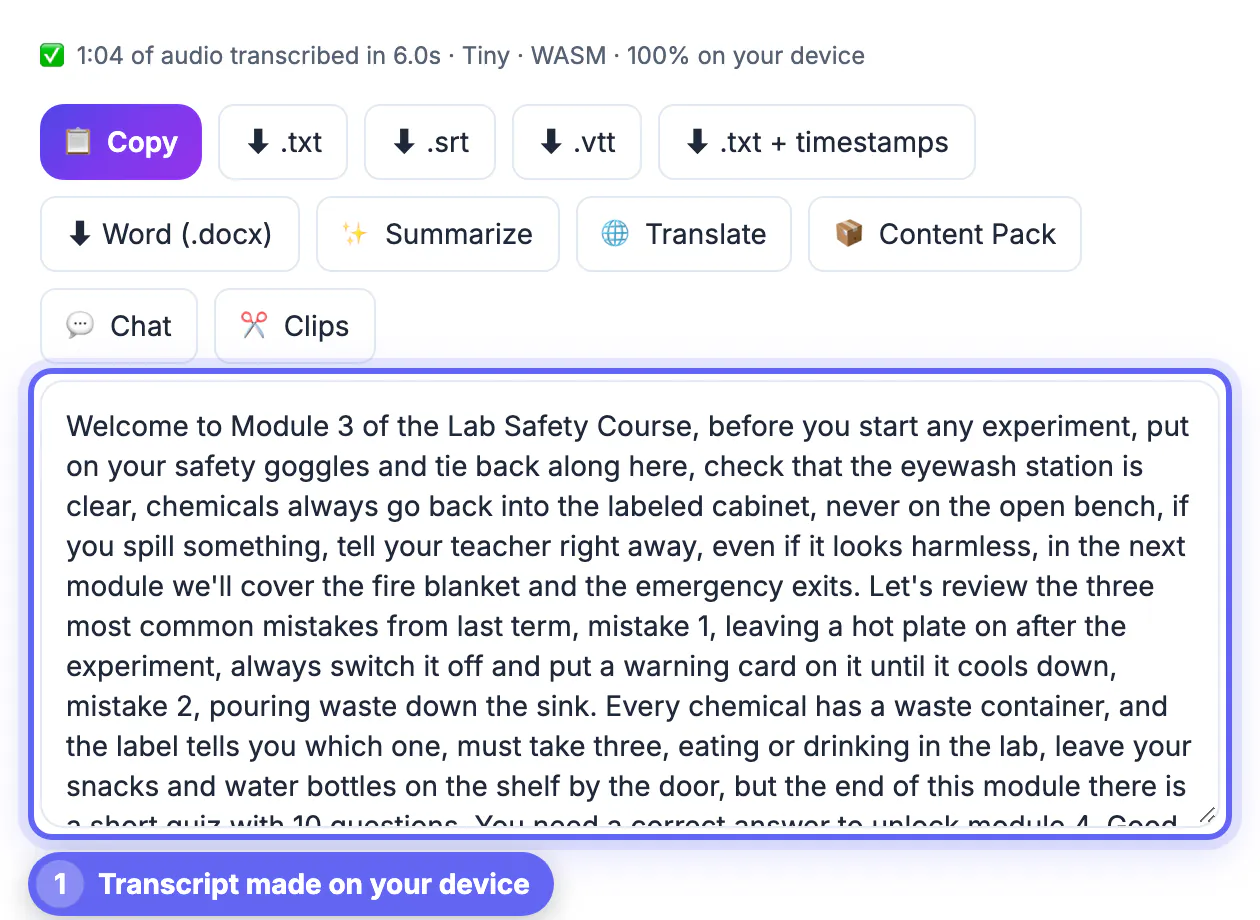
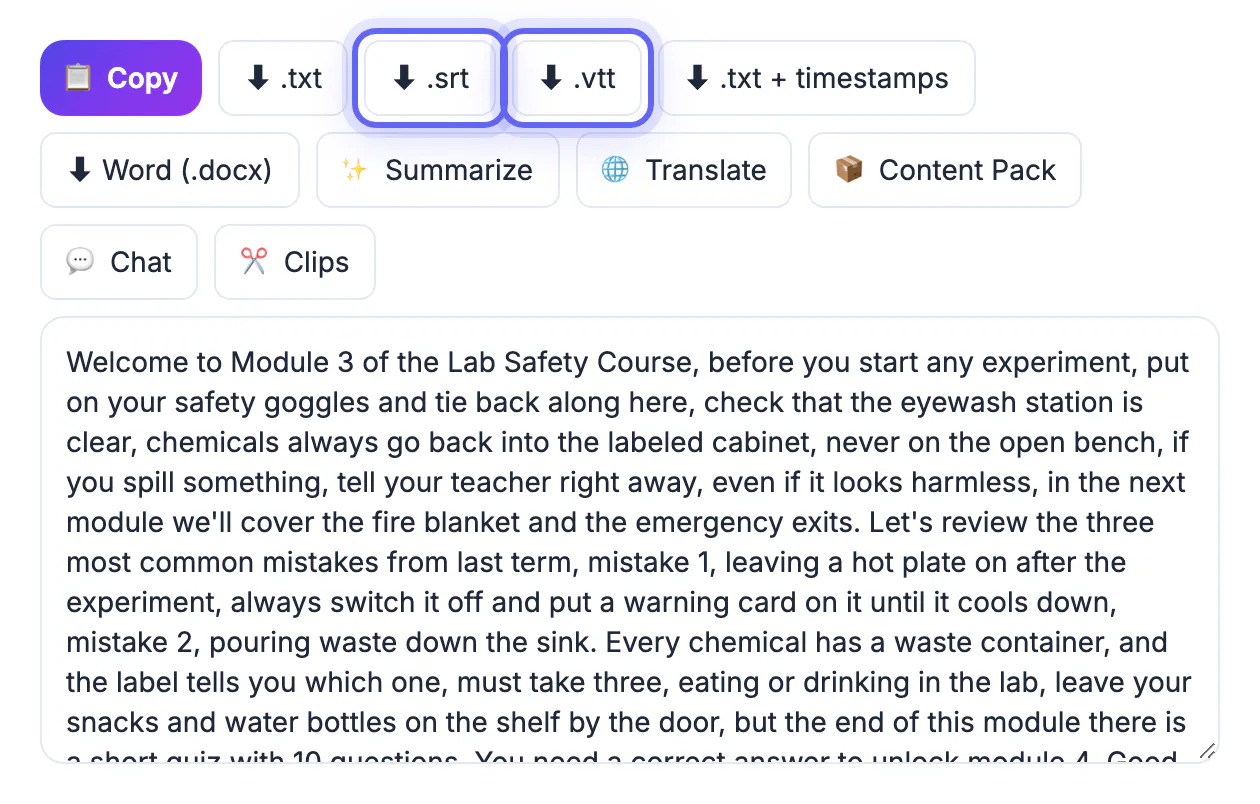
AI Studio turns the audio into a timed draft on your device and exports SRT or VTT. Read the whole file against the recording, fix names and jargon, add speaker labels and sound cues, then choose how the captions reach the viewer:
- Closed captions: upload the SRT or VTT alongside the video on YouTube, Vimeo, LinkedIn or your LMS so viewers can switch them on and resize them
- Embedded track: the Video Trimmer can embed a caption track in the file for players that support it
- Open captions: burn the text into the picture when the platform has no caption support, such as some social feeds
- Transcript: publish a text version as well, which helps screen-reader users and people who prefer to skim
Closed captions are usually the better accessibility choice because viewers can adjust size and color. Burned-in captions reach everyone but cannot be turned off or restyled, so use them where closed captions are not an option.
Step-by-step
Common mistakes to avoid
Pro tips
Frequently asked questions
Are auto-generated captions enough for WCAG?
Usually not on their own. Automatic captions are a good first draft, but WCAG expects captions that convey the content accurately, so a human review for names, numbers and sound cues is needed before you can rely on them.
What is the difference between captions and subtitles?
Captions assume the viewer cannot hear the audio and include speaker labels and sounds. Subtitles usually assume the viewer can hear but needs a translation, so they cover dialogue only.
Should I use closed or open captions?
Closed captions are generally better for accessibility because viewers can turn them on and adjust size and color. Use burned-in open captions when the platform does not support caption files.
Do I need captions for a video with no speech?
If the audio carries information, such as narration-free instructions with meaningful sounds, describe those sounds. If the video has only background music, a short note such as [instrumental music] is usually sufficient.
Is my video uploaded when I create captions?
Not when you transcribe in AI Studio or generate subtitles in the Video Trimmer; both run in your browser. The file only leaves your device when you upload the finished video and captions to your chosen platform.
Accessible captions are accurate, synchronized, complete and well placed: start with an automatic draft, correct every line, add speakers and meaningful sounds, keep lines short and high-contrast, and deliver closed captions wherever the platform allows.
Related guides
Browse more: all video and audio guides · AI Studio