Subtitles for Any Video: Make, Translate, Load SRT
To get subtitles for any video file, generate them from the audio: AI Studio transcribes the speech on your device and exports an SRT or VTT file with timestamps, which almost every player and platform can read. From there you can translate the file into another language while keeping the timing, and load it next to the original in VLC, Plex or a streaming upload. This guide is for people with files that never came with subtitles, such as family interviews, conference recordings, language-learning material and home movies, and it covers the file formats, sync fixes and translation steps.
🎧 Try the AI Studio tool now — freeOpen →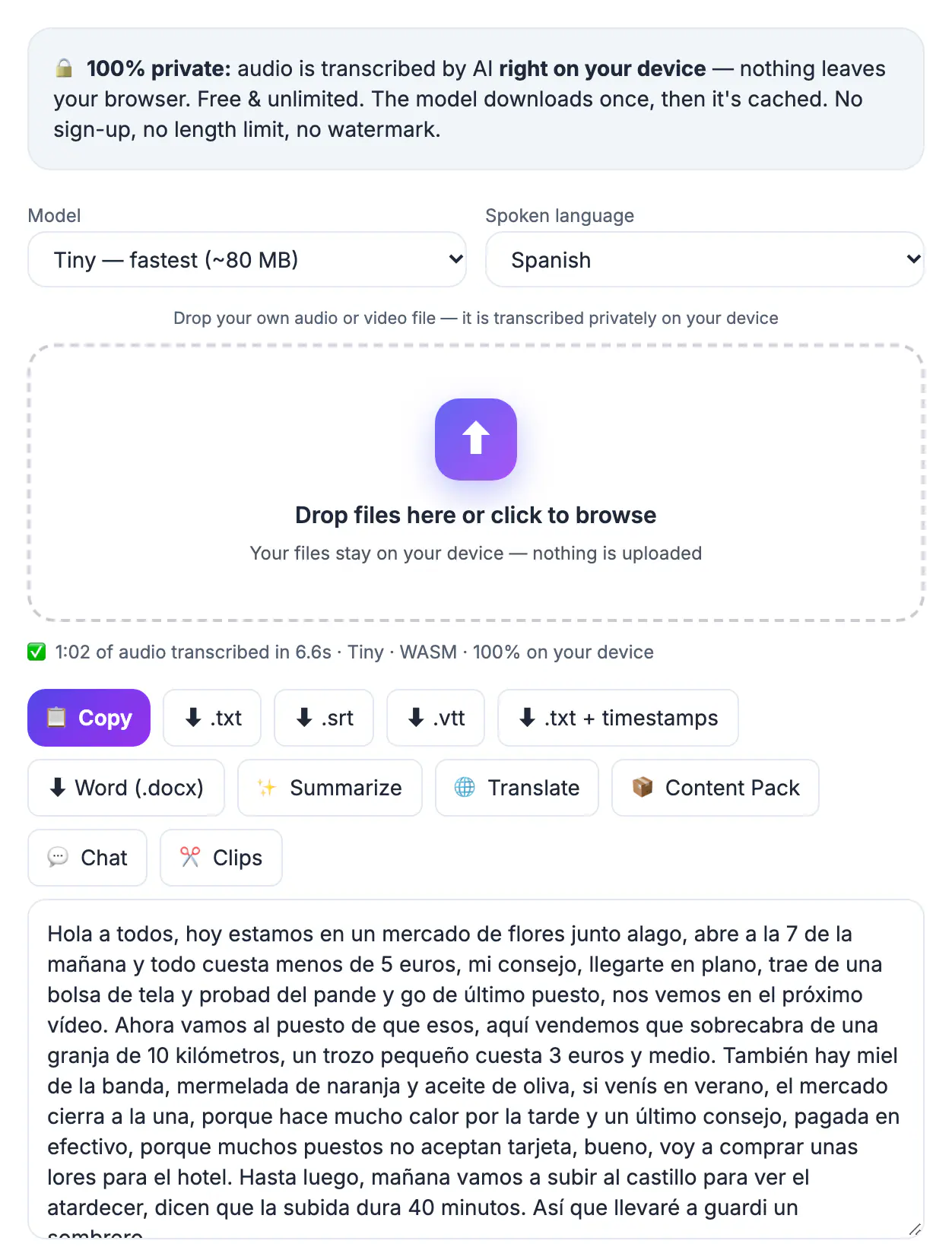
A subtitle file makes speech readable when the audio is muddy, the speaker has an unfamiliar accent, or someone nearby is asleep. It lets a grandparent who speaks Spanish follow a family interview recorded in English, and it helps language learners connect sounds to written words. Because an SRT is a separate text file, it costs almost nothing to store, never touches the original footage, and can be corrected or translated later. It also makes your personal archive searchable: find the file where your grandfather talks about the farm by searching the text instead of watching ten hours of tape.
SRT or VTT: pick the right subtitle file
Both formats are plain text: a caption number or cue, a start and end time, and the words. They differ in small details that matter for where you will use them.
- SRT uses commas in times, such as 00:01:04,250, and is supported by VLC, Plex, most TVs and YouTube
- VTT starts with the word WEBVTT, uses dots in times, and is the standard for web players and HTML5
- Both can be opened and edited in any text editor, including Notepad and TextEdit
- When unsure, keep the SRT; it is the most widely accepted and easy to convert later
AI Studio exports both from the same transcript, so you do not have to choose up front. Download both and keep them next to the original file.
Generate the subtitle file in your browser
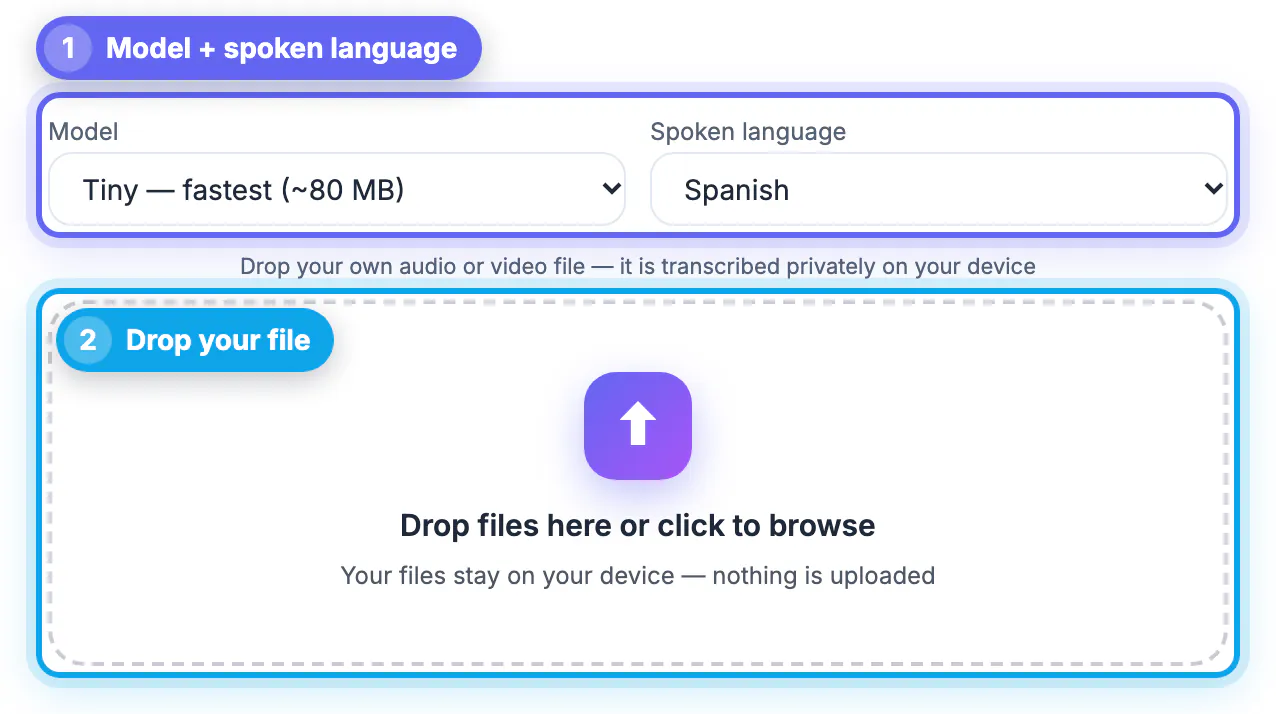
Drop the file into AI Studio. It extracts the audio, runs a Whisper model locally, and builds cues with start and end times. The footage is not uploaded, which matters for private family recordings.
Pick the model to match the material. Base, about 210 MB, handles clear speech well. Small, about 300 MB, is better with accents, older recordings and several speakers. Set the spoken language when you know it; AI Studio lists dozens of languages including Spanish, German, Japanese, Hindi and Arabic, and auto-detect is available when you do not.
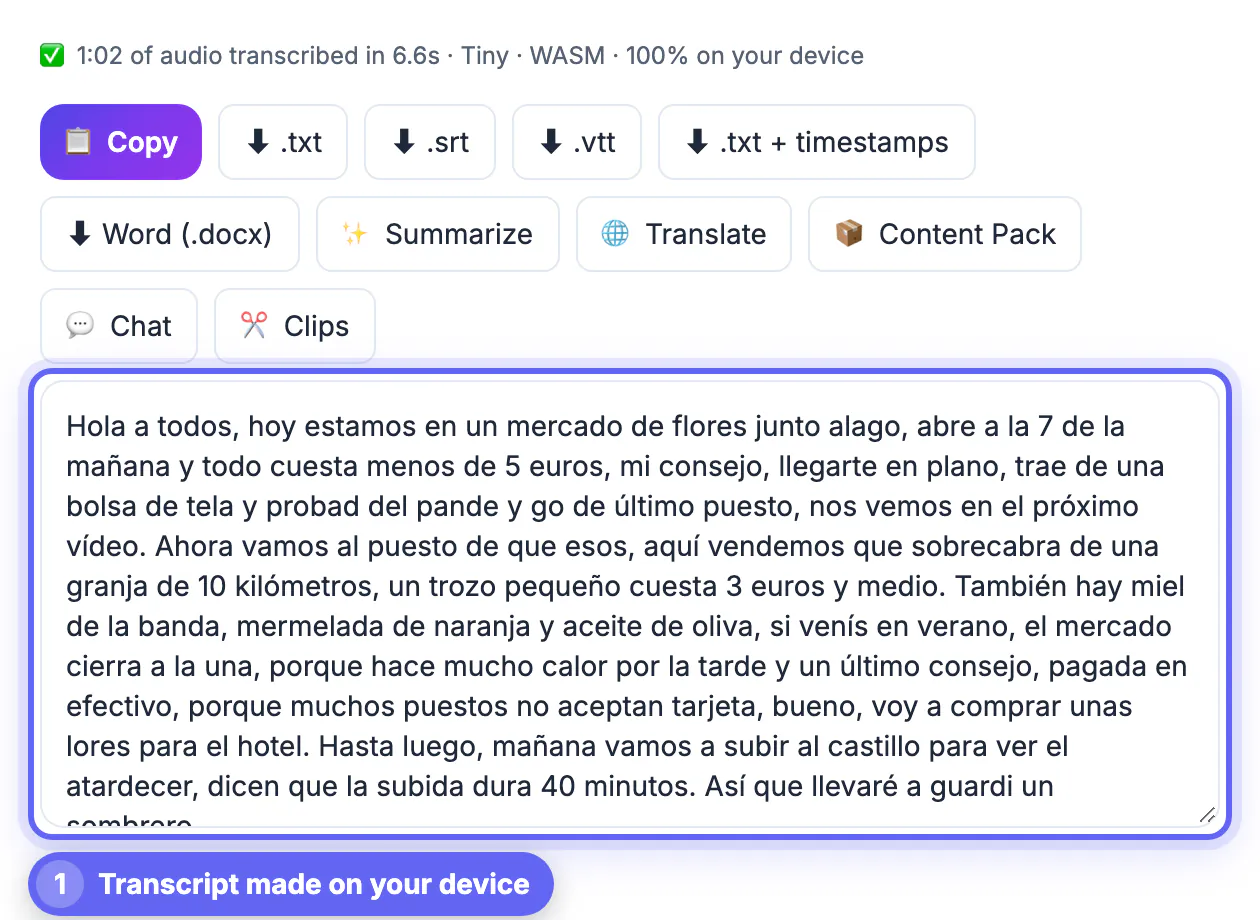
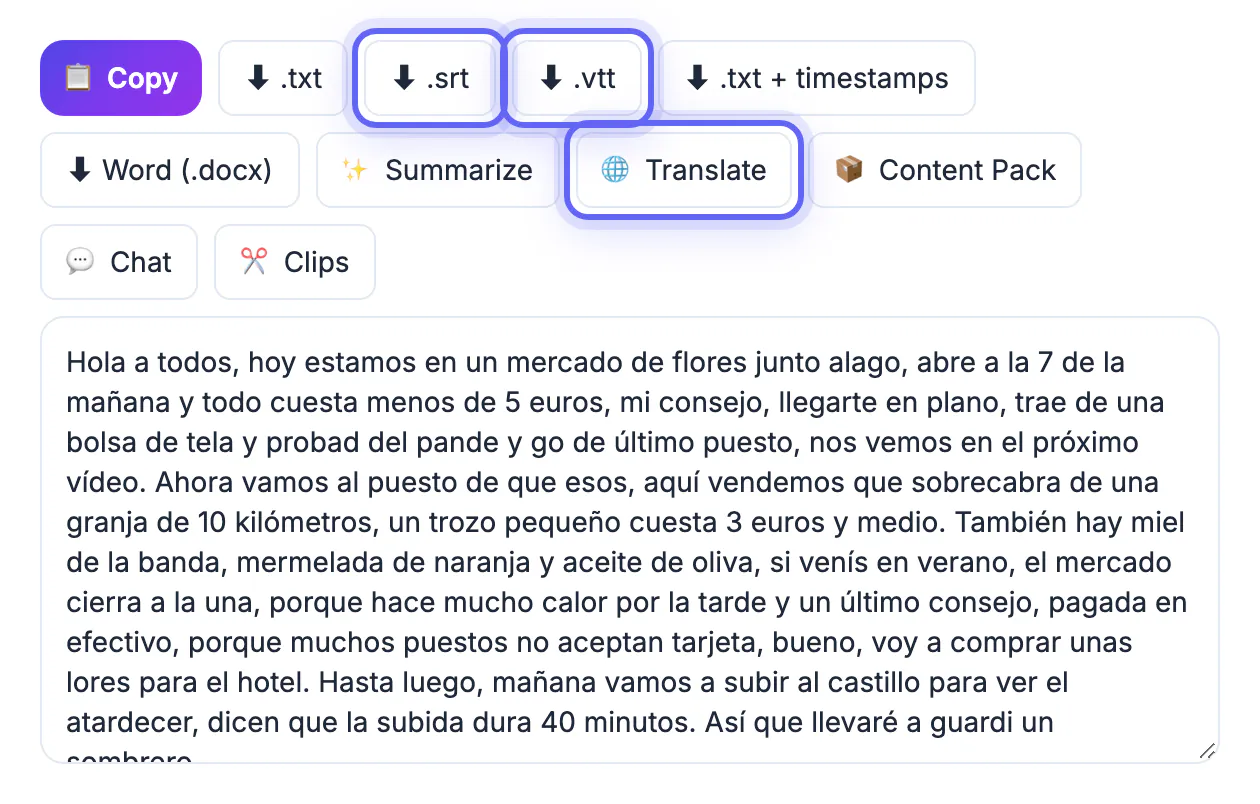
After it finishes, read through the text and fix names, place names and dates, which are the words speech models most often get wrong. Then download .srt and, if you need it for a website, .vtt.
For a 45-minute family interview on a mid-range laptop, expect the Base model to finish in roughly the time it takes to make a coffee, and Small to take a few times longer. Proofreading usually takes longer than the transcription itself, so budget about a quarter of the running time for careful checking.
Translate subtitles without breaking the timing
Open the AI Translator, load the SRT, VTT or TXT file, choose the target language and a tone, and it translates only the text lines while keeping cue numbers and timestamps intact. It supports 35 languages with auto-detect for the source.
- The translation runs through a cloud AI engine, so skip it for anything you would not share outside your household
- Read the result with someone fluent before sharing, especially idioms, names and jokes
- Translated lines can be longer than the original; split any cue that runs past two lines
- Save the translated file with a language code, such as interview.es.srt, so players can label it
AI Studio also has a Translate button that sends the transcript straight to the translator, which saves a download and re-upload when you are working through a batch.
Load the file in VLC, Plex or a platform
Most players find subtitles automatically when the SRT sits in the same folder and has the same base name as the footage, such as reunion-2019.mp4 and reunion-2019.srt. In VLC you can also use Subtitle, then Add Subtitle File, to pick one manually.
- VLC: press G or H to shift subtitle timing in 50-millisecond steps if lines appear early or late
- Plex: name the file with a language code, such as reunion-2019.en.srt, and it will label the track
- YouTube and Vimeo: upload the SRT in the subtitles section so viewers can switch it on
- Social feeds without caption support: burn the text into the picture with the Video Trimmer
If every line is off by the same amount, fix it once with the VLC delay keys and note the value, or adjust all timestamps in the file with a subtitle editor. If the drift grows over time, the file was probably generated from a different edit of the footage.
Step-by-step
Common mistakes to avoid
Pro tips
Frequently asked questions
Can I make subtitles for a file on my computer without uploading it?
Yes. AI Studio transcribes in your browser, so the file stays on your device. Only optional features such as translation send text to a cloud AI.
Which languages can AI Studio transcribe?
It lists dozens of spoken languages, including English, Spanish, French, German, Portuguese, Hindi, Japanese, Korean, Chinese and Arabic, plus auto-detect. Accuracy is highest for widely spoken languages with clear audio. If a recording mixes two languages, such as a grandparent switching between Italian and English, leave the language on auto-detect or transcribe it twice with each language set, then merge the best lines by hand.
Why are my subtitles out of sync?
If every line is off by the same amount, shift them with the G and H keys in VLC. If the gap grows, the subtitles were made from a different cut of the footage, so regenerate them from the exact file.
Can I translate subtitles and keep the timestamps?
Yes. The AI Translator accepts .srt, .vtt and .txt files and translates the text while keeping cue numbers and timings. It uses a cloud AI engine.
Will my TV play the subtitles?
Many smart TVs read an SRT with the same name as the footage on a USB stick. If yours does not, play the file through Plex or VLC, or burn the subtitles into a copy.
Any file with speech can have subtitles: transcribe it on your device, proofread, export SRT and VTT, translate a copy if needed, and keep the subtitle file beside the footage with a matching name so players find it automatically.
Related guides
Browse more: all video and audio guides · the AI Studio tool