Translate a Transcript and Keep Every Timestamp Intact
To translate a transcript well, produce an accurate text in the original language, clean it, then translate it either as paragraphs for reading or as an SRT file when you need subtitles with the timing preserved. With GrabCast you can transcribe privately in AI Studio, export TXT or SRT, and load that file into the AI Translator, which handles 35 languages and keeps subtitle numbering and timestamps untouched. This guide is for anyone localizing interviews, lectures, podcasts or product videos, and it is candid about which steps run on your device and which send text to a cloud AI.
🎙️ Try AI Studio now — freeOpen →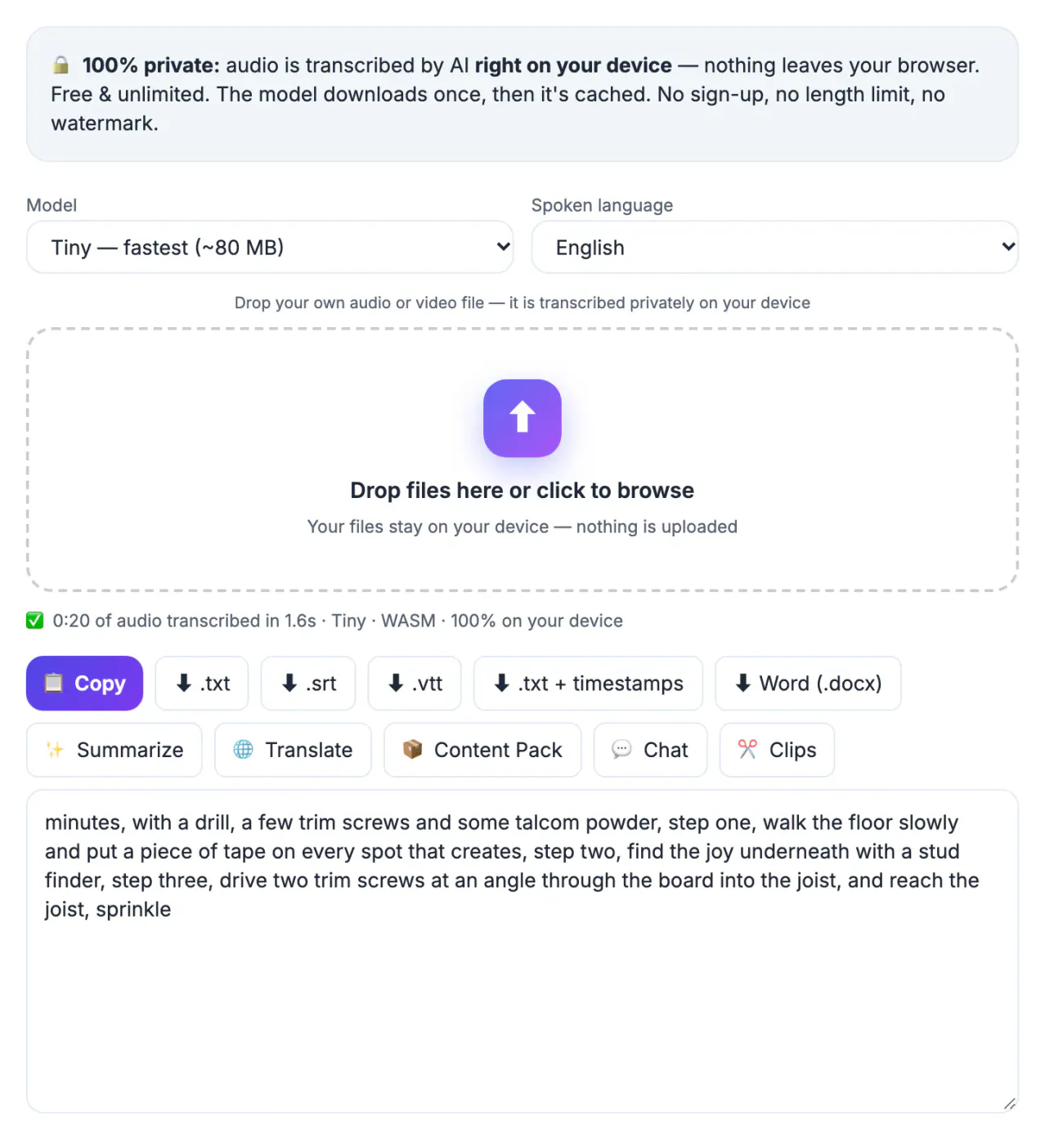
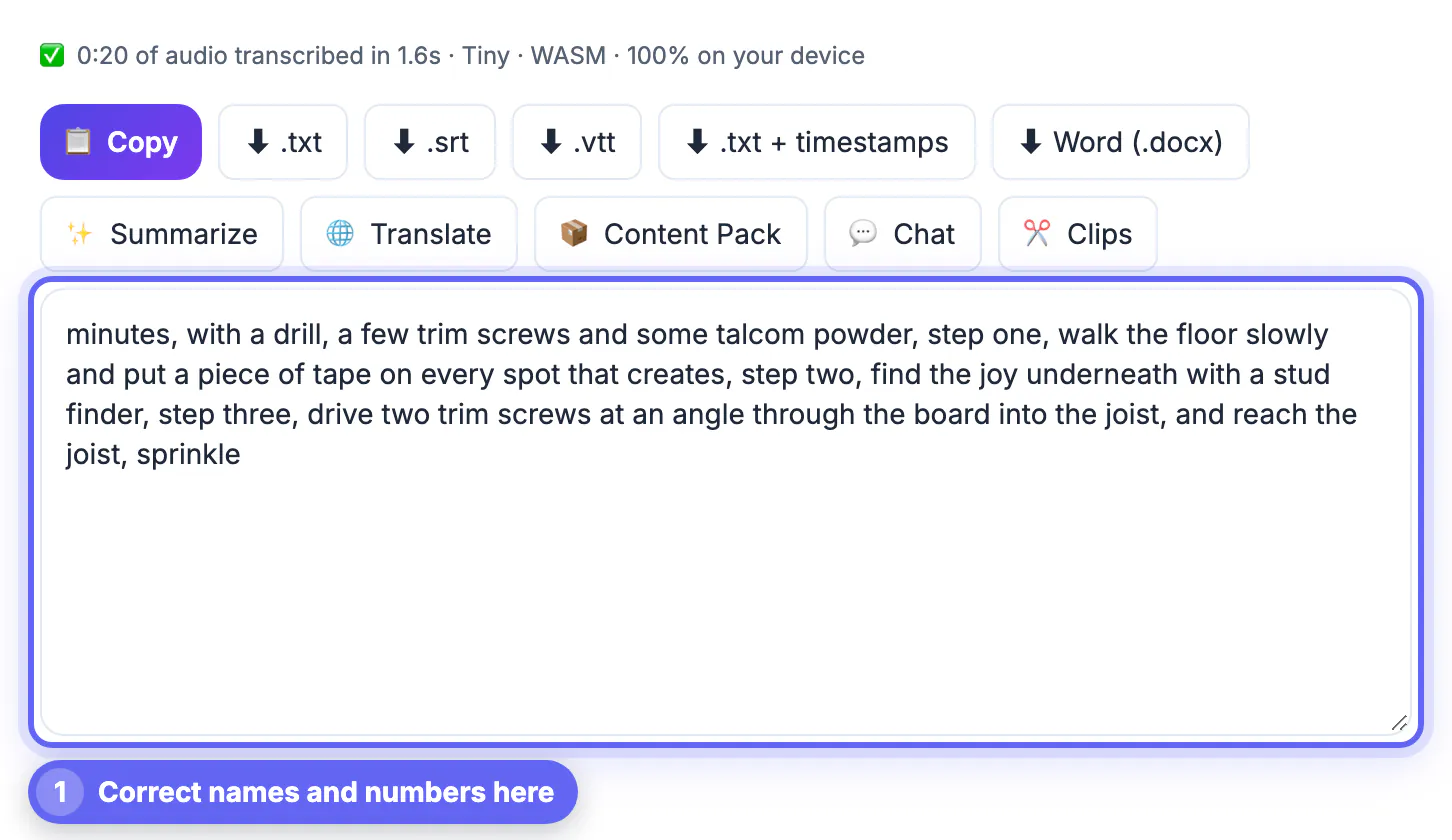
Machine and human translators alike render what they are given. If speech recognition heard Kubernetes as Cooper Nettie's, the Spanish version will carry that error into a language where you may not spot it. Spoken language adds its own noise: filler words, restarts, sentences that trail off, and speakers talking over each other. Those fragments translate into awkward or even misleading text. Fixing names, terms and punctuation in the original takes perhaps ten minutes for a half-hour recording, and it improves every language you produce afterward, because each one starts from the same clean base.
Produce a clean source in the original language
Open AI Studio, set the spoken language instead of leaving it on auto-detect when you know it, and pick a model. Base is the default and is fine for clear single-speaker audio; Small or Large-v3 Turbo handle accents, noise and technical vocabulary better, at the cost of a larger one-time download (about 300 MB and 560 MB). Speech recognition runs entirely in your browser, so the recording is not uploaded.
Read the result against the audio at the spots that matter: names, numbers, product terms, and any sentence the model marked oddly. Remove ums and false starts unless the verbatim record matters, as with legal interviews or research data. Split the text into paragraphs by topic and add speaker labels by hand where two people talk, since the tool does not identify speakers automatically.
- Choose the spoken language explicitly when you know it
- Larger models for accents and jargon
- Correct names and numbers before anything else
- Add speaker labels yourself; there is no diarization
Build a glossary before the first language
List every term that must come out the same way each time: brand and product names, job titles, units, and phrases that should stay in English. Decide the target spelling for each, such as keeping Customer Success untranslated in a German version, or converting 5 miles to 8 kilometers for a European audience. Five minutes on this list prevents a whole class of inconsistencies.
Choose a tone too. The AI Translator offers Natural, Formal, Casual and Literal. Natural suits most talks and videos, Formal fits business or legal material, and Literal helps when a reviewer needs to compare wording closely. For Spanish, French or German, also decide on formal or informal address, since usted versus tu, vous versus tu, or Sie versus du changes the feel of every line.
- Names and brand terms: keep or localize, decided once
- Units and dates converted for the audience
- Tone: Natural, Formal, Casual or Literal
- Formal or informal address for European languages
Translate the transcript as text or as subtitles
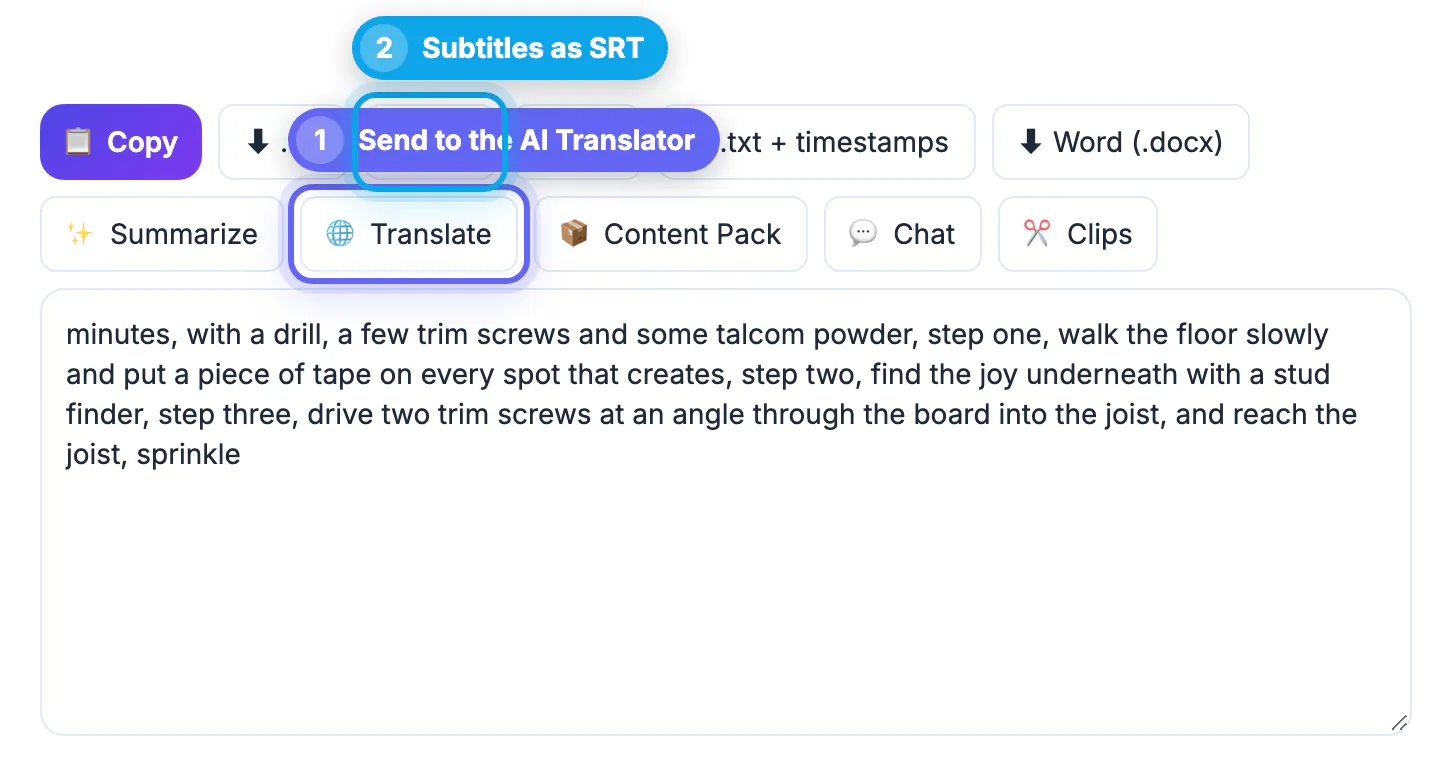
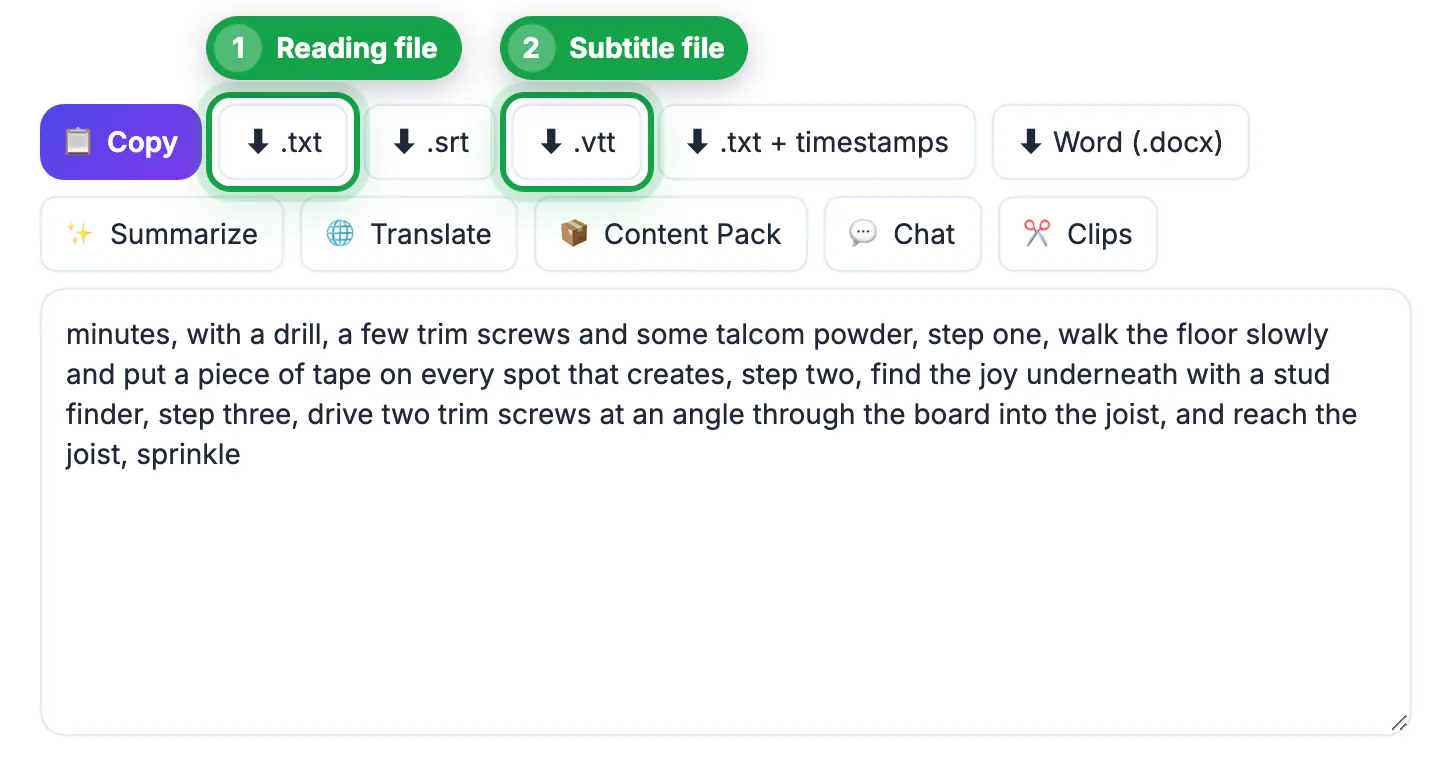
For reading material such as articles, show notes or meeting records, export TXT and paste or load it into the AI Translator; the box holds up to 60,000 characters and files up to 2 MB, and long text is processed in chunks with a progress indicator. AI Studio's own Translate button forwards up to 60,000 characters, the translator's text-box limit, so for very long recordings, download the file and load it in the translator directly.
For subtitles, export SRT or VTT and load that file instead. The translator detects the timing lines and changes only the spoken text, keeping cue numbers and timestamps exactly as they were, then lets you download a file named with the target language code. Expect some lines to run longer, since Spanish, French and German often need 15 to 30 percent more characters than English; split any cue that becomes too long to read comfortably.
- TXT for articles and notes, SRT or VTT for captions
- Up to 60,000 characters or a 2 MB file per run
- Timestamps and cue numbers preserved
- Check reading speed on lines that grew
If you also need translated captions for video, the Multilingual Subtitles tool is built for that job.
Privacy, review and when to hire a human
Be clear about where your words go. Transcription in AI Studio happens on your device. The AI Translator is different: in Chrome, when the browser's built-in on-device translator supports your language pair and you pick Natural or Literal with a named source language, text stays on your computer; otherwise it is sent to a cloud AI service, with a public translation service as backup. The translator shows which engine it used, so check that label for confidential material.
Have a fluent speaker read anything published under your name, especially subtitles for paid courses, marketing and medical or legal content. AI handles meaning well but can miss idioms, humor and cultural references, and it cannot guess context that is only visible on screen. For contracts, court use or regulated health information, a professional translator remains the right choice.
- AI Studio transcription: on your device
- AI Translator: on-device only in some Chrome cases; otherwise cloud
- Native review for anything public
- Professional translation for legal and medical use
Step-by-step
Common mistakes to avoid
Pro tips
Frequently asked questions
Should I translate the audio directly or transcribe first?
Transcribe first. A written original can be corrected once and then translated into as many languages as you need, and it gives you timing for subtitles.
Will subtitle timestamps stay the same after translation?
Yes. When you load an SRT or VTT file into the AI Translator, only the text lines change; cue numbers and timestamps are kept exactly.
Is my recording private during this process?
The audio is transcribed on your device in AI Studio and never uploaded. Translation may use a cloud AI unless Chrome's on-device translator handles your language pair.
Which languages are available?
The AI Translator covers 35 languages, including Spanish, French, German, Portuguese, Arabic, Hindi, Chinese, Japanese and Korean, with automatic source detection.
Does AI Studio label speakers?
No. It produces text with timestamps, and you add speaker names yourself during cleanup.
Clean the original first, fix terms with a glossary, then translate TXT for reading or SRT for captions so timestamps survive. Know which step runs on your device and which uses a cloud AI, and have a fluent reader check anything you publish.
Related guides
Browse more: all video and audio guides · AI Studio