How to Remove Filler Words From a Video (Um, Uh, Like)
To remove filler words from a video, you need two things: a transcript where every word has a start and end time, and an editor that cuts the picture and the sound at those times without clipping the words around them. Doing it by ear on a timeline works, but it is slow: you scrub, listen for each um, set two edit points and nudge them until the join stops clicking. This guide shows the faster route. You transcribe the clip, let the editor list every um, uh, erm and hesitation it heard, check the doubtful ones such as like or you know, and cut them all in one go. The example is a 29-second podcast clip from a fictional gardening show, edited with GrabCast's free Text-Based Video Editor, which runs in your browser, so the video never leaves your computer.
📝 Try the Text-Based Video Editor now — freeOpen →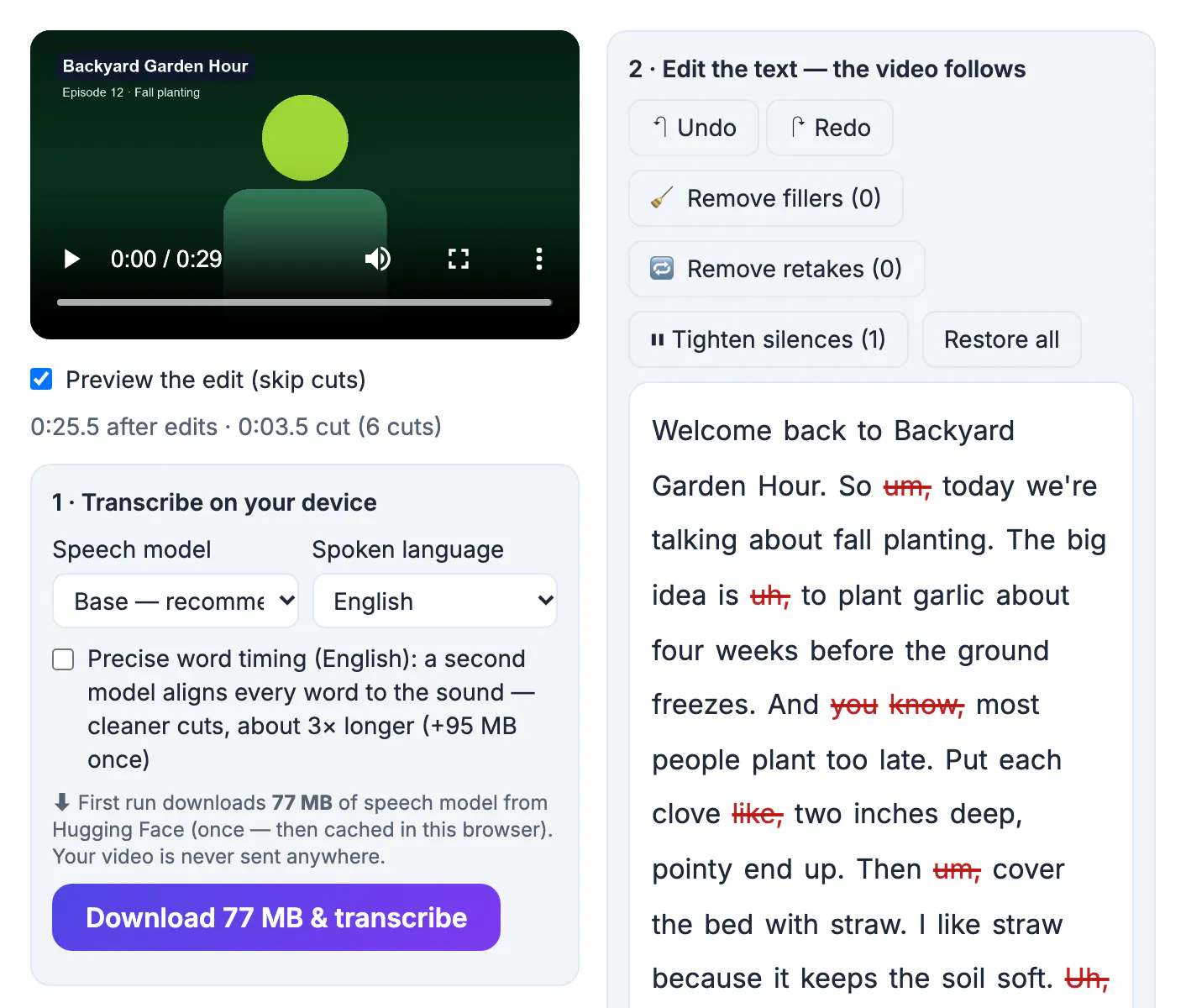
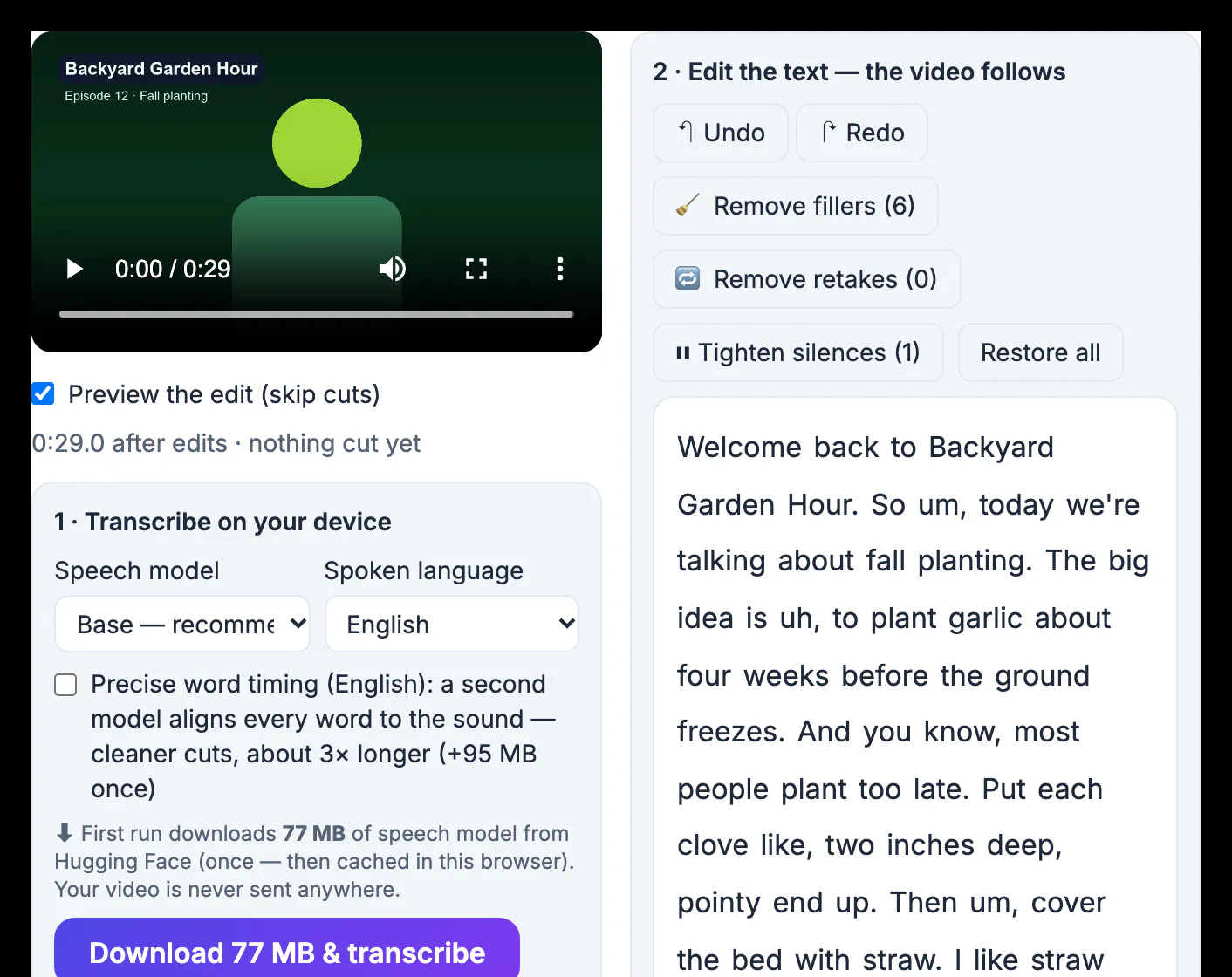
A few fillers make speech sound natural. The trouble starts when they cluster at the start of sentences, where viewers decide whether to keep watching: So um, today we are talking about. On a short vertical video every half second counts, and on a tutorial the ums stretch the time between useful steps. Fillers also make captions harder to read, because the caption shows every word the speaker said. Cutting them is not about making someone sound like a robot. Keep a filler when it carries meaning, such as a thoughtful pause before an answer in an interview, or when the speaker's rhythm would sound broken without it. The goal is fewer interruptions, not zero.
What counts as a filler word in a video
Filler words fall into two groups, and they need different handling.
- Hesitation sounds: um, uh, erm, hmm. They are almost never part of the meaning, so they are safe to cut once you have checked them.
- Words that are only sometimes fillers: like, you know, I mean, so, basically. In I like straw, like is a real verb; in put each clove, like, two inches deep, it is a filler.
- Restarts and repeated words: the the, I was, I was going to. These are closer to retakes and are covered in the guide to jump cuts.
The second group is the reason one-click removal needs a review step. A good rule: a word is a filler when there is a short pause on both sides of it and the sentence still means the same thing without it.
Find every filler word in the transcript first
Text is faster to scan than a waveform. In the Text-Based Video Editor, you drop the video and press Transcribe. The Whisper speech model runs in your browser and writes every word with its start and end time, so each word in the transcript is also a position in the video. The first run downloads the model once (about 77 MB for the recommended Base model) and your browser caches it.
- Click any word to jump the player there and hear it in context.
- Pick the spoken language before transcribing; filler lists exist for English, Spanish, French, German, Portuguese, Italian and Dutch.
- Tick Precise word timing (English) for tighter cut points; it downloads a second 95 MB model and takes about three times longer.
One limitation to know: speech models sometimes leave a filler out of the transcript, especially a quiet um at the very start of a sentence. Whatever is not written down cannot be cut from the text, so play the start of the clip once after cleaning.
Remove filler words from the video in one pass
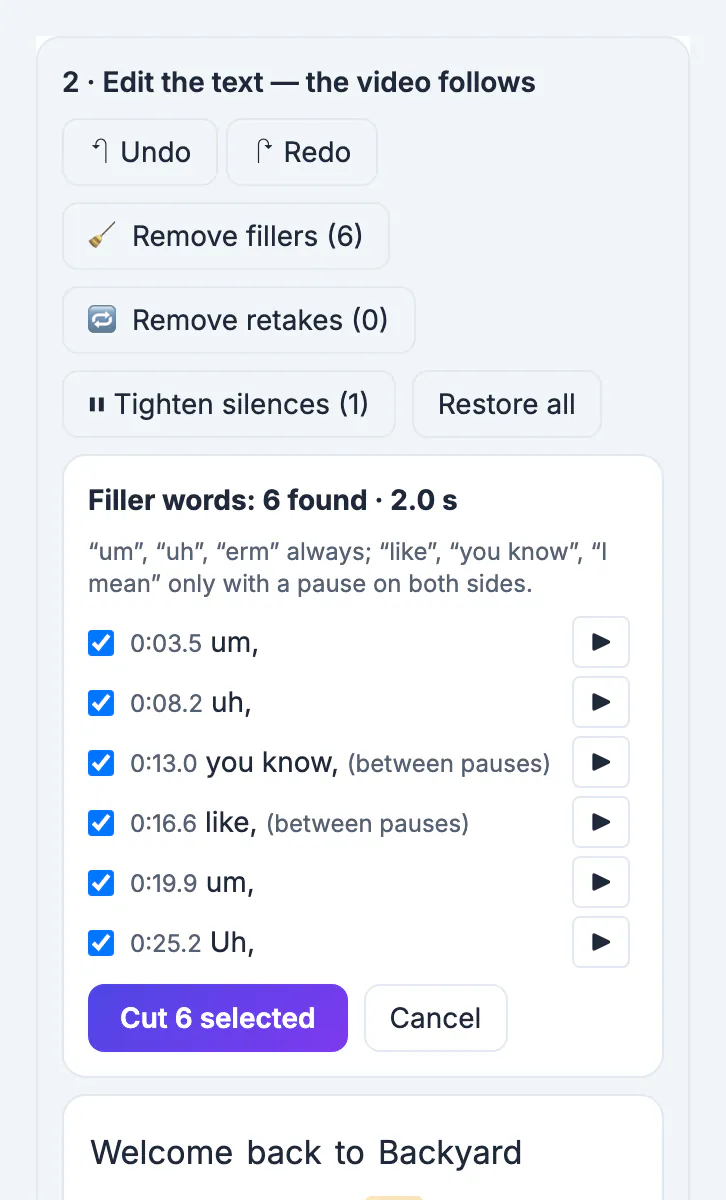
Press Remove fillers. The editor does not cut anything yet; it opens a review list first.
- Hesitation sounds (um, uh, erm, hmm) are always listed.
- Like, you know and I mean are listed only when there is a pause on both sides, marked (between pauses), so I like straw stays.
- Each line shows the time and a play button that plays a second before and after the word.
- Untick anything you want to keep, then press Cut. Undo, or Restore all, brings every cut back.
In the example, the list found six fillers totalling 2.0 seconds: um at 0:03.5, uh at 0:08.2, you know and like between pauses, another um and a final Uh. After cutting, the length line read 0:25.5 after edits, with 3.5 seconds removed across six cuts, because each cut also takes in half of the pause around the word. The sentence I like straw because it keeps the soil soft was left alone.
Make the cuts sound natural, then export
A filler cut can leave a click or a gasp if the edit lands inside a sound. The editor avoids that in three ways: it cuts from the middle of the pause before the word to the middle of the pause after it, it moves each edge to the quietest 10 milliseconds nearby, and it adds a short audio crossfade at every join (30 to 60 milliseconds, 45 by default).
- Leave Preview the edit (skip cuts) ticked and play the whole clip before exporting.
- If a join sounds rushed, untick that filler in the list or press Delete on the struck-through word to restore it.
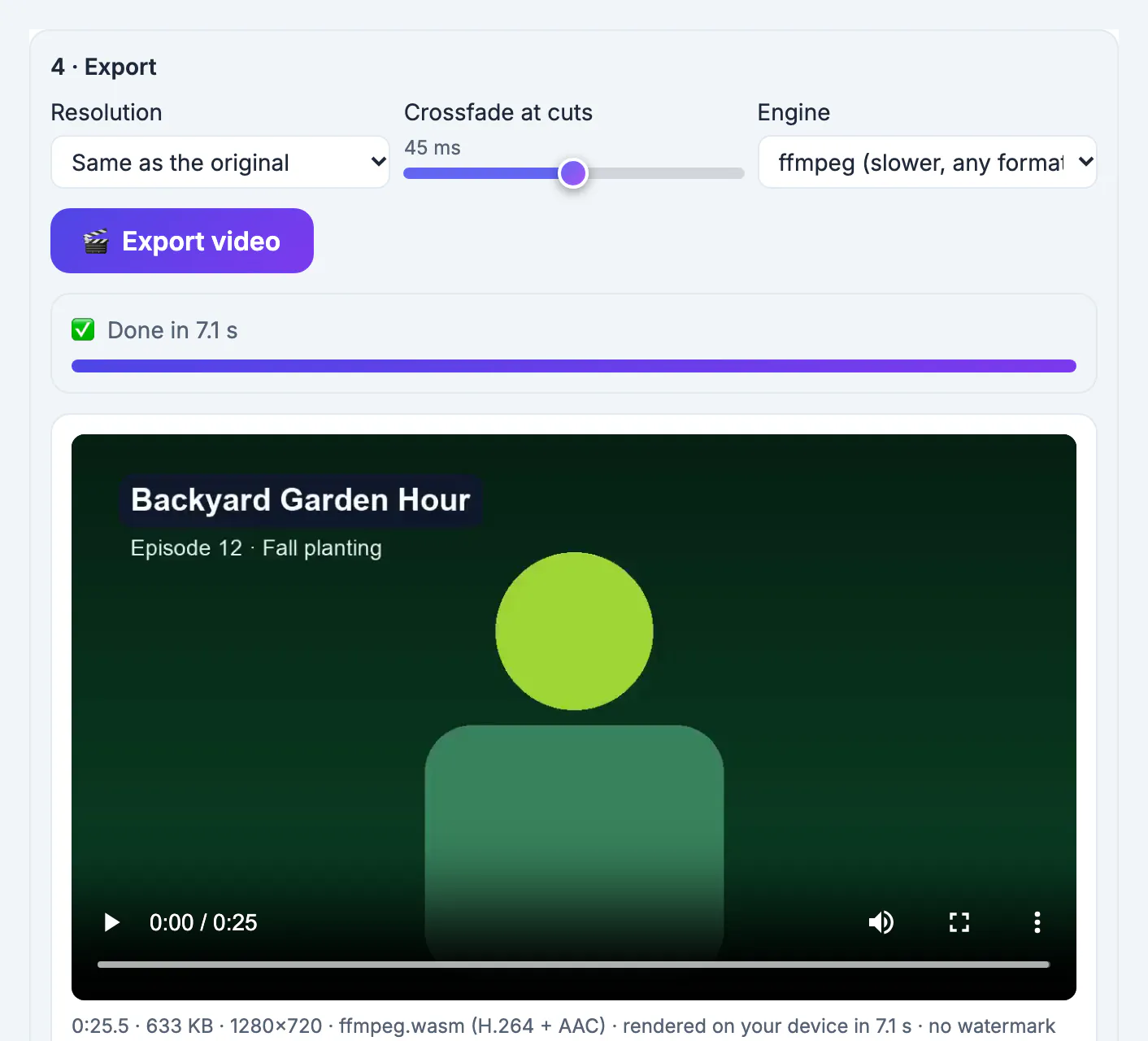
- Export video renders an MP4 in your browser with no watermark; the ffmpeg engine handles any input format when the faster WebCodecs engine is not available.
The export of the 25.5-second example took seven seconds on a laptop. If the clip also needs captions, add them before exporting, as described in adding captions to TikTok and Reels. Working from an audio-only transcript instead of a video? See removing filler words from a transcript.
Step-by-step
Common mistakes to avoid
Pro tips
Frequently asked questions
Can I remove um and uh from a video automatically?
Yes. Transcribe the video, press Remove fillers and the editor lists every hesitation sound it found. You review the list and press Cut; nothing is removed before that.
Will it cut the word like when it is used as a verb?
Not by default. Like, you know and I mean are only suggested when there is a pause on both sides, so a sentence such as I like the plan is left alone. You can still untick any suggestion.
Is my video uploaded to remove the filler words?
No. Transcription, cutting and encoding run in your browser. Only the speech model and the video libraries are downloaded, once.
Why did the editor miss some fillers?
It can only cut what the speech model wrote down. Models sometimes drop a quiet um at the start of a sentence. Listen to the edited clip once and cut any leftover by selecting the word before or after the pause.
Does it add a watermark or limit the video length?
No watermark and no minute cap. The practical limit is your device's memory; on a computer, videos of about an hour and a half usually work.
Removing filler words from a video is quickest when you work on the transcript: every um and uh is a word you can see, check and cut. Let the editor list the fillers, keep the ones that carry meaning, listen to the result once, and export. The video stays on your device the whole time.
Related guides
Browse more: all video and audio guides · the Text-Based Video Editor