Compress PDF for Online Upload: Beat Portal Size Caps
When an application portal says your file is too large, compress the PDF to about 80 percent of the stated cap, keep the text layer intact for anything a machine will read, and only flatten pages that started life as phone scans. Upload forms for jobs, colleges, benefits, licensing boards and insurance claims commonly limit each file to somewhere between 1 MB and 10 MB, and many reject anything larger with a vague red error or a spinner that never finishes. This guide focuses on those upload fields rather than email: how to read the limit, which documents can be squeezed hard, which ones must keep selectable text, and how to handle a portal that wants everything combined into one file. GrabCast compresses the document in your browser, so identity papers and tax transcripts are not sent anywhere before you submit them yourself.
📉 Try the Compress PDF tool now — freeOpen →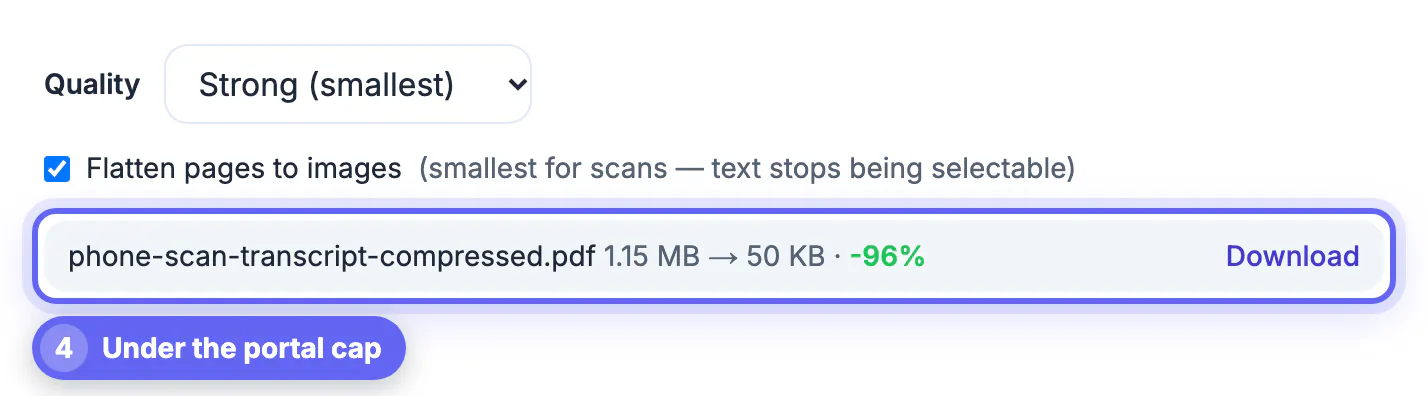
An application system may receive thousands of files a day and keep them for years, so storage and scanning costs push administrators toward low caps. A state licensing board might accept 5 MB per document, a college application platform 3 MB, and a recruiting system only 2 MB for a resume. Many portals also run every upload through malware scanning and text extraction, and slow checks time out on large files, which is why a 9 MB upload can fail even under a 10 MB limit on hotel Wi-Fi. The stakes are higher than a bounced email, too. A rejected document can mean a missed deadline, and a file that uploads but cannot be read, such as a resume whose text was turned into an image, can quietly sink an application because the applicant tracking system sees an empty page. Compression that respects the text layer solves both problems at once. A little preparation before deadline week, such as keeping ready-made small copies of your standard documents, removes most of that stress.
Read the upload rules before you compress a PDF
Portals rarely explain themselves, so look for the fine print near the upload button or in the instructions document. Typical rules include:
- A per-file cap, such as Maximum 5 MB, and sometimes a separate total for the whole application.
- Allowed formats, often PDF only, occasionally PDF or JPG, and sometimes a request for PDF/A for archiving.
- File-name restrictions: no spaces, no accents, or a length limit around 50 characters.
- A single-file requirement, where transcripts, IDs and letters must arrive as one combined document.
If the cap is 2 MB, aim for 1.6 MB. That buffer covers rounding differences, because some systems count a megabyte as 1,000,000 bytes and others as 1,048,576.
Resumes and forms must stay machine-readable
Applicant tracking systems such as Workday, Greenhouse and iCIMS pull your name, dates and skills out of the text layer. If a compressor rasterizes the pages, the parser finds nothing and your profile fields stay blank. The same applies to fillable government forms, where the agency software reads the form fields directly.
GrabCast default mode is built for this case: it re-encodes only the embedded photos and leaves text, fonts and form fields untouched, and the result card confirms text kept selectable. A resume exported from Word is often already under 300 KB; if yours is 6 MB, the culprit is usually a large headshot or a background graphic, and Recommended or Strong mode shrinks that image without touching a word of your experience section. Never tick flatten for a resume or a fillable form.
Scanned supporting documents can be squeezed hard
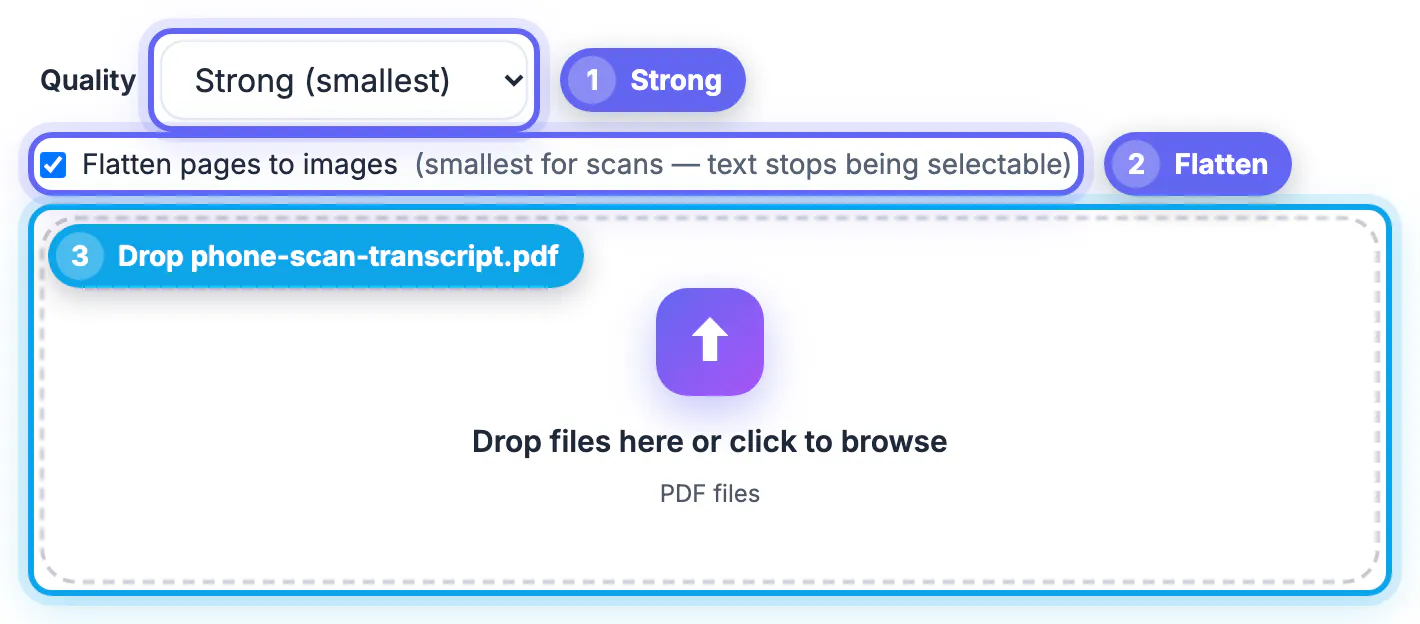
Birth certificates, pay stubs, utility bills, diplomas and signed letters photographed on a phone are the opposite case. Each page is already one big picture, often 3 to 5 MB, so a six-page packet easily reaches 25 MB. For these, the flatten option in the Compress PDF tool renders every page as a single JPEG at a sensible resolution, which is typically the smallest result you can get.
- Use Strong with flatten for plain black-and-white paperwork such as bank letters.
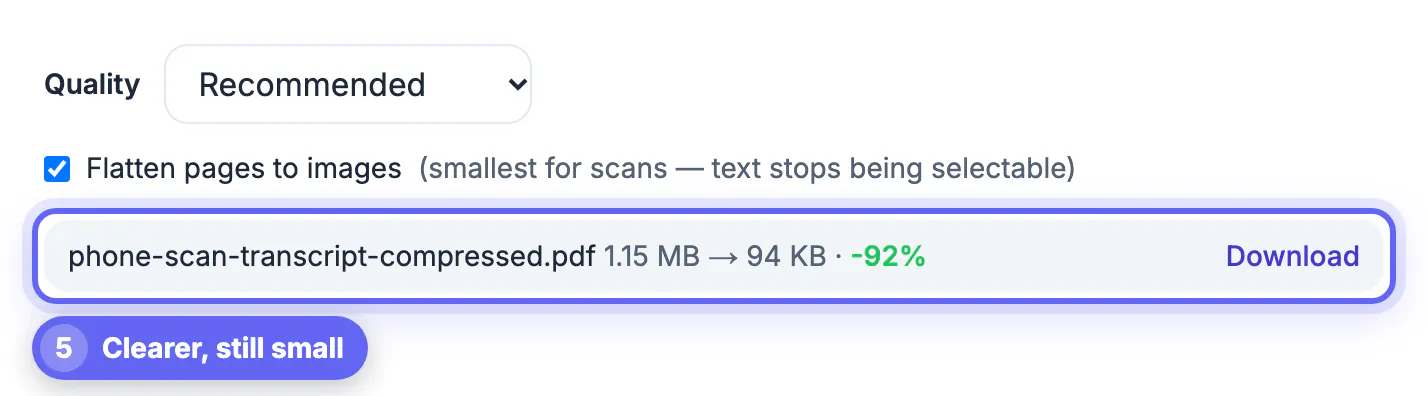
- Use Recommended with flatten for documents with stamps, seals or colored ink an examiner must see.
- Zoom to 200 percent afterward and confirm that document numbers and dates are legible.
Examiners at agencies and admissions offices do read these pages closely, so legibility beats a few saved kilobytes every time.
Combining files for a one-upload field
Some forms offer a single upload slot for all supporting evidence. Merge the pieces first, in the order the instructions list them, and compress the combined file last so the size you see is the size the portal sees. If the merged file refuses to drop under the cap, cut optional pages such as blank backsides, duplicated cover sheets and instruction pages you printed by mistake.
Finally, rename the file to something plain, such as Lastname_Firstname_Transcript.pdf, and try the upload on a stable connection. A timeout on a large file is not the same error as a size rejection, and a smaller file fixes both.
Cutting a long document down? Extracting only the needed pages often saves more than compression, and the Merge PDF tool joins the final set into one file.
Step-by-step
Common mistakes to avoid
Pro tips
Frequently asked questions
What size should a PDF be for most online applications?
Under 2 MB works almost everywhere, and under 5 MB clears most government and university portals. Always follow the specific cap listed on the form.
Will compressing my resume hurt how applicant tracking systems read it?
Not with GrabCast default mode, which keeps text and fonts intact. Only flattening turns text into an image, so leave that option off for resumes. If the error persists, try another browser, since some portals behave badly with older versions of Safari or with aggressive ad blockers.
Why does the portal reject my file even though it is under the limit?
Some systems count a megabyte as 1,000,000 bytes, and slow uploads can time out. Aim about 20 percent under the cap and use a stable connection.
Can I compress a scanned ID or birth certificate for upload?
Yes. Tick flatten for scans, choose Recommended if stamps or seals must stay visible, and zoom in afterward to confirm every number is readable.
Is my personal document uploaded to GrabCast?
No. The file is processed locally in your browser, so the only upload that happens is the one you make to the portal itself.
Upload portals set low caps and often read your file automatically, so the goal is a small PDF that still works. Aim 20 percent under the limit, keep text intact for resumes and forms, flatten only phone scans, and compress after merging. GrabCast handles each case free in your browser, keeping personal records on your device until you submit them.
Related guides
Browse more: all PDF guides · the Compress PDF tool