Compress a PDF to a Specific Size, From 100KB to 2MB
To compress a PDF to a specific size, divide the limit by the number of pages to get a per-page budget, then pick the Compress PDF setting that fits that budget and check the new size the tool reports. No free compressor, GrabCast included, has a box where you type 200KB and get exactly 200KB, because the result depends on what is inside the file; you reach the number with one or two quick passes instead. A text-only form usually drops under 200KB on the first try, while a ten-page color scan may need Flatten pages to images at Strong to squeeze below 1MB. This guide maps common targets from 100KB to 2MB to the settings that usually reach them, and shows what to do when a file will not get small enough.
📉 Try the Compress PDF tool now — freeOpen →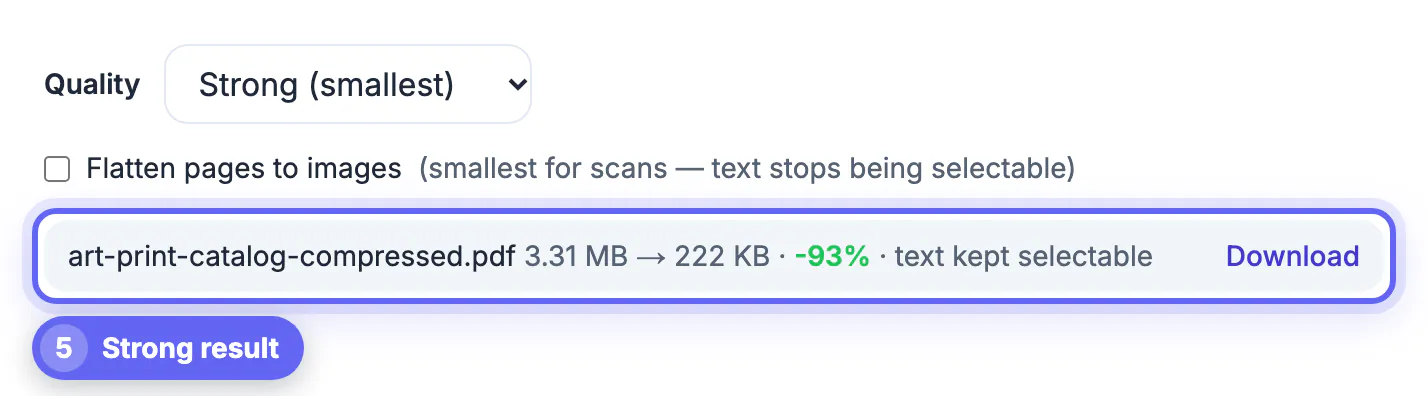
Compression always trades quality for size, and the limit tells you how much of that trade you are allowed to make. If a portal accepts 2MB, pushing a scan down to 150KB throws away readability you were entitled to keep, and a blurry pay stub can get an application rejected just as surely as an oversized one. If a visa form demands 100KB, stopping at 400KB means another upload error. Knowing the budget before you start tells you which mode to use, how hard to push, and when the smarter move is removing a page rather than degrading every page. It also saves you from running the same file through five tools in a row.
Work out your per-page budget first
Divide the size limit by the number of pages. That single number predicts which approach can work.
- 100KB, common on exam registrations and some government forms: a 1-page letter has 100KB to spend, a 5-page scan only 20KB per page, which is very tight for anything scanned in color.
- 200KB, a frequent cap on job applications and school portals: fine for text-based PDFs; a 2 to 3 page scan usually needs Flatten at Strong.
- 500KB to 1MB: comfortable for most scans of 3 to 8 pages at Recommended, and for photo-rich brochures with the default mode.
- 2MB and up, typical for court e-filing, grant portals and learning platforms: long reports and 20 to 30 page scans usually fit with Light or Recommended.
Mind the unit. Windows reports sizes in 1,024-byte kilobytes while macOS Finder uses 1,000, and portals do not always say which they mean. Aim about 5 percent below the stated limit and the difference never matters.
What each Compress PDF setting actually does
GrabCast Compress PDF has two modes and three levels, and knowing what they change lets you pick the right one on the first try.
- Default mode recompresses only the JPEG photos inside the PDF. Text, fonts, links and form fields stay untouched and selectable, which is why a text-only file barely changes.
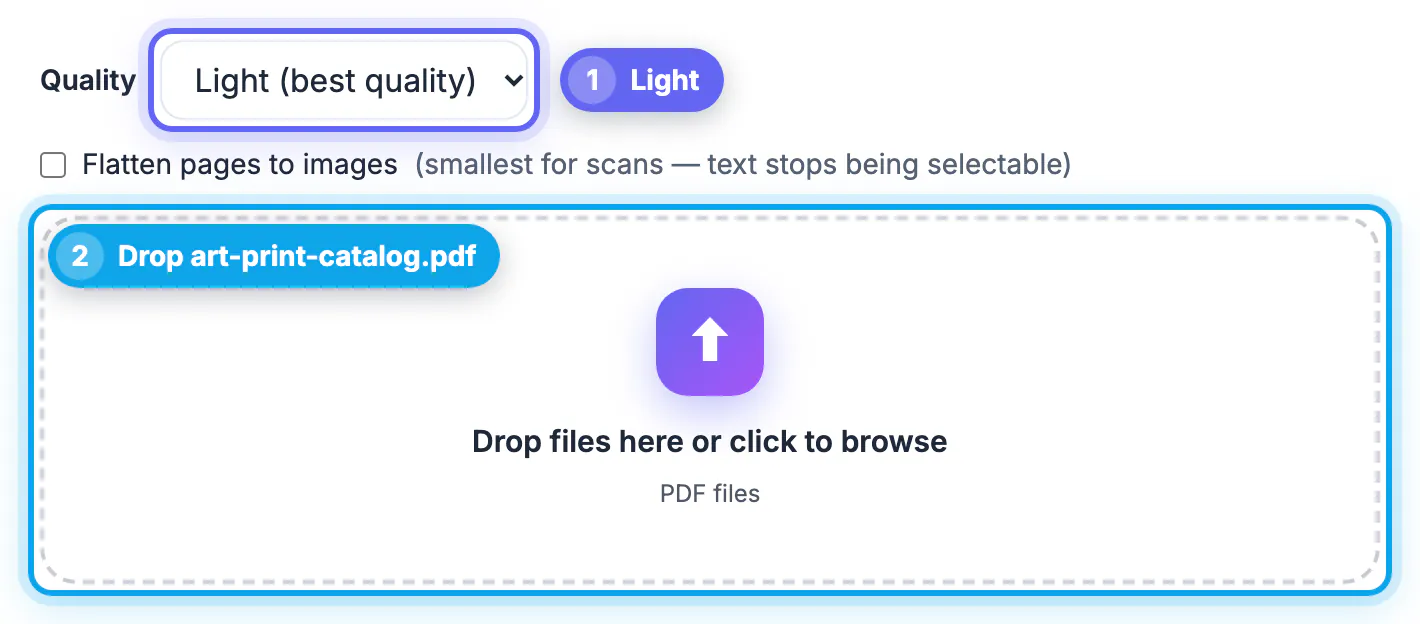
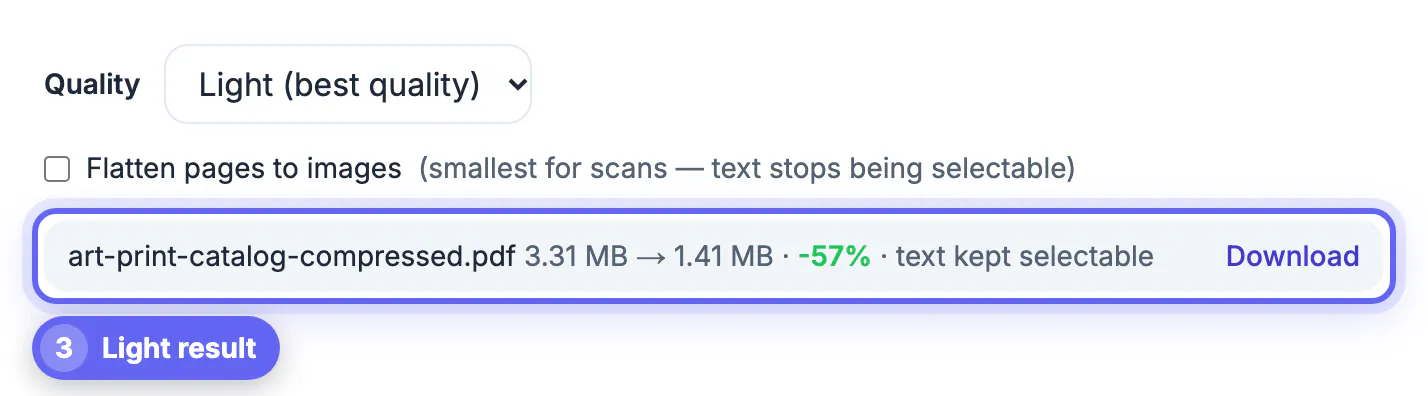
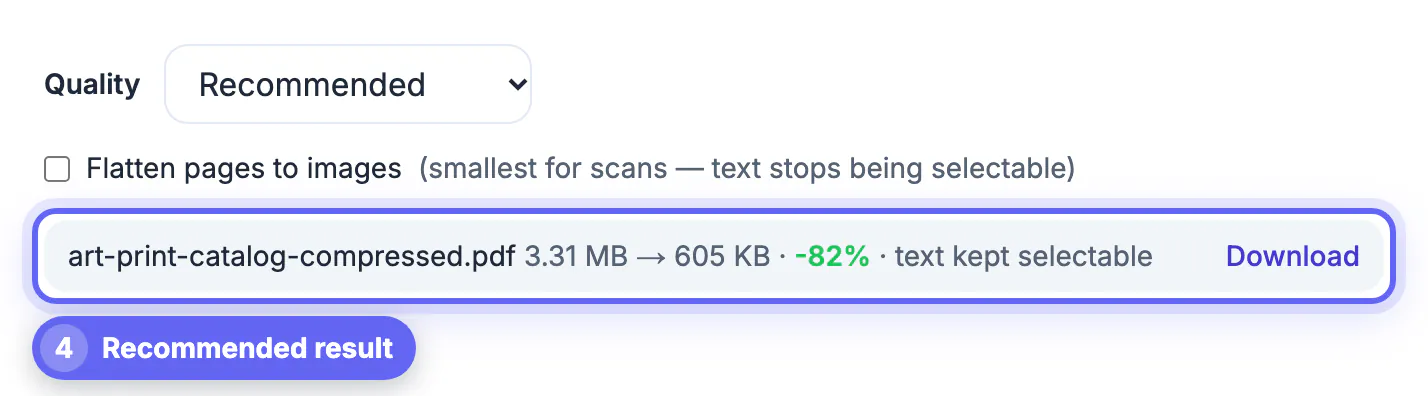
- In default mode, Strong saves photos at 55 percent JPEG quality capped at 1,400 pixels, Recommended at 70 percent capped at 2,000 pixels, and Light at 82 percent capped at 2,600 pixels.
- Flatten pages to images re-renders every page as a JPEG: roughly 80 pixels per inch at Strong, 100 at Recommended and 137 at Light. A US Letter page at Strong becomes about 670 by 870 pixels.
- Flattening shrinks scans the most, but the text becomes part of a picture and can no longer be selected or searched.
After each run, the result card shows the original size, the new size and the percentage saved. If the output would not be meaningfully smaller, the tool tells you the original is already the best version instead of handing you a heavier file.
How to compress a PDF to a specific size, step by step
Start gentle and step up only when the reported size is still over budget.
- Text-based PDF exported from Word or Google Docs: run the default mode at Recommended. If it barely shrinks, the file is mostly text and is already near its minimum.
- Scanned document: tick Flatten pages to images and start at Recommended. Still over? Switch to Strong. Far under and a little soft? Go back up to Light.
- Photo-heavy brochure or portfolio: use the default mode at Recommended first, so text stays crisp while photos shrink.
- Read the result at 100 percent zoom before uploading; if the smallest print or a signature is hard to read, the setting is too aggressive for that document.
Each pass takes seconds because the file never leaves your browser, and the download keeps your original untouched with -compressed added to the name. That means you can try all three levels on a sensitive file such as a bank statement without it being uploaded anywhere.
When the PDF still will not fit
Sometimes the target is simply unrealistic for the content. These moves usually work better than crushing quality further.
- Remove pages the form does not need, such as blank back sides, cover sheets or duplicate statements, with Split PDF or an organizer.
- Rescan at the source in grayscale or black and white; for new phone scans, the B&W filter in Scan to PDF produces the smallest, crispest text pages.
- Upload in parts if the portal allows several files: a 10-page statement split into two 5-page files halves the per-file budget problem.
- Ask whether the office accepts email or a different channel with a higher limit; a legible 1.5MB file is worth more than an unreadable 99KB one.
Compression mostly shrinks photos. A PDF made of vector drawings, embedded fonts or already-compressed images has little left to remove, so in those cases trimming pages is the only real lever.
Step-by-step
Common mistakes to avoid
Pro tips
Frequently asked questions
Can I type in an exact size, like 200KB?
No free tool can promise an exact size, because the result depends on the content. Pick a level, read the new size, and adjust; most files hit their target in one or two passes.
How do I get a scanned PDF under 100KB?
Tick Flatten pages to images and choose Strong, then remove any page the form does not need. One or two text pages usually fit; a long color scan often will not stay readable at that size.
Why did my PDF barely shrink?
Default mode only recompresses JPEG photos. A text or vector PDF has little to remove, and the tool tells you the original is already the best version.
Will compressing make the text unsearchable?
Not in the default mode, which leaves text and fonts untouched. Flatten pages to images turns each page into a picture, so the text is no longer selectable.
Is my PDF uploaded when I compress it?
No. GrabCast opens and rewrites the PDF in your browser with pdf-lib and PDF.js, so statements and ID documents never leave your device.
To compress a PDF to a specific size, start from the per-page budget, use the default mode for text and photo documents and Flatten pages to images for scans, and step the level only as far as the target requires. Stop as soon as the file is safely under the limit and still readable, and trim unneeded pages when the target is too small for the content.
Related guides
Browse more: all PDF guides · the Compress PDF tool