Compress PDF on Mac Without Preview's Blurry Filter
To compress a PDF on a Mac without Preview, open a browser-based compressor in Safari or Chrome, drop in the file, and download a smaller copy that keeps its text sharp and searchable. Preview's built-in Reduce File Size option is the tool most Mac users try first, and it is the one they most often regret: it downsamples every image aggressively, can turn a crisp brochure into a smeary mess, and sometimes even makes a file larger. This guide explains why that filter misbehaves, walks through a cleaner method that works on any Mac running a current browser, and covers the other built-in and free options, including ColorSync Utility and Ghostscript, with their honest trade-offs. GrabCast runs the compression inside your browser, so there is nothing to install and no copy of your file lands on anyone else's computer.
📉 Try the Compress PDF tool now — freeOpen →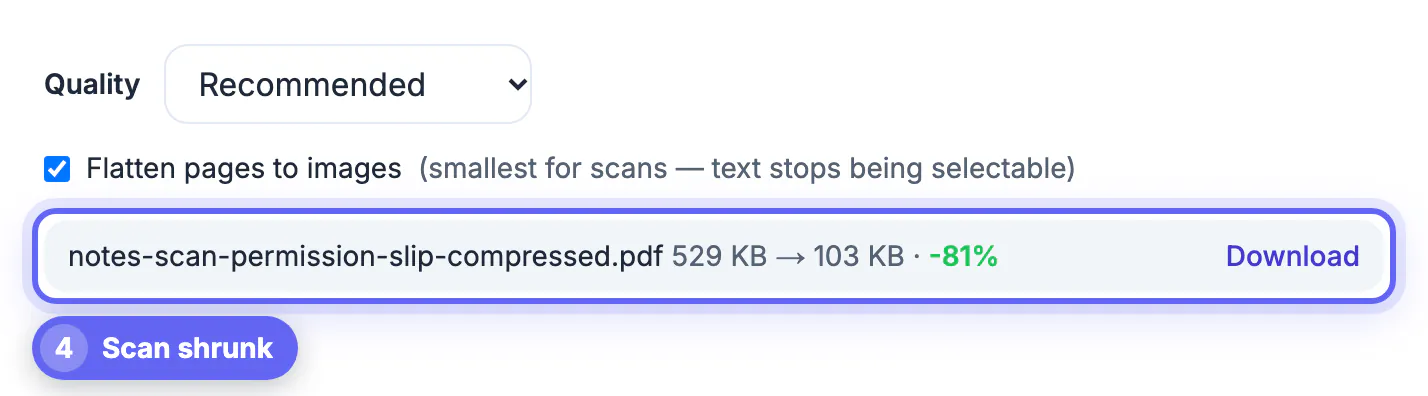
In Preview, choosing File, Export and the Quartz Filter named Reduce File Size applies a fixed recipe from macOS. It scales images down hard, often to just a few hundred pixels on the long side, and recompresses them at low JPEG quality, regardless of whether the document is a photo-heavy catalog or a single signed page. Photos become visibly blocky, and small print that was stored as an image, such as a scanned signature block, can become unreadable. The filter also rewrites the whole document, which occasionally inflates files that were already efficient, so a 900 KB report can come out at 1.4 MB. Apple has not changed the defaults in years and offers no slider in Preview itself. A dedicated compressor with levels gives you control over how far images shrink while leaving text objects alone. In practice that means you either accept its results or go looking for a better route, which is what the rest of this guide provides.
Compress a PDF on Mac in Safari or Chrome
Any Apple computer that runs a current version of Safari, Chrome, Firefox or Edge can do this, including Apple silicon and older Intel machines. The whole job takes under a minute for a typical document.
- In Finder, select the file and press Command-I to note its current size.
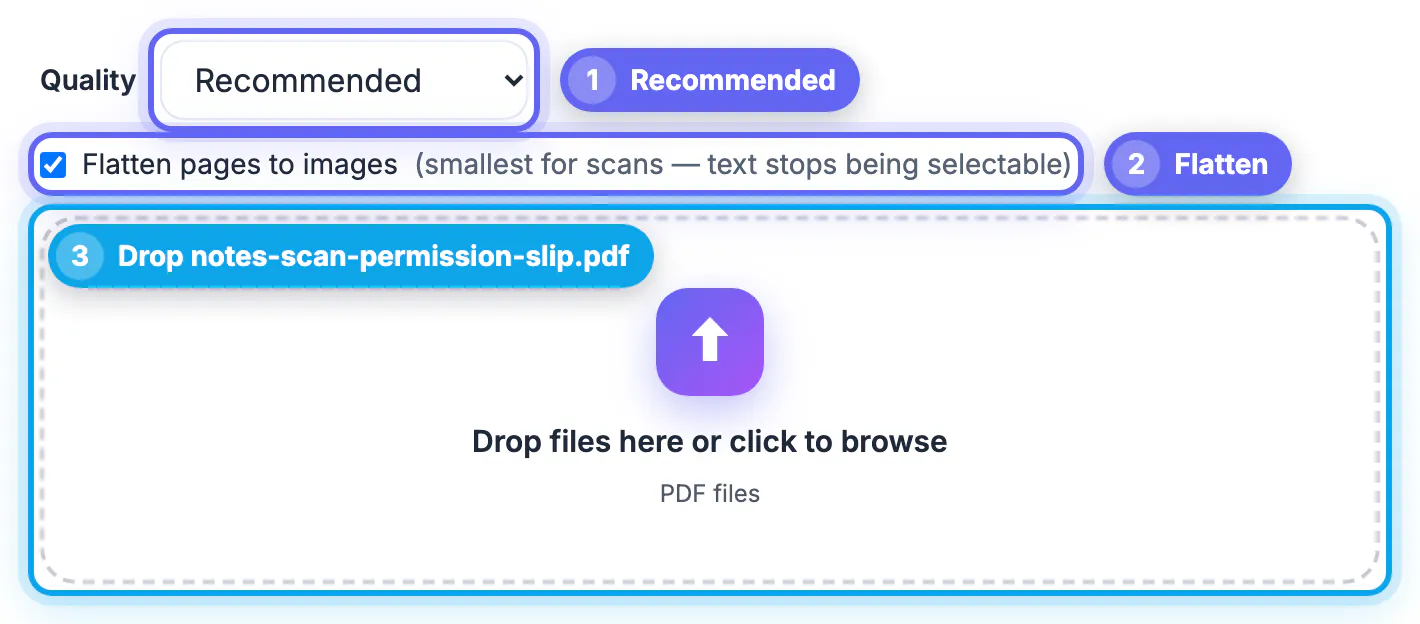
- Open grabcast.click/compress-pdf.html and drag the PDF from Finder onto the drop area.
- Keep Recommended for the first pass; switch to Strong only if the result is still too large.
- Click download; Safari saves the copy to your Downloads folder with a new suffix added to the name.
Press the space bar on the new file in Finder to preview it with Quick Look, then check its size with Command-I again.
Why the result looks better than Preview
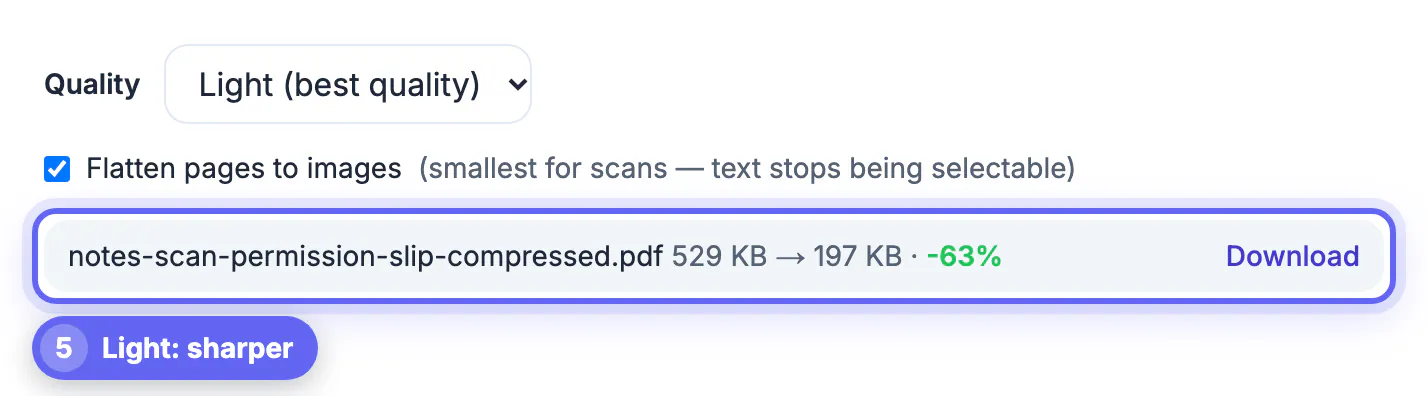
GrabCast default mode only touches JPEG photos embedded in the document and caps them at sensible sizes, 2,000 pixels on the long side for Recommended and 2,600 for Light, instead of Preview’s tiny ceiling. Vector text, fonts, links and form fields are copied through unchanged, so a Pages or Keynote export stays razor sharp on a Retina display. If shrinking an image would not save at least a few percent, the tool keeps the original image, which avoids the file-got-bigger surprise.
For documents made in the Notes app scanner or Continuity Camera, where every page is a photo, the optional flatten checkbox renders each page as one image. That usually beats anything Preview produces while staying readable, but the text is no longer selectable, so skip it for anything you need to search.
Other ways to compress a PDF on Mac
Browser tools are the fastest route, but they are not the only one. Here is how the alternatives compare.
- ColorSync Utility: open it from Applications, Utilities, duplicate the Reduce File Size filter, and raise the image resolution and quality values; then pick your custom filter in the export dialog. Powerful but fiddly.
- Ghostscript through Homebrew: a single terminal command with the ebook or printer preset compresses well and handles batches, but it requires installing developer tools.
- Adobe Acrobat Pro: excellent optimization controls, but it is a paid subscription.
- Print to PDF: rarely helps and can strip links and form fields.
Tidy the file before compressing: the Rotate PDF tool fixes sideways pages, and splitting a PDF drops pages you do not need.
Mac-specific gotchas
A few Apple habits trip people up. iCloud Drive may show a file that is not actually downloaded yet; drag it to the desktop first so the browser reads the full document. Files exported from Photos into a PDF can carry HEIC-derived images at 4,000 pixels or more, which are exactly what this kind of tool shrinks best. Password-protected PDFs, such as some bank statements, must be opened and re-saved without the password before any tool can rewrite them.
Finally, keep the original. Finder duplicates are cheap, and having the full-quality file matters if a printer or client later asks for it.
If you share a family computer, clear the Downloads folder after sending sensitive documents so nobody opens them by accident.
Step-by-step
Common mistakes to avoid
Pro tips
Frequently asked questions
Why does Preview make my PDF blurry?
The Reduce File Size Quartz filter scales every image down to a very small size and applies low JPEG quality, with no setting in Preview to change it. Photos and scanned signatures suffer most, while ordinary typed text usually survives because it is stored as vector outlines.
Can Preview make a PDF bigger?
Yes. It rewrites the whole document, so an already efficient file, such as a text-only export, can come out larger than it went in.
Do I need to install anything to compress a PDF on Mac?
No. A browser-based compressor works in Safari, Chrome, Firefox or Edge on any current Mac, with no app or extension to install.
Does it work on Apple silicon Macs?
Yes. It runs in the browser, so M1 through M4 Macs and older Intel models all work the same way, and newer chips simply process faster. Large files of several hundred pages benefit most from the extra speed and memory in recent models.
Is my file sent to a server?
No. GrabCast compresses locally in your browser, so the PDF stays on your Mac throughout. You can confirm this by turning off Wi-Fi after the page loads and running a file anyway.
Preview's Reduce File Size filter is a blunt instrument, shrinking images far too much and sometimes growing the file. On a Mac, a browser compressor with real levels gives cleaner, smaller results while keeping text sharp. Drag the file into GrabCast in Safari or Chrome, keep Recommended, check it with Quick Look, and keep the original.
Related guides
Browse more: all PDF guides · the Compress PDF tool