Compress PDF Online vs Upload Sites: Privacy Explained
If a PDF contains anything personal or regulated, compress it with a tool that works inside your browser, because upload sites copy the file to their servers, keep it for a while, and process it under their policies rather than yours. Both kinds of tool can look identical: a drop zone, a button and a download. The difference is where the work happens. This guide explains what actually occurs when you upload a document to a compression site, which kinds of files that matters for, how to verify in under a minute that a tool is really local, and where server-based tools still have a legitimate edge. GrabCast compresses PDFs locally, but the checks here work on any site you are considering.
📉 Try the Compress PDF tool now — freeOpen →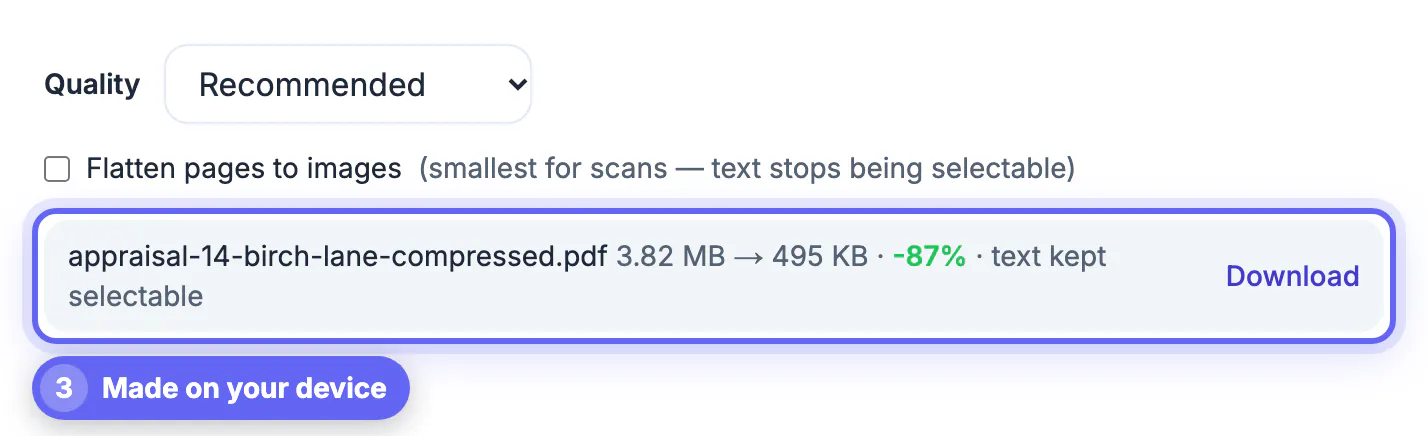
When you drop a PDF on an upload-based compressor, the browser sends the entire file over the internet to the company's servers. It is written to disk or cloud storage, processed there, and a new file is sent back. Reputable services encrypt the transfer and promise deletion, commonly within one to two hours, but you are trusting their retention settings, their subprocessors, and the country where the servers sit. That is fine for a restaurant menu. It is harder to justify for a patient intake form, a signed NDA, a mortgage file with Social Security numbers, or a client's financial statements, where your employer's policy or regulations such as HIPAA and the GDPR may require you to know exactly where data goes. A browser-based tool avoids the question: the file is read into memory on your device, compressed there with JavaScript, and saved back to your own disk. Knowing which model a tool uses lets you decide deliberately instead of finding out after a compliance review or an awkward conversation with a client.
Local vs upload when you compress a PDF online
The practical differences show up in four places.
- Data path: local tools never transmit the file; server-based sites send it and return a copy.
- Retention: local tools keep nothing; upload sites keep files for a stated window, often one to two hours, sometimes longer on free plans.
- Accounts: many server-based services push sign-ups to raise daily limits; a local tool has no need to know who you are.
- Speed: local processing skips the transfer in both directions, which helps on slow connections, but uses your own device’s processor and memory.
Documents that should stay local
Some categories carry legal, contractual or simply personal risk if they sit on a third-party server, even briefly.
- Medical records, insurance claims and anything covered by HIPAA.
- Tax returns, W-2s, bank statements and loan packages with account or Social Security numbers.
- Contracts under NDA, legal filings in progress, and HR files.
- Customer data your company handles under the GDPR or state privacy laws such as California’s.
Many employers explicitly prohibit uploading such files to unapproved online tools. A local compressor keeps you inside that rule without waiting for IT to install software.
Freelancers and small offices face the same expectations as large firms. Clients increasingly include data-handling clauses in contracts, and saying the file never left my laptop is a much easier answer than tracing a third-party retention policy.
After shrinking a sensitive file, you can lock it with a password or permanently remove private details with the Redact PDF tool.
How to check that a tool is really local
Marketing claims are easy to write, so verify. Two quick tests work in Chrome, Edge, Firefox and Safari.
- Offline test: load the tool page, turn off Wi-Fi, then process a file. A local tool still works; an upload site fails.
- Network test: open developer tools, choose the Network tab, run a file, and watch for a large outgoing request roughly the size of your PDF.
GrabCast Compress PDF passes both tests: after the page and its PDF libraries load, the work runs entirely in the tab. Note that this applies to its local tools; cloud AI features elsewhere on the site do send text to a model, and they say so.
It is worth repeating these checks occasionally. Sites change owners and architectures, and a tool that was local last year may add server processing or analytics without much announcement.
Where upload sites still have an edge
Being fair matters. Servers can run heavier engines, such as Ghostscript with font subsetting or OCR that turns a scan into searchable text, and they do not care whether you are on a five-year-old phone. A 400-page scanned archive may compress faster on a server than in a mobile browser, and some services can process many files at once.
The sensible rule is to match the tool to the content. Public brochures, event flyers and menus can go anywhere. Personal, client and regulated documents belong in a local tool, or in a server tool your organization has vetted and signed an agreement with.
When you do use a server tool for public material, remove metadata such as author names and internal comments first, because those details travel with the file.
Step-by-step
Common mistakes to avoid
Pro tips
Frequently asked questions
Is it safe to compress a PDF online?
It depends on the tool. Browser-based compressors that work locally keep the file on your device, while upload sites copy it to their servers for processing and temporary storage. For public material either approach is fine; for personal or regulated documents the local option removes a whole category of risk.
How can I tell if a PDF tool uploads my file?
Load the page, turn off Wi-Fi and try it. If it still works, processing is local. You can also watch the Network tab in developer tools for a large outgoing request. Both checks take less than a minute and work in Chrome, Edge, Firefox and Safari.
How long do upload sites keep my PDF?
Many state one to two hours, but policies vary and may exclude backups or logs. Check each site's privacy policy. Free plans sometimes keep files longer than paid ones, and the policy may change without notice, so review it periodically.
Are local compressors as good as server tools?
For most documents, yes. Servers can be faster on very large scans and may offer OCR, but local tools avoid sending your data anywhere. The main practical limit is your own device: an older phone may take a while on a several-hundred-page scan.
Does GrabCast upload my PDF?
No. GrabCast Compress PDF processes the file in your browser tab, and it keeps working even with Wi-Fi turned off after the page loads. Its cloud AI features are separate and clearly labeled, since they do send text to a model for processing.
Upload sites and local tools can produce similar files, but only one keeps your document on your device. Use a verified in-browser compressor for anything personal, client-related or regulated, save server tools for public material or vetted workflows, and test any no-upload claim yourself with Wi-Fi off.
Related guides
Browse more: all PDF guides · the Compress PDF tool