Why Is My PDF So Big? Diagnose It, Then Shrink It
Your PDF is big because of what is inside it, and nine times out of ten the weight is images: scanned pages stored as full photos or phone pictures dropped in at twelve megapixels. The rest of the time it is embedded fonts, leftover edit history, or attachments you did not know were there. Knowing which one you have tells you whether compression will shrink the file by 80 percent or by almost nothing. This guide walks through a two-minute diagnosis you can do with the file open, explains in plain numbers why a 3-page report can weigh 40 MB, and shows what the free GrabCast Compress PDF tool can and cannot fix, so you choose the right setting on the first attempt instead of guessing.
📉 Try the Compress PDF tool now — freeOpen →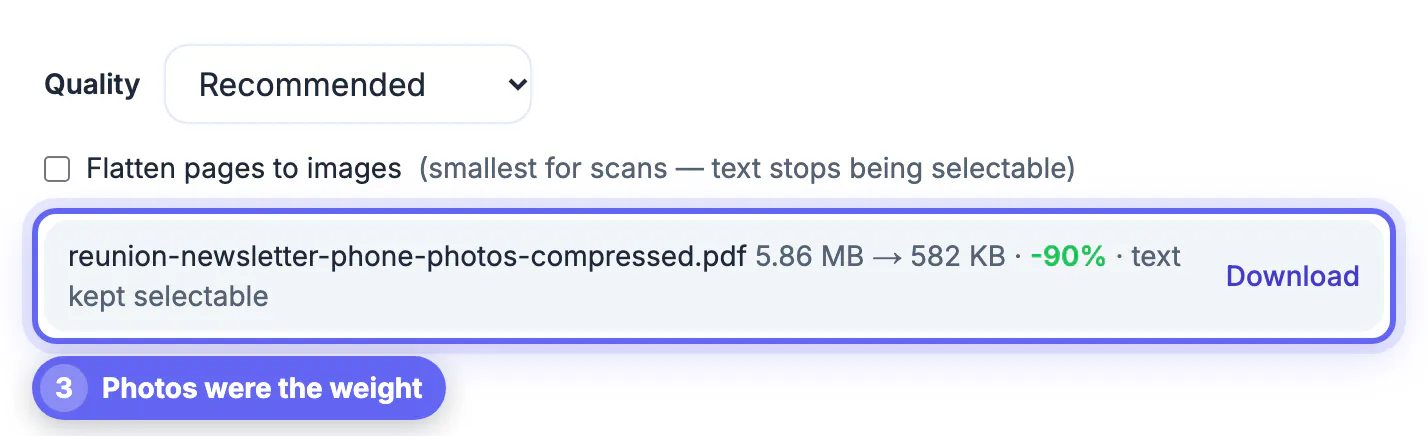
Compression is not a single dial. A tool that re-encodes photos does wonders on a scanned contract and nothing at all for a document bloated by fonts or hidden revision history. People often crank the quality down, blur their images, and still miss an email limit because the real weight was elsewhere. The numbers are stark. A US Letter page scanned in color at 300 dpi is about 2,550 by 3,300 pixels, roughly 8.4 megapixels, and often lands between 0.5 and 1.5 MB per page. Scan at 600 dpi and you have four times the pixels. A text-only page, by contrast, usually takes a few kilobytes. So a quick diagnosis tells you both which setting to choose and how small the file can honestly get.
Why a PDF gets so big: the common culprits
Match your file against this list. Most bloated documents have one dominant cause, sometimes two.
- Scanned pages: every page is a photograph of paper, so a 30-page scan can reach 20 to 40 MB.
- Phone photos dropped in at full size: a 12-megapixel image is several megabytes even though it displays at the width of a paragraph.
- Screenshots and graphics saved losslessly: PNG-style images of charts or slides can be surprisingly heavy.
- Embedded fonts: some exporters include complete font families, including weights the document never uses.
- Incremental saves and edit history: repeated edits in some editors append changes instead of rewriting, so old versions of pages can linger.
- Attachments and detailed vector art: embedded spreadsheets, CAD drawings, and maps with thousands of paths add weight that no image setting touches.
A two-minute diagnosis before you compress
You do not need paid software to narrow it down.
- Try to select a sentence. If you cannot, the page is an image, which almost always means a scan.
- Divide the file size by the page count. Anything above about 500 KB per page points to images; a text document at 3 MB for 50 pages is normal.
- Zoom to 400 percent on a photo. If it stays razor sharp, the image was embedded at far more resolution than a screen needs.
- Open the attachments or paperclip panel in your reader to spot embedded files.
- If you own Adobe Acrobat Pro, its PDF Optimizer includes an Audit Space Usage report that breaks the size down by images, fonts, and other content.
What GrabCast can shrink and what it leaves alone
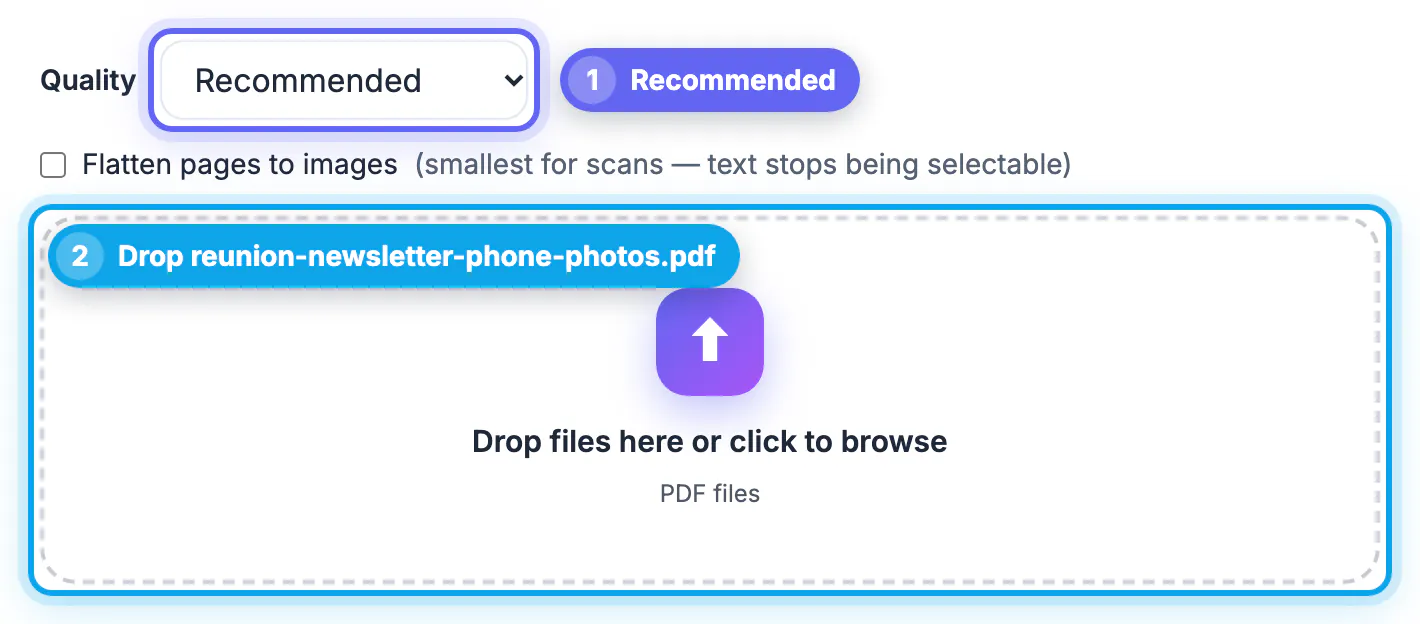
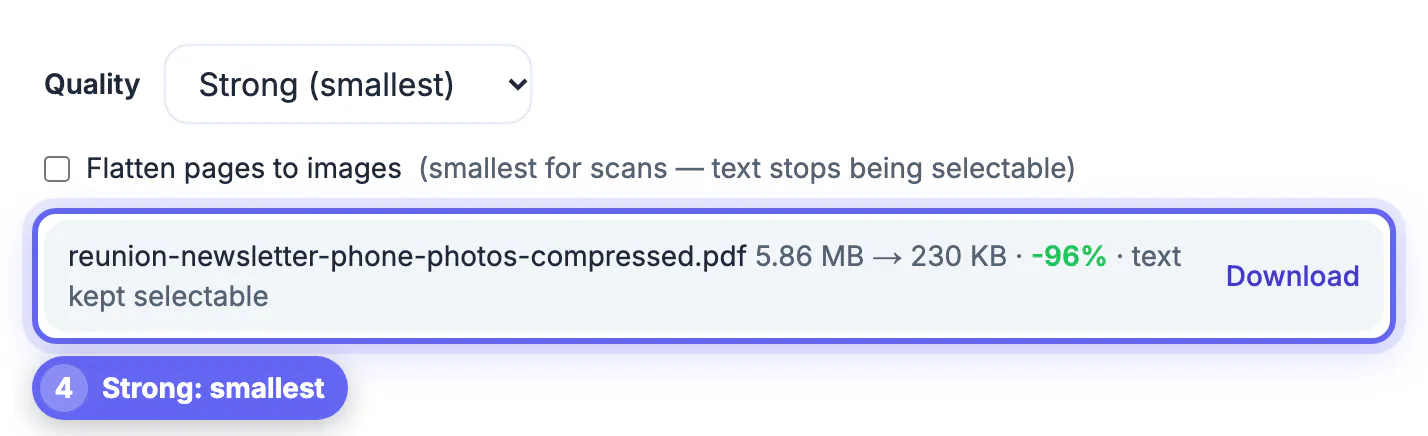
The free Compress PDF tool runs in your browser, so the file is not uploaded. By default it re-encodes the JPEG photos inside the document and caps their longest side at 1,400, 2,000, or 2,600 pixels for the Strong, Recommended, and Light levels. Text, links, form fields, and fonts are left untouched, so everything stays selectable and searchable.
- On a Letter page, those caps work out to roughly 127, 182, and 236 pixels per inch, which is plenty for screens and fine for most office printing at Recommended.
- For scans, tick Flatten pages to images. Each page is rendered to a JPEG, which gives the smallest result, but the text is no longer selectable.
- It does not subset fonts, strip metadata, remove attachments, or recompress lossless PNG-style or CMYK images, so files bloated by those causes will shrink very little.
- If the output is not meaningfully smaller, it tells you the original is already the best version rather than handing you a pointless copy.
- Password-protected or damaged files cannot be processed; unlock a file you have the right to open first.
If only some pages matter, the Split PDF tool pulls them into a smaller file, and this page-extraction guide walks through it.
Realistic targets and what to do when compression is not enough
Scan-heavy and photo-heavy files commonly drop by 60 to 90 percent. Text-heavy files with fonts or history bloat may only lose a few percent, and that is not a failure of the tool, it is the nature of the content.
- For email, aim well under the limit. Gmail caps attachments at 25 MB and many other providers sit around 20 MB, and encoding overhead makes files larger in transit.
- If one big file still will not fit, split it into parts or send a cloud-storage link instead.
- Rescanning at 200 dpi grayscale instead of 600 dpi color often beats any compression you apply afterward.
- Re-exporting from the original Word, Pages, or design file with a smaller-size or web preset is the cleanest fix for font and history bloat.
Step-by-step
Common mistakes to avoid
Pro tips
Frequently asked questions
Why is my PDF so big when it is only a few pages?
Almost always because those pages contain images, either scans or full-resolution photos. A single color page scanned at 600 dpi can weigh more than a hundred pages of plain text.
Will compressing make my text blurry?
Not with the default mode. GrabCast only re-encodes the photos inside the file, so text stays sharp and selectable. Only the optional flatten mode turns pages into images.
Why did my file barely get smaller?
Its weight probably is not in JPEG photos. Fonts, edit history, attachments, lossless graphics, and complex vector art are not touched by image compression, so re-exporting from the source file is the better fix.
Is the file uploaded anywhere?
No. Compress PDF processes the document inside your browser on your own device, which is useful for contracts, medical forms, and tax paperwork.
What size should I aim for?
Stay comfortably under the limit you face, for example below about 20 MB for email or whatever an upload portal states, because some systems add overhead or reject files right at the limit.
A big PDF is a symptom, and the cure depends on the cause. Scans and oversized photos shrink dramatically, and GrabCast handles them for free in your browser while keeping text selectable; fonts, edit history, and attachments need a re-export from the source instead. Spend two minutes diagnosing, pick the matching setting, and check the result before you hit send.
Related guides
Browse more: all PDF guides · the Compress PDF tool