Merge PDF on Windows Without Adobe Acrobat: Free Options
To merge PDF files on Windows without Adobe Acrobat, use a free tool: a browser-based merger, a free desktop app, or a command-line utility. Windows 10 and 11 can open, print and create these documents, but at the time of writing they have no built-in way to combine several into one. The usual workarounds, Print to PDF and Word, either cannot do it or change the file.
🔗 Try Merge PDF now — freeOpen →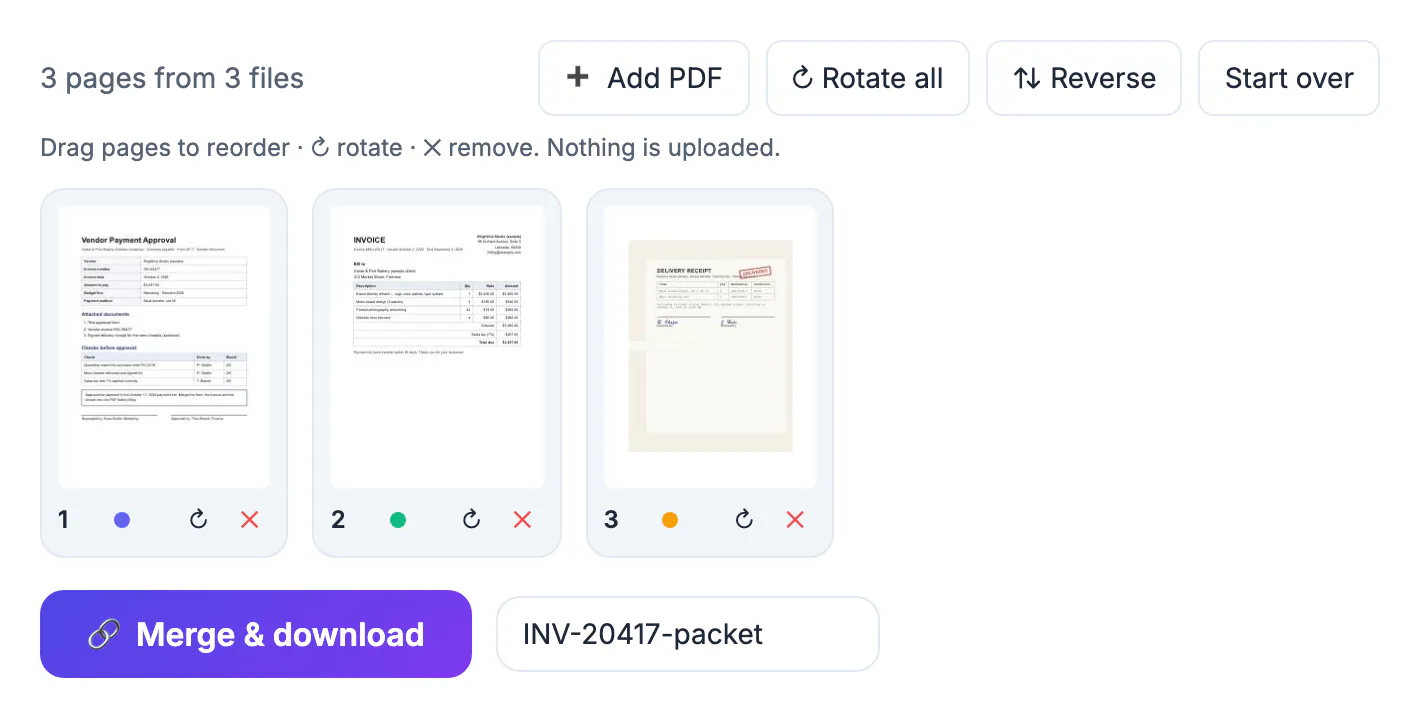
Mac users can drag pages between files in Preview, so Windows users expect a similar button and find none. The usual result is a trial installer or a random upload site that takes a tax return onto its servers, and at work IT may block installing software at all. Knowing which built-in options really work saves time and keeps private files private.
What Windows can and cannot do on its own
Windows includes Microsoft Print to PDF, a virtual printer that saves anything you can print as a new document. It is handy, but it is not a merger.
- It prints one file at a time, so three documents become three new files, not one.
- Printing several images selected in File Explorer does combine them, but only pictures, not existing documents.
- Re-printing drops links, bookmarks and form fields, and can change fonts or page size.
- Microsoft Edge opens and annotates these files but, at the time of writing, cannot combine them.
Word can open the file and convert it into an editable document, then export the result again. For forms, tables, scans or careful layouts, expect shifted lines and missing elements. It is a last resort, not a real join.
Free desktop apps and qpdf for power users
If you combine files every day or offline, a desktop app is reasonable. Well-known free options include PDFsam Basic, which is open source, and PDF24 Creator. Check current terms and installer options on each official site, and install only from there.
For scripts and batch jobs, qpdf is a free, open-source command-line tool that copies pages without re-rendering them. Once it is on your PATH, one line in PowerShell or Command Prompt does the job:
- qpdf --empty --pages a.pdf b.pdf c.pdf -- all.pdf joins three whole files.
- qpdf --empty --pages a.pdf 1-3 b.pdf 5 -- out.pdf takes pages 1 to 3 of the first file and page 5 of the second.
- PowerShell itself has no commands for this format; it simply runs the utility. Your organisation may require approval before installing it.
Merge PDF on Windows in the browser, without installing anything
GrabCast Merge PDF runs in Edge, Chrome or Firefox on Windows. The files are read and combined inside the browser tab with PDF.js and pdf-lib, so they are not uploaded, and nothing is installed, which suits work laptops.
- Drop two or more files in, or add more later with the Add PDF button. There is no fixed file or page limit; very large jobs depend on your PC’s memory.
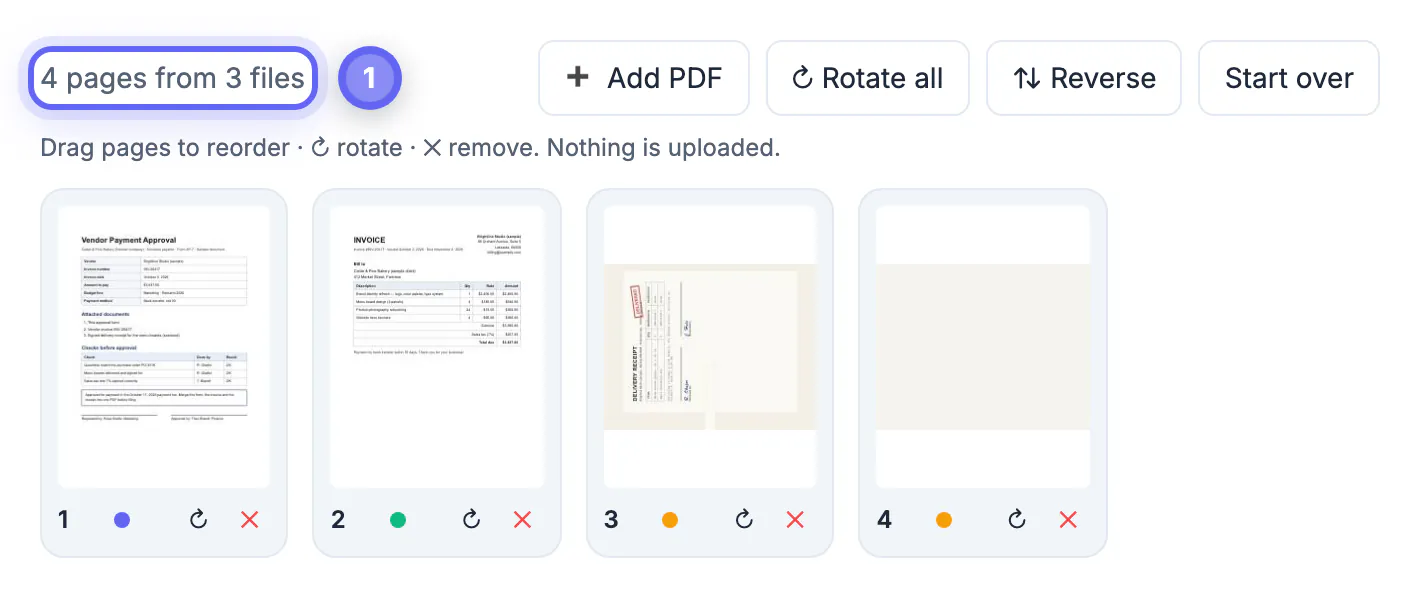
- Every page appears as a thumbnail, colour-coded by source file, so you can drag page 4 of one file between pages 1 and 2 of another.
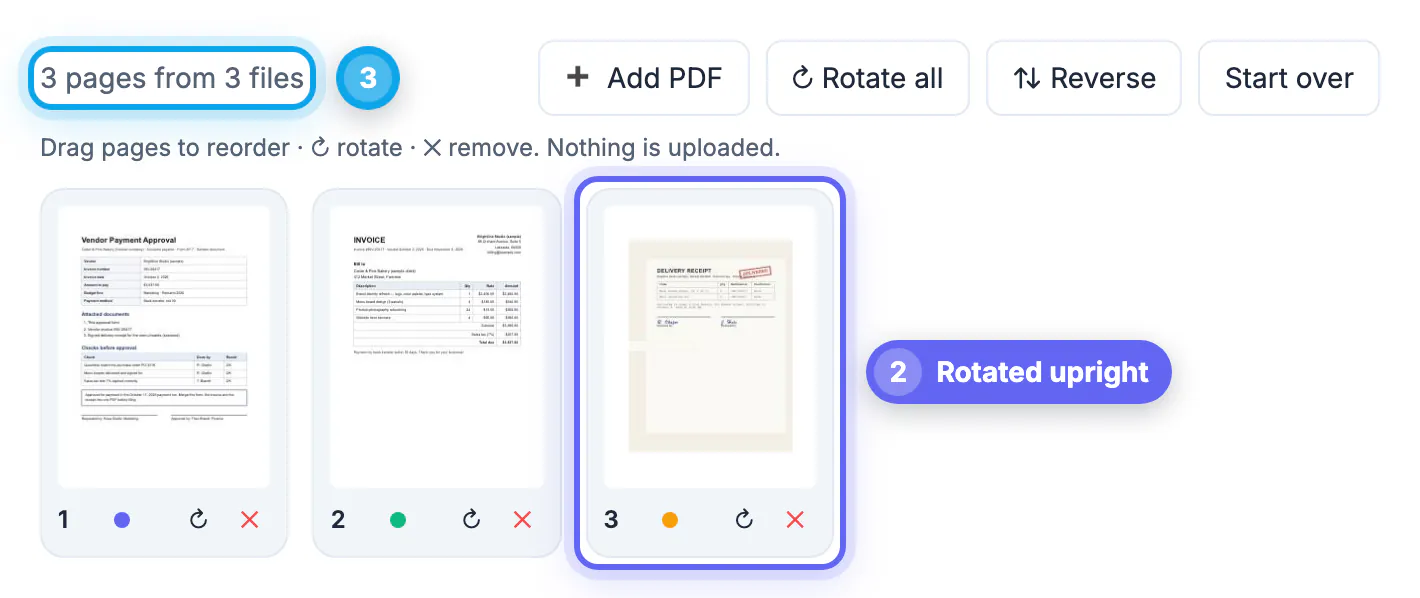
- Rotate a sideways scan with ↻, drop a blank page with ✕, or reverse the whole order.
- Pages are copied as-is, so text stays selectable and images keep their quality. No watermark is added.
Password-protected files cannot be read until you unlock them with the password, and combining breaks any existing digital signatures, so sign last.
Which option fits which job
- One-off job with private documents: the browser tool, with nothing uploaded or installed.
- Daily office work, offline: a free desktop app from its official site.
- Hundreds of files, a scheduled task, or joining inside a script: qpdf.
- Photos or screenshots into one document: print them together to Microsoft Print to PDF.
- Needing to edit the text as well: convert with Word, then check every page carefully before sending.
Whichever route you choose, scroll through the result once; page order is what most often goes wrong.
If something goes wrong: when PowerShell says qpdf is not recognized, the folder holding it is not on your PATH yet; open a new terminal window after adding it, or type the full path to the executable. If the browser tab slows down or reloads with hundreds of high-resolution scans, close other tabs, or combine the files in two or three batches and then join those batches. If you cannot find the finished file, press Ctrl+J in Edge or Chrome to open the downloads list. If a page shows up blank or garbled, the original is likely damaged; open it on its own first, and re-export it from the program that created it before trying again.
After merging, the Compress PDF tool shrinks the result, and splitting a PDF pulls pages back out.
Step-by-step

Common mistakes to avoid
Pro tips
Frequently asked questions
Does Windows 11 have a built-in PDF merger?
Not at the time of writing. It can create PDFs through Microsoft Print to PDF and open them in Edge, but combining several PDFs needs another tool.
Can Microsoft Print to PDF merge files?
Only images selected together in File Explorer. Existing PDFs are printed one at a time, producing separate files.
Is it safe to merge PDFs in a browser?
It depends on the site. GrabCast Merge PDF works locally without uploading; many other sites upload to their servers.
Will merging reduce the quality of my PDF?
Not with a page-copying tool such as GrabCast or qpdf. Printing to PDF or converting through Word can change it.
Why won’t one of my PDFs load?
It is probably password-protected or damaged. Unlock it with the password first, or repair it, then add it again.
Windows can make PDFs but not merge them. For a quick, private merge without Adobe Acrobat, use a browser tool that works locally; for daily offline work, a reputable free app; for automation, qpdf. Skip the Print to PDF and Word workarounds unless the layout does not matter.
Related guides
Browse more: all PDF guides · Merge PDF