Split a Large PDF Into Parts That Fit Upload Limits
If a large PDF is too big to email or upload, split it into several parts that each stay under the limit, then send or attach them in order. In GrabCast's Split PDF you can cut a 180-page scanned manual into chunks of 40 pages with the Every N pages mode, or into chapter-sized pieces with custom ranges, and every part shows its page count and size in KB before you download the set as one ZIP. This guide covers how to estimate the right chunk size from the file's size per page, why the parts can add up to slightly more than the original, and when compressing first is smarter than splitting at all.
✂️ Try the Split PDF tool now — freeOpen →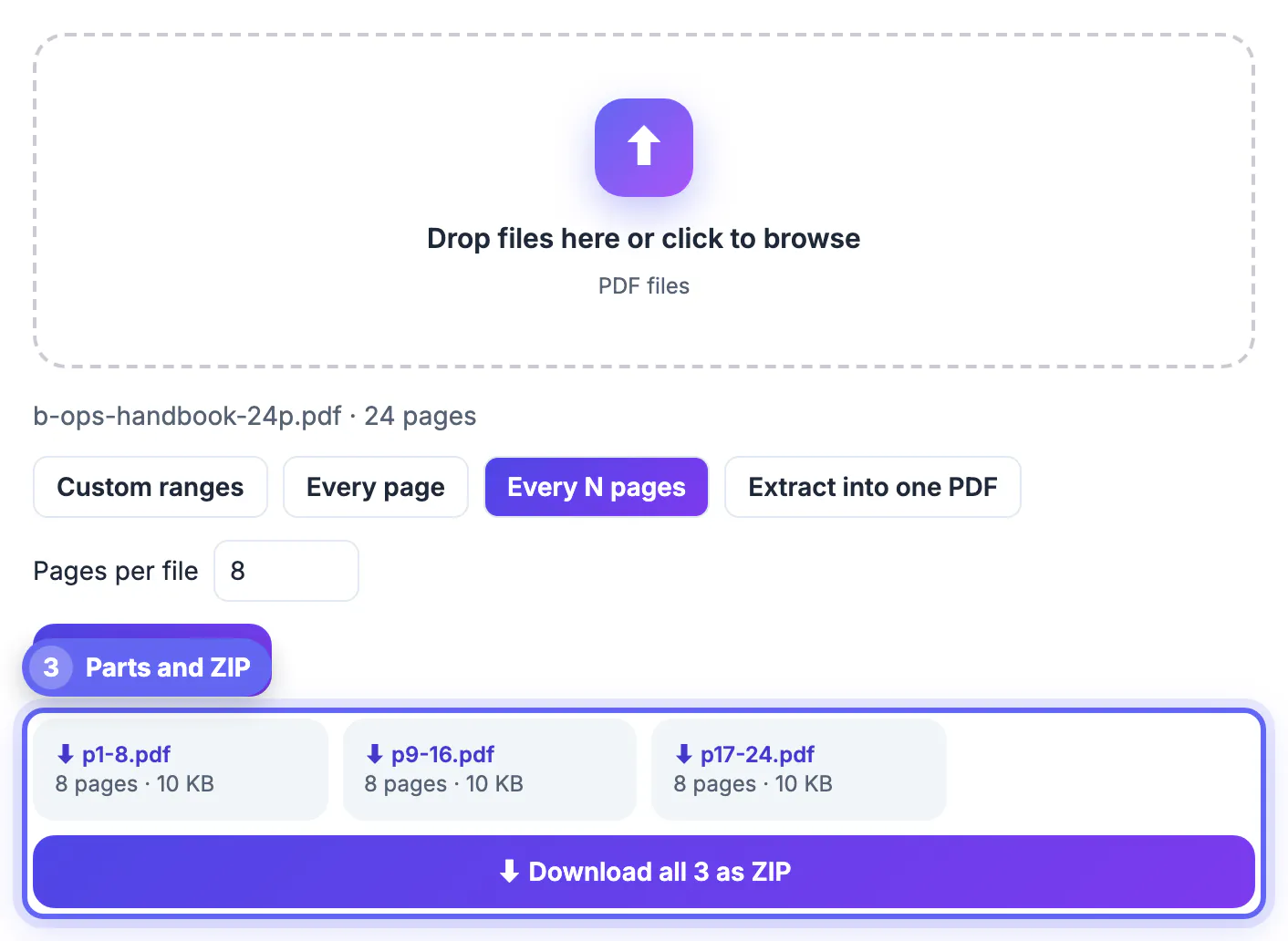
Most of the walls people hit are hard numbers. Gmail and Outlook.com attachments top out around 20 to 25 MB, many court e-filing, insurance and university portals cap single uploads at 10 MB, and some job boards stop at 5 MB. A 120-page scan at 300 dpi can easily reach 90 MB, which no compression setting will bring under 10 MB without the pages turning to mush. Splitting keeps every page at full quality and moves the problem from one oversized file to several acceptable ones. It also helps the reader: a 400-page contract bundle broken into exhibits is easier to review, and a portal that asks for each document separately gets exactly that. Because the work happens in your browser, confidential records are not handed to an upload site just to be cut apart.
Estimate the chunk size before you cut
Divide the file size by the number of sheets to get an average, then work backward from the cap. A 96 MB scan with 120 sheets averages 0.8 MB each, so a 20 MB email limit fits about 25 sheets per part and a 10 MB portal fits about 12. Leave a margin of roughly 10 percent, because scans are uneven and a few photo-heavy sheets can be two or three times the average.
- 20 MB email cap, 0.8 MB per sheet: about 22 sheets per part with margin
- 10 MB portal, 0.8 MB per sheet: about 11 sheets per part
- Text-only report at 40 KB per sheet: size is rarely the issue, split by chapter instead
Choose the mode that matches the job
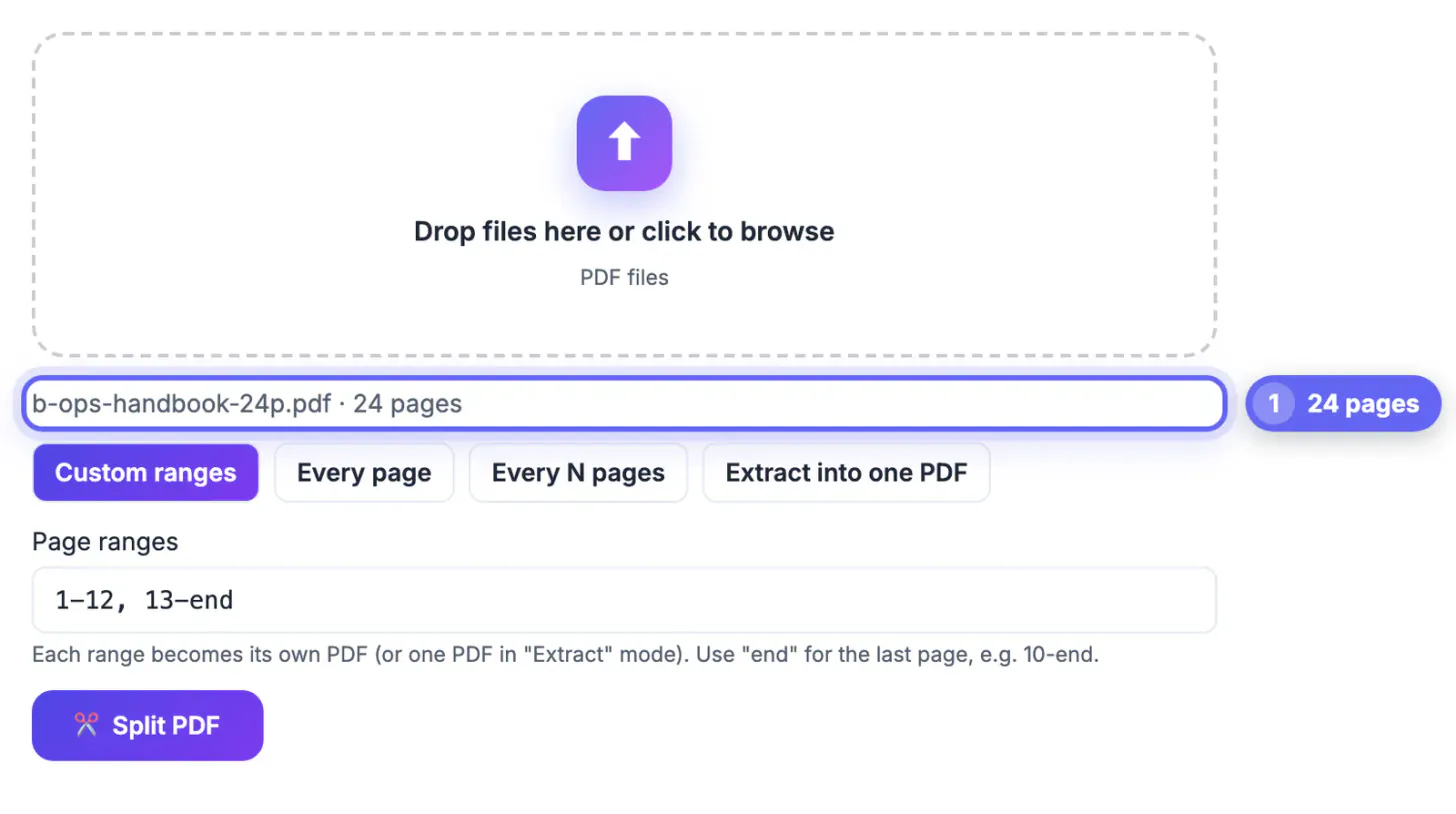
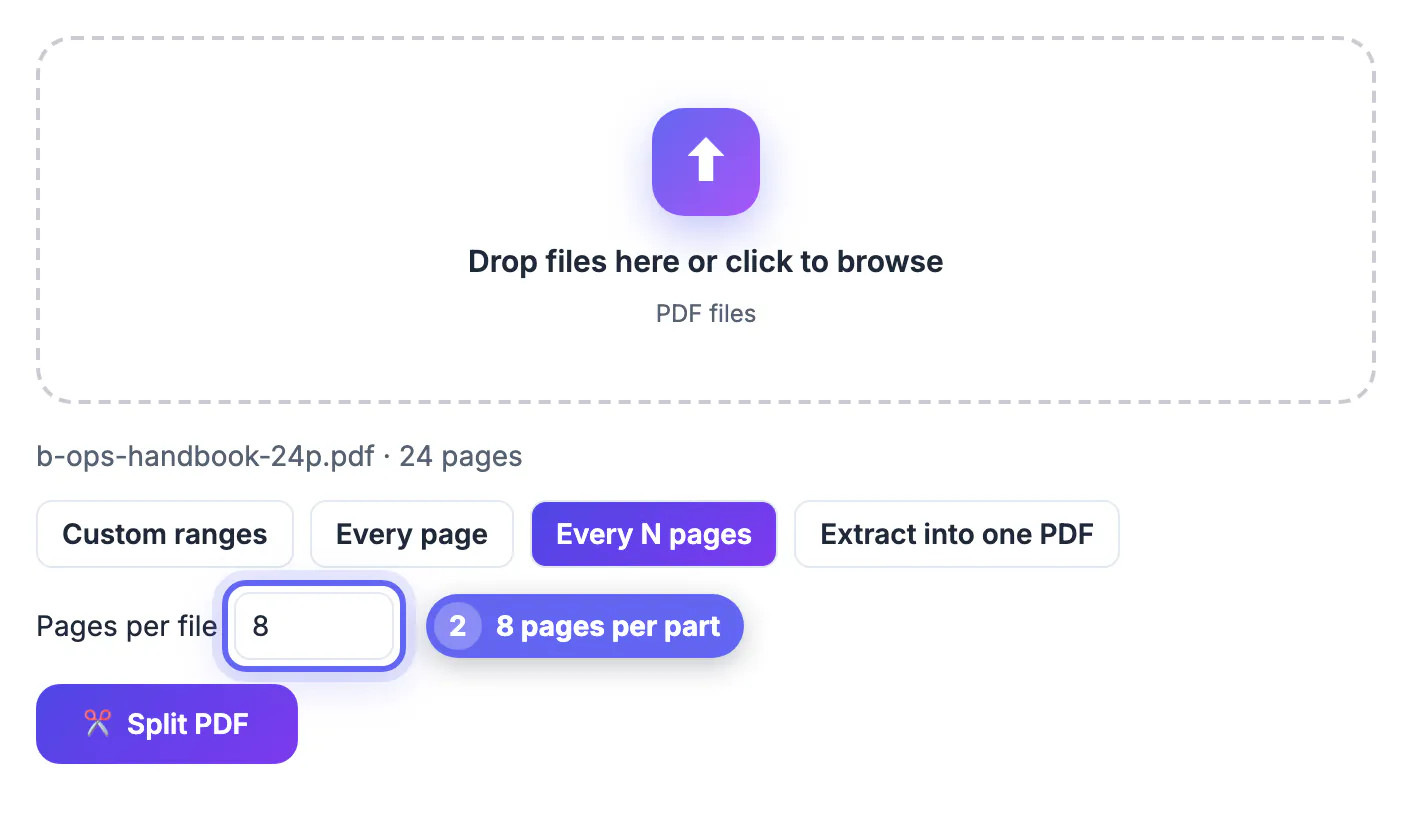
Every N pages is the size tool: type 20 and a 180-sheet file becomes nine parts named with their ranges, such as manual-p1-20.pdf and manual-p21-40.pdf. Custom ranges is the structure tool: type 1-12, 13-47, 48-end and each range becomes its own document, which suits exhibits, chapters or one statement per month. Every page produces single-sheet files, useful when a portal wants each form uploaded separately. When a large PDF produces several parts, a Download all as ZIP button appears, and each card can also be saved on its own.
Why the parts can outweigh the original
Each piece is a complete, standalone document, so shared resources such as embedded fonts and a repeated logo are stored again in every part that uses them. Four parts of a 12 MB report might total 13 or 14 MB. That rarely matters for an upload limit, which applies to each file separately, but it explains why the sum looks wrong.
- Check each part's size on its result card, not the combined total
- If one part is still over the cap, re-run with a smaller N for that range only
- A single sheet containing a huge photo can exceed a limit by itself; compress that part
Split, compress, or both
Try Compress PDF first when the file is only modestly over the limit, say 14 MB against a 10 MB cap; it recompresses images and keeps the text selectable, so one file is simpler for everyone. Split when the gap is large or when the recipient wants separate documents anyway. For a 90 MB scan headed to a 10 MB portal, do both: split into parts of around 30 sheets, then compress each part, which usually needs fewer uploads than splitting alone. Very large files take longer to load in the browser, and phones with little free memory may struggle with files in the hundreds of megabytes, so use a laptop for those.
Large scans are a common reason for oversized files, so see how to compress a scanned PDF if that is your case.
Step-by-step
Common mistakes to avoid
Pro tips
Frequently asked questions
How many pages should each part have
Divide the file size by its page count to get an average per page, then divide your limit by that average and round down with some margin. A 60 MB file with 150 pages averages 0.4 MB per page, so a 10 MB limit fits about 22 pages per part.
Is there a maximum file size the tool can handle
There is no fixed cap, because the file is processed by your browser rather than a server. The practical limit is your device's memory: files of a few hundred megabytes work on most laptops, while older phones may slow down or fail. Close other heavy tabs for very big documents.
Does splitting reduce image quality
No. Pages are copied as they are, with the same images, text and fonts, so every part looks identical to the matching pages in the original. If you also need smaller files, run the parts through Compress PDF afterward and check the result.
Can I split a large PDF into files by chapter
Yes. Use Custom ranges and type the chapter boundaries, for example 1-18, 19-44, 45-80, 81-end. Each range becomes its own PDF named after its pages. Look up the real page positions first, since printed page numbers often differ from them.
Is my file uploaded to GrabCast
No. Splitting runs entirely in your browser with a PDF library loaded into the page, and the parts are generated on your device. That keeps legal, medical and financial documents off third-party servers while you prepare them.
To get a large PDF past a size cap, work out the average size per page, choose a page count per part with some margin, split with Every N pages or chapter ranges, and verify each part's size before sending. Compress first when you are only slightly over, and combine both for huge scans.
Related guides
Browse more: all PDF guides · the Split PDF tool