PNG Too Large? Convert Photo PNGs to JPG and Shrink Them
A PNG that weighs 5, 10 or 20 MB is almost always a photograph stored in a format built for logos and screenshots, and saving it as a JPEG usually cuts the file by 70 to 90 percent with no visible change. The exceptions are pictures full of sharp text, flat color or transparency, where PNG earns its bulk. This guide explains how to tell the two cases apart in ten seconds, which quality setting to pick, what happens to see-through areas, and how to convert PNG to JPG in the browser, one file or fifty at a time.
🖼️ Try PNG to JPG now — freeOpen →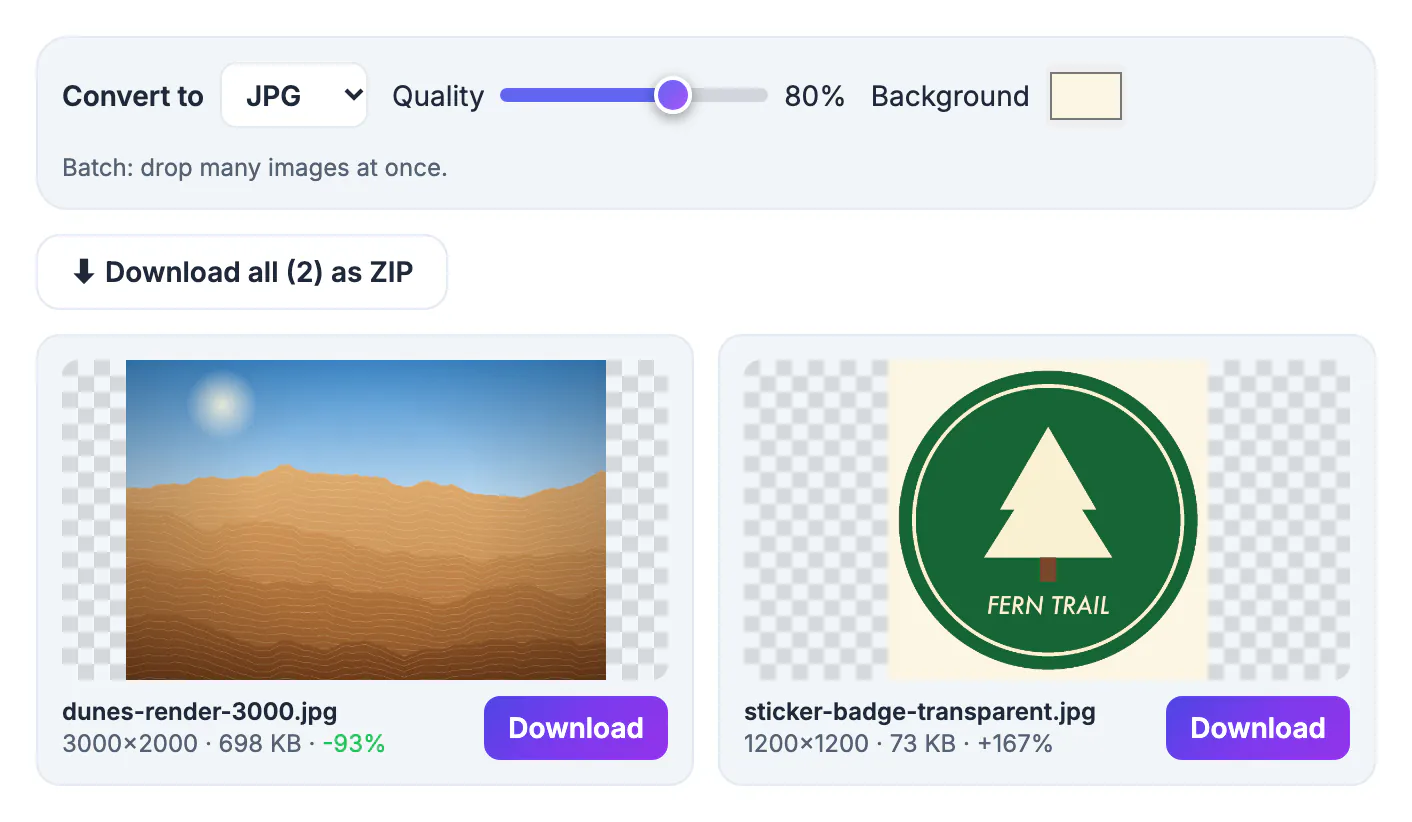
PNG is lossless: it records every pixel exactly and compresses only by spotting repeated patterns. That works brilliantly on a logo with four flat colors, and terribly on a photo, where almost no two neighboring pixels match. A 12-megapixel camera shot saved as PNG often weighs 15 to 25 MB, while the same picture as a high-quality JPG sits around 2 to 4 MB. Screenshots of photo-heavy pages, Canva designs exported with the default PNG option, and images copied out of design apps all inherit that bloat.
The ten-second test: is it a photo or a graphic?
Open the file and look at what fills most of the frame. If it is a real-world scene, a product shot, a face, a gradient sky or a pattern of fabric, it behaves like a photo and JPEG is the right home for it. If it is mostly letters, interface buttons, charts, icons or flat blocks of color, it behaves like a graphic, and a lossless format keeps those edges clean.
- Photo-like: travel pictures, real estate shots, product photos, scanned artwork with texture
- Graphic-like: slides, app screenshots, spreadsheets, diagrams, logos, pixel art
- Mixed: a blog banner with a photo and a headline, where a quality of 90 or higher protects the lettering
- Anything with see-through areas: decide first whether you need transparency, because JPEG cannot store it
A quick rule of thumb is the size itself. A graphic-style PNG over 2 MB is rare; a photo-style one over 5 MB is common.
What converting PNG to JPG saves, in real numbers
On typical photo content the savings are dramatic. A 4000 by 3000 product shot exported as an 18 MB PNG usually lands between 1.5 and 3 MB as a JPEG at 88 percent quality, and a Retina Mac screenshot of a photo gallery page drops from around 6 MB to well under 1 MB. On a screenshot of a spreadsheet, by contrast, the JPEG can come out barely smaller and slightly fuzzy around every digit.
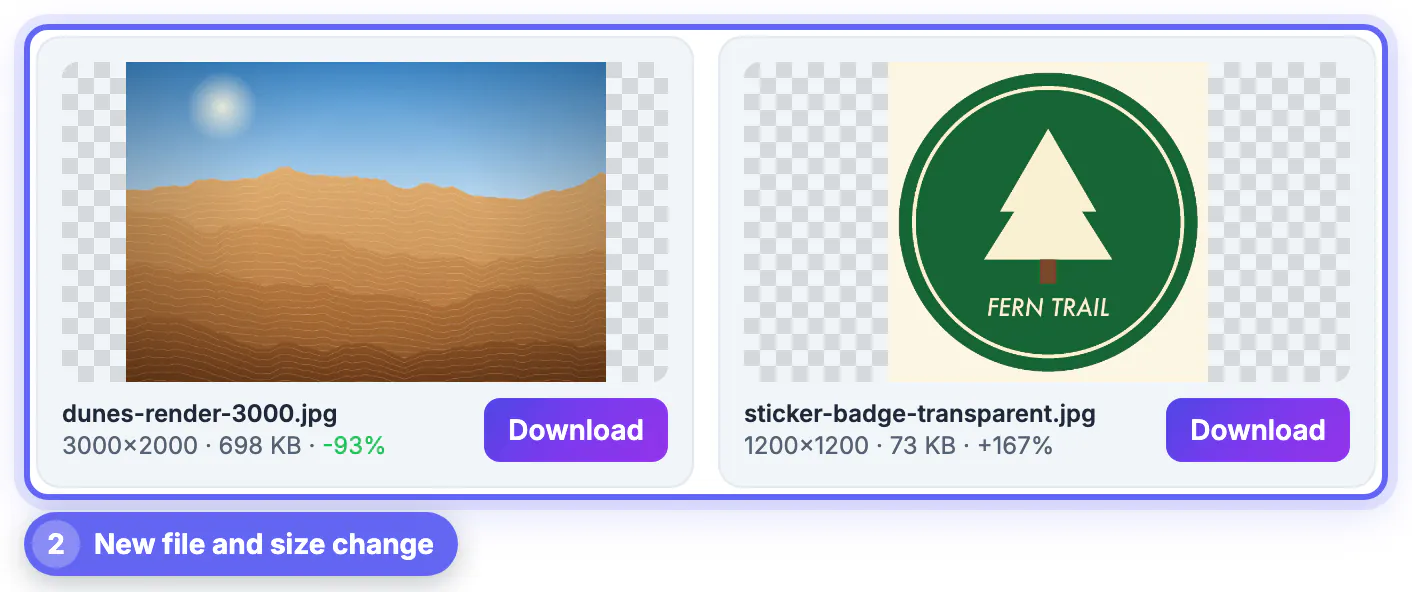
That is why the GrabCast page shows the before and after for each file, with the new dimensions, kilobytes and the percentage saved or gained. If a result grows or looks soft, keep the original PNG for that one and move on.
- Real estate listing photos exported from Lightroom as PNG: expect roughly an 80 percent cut
- Canva social posts built around a stock photo: usually 60 to 85 percent lighter
- Phone screenshots of a chat or a settings screen: often only 10 to 30 percent lighter, and slightly softer
- Pixel art, QR codes and diagrams: frequently larger as JPEG, so leave them alone
If the file is still heavy, shrink it with the Compress Image tool, or try the Image to WebP converter for a lighter web format.
Quality, background color and transparent areas
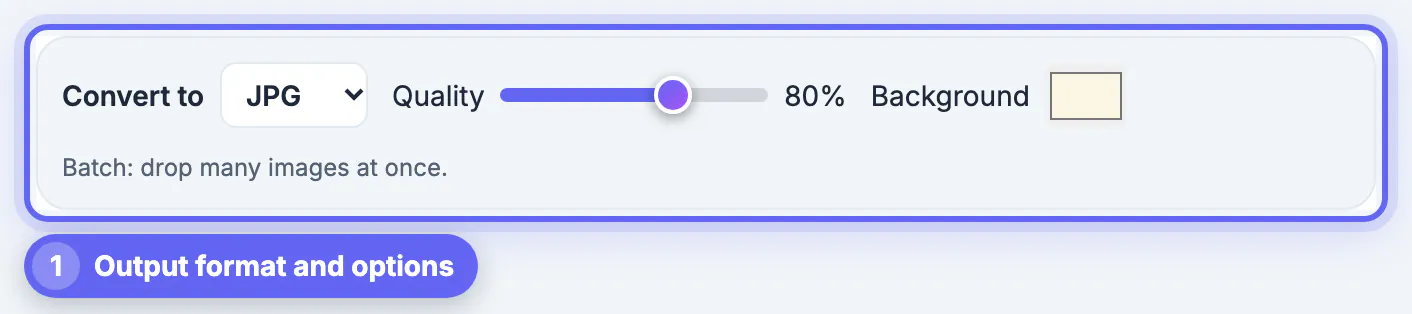
The page opens with JPG selected and a quality slider from 40 to 100, starting at 88. That default is close to invisible on photos; 80 trims more weight for web galleries, and 92 to 95 suits prints and images with small type. Below about 70, edges start to show blocky halos.
Transparent regions need a decision, because JPEG has no alpha channel. The background picker fills those pixels with white by default, or with any color you choose, so a logo cut-out can sit on your brand navy instead of an ugly black box. If you actually need the see-through look, stay lossless or pick WebP from the same menu, which keeps transparency at a much lower weight.
Batch conversion that stays on your device
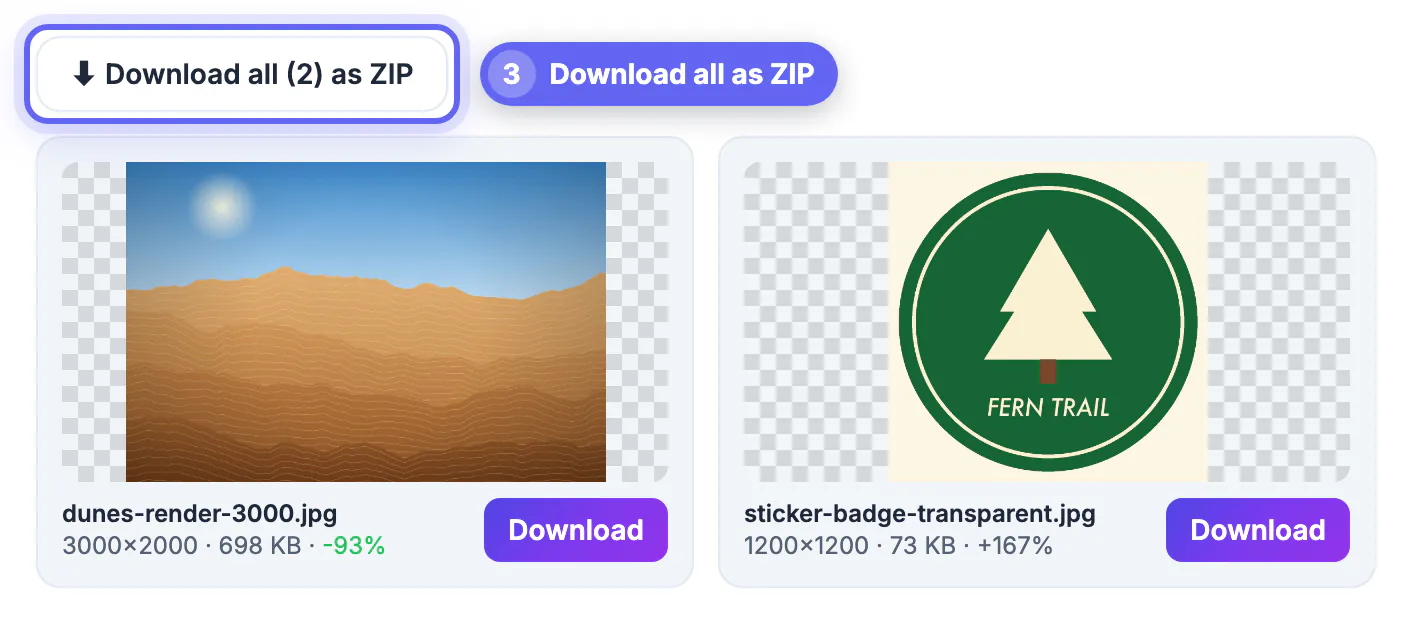
Drop a whole folder of PNG exports at once and each one is decoded and re-encoded locally in the browser, then offered individually or as a single ZIP. Nothing is uploaded, which matters for client mockups, unreleased product images and screenshots that show account numbers or private chats.
The same page also accepts WebP, GIF, BMP, AVIF, ICO, SVG, TIFF and iPhone HEIC inputs, and can output WebP or, in browsers that support it, AVIF. Two honest limits: the output keeps the original pixel dimensions, so resize separately if you also need a smaller canvas, and every JPEG save throws away a little detail, so keep your master PNG and export fresh copies from it rather than re-saving the same JPEG again and again.
Step-by-step
Common mistakes to avoid
Pro tips
Frequently asked questions
Does converting PNG to JPG reduce quality?
Technically yes, because JPEG is lossy, but at 85 to 92 percent quality the change is invisible on photos at normal viewing size. It becomes noticeable on fine text, thin lines and flat color areas.
Why is my PNG screenshot so large?
Screens on modern laptops and phones are very high resolution, so a single screenshot can hold 5 million pixels or more. If the screen showed photos or video frames, a lossless file has little to compress and grows to several megabytes.
What happens to the transparent background?
JPEG cannot store transparency, so those areas are filled with the background color you pick, white by default. If you need to keep the see-through look, keep the PNG or choose WebP instead.
Is JPG or WebP better for my website?
Both work in every current browser. WebP is usually smaller at the same visual quality and supports transparency, while JPG remains the safest choice for email, print shops and older upload forms.
Are my files uploaded when I convert them?
No. Decoding and re-encoding happen in your browser on your own device, and the files are never sent to a server. That makes it safe for client work, unreleased designs and private screenshots, and it keeps working at the same speed whether you convert one file or a folder of forty.
A huge PNG is usually a photo in the wrong container. Switch photo-like images to JPG at around 88 percent quality, keep text-heavy graphics and anything transparent lossless or in WebP, and always hold on to the original master file.
Related guides
Browse more: all image guides · PNG to JPG