WebP to JPG: Convert Images Apps and Portals Reject
To convert a WebP image to JPG, open GrabCast's Image to WebP tool, set its Convert to menu to JPG, drop the file, and download the result; the picture keeps its width and height and becomes a file that almost any app, print kiosk or upload form will accept. You saved a picture from a website, it arrived in the newer format, and now a job portal, an older editor or a photo lab refuses it. This guide covers the quality setting to use, what happens to transparent areas, why an animated file turns into a still, and why the result is often larger than the file you started with. It also lists built-in alternatives on Windows and Mac for a single image.
🔁 Try the Image to WebP tool now — freeOpen →
WebP is a web delivery format. Sites serve it because it is small, so right-clicking and saving a picture often hands you a .webp file even when the page seemed to show a JPG. Browsers read it fine, but plenty of destinations do not: many government, school and job application portals list only JPG, PNG or PDF; photo printing services and kiosks commonly expect JPG; some older versions of desktop software and email clients will not open it. JPG, by contrast, has been readable by nearly everything for decades. Converting once saves a round of rejected uploads and support emails, and it avoids the frustrating loop of a form that simply says invalid file type without explaining which types it wants. Doing it in the browser also matters when the image is personal or confidential, such as an ID photo or a signed page saved from a web app, because it never passes through a converter site's server.
Settings that matter for JPG output
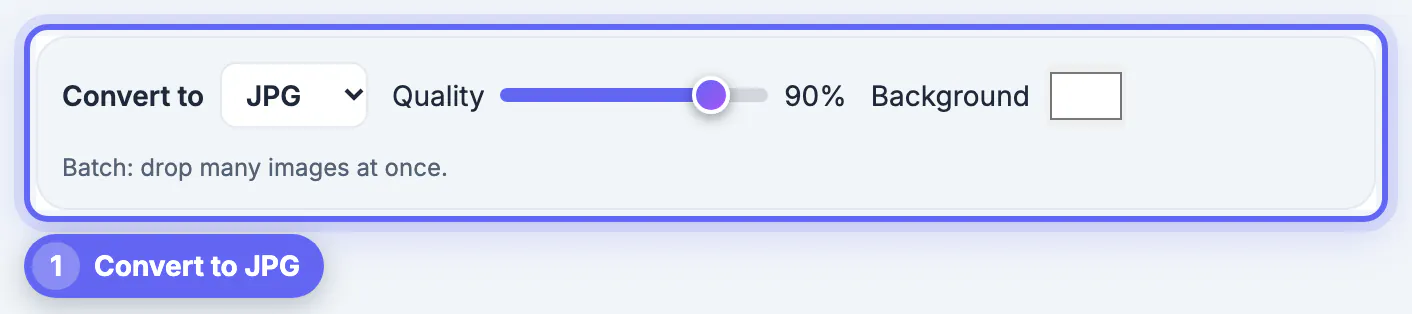
The same tool handles several formats, so the first step is the Convert to menu. Choosing the JPEG option reveals two controls.
- Quality starts at 88 when you switch; 85 to 92 suits photos, and 92 or higher suits text-heavy graphics
- Background sets the color painted behind transparent areas, white by default
- Drop many files at once to process a batch, then save them together as a ZIP
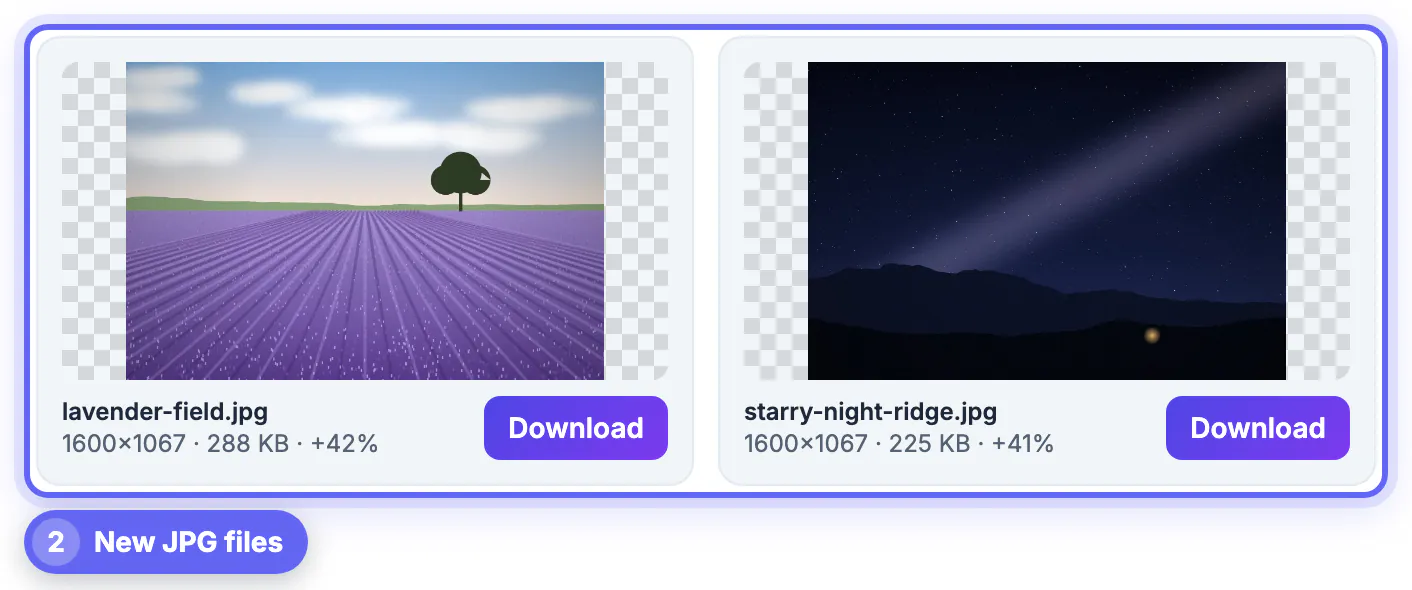
- Each card shows the new dimensions, file size and percentage change
The PNG to JPG page runs this same engine with that option preselected, so either entry point gives identical results.
Transparency, animation and metadata
The older format has no transparency, no animation and, from this tool, no carried-over metadata. Knowing that avoids surprises.
- Transparent logos and stickers get a solid background; pick white, black or a brand color that matches where the picture will sit
- An animated file becomes a single still frame; for motion, keep the original or make a GIF or video instead
- Camera details and location data are not copied, which is often a privacy plus
- Pixel dimensions stay the same; resize separately if a portal also has a width limit
Why the JPG may be bigger than the original
The newer format usually compresses more efficiently, so a 180 KB source can easily become a 250 to 400 KB result at quality 88. That is normal, and the percentage on the card will show a plus sign. Lower the quality toward 80 if a portal has a strict size cap, or resize the picture first. No conversion can restore detail that was lost when the source was made, so a soft or blocky source stays that way; if you need a sharper version, look for the original upload or ask its owner. A quick test for a size-capped portal: convert at 88, check the size on the card, and if it is over the limit, drop to 82 and try again before reaching for a resize. Most photos stay visually clean down to the low 80s, while screenshots with small text show smudges sooner.
Built-in alternatives for a single file
For one picture you may not need a web tool at all. These routes are handy, though none handle batches as easily or set a transparency color.
- Windows: open the file in Paint, then Save as and choose JPEG
- Mac: open it in Preview, choose File, Export, and pick JPEG with a quality slider
- Many photo editors also open the format and export a JPEG
- Only reuse pictures you own or have permission to use; saving a file does not grant reuse rights
Step-by-step
Common mistakes to avoid
Pro tips
Frequently asked questions
Why did my downloaded picture save as WebP
Many websites serve WebP to save bandwidth, even when the page URL or preview suggests JPG. Your browser saves the format it actually received. Converting to JPG gives you a file that older apps, printers and upload forms accept. If the picture is your own, such as a profile photo you uploaded years ago, check whether the original camera file still exists on your phone or computer, since it will be sharper than any web copy.
Does converting WebP to JPG lose quality
A little, because JPG is also lossy, but at quality 85 to 92 the difference is hard to see. Converting cannot add back detail the WebP already lost, so start from the best copy you have and avoid converting the same picture back and forth.
What happens to a transparent background
JPG cannot store transparency, so transparent areas are filled with the background color you choose, white by default. Pick the color of the page or slide where the image will appear, or keep a PNG if you truly need transparency.
Can I convert an animated WebP to JPG
You can, but the JPG will be a single still frame, because JPG has no animation. To keep motion, leave it as WebP or convert it to a GIF or a short video with a dedicated tool.
Is it safe to convert private images here
Yes. The conversion runs in your browser with its built-in image engine, and the files are not uploaded to GrabCast. That makes it suitable for ID photos, receipts and signed pages you would not want on a third-party server. The downloaded JPG is saved wherever your browser normally puts downloads, so delete it afterward on a shared computer.
When a WebP gets rejected, set Convert to JPG, pick quality 85 to 90, choose a background color if the picture has transparency, and download. Expect a slightly larger file and a still frame for animations, and keep the original WebP for anything that stays on the web.
Related guides
Browse more: all image guides · the Image to WebP tool