How to Run AI Locally in Your Browser (No Key, No Upload)
Running AI locally in your browser means the language model works on your own computer: your text is processed on the device and never sent to a server. Until recently that needed a desktop app and technical setup. Now there are two browser routes: Chrome's built-in AI, where Chrome downloads and manages a model for you, and small open models that a web page downloads once and runs with WebGPU. This guide explains both, what hardware they need, what they are good at, and how to switch GrabCast's AI tools to On this device only so nothing leaves your computer.
✍️ Try the AI Writer now — freeOpen →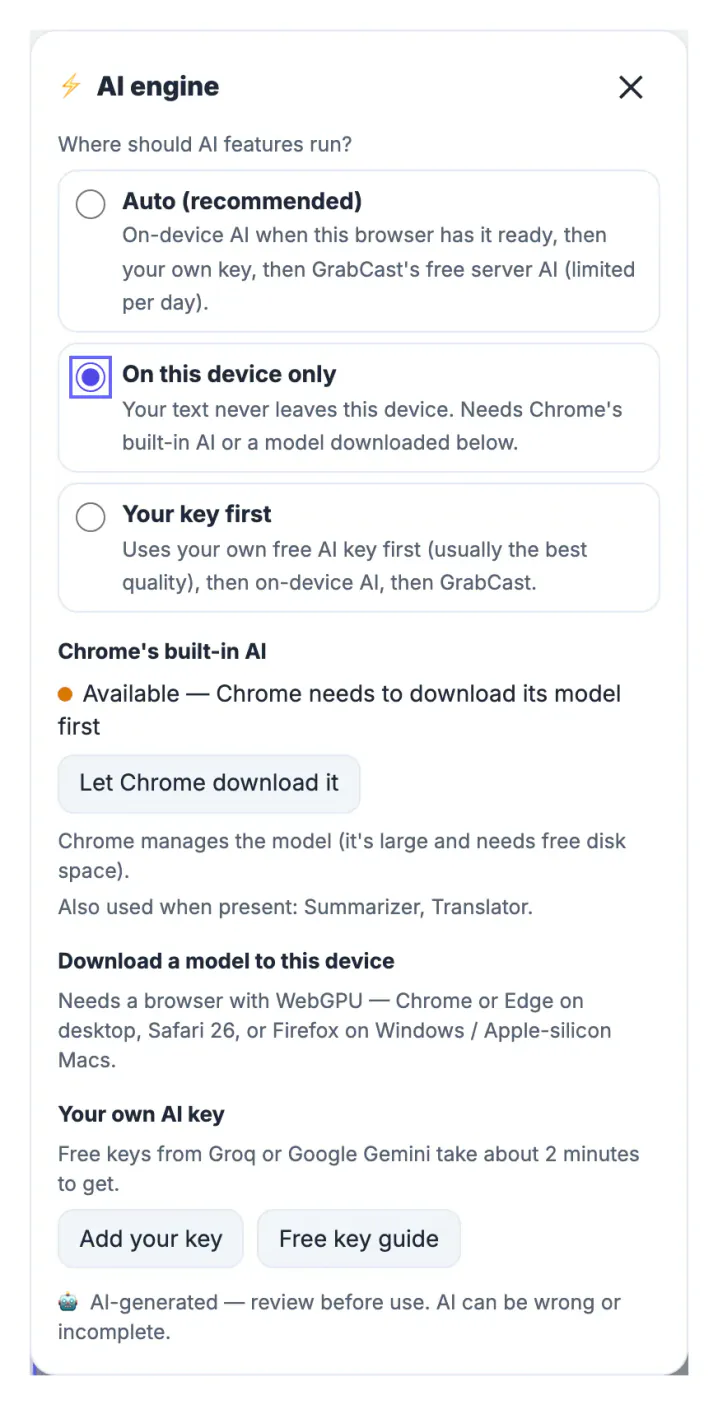
Privacy is the obvious reason: a draft email, meeting notes or a customer message never reaches anyone else's server. Local AI also keeps working when you are offline once the model is downloaded, has no daily request limit, and costs nothing per request. The trade-offs are just as real. The model must fit on your device, so it is much smaller than the big cloud models, and small models are good at short, well-defined jobs (rewriting, summarising, captions) and weaker at long, detailed writing or facts. The first download is large, and older or low-memory computers may not qualify at all.
Two ways to run AI locally in a browser
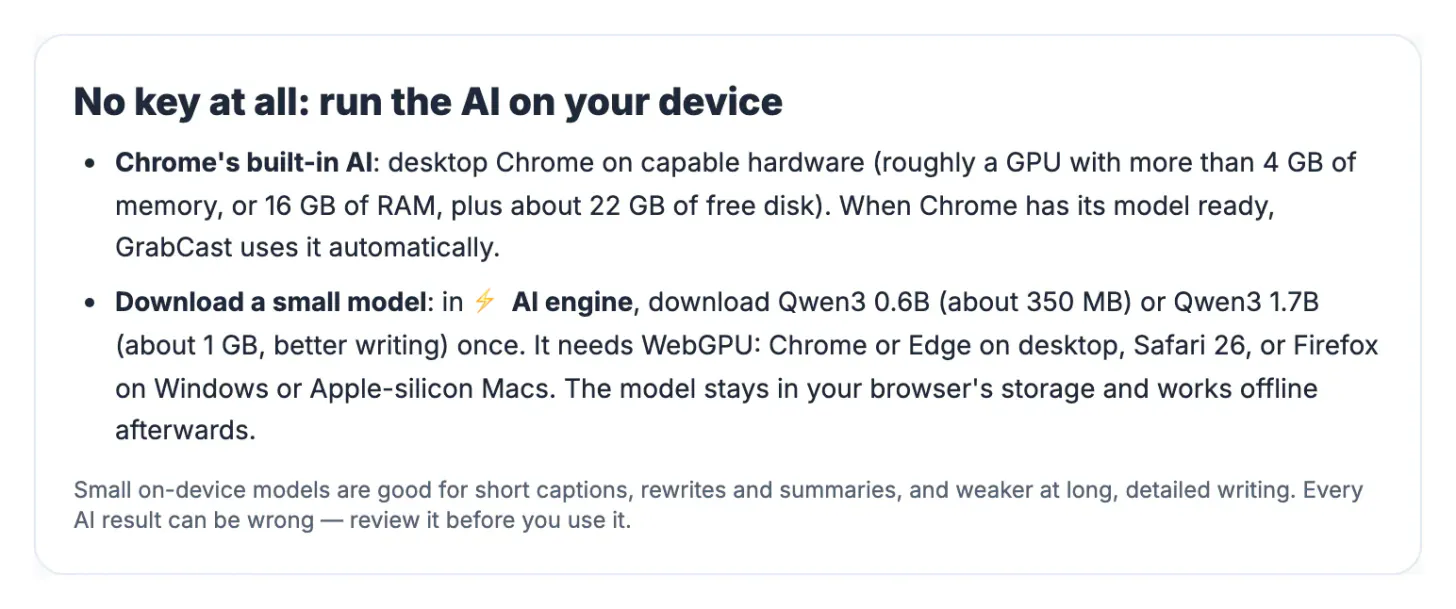
- Chrome's built-in AI: desktop Chrome can download a Gemini Nano model and offer it to web pages through built-in APIs such as a prompt API, a summarizer and a translator. Chrome manages the download and updates; the page only asks whether it is available.
- A downloaded open model (WebLLM): a page downloads the model weights once into the browser's storage and runs them on your graphics chip with WebGPU. GrabCast offers Qwen3 0.6B (about 350 MB) and Qwen3 1.7B (about 1 GB, better writing), both under the Apache 2.0 licence.
Both keep the text on your device. The difference is who manages the model: Chrome, or the web page with your permission. Neither is forced on you; a download starts only when you click it.
There is also a third, older route: desktop apps that run models outside the browser. They can load bigger models but need installing and some setup. The browser routes trade some capability for convenience: nothing to install, the same page on any capable computer, and the model is tied to one browser profile that you can clear at any time.
What your computer needs
At the time of writing, Google lists these requirements for Chrome's built-in AI:
- Desktop Chrome on Windows 10 or 11, macOS 13 or later, Linux, or ChromeOS on Chromebook Plus devices; not on phones.
- A GPU with more than 4 GB of video memory, or a CPU route with 16 GB of RAM and at least four cores.
- At least 22 GB of free disk space on the drive with your Chrome profile, and an unmetered connection for the download.
A WebGPU model needs a browser with WebGPU: Chrome or Edge on desktop, Safari 26, or Firefox on Windows and Apple-silicon Macs. Qwen3 1.7B uses roughly 2 GB of GPU memory and the 0.6B model about 1.4 GB. If your browser has no WebGPU, the AI engine panel says so instead of offering the download.
You can check WebGPU support without any tool: open the AI engine panel on a GrabCast AI page, and if the model list appears with download buttons, your browser has WebGPU. Laptops with integrated graphics usually work with the smaller 0.6B model; the 1.7B model is more comfortable on a machine with more memory.
Switch GrabCast AI to On this device only
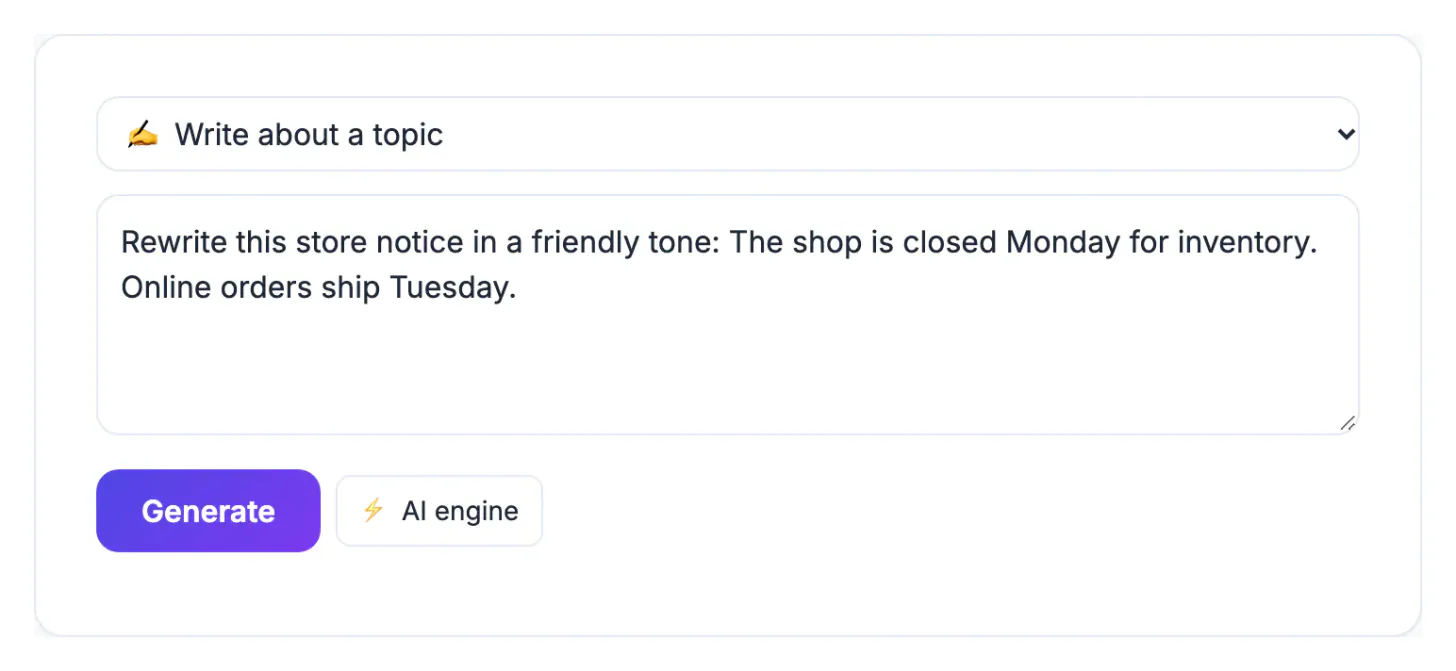
Every GrabCast AI tool, such as the AI Writer, AI Summarizer and AI Translator, has a ⚡ AI engine button. It opens one panel with three choices:
- Auto (recommended): on-device AI when this browser has it ready, then your own key, then GrabCast's free server AI.
- On this device only: your text never leaves this device; it needs Chrome's built-in AI or a downloaded model.
- Your key first: your own free Groq or Gemini key, then on-device AI, then GrabCast.
Below the choices, the panel shows whether Chrome's built-in AI is ready or needs to download (Let Chrome download it), and lists the downloadable models with their size, memory use and licence. Results carry an AI-generated, review before use note, because every model can be wrong.
A downloaded model stays in your browser's storage after the first run, so the next visit starts without downloading again, and it keeps working offline. The page asks the browser to keep that storage, but clearing your site data or running low on disk can still remove it. You can also delete it yourself with Remove in the same panel, which frees the space straight away.
When local AI is the right choice
Use on-device AI for:
- Rewriting or shortening private text such as emails, notes and messages.
- Summaries of documents you are not allowed to upload.
- Short social captions and headline variations.
- Working offline, once the model is downloaded.
Use a cloud model, through your own key or GrabCast's server, for long articles, complex reasoning or languages a small model handles poorly. If you want your own cloud quota, the guide to getting a free Groq or Gemini key takes a few minutes. For documents, private transcription in the browser follows the same on-device idea for audio.
Step-by-step
Common mistakes to avoid
Pro tips
Frequently asked questions
Can I run AI locally in a web browser?
Yes. Chrome's built-in AI and WebGPU models such as Qwen3 run on your device inside the browser, without sending your text to a server.
Do I need an API key for on-device AI?
No. On-device AI needs no key and no account; it only needs a supported browser and enough memory.
How big is the download?
Qwen3 0.6B is about 350 MB and Qwen3 1.7B about 1 GB. Chrome's built-in model is managed by Chrome and needs about 22 GB of free disk space to install.
Does on-device AI work offline?
Once the model is downloaded, yes. The page itself still has to load, so open it while online first.
Is on-device AI as good as ChatGPT or Gemini in the cloud?
No. Small local models are fine for short rewrites, summaries and captions, and weaker for long or complex writing. Use your own key or the server for those.
You can run AI locally in your browser through Chrome's built-in AI or a small WebGPU model downloaded once. Check the hardware, choose On this device only in ⚡ AI engine, and use local AI for private, short tasks while keeping a key or cloud option for heavier writing.
Related guides
Browse more: all AI guides · the AI Writer