Convert JSON to CSV for Excel and Google Sheets
To convert JSON to CSV for Excel, you need a JSON array of objects: each object becomes a row and each key becomes a column header. Paste it into a converter, download the CSV, then import it into Excel or Google Sheets rather than double-clicking, so delimiters, accents and leading zeros survive. Nested objects and arrays are the main trap, and this guide shows what happens to them.
🔄 Try CSV to JSON Converter now — freeOpen →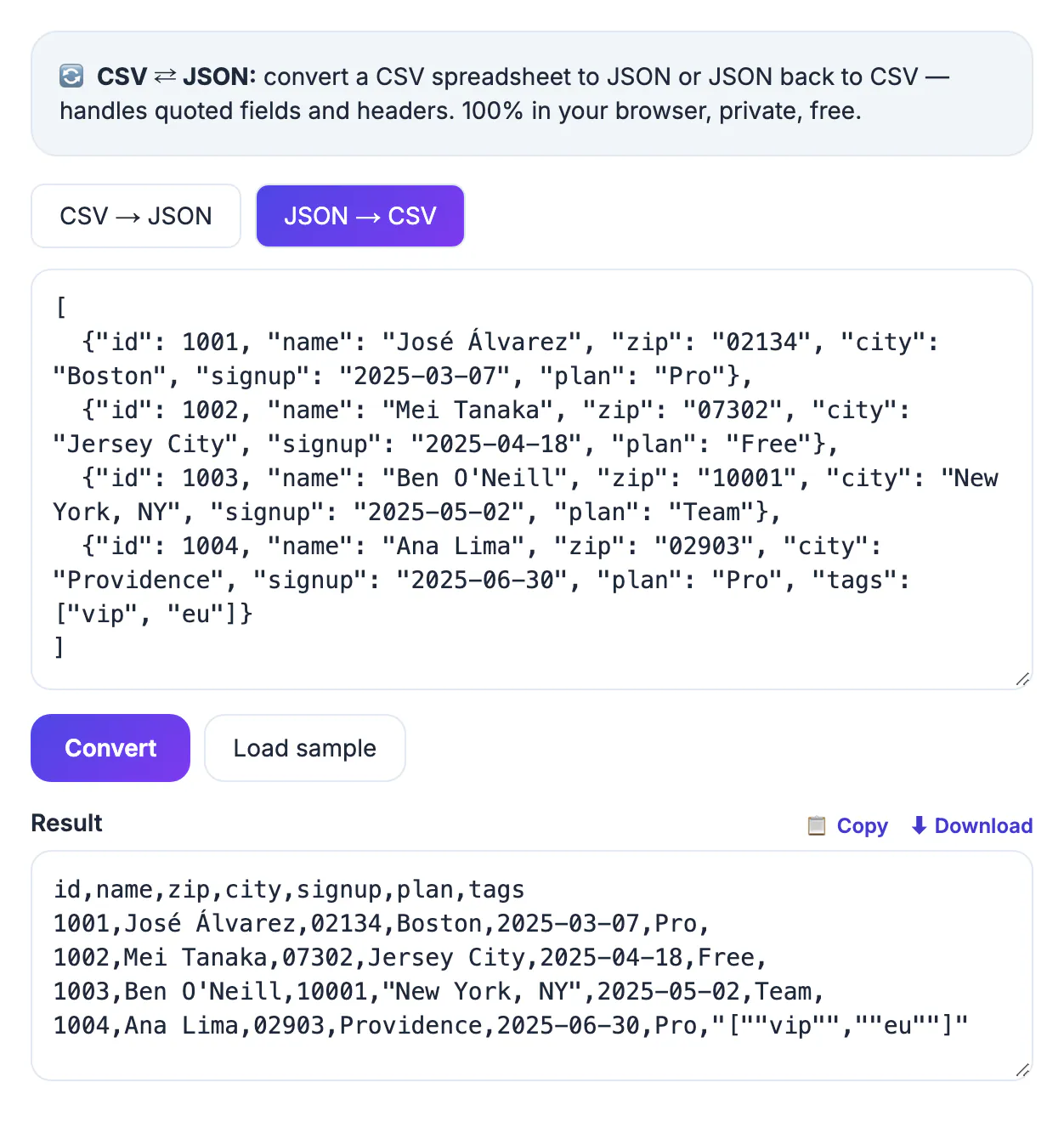
APIs and app exports deliver JSON, while the people who need the numbers work in spreadsheets. JSON is a tree: an order can contain a customer object and a list of items. A spreadsheet is a flat grid. The conversion must decide what to do with that tree, and Excel then guesses separators, encoding and number formats.
What shape of JSON converts cleanly
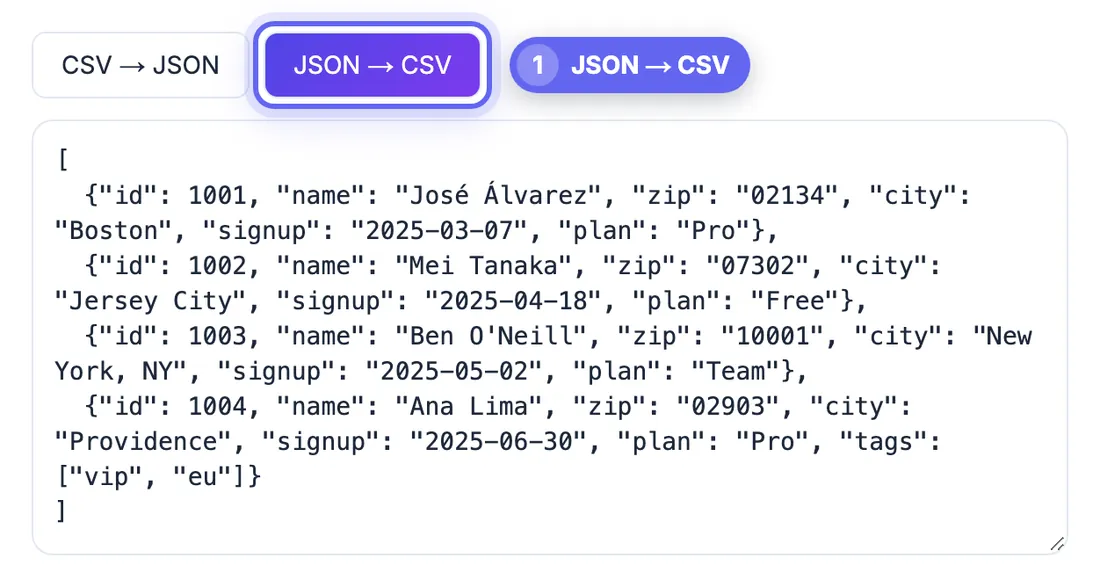
The ideal input is a top-level array of flat objects with the same keys:
[ {"id": 1, "name": "Ana", "city": "Lyon"}, {"id": 2, "name": "Ben", "city": "Austin"} ]
- GrabCast's converter builds the header row from every key found in any object, in the order it first sees them, so rows with an extra field simply add a column.
- A missing key leaves an empty cell rather than shifting values sideways.
- A single object, not wrapped in an array, becomes one row.
- A common API wrapper such as {"data": [ … ]} is treated as one object, so you get one row with everything in one cell. Paste just the inner array instead.
Nested objects and arrays: what actually happens
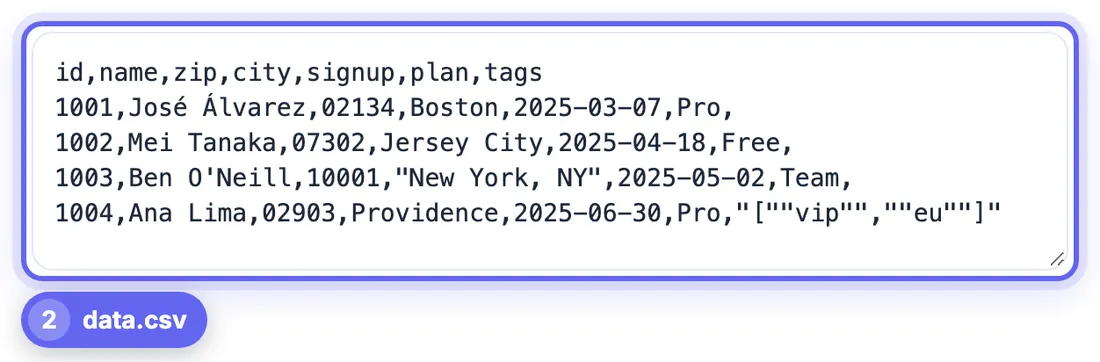
The tool does not flatten. A nested object or array is written into a single cell as JSON text. An order with "customer": {"name": "Ana", "country": "FR"} produces a customer column containing {"name":"Ana","country":"FR"}, and "tags": ["vip", "eu"] becomes the cell ["vip","eu"].
That keeps every value, but it is hard to filter in a spreadsheet. Options, from simplest:
- Flatten before converting: rewrite each object as customer_name, customer_country and so on. Many languages do this in a few lines.
- For line items, make one row per item and repeat the order ID, so a pivot table can total them.
- Leave the JSON text and extract one field later with Text to Columns or SPLIT.
Convert JSON to CSV for Excel without breaking the data
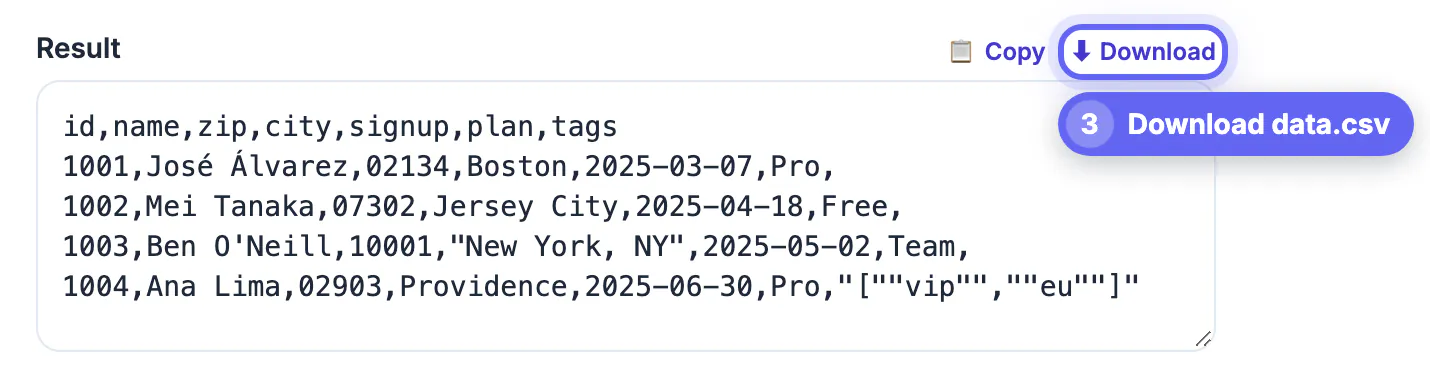
The converter writes comma-separated values and wraps any value containing a comma, semicolon, quote or line break in double quotes, doubling inner quotes. The download is named data.csv and has no byte-order mark. Three Excel habits then cause most problems:
- Semicolon locales. In much of Europe, where the decimal separator is a comma, Excel expects semicolons. Double-clicking a comma CSV there puts every row into column A. Use Data, then From Text/CSV, and choose Comma as the delimiter.
- UTF-8 accents. Without a byte-order mark, older Excel versions may show José as José. In the same import dialog, set File Origin to 65001: Unicode (UTF-8).
- Leading zeros and long numbers. Excel turns 02134 into 2134 and a 16-digit ID into scientific notation. In the import preview, set those columns to Text. If the JSON stored 2134 as a number, the zero was already gone before conversion.
Google Sheets is more forgiving: File, Import, Upload detects the separator and reads UTF-8, though it can still strip leading zeros unless you turn off number conversion.
Dates, numbers and privacy
- Dates arrive as the JSON text. 03/07 means March 7 in the US and 3 July in the UK and EU, so prefer ISO dates like 2025-03-07.
- Decimals are written with a dot, as JSON requires. A semicolon-locale Excel may read 1234.5 as text or a date; the import dialog's locale setting fixes this.
- True and false are written as text.
Conversion runs entirely in your browser; nothing is uploaded, which matters for customer data. The same page also converts CSV to JSON.
Preparing messy JSON before you convert
Real exports are rarely perfect. Spend two minutes cleaning the input, and the spreadsheet will open correctly.
- Wrap a single object in square brackets so it becomes an array of one row.
- Make sure every object uses the same key names, because different spellings create separate columns.
- Replace null with an empty value if your spreadsheet treats it as text.
- Validate the syntax first; a missing comma or quote stops the conversion.
If the JSON has errors, formatting JSON and fixing syntax errors helps you find the problem, and validating JSON with indents and tree view makes nested data easier to read. To work in the other direction, the CSV to JSON converter turns a table back into objects.
Opening the file correctly in a spreadsheet
Double-clicking a CSV can misread accents, long numbers and dates. Use the import wizard, choose UTF-8, set the delimiter and mark ID or postal code columns as text so leading zeros stay. In Google Sheets, use File, Import and choose to replace or append data.
Step-by-step
Common mistakes to avoid
Pro tips
Frequently asked questions
Does the converter flatten nested JSON?
No. Nested objects and arrays are kept as JSON text inside one cell. Flatten the data first if you need separate columns.
Why is everything in column A in Excel?
Your Excel expects semicolons because of regional settings. Import through Data, From Text/CSV and pick Comma.
Why do accented letters look garbled?
Excel guessed the wrong encoding. Import the file and choose UTF-8 (65001) as the file origin.
Can I get a semicolon-separated file?
The tool always writes commas. Excel's import dialog handles comma files in any locale, which is the more reliable route anyway.
Is my JSON uploaded anywhere?
No. Parsing and conversion happen in your browser, and the file is created locally when you click Download.
Feed the converter an array of flat objects, expect nested values as JSON text, and bring the CSV into Excel through the import dialog with UTF-8, the comma delimiter and Text columns for IDs. Those three choices prevent almost every broken spreadsheet.
Related guides
Browse more: all text and developer guides · CSV to JSON Converter