How to Convert Receipts to a Spreadsheet (Excel or CSV)
To convert receipts to a spreadsheet, you need one row per receipt with the same columns every time: date, vendor, subtotal, tax, tip and total. Typing them in by hand works for five receipts and falls apart at fifty. This guide shows a faster route that keeps your purchases private: photograph the receipts, let a converter read them with OCR on your own device, check the rows it flags, and download an Excel or CSV file you can sort, total and hand to your bookkeeper. The example is a freelancer's four receipts from one September week, a coworking day pass, office supplies, a client coffee and parking, processed with GrabCast's free Bank Statement to Excel tool, which also reads receipts and invoices.
🏦 Try Bank Statement to Excel now — freeOpen →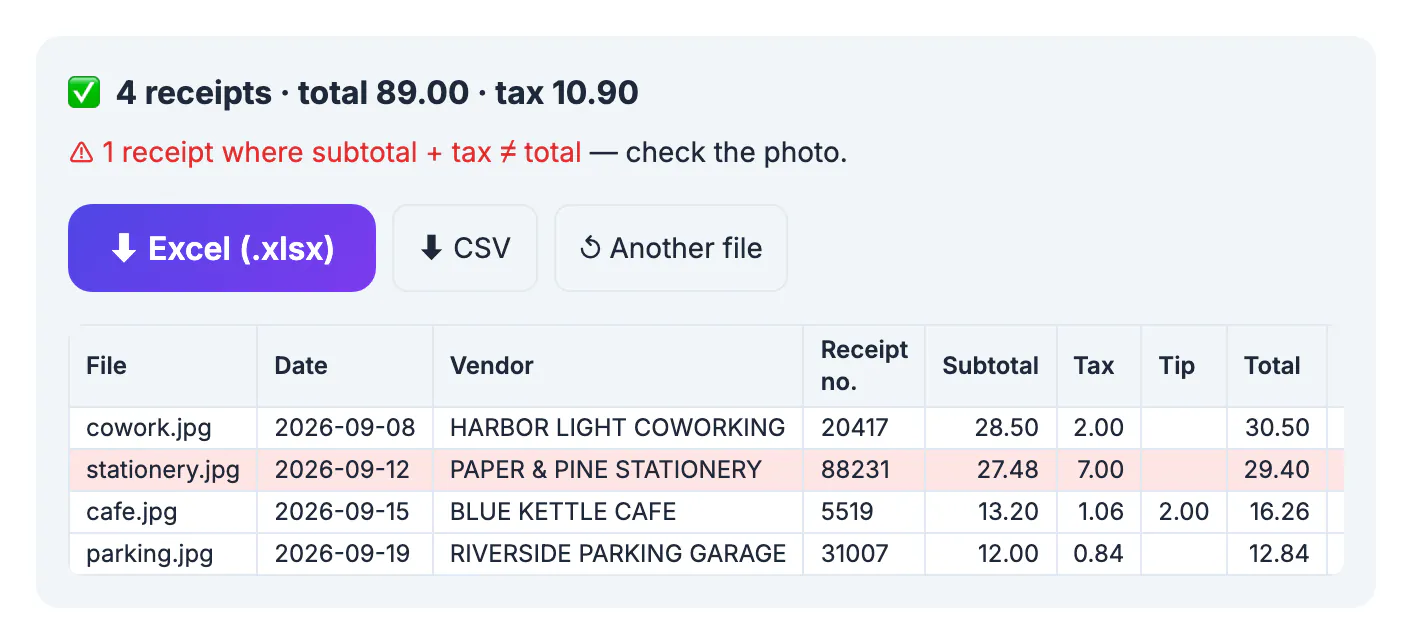
A photo proves you paid; a spreadsheet tells you what you spent. Once every receipt is a row, you can total a month in one formula, filter by vendor, add a category column for your tax categories and spot the purchase you forgot to reimburse. Expense apps do the same, but most of them upload every receipt to their servers and charge per user. For a freelancer, a small team or a household budget, a plain Excel or CSV file is often enough, and it opens in any accounting or budgeting app. The catch is accuracy. OCR reads printed digits well, but faded thermal paper, creases and shadows cause misreads, so the method below includes a check that catches receipts whose numbers don't add up.
What to capture from each receipt
Decide on your columns before you start, so every receipt ends up in the same shape. For most expense tracking these are enough:
- Date of the purchase, stored as a real date so the sheet can sort and filter by month.
- Vendor, the business name printed at the top of the receipt.
- Receipt number, useful when a refund or a duplicate needs to be traced.
- Subtotal, tax and tip as separate numbers, because many tax forms and reimbursement policies treat them differently.
- Total and the currency, especially if you travel or buy from shops abroad.
Add your own columns afterwards: a category (travel, supplies, meals), the client or project, and a note. The converter fills the factual columns; the judgement calls stay with you.
How to convert receipts to Excel on your device
Take the photos first. Lay each receipt flat on a dark surface, fill the frame, and avoid your own shadow across the digits. A slight tilt is fine; a fold through the total line is not.
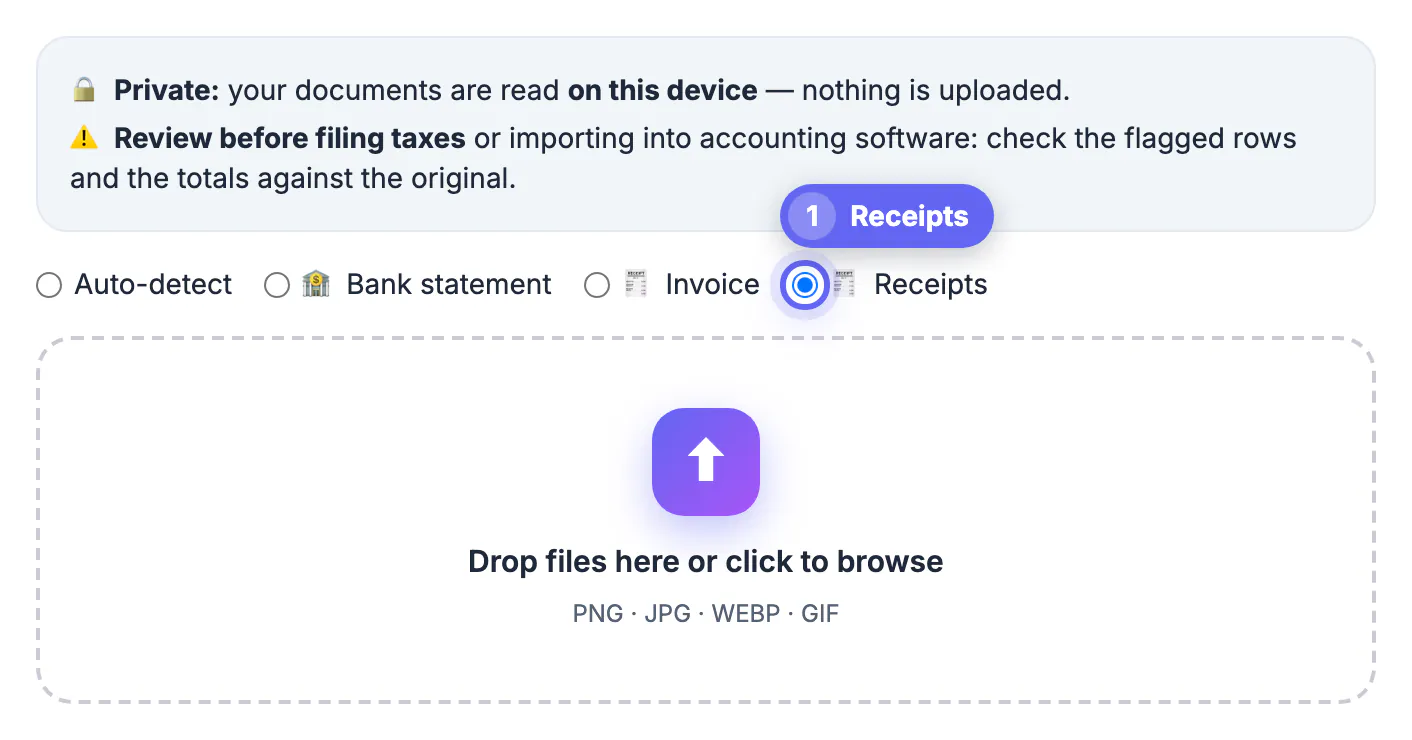
Then open Bank Statement to Excel, choose Receipts as the document type and drop all the photos at once, up to 60 files per batch. Each photo is read with Tesseract OCR inside your browser. Nothing is uploaded, which matters when receipts carry the last digits of your card, a hotel address or a customer's name.
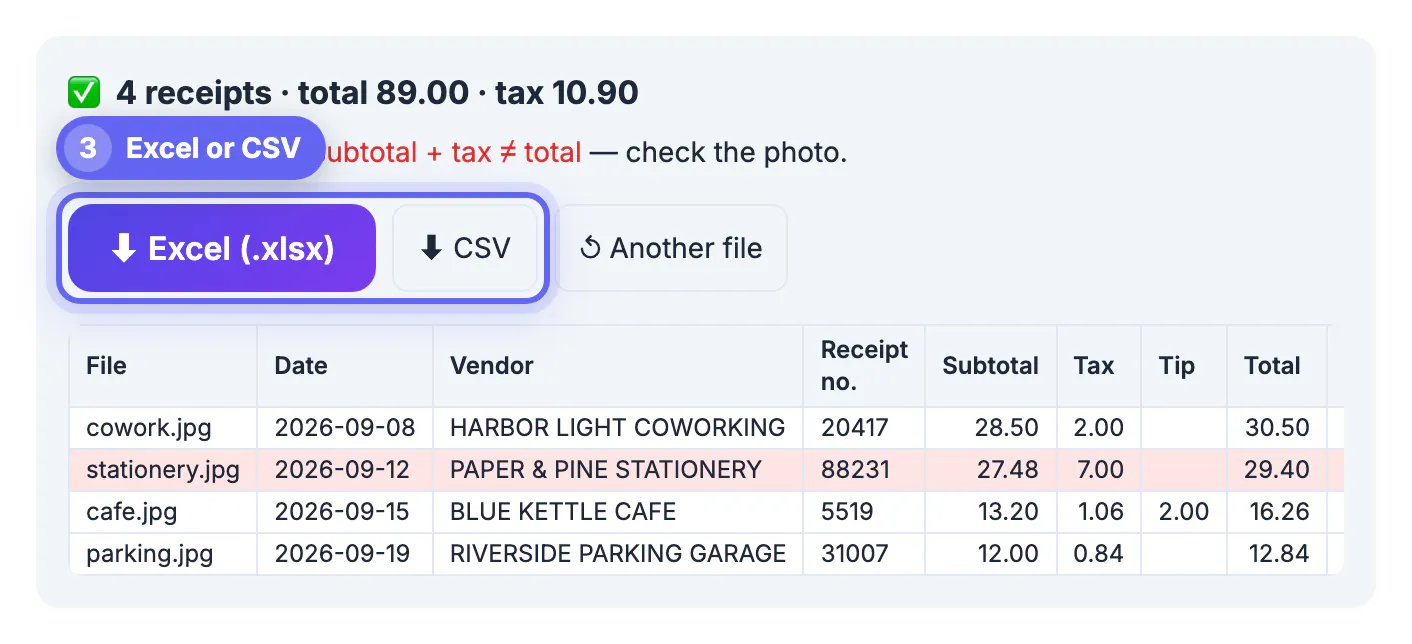
For the four example receipts the result appeared in a few seconds: 4 receipts, total 89.00, one row each for Harbor Light Coworking, Paper & Pine Stationery, Blue Kettle Cafe and Riverside Parking Garage, with dates from September 8 to 19, receipt numbers, subtotals, tax, the cafe's 2.00 tip and each total. PDF receipts and scanned pages work too; the tool reads the text layer when there is one and falls back to OCR when there isn't.
Check the flagged rows before you trust the totals
Every receipt that prints a subtotal, tax and total gets an arithmetic check: subtotal plus tax plus tip should equal the total. When it doesn't, the row turns red and the summary says how many receipts need a look.
In the example, one row was flagged. The stationery receipt prints Sales Tax 7.00% 1.92, and the OCR read the percentage as the tax amount, so the sheet showed 7.00 instead of 1.92. That also pushed the tax total in the summary to 10.90, when the four receipts actually carry 5.82 of tax. The fix took ten seconds: compare the red row with the photo and type the right number in the downloaded sheet.
- Red rows are the ones to check first; they don't add up, so at least one number is wrong.
- Rows with an empty subtotal or tax aren't flagged but deserve a glance, because the check can't run without them.
- A total that wasn't found is called out in the summary; fill it in from the photo.
This is why the tool shows a Review before filing taxes notice above the drop zone. Automatic extraction saves the typing, not the checking.
Organize the spreadsheet for taxes and reimbursement
Download Excel (.xlsx) when you will work in the file: dates are real dates, amounts are numbers with two decimals, and the header row has filters. Pick CSV when another app will import it; the file is UTF-8 and any cell that starts like a formula is escaped, so a vendor name can't run code in your spreadsheet program.
- Add a Category column and fill it with a short list you reuse every month.
- Add a Paid by column (personal card, business card, cash) if you mix accounts.
- Sort by date, then use a pivot table or SUMIF to total each category.
- Keep the original photos in a folder named by month; the spreadsheet is a summary, not a replacement for the receipt.
Bank and card statements belong in the same workbook as a second sheet: the same tool turns a statement PDF into transactions and re-adds every printed balance. For printed invoices you send rather than receive, the Invoice Generator keeps your own numbering consistent, and Scan to PDF bundles the month's receipts into one file for an accountant who wants paper-like copies.
Step-by-step
Common mistakes to avoid
Pro tips
Frequently asked questions
Can I convert receipt photos to Excel for free?
Yes. Bank Statement to Excel reads receipt photos and PDFs in your browser and exports an Excel or CSV file with one row per receipt. There is no sign-up, no watermark and no per-receipt fee.
Are my receipts uploaded to a server?
No. The photos are read with OCR on your device and the spreadsheet is built in the browser. The only downloads are the OCR engine and its language data, once.
What does the red row in the results mean?
That receipt's subtotal, tax and tip don't add up to its total, so at least one number was probably misread. Compare it with the photo and correct the cell in the downloaded file.
Can it read receipts in other languages or currencies?
It recognises total, subtotal and tax labels in English, German, French, Spanish and Italian, reads both 1,234.56 and 1.234,56 number formats and records the currency symbol it finds.
Is the spreadsheet enough for my tax records?
Use it as a working summary. Rules on keeping original receipts differ by country and situation, so keep the photos or paper as your tax authority or accountant advises.
Converting receipts to a spreadsheet takes three moves: good photos, an on-device conversion to one row per receipt, and a short review of the rows that don't add up. Do it weekly, add your own categories, and your expense totals are ready whenever a client, a reimbursement form or a tax deadline asks for them.
Related guides
Browse more: all calculator guides · Bank Statement to Excel