Encode a String to Base64: UTF-8, Padding, URL-Safe
To encode a string to Base64, convert the text to bytes (almost always UTF-8), then map every 3 bytes onto 4 characters from a 64-symbol alphabet, adding = padding when the input does not divide evenly; Hello becomes SGVsbG8=. GrabCast's free converter does this in the page as you click Encode, handles accents and emoji correctly, and offers a URL-safe option for links and tokens. This guide focuses on text specifically: why the same word can produce different output in different tools, what the padding tells you, the invisible newline that breaks countless API headers, and the real places developers paste encoded strings, from HTTP Basic authentication to data URLs and configuration files. It also covers what the scheme is not: a way to hide secrets.
🔐 Try the Base64 Encoder tool now — freeOpen →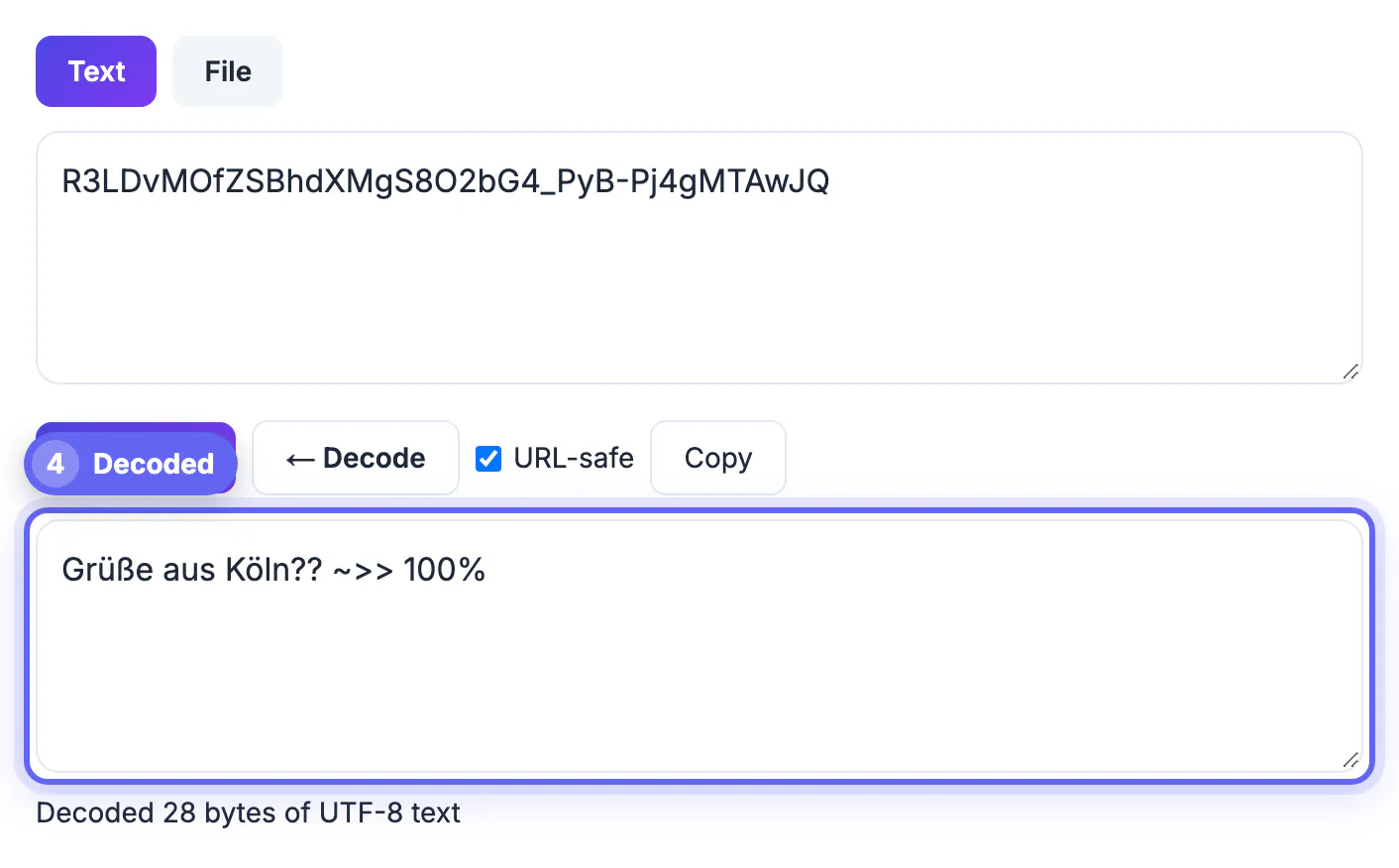
The algorithm itself is simple and fully standardized in RFC 4648, so two correct implementations always agree on the same bytes. Problems come from the step before it: turning characters into bytes. A plain ASCII word maps one character to one byte, but an accented letter takes two bytes in UTF-8, most emoji take four, and older systems may use Latin-1 or UTF-16 instead. Feed the same visible word through two different byte conversions and you get two different outputs, both valid, only one of which the receiving system expects. Whitespace causes the rest of the trouble. A trailing newline added by a shell command or a text editor is a real byte, so it changes the result and later surfaces as an authentication failure nobody can explain. Knowing these two traps turns a confusing bug hunt into a thirty-second check.
How to encode a string, byte by byte
Take the word Man. Its three ASCII bytes are 77, 97 and 110, or 24 bits in total. Split those bits into four groups of six, look each group up in the alphabet A to Z, a to z, 0 to 9, plus and slash, and you get TWFu. Three bytes in, four characters out, which is why the output is always about 33 percent larger than the input.
When the input length is not a multiple of three, the last group is padded. Two leftover bytes produce one equals sign, a single leftover byte produces two. So Ma becomes TWE= and M becomes TQ==. Padding carries no data; it just tells the decoder how many bytes the final group really held.
- Output length is 4 times the input bytes divided by 3, rounded up to a multiple of 4.
- One trailing = means the last group held 2 bytes; == means it held 1.
- Line breaks inside encoded output, common in email, are formatting and are ignored by most decoders.
Unicode text: accents, emoji and non-Latin scripts
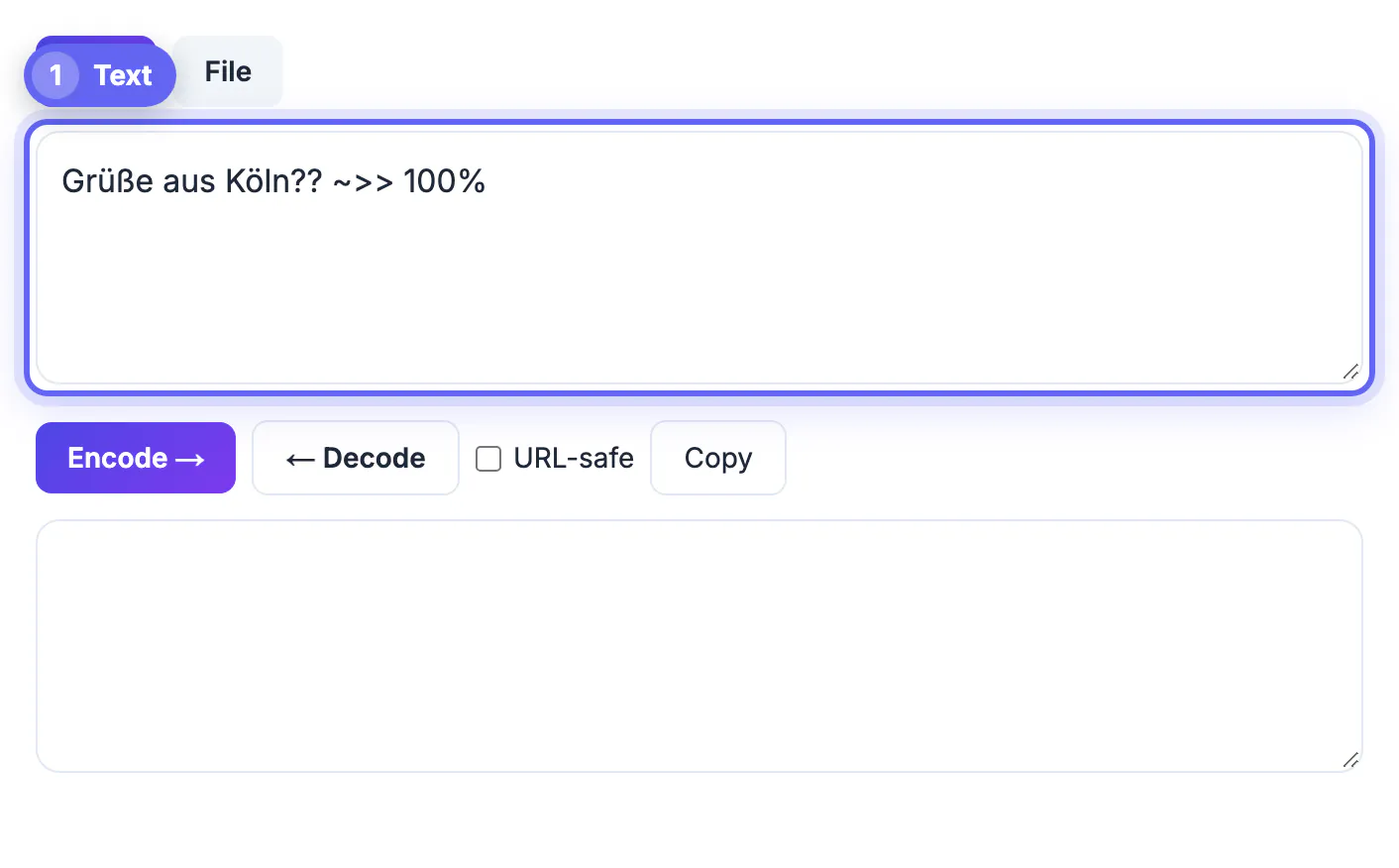
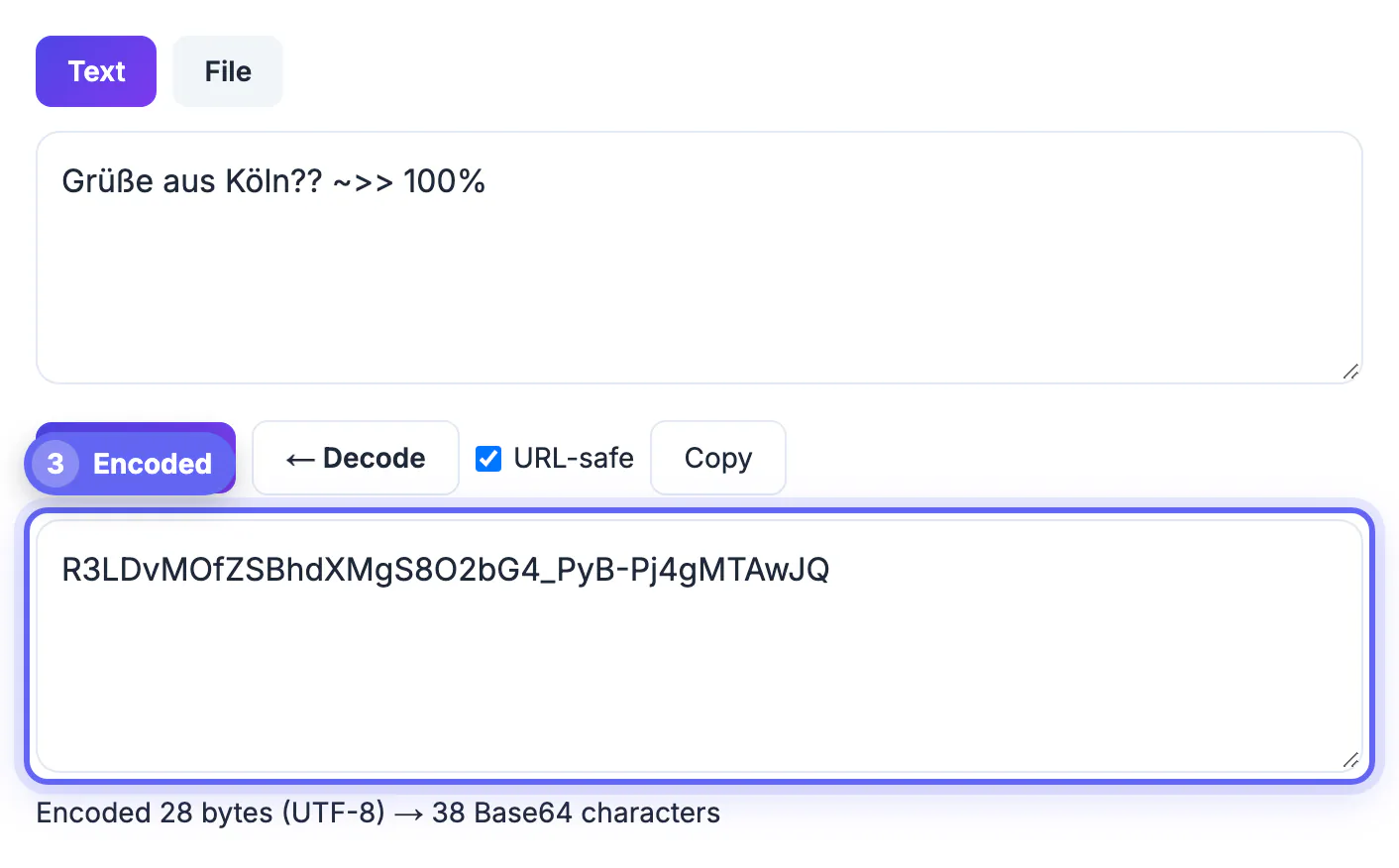
GrabCast converts your text to UTF-8 before encoding, which is what web APIs, JSON and modern Linux tools expect. The word café becomes Y2Fmw6k=, because the é is two bytes, and a thumbs-up emoji becomes 8J+RjQ== from its four bytes. Decoding reverses the process and restores the original characters exactly.
Some older tools, and the bare btoa function in browser JavaScript, reject characters outside Latin-1 or treat them differently, which is why pasting the same word into two converters can give two results. If a receiving system produces garbled characters after decoding, the mismatch is almost always the byte conversion, not the alphabet. Confirm that both sides agree on UTF-8.
URL-safe output and where encoded strings actually go
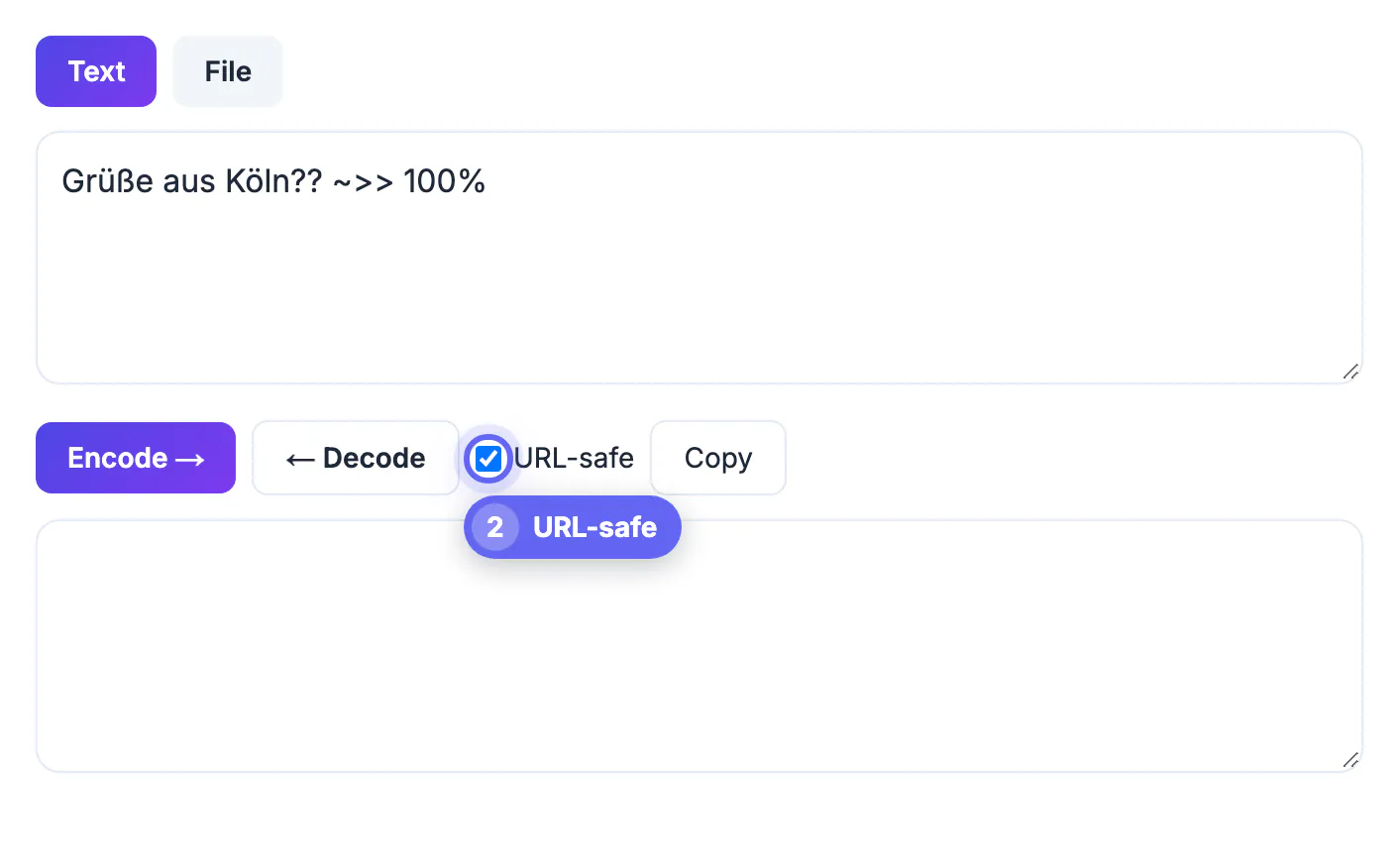
The standard alphabet includes plus and slash, which have special meanings in URLs and file names. Tick URL-safe in the tool and plus becomes a hyphen, slash becomes an underscore, and trailing padding is removed, so the emoji example turns into 8J-RjQ. JSON Web Tokens, many cloud APIs and signed links use this variant. When you decode, the tool accepts either variant and restores missing padding automatically.
Common destinations for encoded text include:
- HTTP Basic authentication: user:pass becomes dXNlcjpwYXNz after the word Basic in the Authorization header.
- Data URLs that embed a small SVG or JSON snippet directly in HTML or CSS.
- Kubernetes Secret manifests and some CI variables, which expect values in this form.
- Email attachments and MIME parts, which wrap the output at 76 characters per line.
When the encoded text ends up in a link, the URL Encoder handles percent-encoding, and the Hash Generator is the right tool when you need a fingerprint rather than an encoding.
Security limits and the File tab
Encoding is not encryption. Anyone who sees dXNlcjpwYXNz can decode it in a second, so an encoded credential in a header is protected only by HTTPS, and one committed to a public repository is simply leaked. Use real encryption or a secrets manager for anything sensitive. What the in-page conversion does give you is privacy during the conversion itself: the text is encoded by your browser and is not sent to GrabCast.
For binary data, switch to the File tab. Drop any file up to 8 MB to get a data URL and the raw string, each with a copy button, or paste an encoded string or data URL and download it back as a file with the name you choose. For text, keep to the Text tab so the UTF-8 handling applies.
Step-by-step
Common mistakes to avoid
Pro tips
Frequently asked questions
Why does my encoded string differ from another tool's?
Usually because of hidden whitespace or a different byte conversion. A trailing newline or a UTF-16 conversion changes the bytes, so the output changes. GrabCast always uses UTF-8 and encodes exactly what is in the box.
Does GrabCast upload the text I encode?
No. Encoding and decoding run in your browser, and the text is not sent to a server. Treat the result as public anyway, because encoding offers no secrecy.
What is the difference between standard and URL-safe output?
URL-safe replaces plus with a hyphen and slash with an underscore and drops the = padding, so the value can sit in a URL or file name without escaping. Decoders that expect one variant may reject the other, which is why GrabCast accepts both when decoding.
Why is there an equals sign at the end?
It is padding. When the input is not a multiple of 3 bytes, one or two = characters fill the final group so the output length stays a multiple of 4.
Can I encode a file instead of text?
Yes. The File tab accepts files up to 8 MB and returns a data URL and the raw string, and it can turn an encoded string back into a downloadable file.
Encoding a string correctly is mostly about the bytes: use UTF-8, watch for trailing newlines, and pick URL-safe output when the value lives in a link or token. GrabCast's free converter handles accents and emoji, strips or restores padding as needed, round-trips instantly for a quick check, and does it all in your browser. Just never mistake the result for encryption.
Related guides
Browse more: all text and developer guides · the Base64 Encoder tool