Unix Timestamp Converter: 11 Formats, Any Time Zone
GrabCast's free Unix timestamp converter takes whatever you paste, whether a 10-digit seconds value, a 13-digit millisecond value, a 16-digit microsecond or 19-digit nanosecond number, an ISO 8601 string or the word now, and shows it in 11 copy-ready formats. Pick any IANA time zone and every line follows it, daylight saving time included. This page is a field guide to those outputs: what each one is for, where it will bite you, and which one to paste into a spreadsheet, a JSON body or a bug report.
🕑 Try Timestamp Converter now — freeOpen →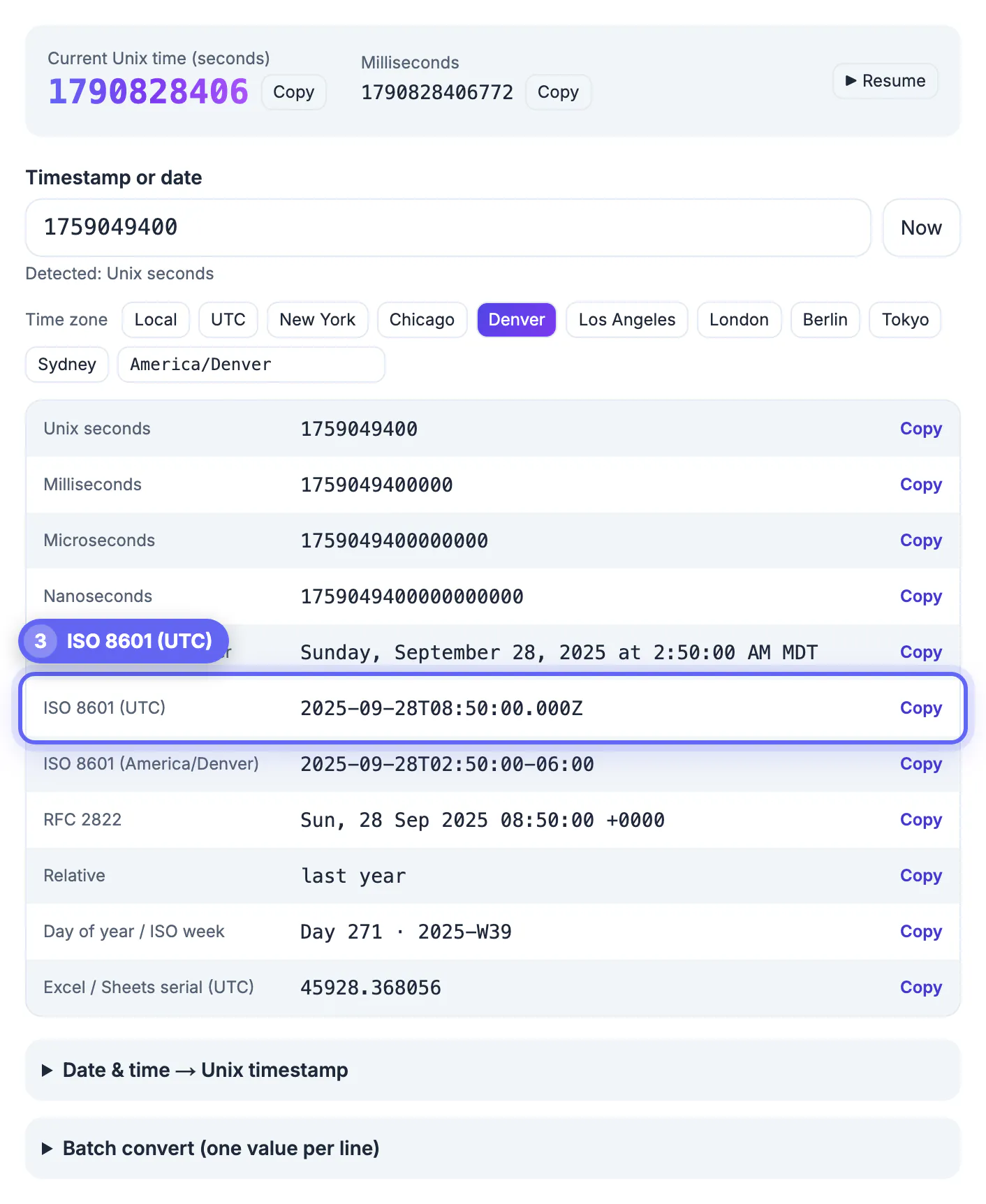
The same instant is written differently by almost every system that touches it. JavaScript hands you milliseconds, Python and most shells give seconds, Go and Prometheus speak nanoseconds, email headers use RFC 2822, APIs want ISO 8601 with a Z, and a finance team's spreadsheet wants a serial day number. Converting between them by hand means dividing by powers of ten, remembering offsets and hoping nobody is on daylight saving time this week. Seeing all the forms side by side for one moment, in the zone that matters to your users, turns a guessing game into a copy-and-paste job, and it makes mistakes such as a value that is 1,000 times too large obvious at a glance.
How the converter reads what you paste
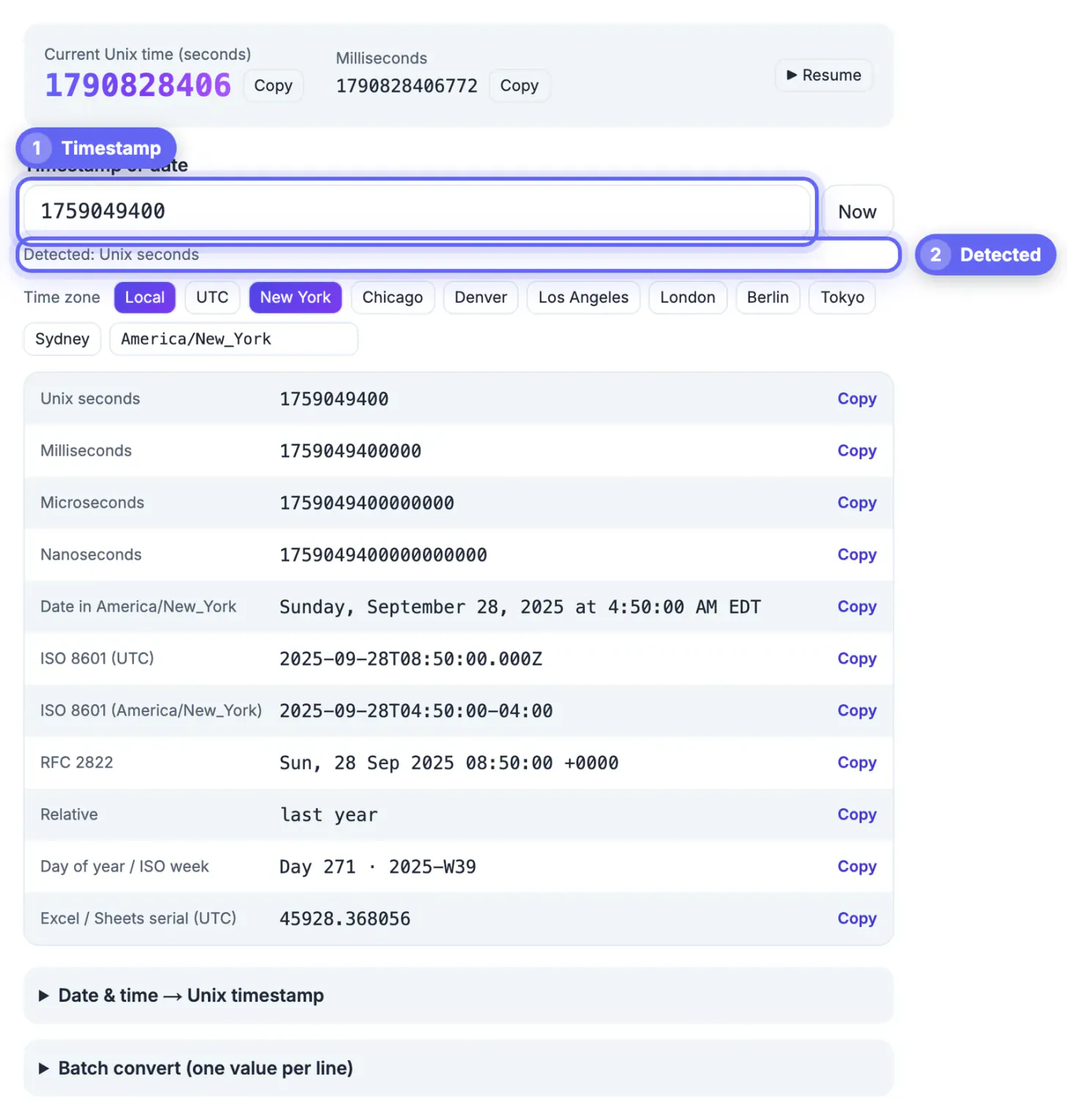
The input box does the unit detection for you by counting digits after removing any minus sign and leading zeros. A detected label under the box tells you what it decided, so you never have to trust it blindly.
- Up to 11 digits: seconds, the classic epoch value, for example 1759049400.
- 12 to 14 digits: milliseconds, as produced by Date.now() in JavaScript and most log shippers.
- 15 to 17 digits: microseconds, common in Python datetime exports, PostgreSQL and tracing tools.
- 18 or more digits: nanoseconds, used by Go, Prometheus and many observability backends.
- Text: ISO 8601 such as 2026-09-28T14:30:00Z, RFC 2822 such as Mon, 28 Sep 2026 14:30:00 GMT, or now.
Zero and negative values are real dates here: 0 is the epoch itself, and -86400 is December 31, 1969 at midnight UTC. Fractions such as 1759049400.25 are accepted as seconds. Some lengths are genuinely ambiguous: an 11-digit value could be seconds or a millisecond value from before March 1973, and a 12-digit one could be milliseconds or a far-future seconds value. For those, the detected line also shows the alternate reading, for example If it is milliseconds instead, followed by that date, so you can pick the one that makes sense.
The 11 outputs and when to copy each
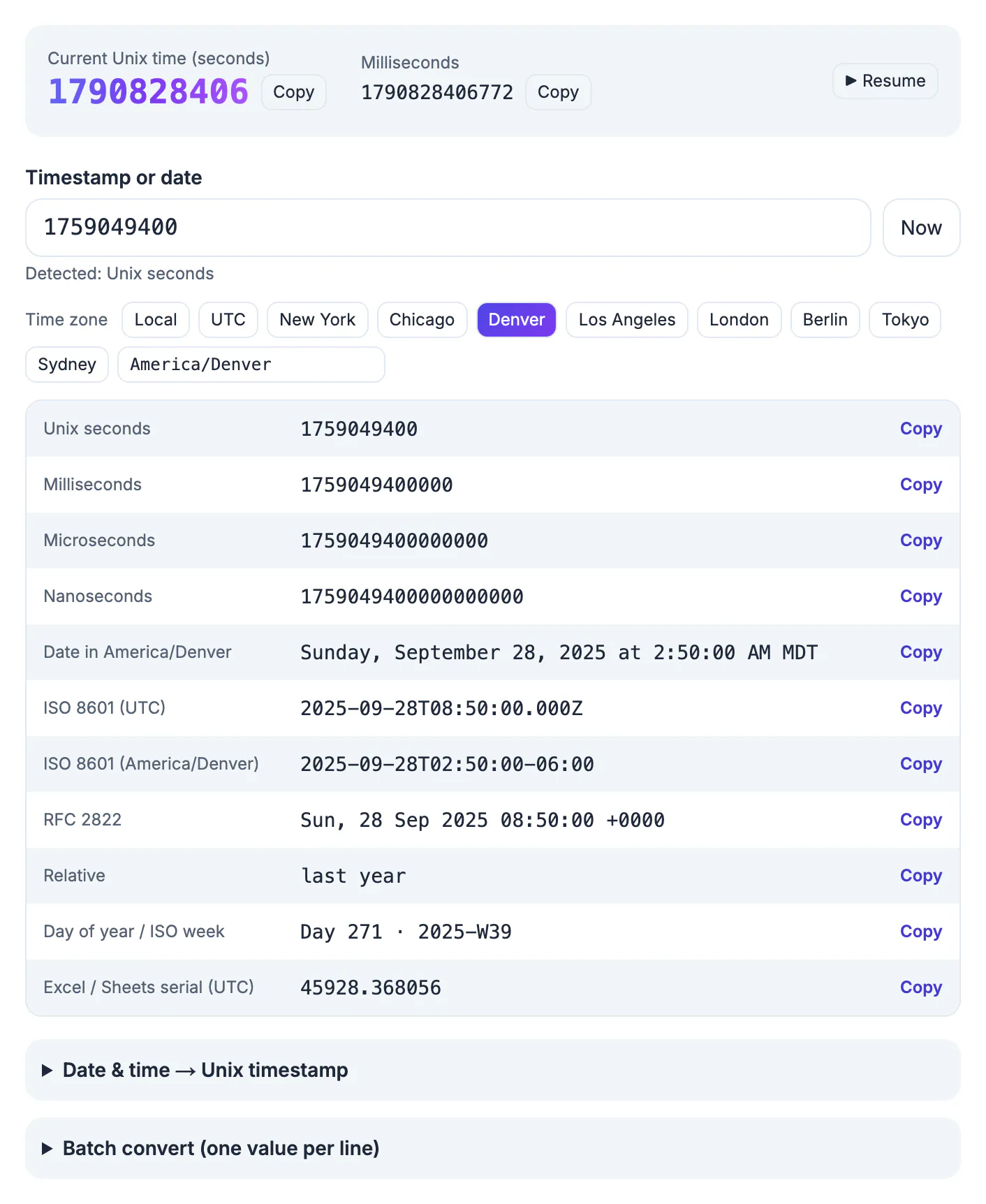
Every row has its own Copy button. Here is what each is good for:
- Unix seconds, milliseconds, microseconds and nanoseconds: the same instant in all four precisions, ready for code, SQL or a config file.
- Date in the chosen zone: a full sentence-style date with the zone abbreviation, ideal for bug reports and customer emails.
- ISO 8601 UTC: the 2026-09-28T14:30:00.000Z form that APIs, JSON and databases expect.
- ISO 8601 with offset: the same moment written as local wall time plus an offset such as -04:00, useful for calendar invites and logs in a regional zone.
- RFC 2822: the email and HTTP header style date, written with +0000.
- Relative: plain English such as in 3 days or 2 hours ago, handy for checking expiry at a glance.
- Day of year and ISO week: for example Day 271 and 2026-W40, which reporting and sprint calendars rely on.
- Excel or Google Sheets serial: a decimal day count you can paste into a cell and format as a date.
The serial is calculated in UTC, so if your sheet should show New York or Berlin time, add the offset in the sheet or copy the ISO with offset instead. Below a millisecond, precision is not kept: microsecond and nanosecond outputs are the millisecond value padded with zeros.
Time zones, daylight saving and the reverse direction
Quick chips cover Local, UTC, New York, Chicago, Denver, Los Angeles, London, Berlin, Tokyo and Sydney, and a search box accepts any IANA name your browser knows, such as Asia/Kolkata or America/Phoenix. Offsets come from the browser's own time zone database, so a July instant in New York shows -04:00 and a January one -05:00 without you doing anything.
The Date and time to Unix panel works the other way. Pick a calendar date and a time down to the second, and it returns seconds, milliseconds and the UTC ISO string for that wall-clock moment in the selected zone, not in your laptop's zone. That matters for scheduling: midnight in Los Angeles on a summer date is 07:00 UTC, but in December it is 08:00 UTC, and the panel gets both right. The calculation runs twice to land on the correct side of a daylight saving change.
To compare the result across cities, use the Time Zone Converter, and for a quick two-zone example see how to convert PST to EST.
Batch mode, the live clock and honest limits
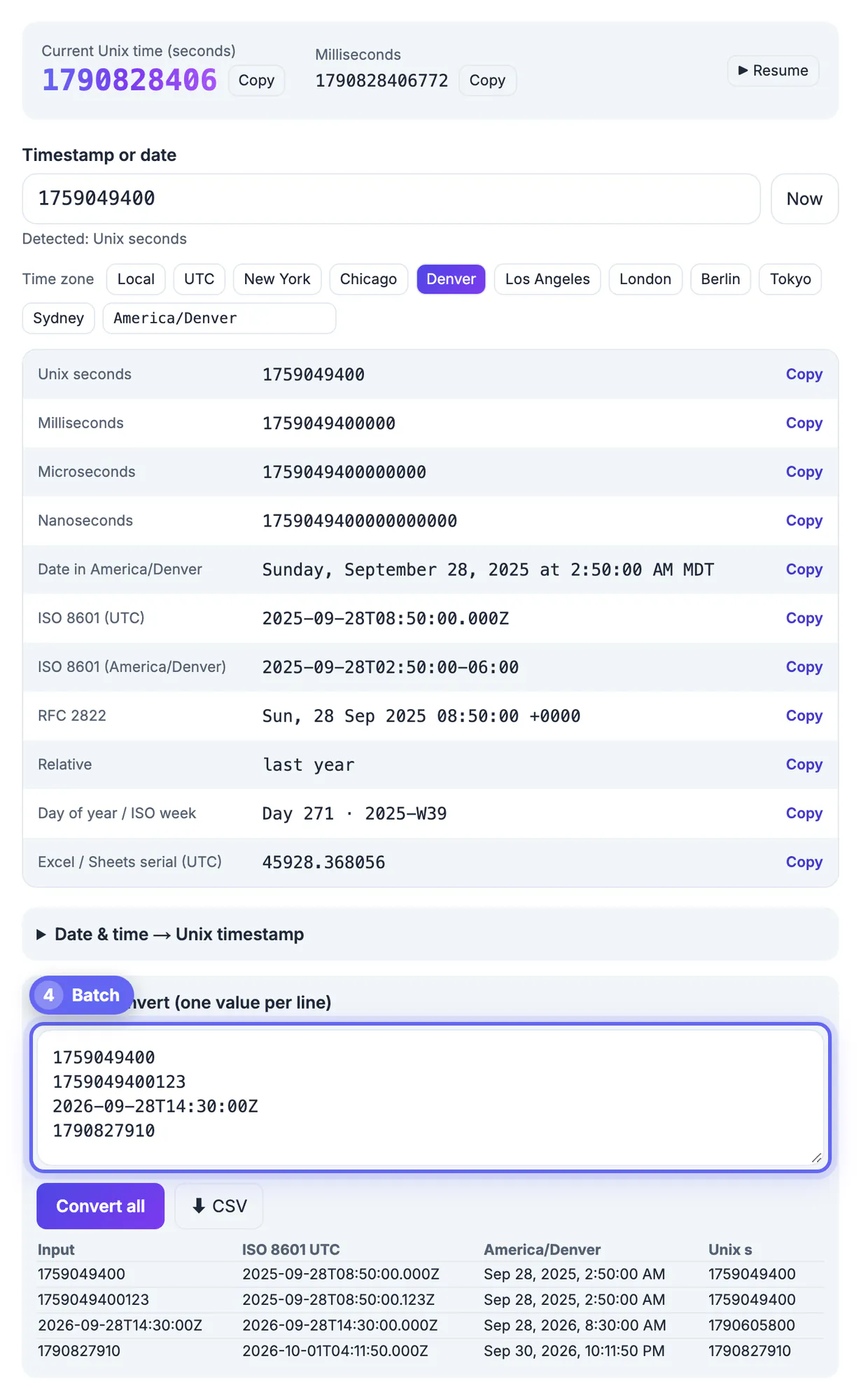
- Batch: paste up to 5,000 values, one per line, in any mix of units and date strings. The table shows the first 300 rows and the CSV download holds all of them, with columns for the input, ISO UTC, the chosen zone and Unix seconds. Unreadable lines are flagged rather than silently dropped.
- Live clock: current seconds and milliseconds update several times a second, with Copy buttons and a Pause so you can grab a stable value for a test fixture.
- Range: anything the JavaScript date engine supports, roughly 270,000 years either side of 1970, so 2038 and 32-bit overflow are not an issue in the tool itself.
- Leap seconds: ignored, as they are by Unix time everywhere; every day is exactly 86,400 seconds.
An ISO string without a Z or offset, such as 2026-09-28 14:30, is read in your device's zone, not the zone picked in the chips, and the detected label says so. Add a Z or an explicit offset when you mean a specific zone. Everything runs locally in your browser, so values from production logs or customer exports never leave your machine.
Step-by-step
Common mistakes to avoid
Pro tips
Frequently asked questions
Does it accept milliseconds, microseconds and nanoseconds?
Yes. It picks the unit from the digit count: up to 11 digits is seconds, 12 to 14 milliseconds, 15 to 17 microseconds and 18 or more nanoseconds.
Can I convert 0 or dates before 1970?
Yes. 0 shows January 1, 1970 00:00 UTC, and negative values such as -31536000 show dates before the epoch.
Which time zones are supported?
Every IANA zone your browser supports, with daylight saving applied automatically, plus quick buttons for ten common zones.
How many values can batch mode handle?
Up to 5,000 lines per run, exported as a CSV with ISO UTC, the chosen zone and Unix seconds for each line.
Is anything I paste sent to a server?
No. Parsing and formatting use the date and Intl functions built into your browser, so nothing is uploaded.
Paste any epoch value in seconds, milliseconds, microseconds or nanoseconds, or an ISO or RFC date, choose the zone your audience lives in, and copy the exact format the next system needs. Watch the detected label, add a Z to zone-less ISO strings, remember the spreadsheet serial is UTC, and use batch mode with CSV export when you have more than a handful of values.
Related guides
Browse more: all text and developer guides · Timestamp Converter