Social Media Graphics With AI: Sizes, Space and Text
The fastest way to make social media graphics with AI is to generate the background art at the platform's aspect ratio, leave a clear area for words, and add the headline afterward in a normal editor. Picture models still misspell lettering, so letting them paint while you type is the split that works. Here is the platform-by-platform sizing, the prompt pattern for text space, and a full workflow from idea to upload.
🎨 Try AI Image Generator now — freeOpen →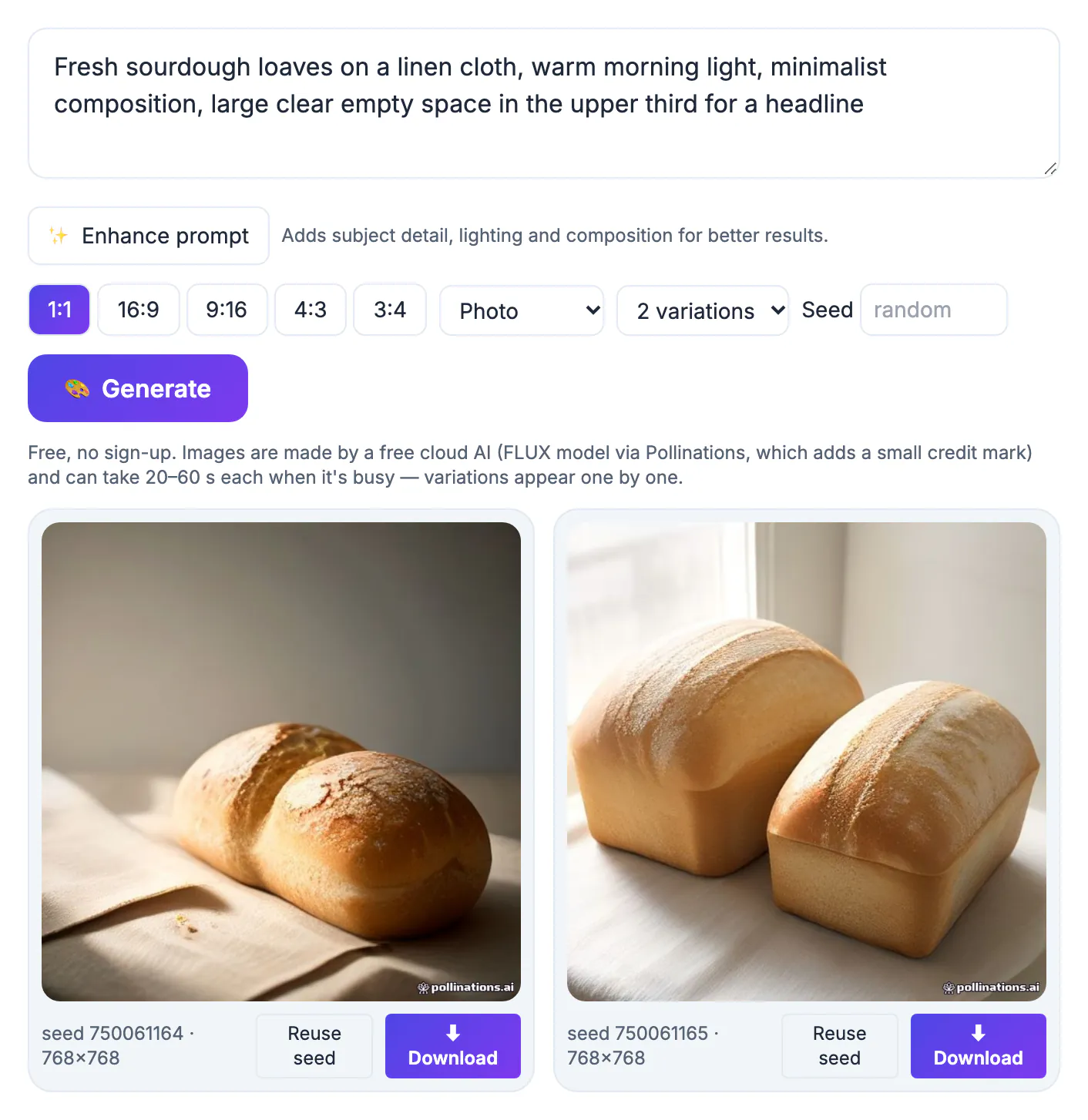
A striking picture is only half a post. Feeds crop aggressively, captions and buttons cover the bottom of vertical formats, and garbled AI lettering looks careless next to a brand name. Planning the ratio, the empty zone and the text layer up front turns a nice render into something you can publish on Monday morning without a designer.
Match the ratio to each platform
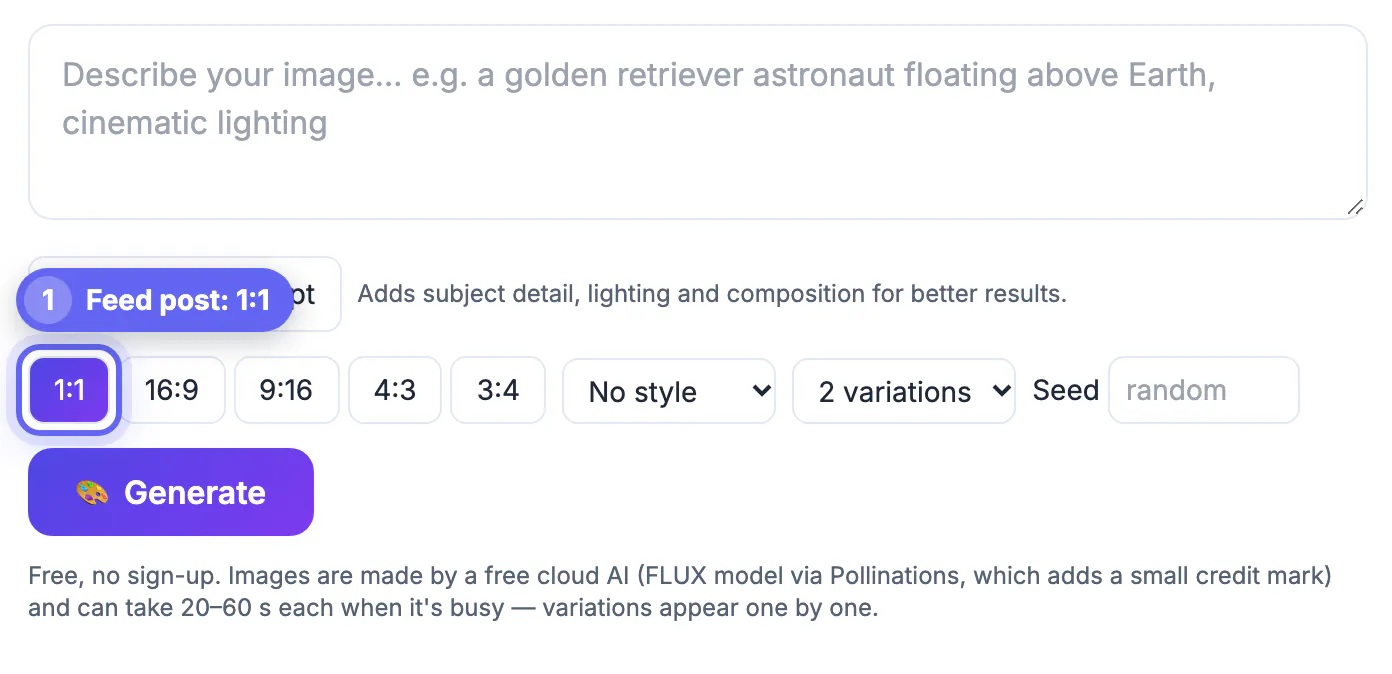
GrabCast's AI tool offers five aspect ratios, and each maps cleanly onto common post types. Rendering at the right shape from the start avoids cropping away the subject later.
- 1:1 (1024 by 1024): Instagram and Facebook square posts, LinkedIn carousels
- 9:16 (768 by 1344): Stories, Reels covers, TikTok and Shorts backdrops
- 16:9 (1344 by 768): X posts, video covers, blog and newsletter headers
- 3:4 (864 by 1152): the closest option to Instagram's 4:5 portrait post
- 4:3 (1152 by 864): slide backgrounds and link previews after a light crop
Native output is around one megapixel, so resize to the exact upload dimensions last: 1080 by 1080 for a square post, 1080 by 1920 for a story, 1080 by 1350 for a portrait post. GrabCast's Resize Image tool has these presets, and Crop Image has a 4:5 preset for trimming a 3:4 render without distortion.
Prompting AI graphics with room for text
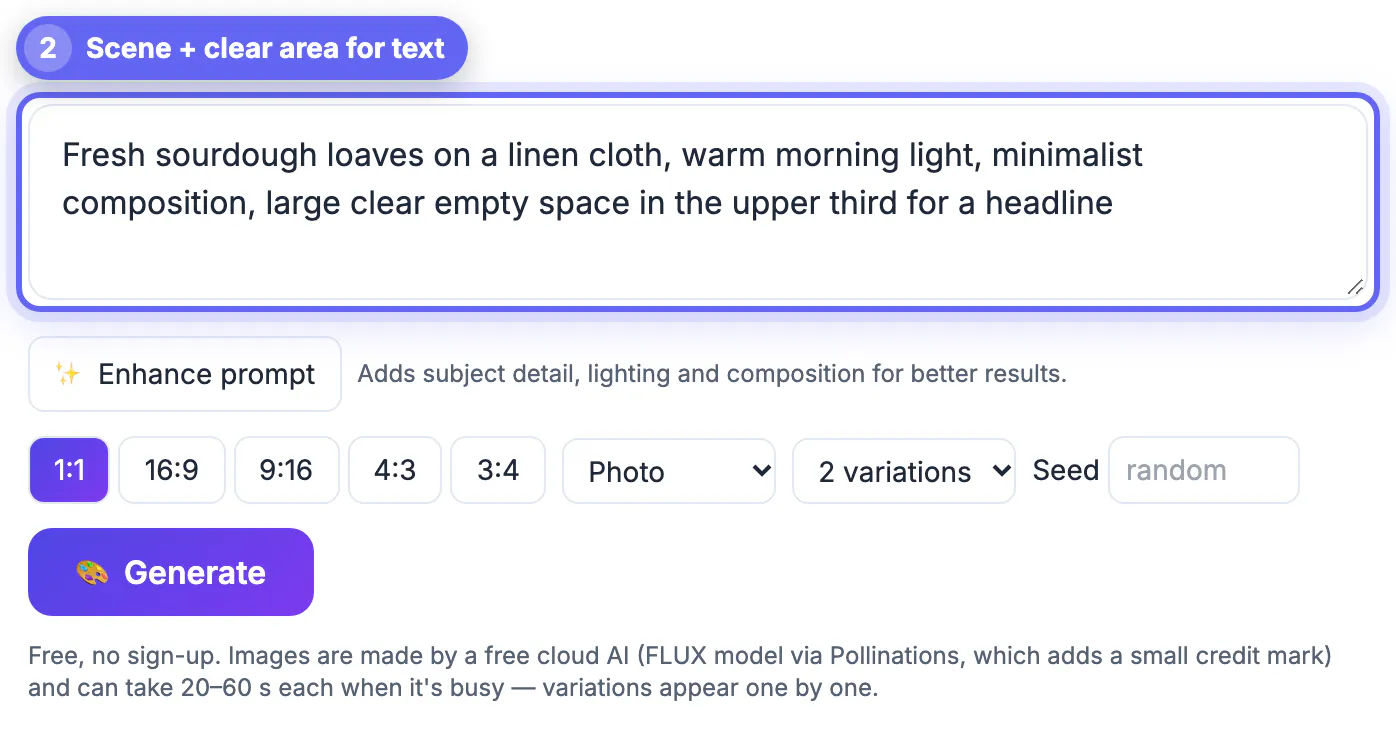
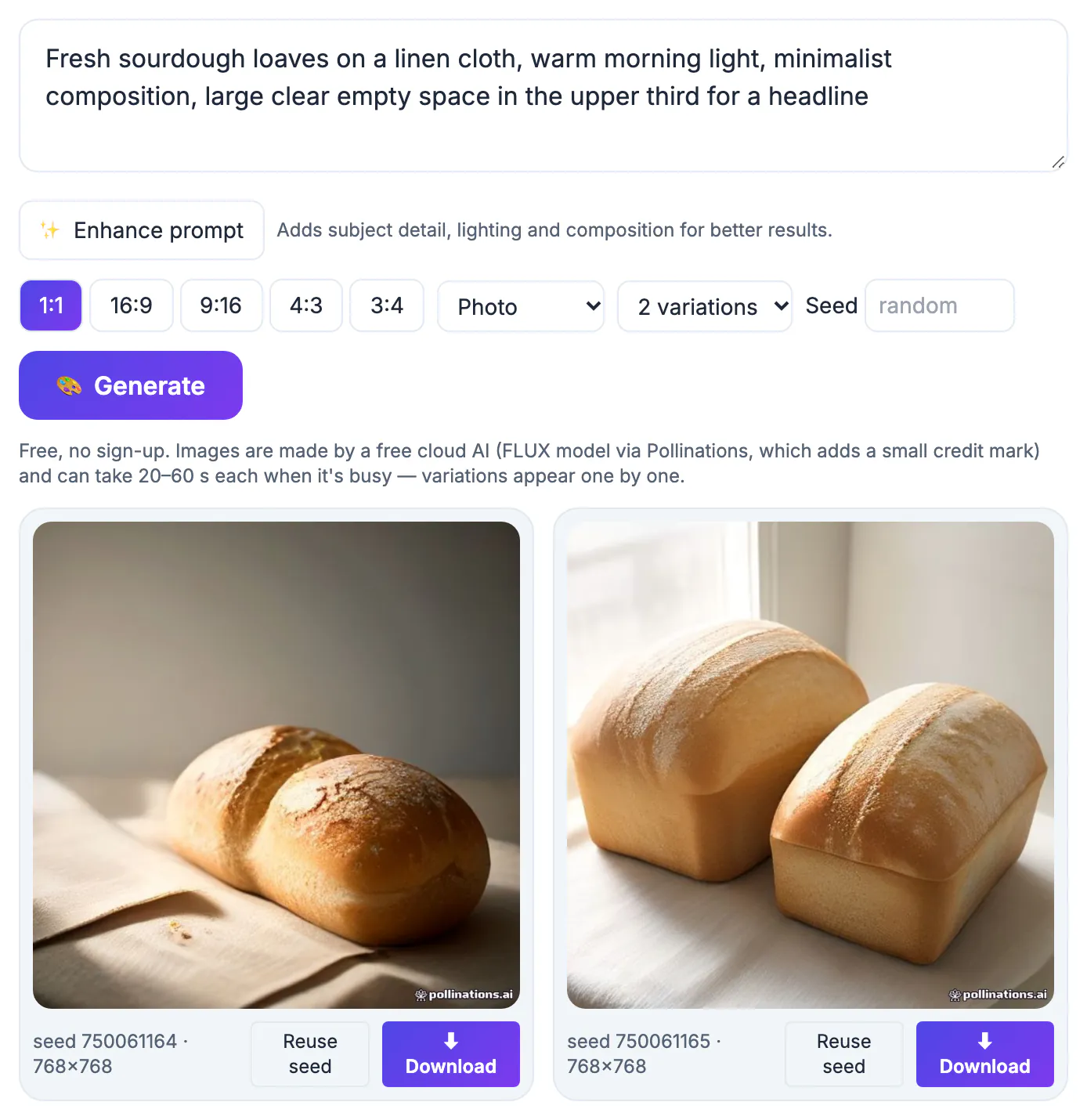
Tell the model where the empty space goes. Phrases like subject on the right third, plain soft backdrop on the left, or large area of clear sky at the top are understood well. Solid or gently graded backdrops read better under white or black type than busy textures do.
Example for a bakery's weekend promo in 9:16: a stack of glazed cinnamon rolls on a marble counter in the middle of the frame, warm morning light, soft cream backdrop filling the top third, minimal, flat lay. The top third becomes your headline zone, and the rolls stay clear of the caption overlay that covers the bottom of a Reel.
- Keep faces and products out of roughly the top and bottom 250 pixels of a 1080 by 1920 story, where app buttons sit
- Ask for a flat or blurred backdrop behind where text will go
- Pick the Flat vector or Illustration preset for bold, poster-like layouts
- Use Cinematic or Photo for lifestyle scenes that sit behind a short quote
Add words, logos and brand color in an editor
Do not ask the model to write your headline. Even strong models slip on letters, and a misspelled sale price is worse than no price. Download the JPG, then open it in Canva, Adobe Express, Figma, or even PowerPoint and set the text yourself in your brand fonts.
Keep a small kit so every post looks related: two fonts, three hex colors, and a logo PNG with a transparent backdrop. If your logo sits on a white box, a background remover can cut it out. For consistency across a week of posts, reuse the same style preset and a short style anchor such as warm pastel palette, soft grain, and lock the seed when you find a composition you like.
- Headline: six words or fewer, large enough to read on a phone at arm's length
- Contrast: check light text over light art with a contrast checker, aiming for at least 4.5 to 1
- Logo: small, in a corner, never over the subject
Honest limits of free AI visuals
The free FLUX service GrabCast uses runs in the cloud, so your prompt is sent to Pollinations, and renders can take 20 to 60 seconds when it is busy. The service may add a small credit mark, and output is web resolution rather than print size. It cannot edit an existing picture, keep a real product exactly accurate, or reproduce a specific person's face reliably.
For product posts, photograph the real item and use AI only for the backdrop, or cut the product out with a background remover and place it over a rendered scene. Avoid prompts naming trademarked characters or living artists, and disclose AI use where a platform asks for it; Meta, TikTok and YouTube all have labeling rules for realistic synthetic content.
A realistic weekly rhythm for a small business looks like this: on Monday, render ten backdrops in one session with a shared style anchor; on Tuesday, drop them into saved editor templates and write the copy; then schedule the week. The AI step takes about fifteen minutes even with slow renders, and the time saved goes into writing better captions, which usually matter more for reach than the art does.
Step-by-step
Common mistakes to avoid
Pro tips
Frequently asked questions
Can AI make my social posts for me?
It can paint the art quickly, but finished posts still need a human for the words, brand colors and final check. Treat the model as a fast illustrator, not a designer: it supplies backdrops, textures and scenes, while you supply the message, the offer, the call to action and the final judgment on whether the post fits your brand.
What size should an Instagram post be?
A square post is 1080 by 1080 pixels and a portrait post is 1080 by 1350 (4:5). Stories and Reels covers use 1080 by 1920.
Why does AI text look garbled?
Models draw letters as shapes rather than spelling them, so they often swap or invent characters. Add text in an editor instead.
Do I need to label AI visuals?
Meta, TikTok and YouTube ask creators to label realistic AI-generated content that could mislead viewers. Read each platform's current policy before posting.
Are GrabCast renders private?
No. Prompts go to a third-party cloud service to render, so avoid putting confidential product names or personal details in them.
Render the background at the platform's ratio, prompt for empty space, and set the words yourself in an editor with your brand fonts. Resize to exact pixels last, keep one style across the week, and use real photos for anything that must be accurate.
Related guides
Browse more: all AI guides · AI Image Generator