Text to Image AI Generator: Free Prompts, Styles, Seeds
A free AI image generator turns a written description into a picture in about 20 to 60 seconds, and the quality you get depends far more on how you describe the scene than on the model. GrabCast's text-to-image page runs the open FLUX model through a free cloud service, with 9 style options, 5 aspect ratios, up to 4 variations and reusable seeds, and no account. This guide covers a prompt formula that works, how to use seeds to refine rather than restart, which shape to pick for each use, and what these models still get wrong.
🎨 Try AI Image Generator now — freeOpen →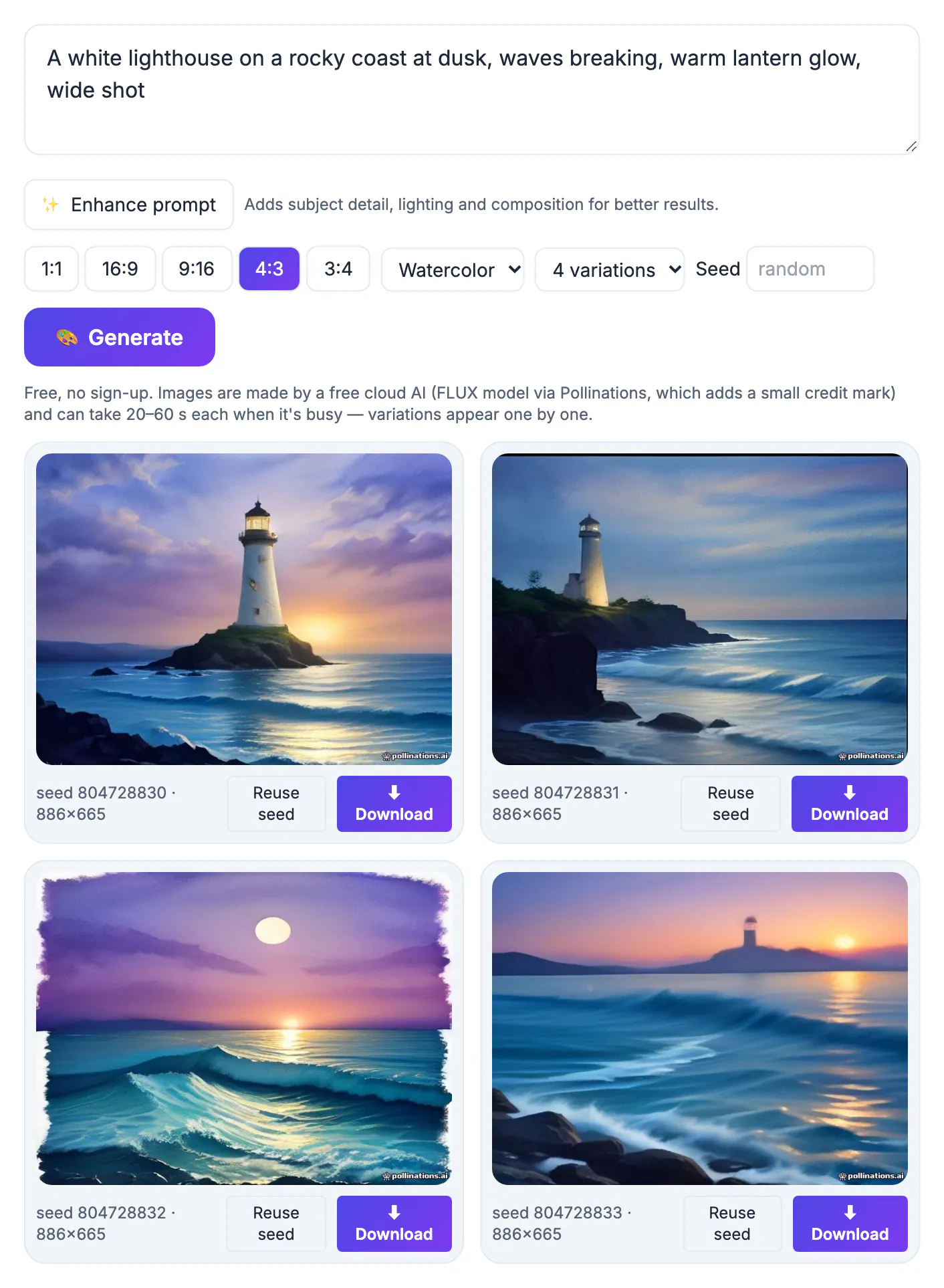
Diffusion models like FLUX start from random noise and gradually shape it toward whatever your words describe, so every vague word leaves room for the model to guess. Ask for a dog in a park and you get a generic stock shot; ask for a scruffy border terrier leaping for a red frisbee at golden hour, low angle, shallow depth of field, and you get something with intent. Most disappointing results trace back to missing details about subject, setting, light or framing rather than to a weak model. The good news is that those details are easy to add once you know the pattern, and a better prompt costs nothing but a few extra words.
A prompt formula for the AI image generator
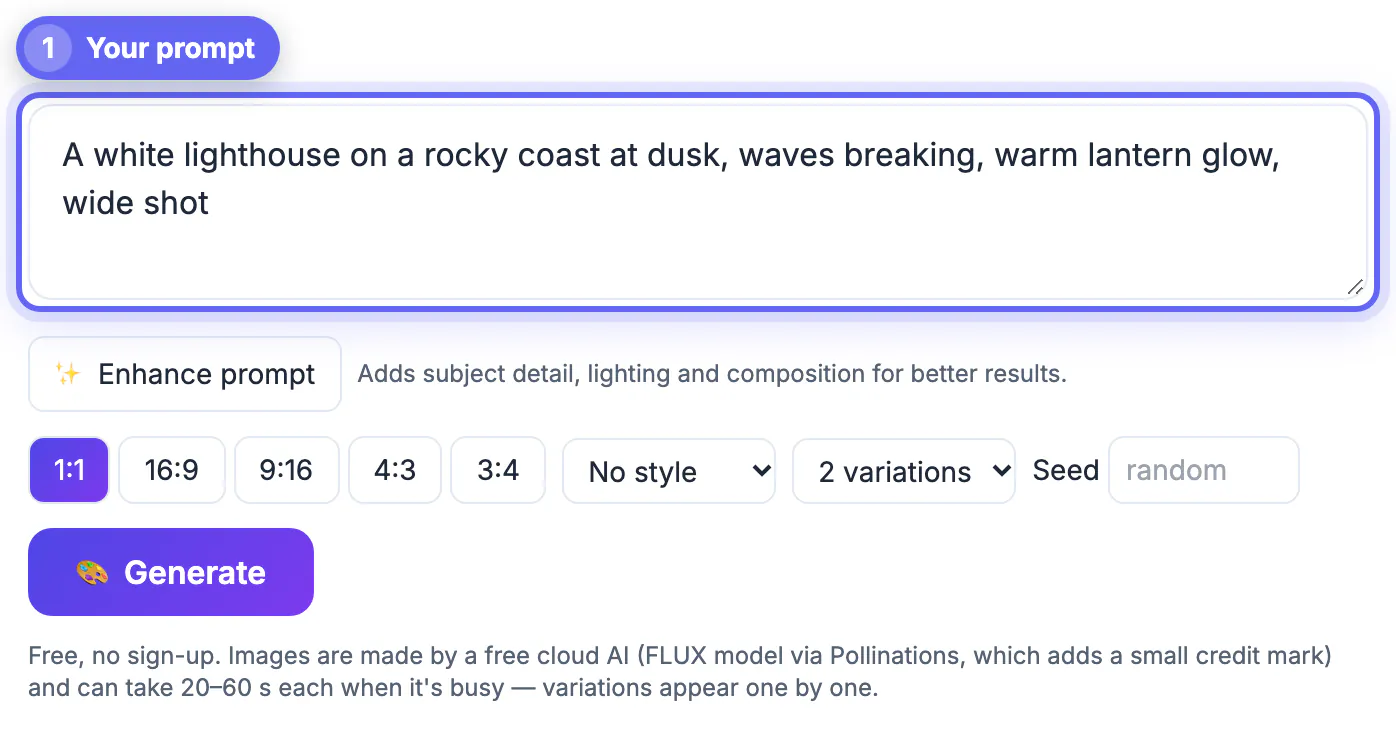
Write the prompt in the order a photographer or illustrator would think about the shot. Each part removes one guess the model would otherwise make.
- Subject: who or what, with two or three specific details such as age, color, material or expression
- Setting: where it is and what surrounds it, like a rainy Brooklyn fire escape or a sunlit Scandinavian kitchen
- Light and mood: golden hour, overcast, neon, candlelit, moody or cheerful
- Framing: close-up, wide shot, overhead flat lay, low angle, centered with empty space on the left
- Medium: photo, watercolor, flat vector, 3D render, or leave it to the style menu
Keep it to one or two sentences. Stacking twenty adjectives tends to muddy the result rather than sharpen it. If you only have a rough idea, the Enhance prompt button asks a language model to rewrite it as one vivid prompt of up to 55 words, which you can then edit.
Styles, aspect ratios and variations
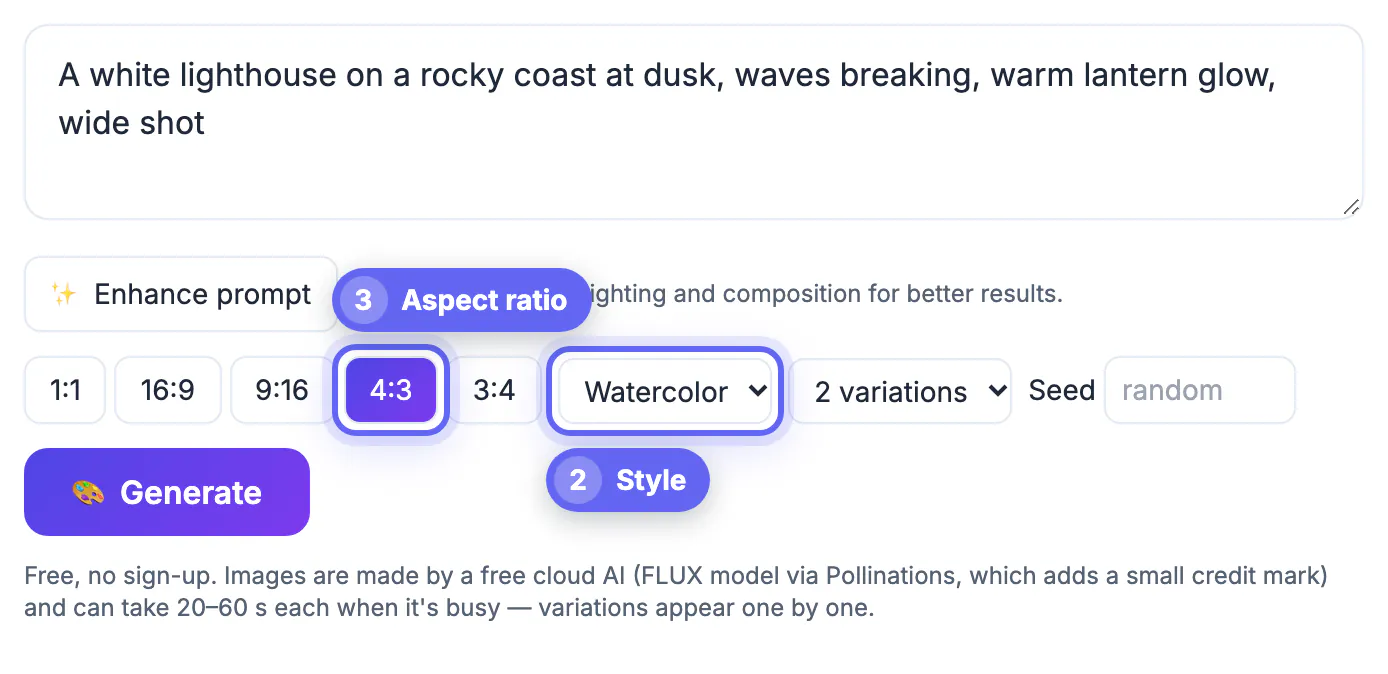
The style menu appends tested keywords to your prompt so you do not have to remember them: Photo, Cinematic, Illustration, Anime, 3D render, Watercolor, Flat vector and 3D icon, plus No style when your prompt already sets the look. Pick one style and describe the subject; do not fight the preset with contradictory words.
- 1:1 at 1024 by 1024 pixels for profile pictures, Instagram posts and product tiles
- 16:9 at 1344 by 768 for YouTube thumbnails, blog headers and slides
- 9:16 at 768 by 1344 for Stories, Reels covers and phone wallpapers
- 4:3 at 1152 by 864 and 3:4 at 864 by 1152 for classic prints, Pinterest and posters
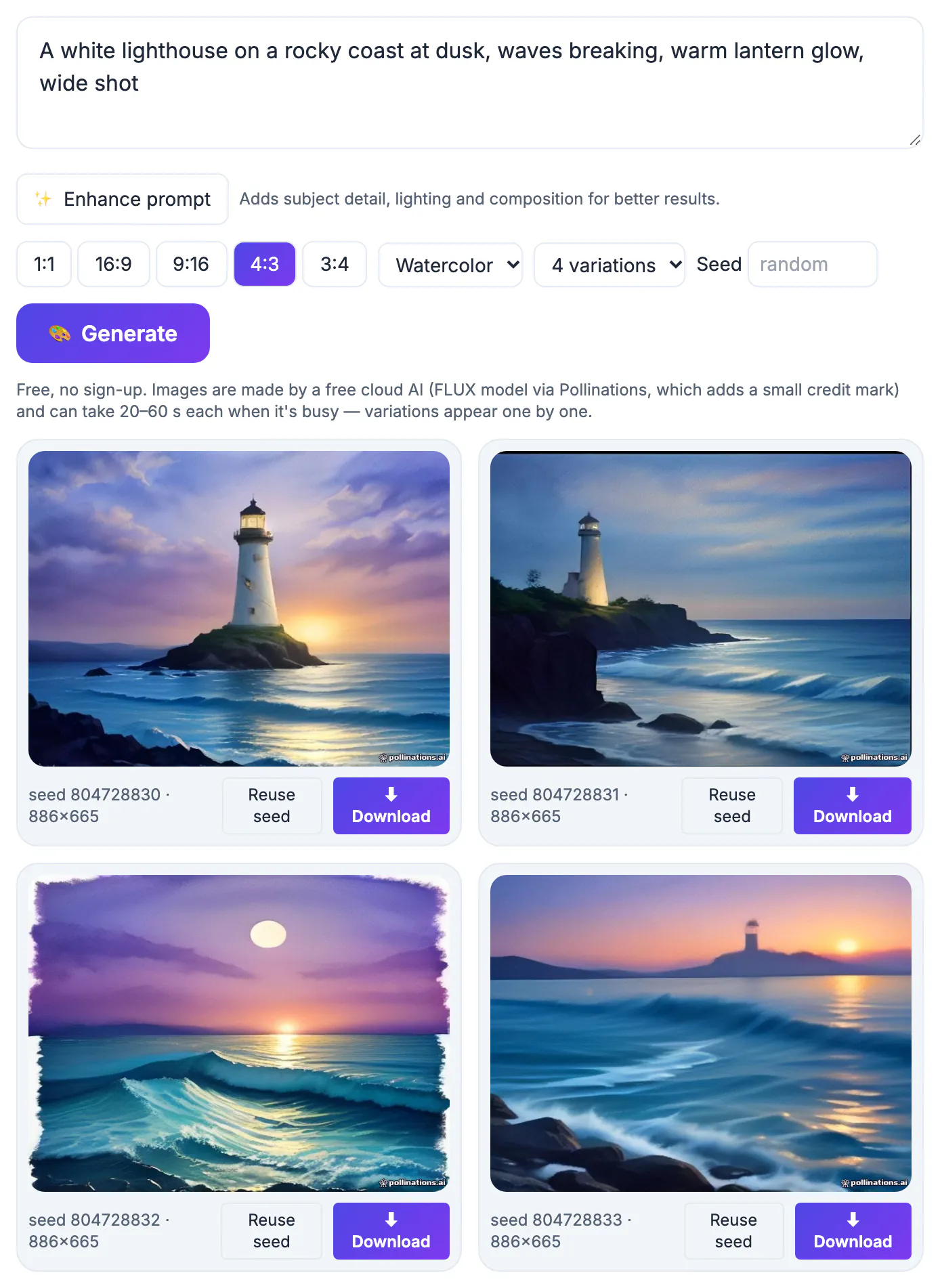
Ask for 2 or 4 variations when you are exploring; each one is a different seed, so you see a range of compositions for the same words. Variations appear one by one, and when the free service is busy each can take up to a minute.
Use the seed to refine instead of starting over
Every result shows its seed number. The seed fixes the starting noise, so the same prompt, style, shape and seed gives you essentially the same picture again. That makes it a powerful editing handle.
Find a variation you like, copy its seed into the Seed box, and change one thing in the prompt at a time: swap the jacket color, move the scene to night, or add falling snow. The composition tends to stay close while the detail you edited changes. Changing several things at once makes it hard to tell which word caused which effect, so small steps win. Save the seed with your final prompt in a note if you think you will want a matching picture later.
Honest limits before you publish
This page is not a private, on-device process. Your prompt is sent to a free cloud AI service that runs the FLUX model, and that service may add a small credit mark. Do not include names, addresses or anything confidential in a prompt.
- Lettering inside pictures is unreliable; add headlines afterward in a design app or the Meme Generator
- Hands, crowds and small repeated objects can come out distorted, so zoom in before you publish
- Output tops out around 1344 pixels on the long side; use the AI Image Upscaler for larger prints
- There is no editing of an uploaded photo or inpainting, only fresh generations from your words
- Avoid real people, trademarked characters and brand logos, and check the model and service terms before commercial use
Within those limits it is an excellent way to sketch ideas, fill a blog header, mock up a product scene or make a one-off greeting card in under a minute.
Step-by-step
Common mistakes to avoid
Pro tips
Frequently asked questions
Is this AI image generator really free?
Yes. It needs no sign-up and has no paid tier. Pictures are made by a free cloud service running the FLUX model, which can be slow at busy times and may add a small credit mark.
Are my prompts private?
No, not in the way GrabCast's on-device tools are. The prompt has to be sent to the cloud service that generates the picture, so never include personal or confidential details in it.
What is a seed and why should I reuse it?
The seed is the number that fixes the random starting point. Reusing it with the same prompt and settings reproduces nearly the same picture, which lets you change one detail at a time instead of rolling the dice again.
Why does the text in my picture look wrong?
Diffusion models learn letters as shapes rather than spelling, so words inside a scene often come out misspelled. Generate the picture without lettering and add the words in a design app afterward.
How big are the generated pictures?
Square results are 1024 by 1024 pixels and the widest shapes are 1344 by 768. That is plenty for social posts and web pages; for prints, run the file through the AI Image Upscaler first.
Describe subject, setting, light and framing, pick one style and the right shape, and use the seed to refine one change at a time. It is free and fast for ideas and web graphics, but prompts go to a cloud service, lettering is unreliable, and big prints need upscaling.
Related guides
Browse more: all AI guides · AI Image Generator