AI Image Prompts That Work: Structure, Seeds, Fixes
A good AI image prompt names one concrete subject first, then adds a single style, the lighting, and the camera framing, in that order. That structure alone fixes most generic or muddled results, and the rest comes down to changing one variable at a time with a locked seed. Below are worked examples, the exact settings GrabCast's generator exposes, and a repair checklist for the misfires everyone hits.
🎨 Try AI Image Generator now — freeOpen →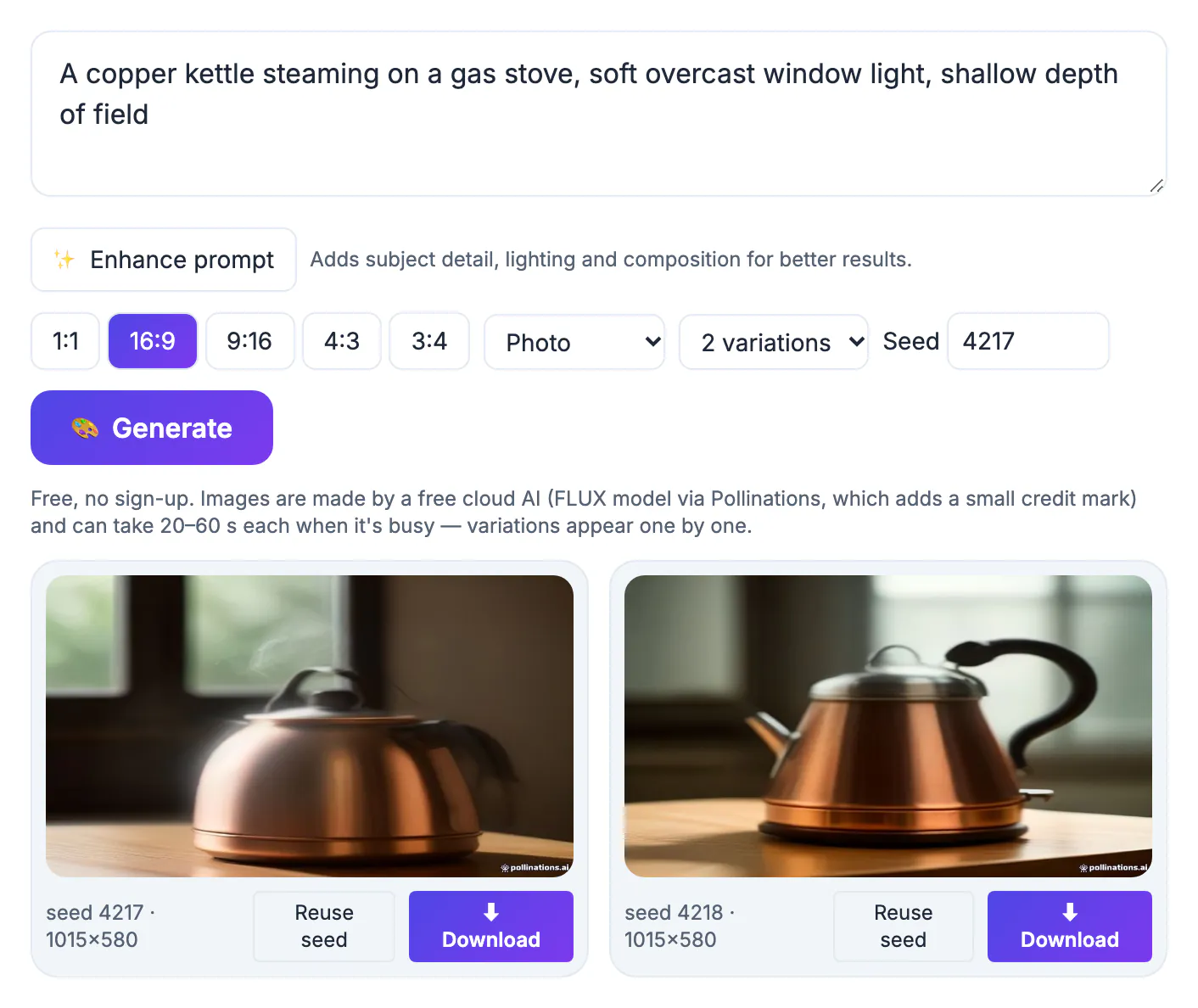
Two people using the same FLUX model can get a muddy stock-photo look or a crisp editorial shot, and the gap is nearly always the wording. Free services are also slow when busy, often 20 to 60 seconds per render, so every wasted attempt costs real time. Learning to steer deliberately means fewer rerolls, more consistent series, and results you can actually publish.
How a generator reads your words
Text-to-picture models do not follow instructions in sequence the way a person reads a to-do list. They turn the whole prompt into a blend of concepts and weigh each one, and concrete nouns pull much harder than abstract adjectives. Words near the start usually carry more weight than words buried at the end, so the subject belongs first.
Compare two prompts. 'A cute dog picture' gives the model almost nothing to hold onto, so it falls back on the most average dog it knows. 'A golden retriever puppy asleep on a red wool blanket, morning window light, close-up' names breed, action, material, color, light and framing. Each of those is something the model has seen thousands of times and can render confidently.
- Nouns and materials such as wool, brass or wet asphalt anchor the scene
- Style words such as watercolor or 3D render change everything at once
- Vague praise like beautiful, amazing or epic adds almost nothing
- Negative phrasing such as no people often backfires, because it still mentions people
A four-part structure with worked examples
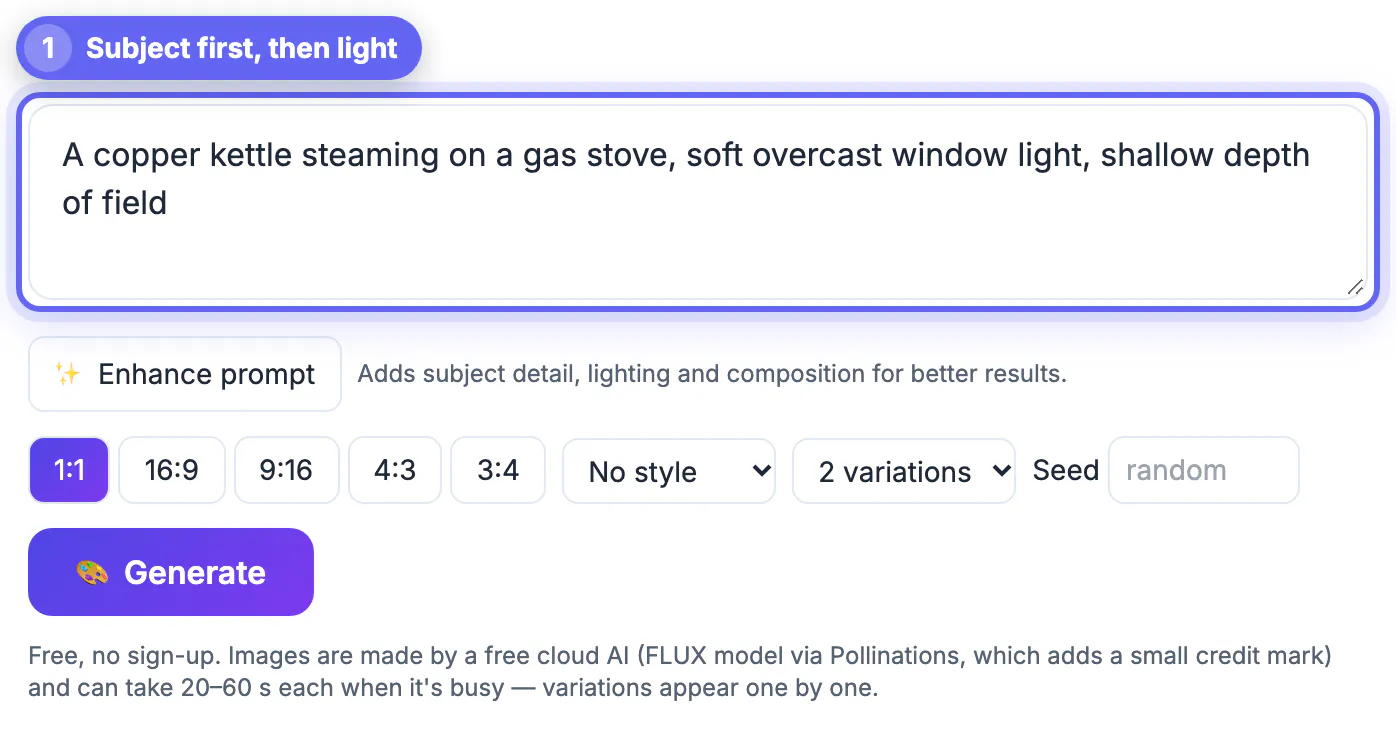
A reliable prompt has four slots: subject, style, light and mood, then composition. You will not always need all four, but filling them in removes most of the guesswork. Keep the whole thing to one or two sentences; the prompt enhancer in GrabCast caps its rewrite at about 55 words for the same reason.
- Subject: a red-brick lighthouse on a basalt cliff, waves breaking below
- Style: oil painting with visible brush strokes, or a clean 3D render
- Light and mood: stormy dusk, low orange sun, dramatic
- Composition: wide shot from a low angle, lighthouse on the right third
Put together, that reads: a red-brick lighthouse on a basalt cliff with waves breaking below, oil painting with visible brush strokes, stormy dusk with a low orange sun, wide low-angle shot with the lighthouse on the right third. It is long enough to be specific and short enough that no slot drowns out another.
A second example for a food blog: a bowl of ramen with a soft-boiled egg on a dark wooden table, top-down food photography, warm tungsten light and rising steam, tight crop with chopsticks entering from the left. Swap the subject and keep the rest, and you have a matching set of post headers.
Seeds, styles and variations in GrabCast
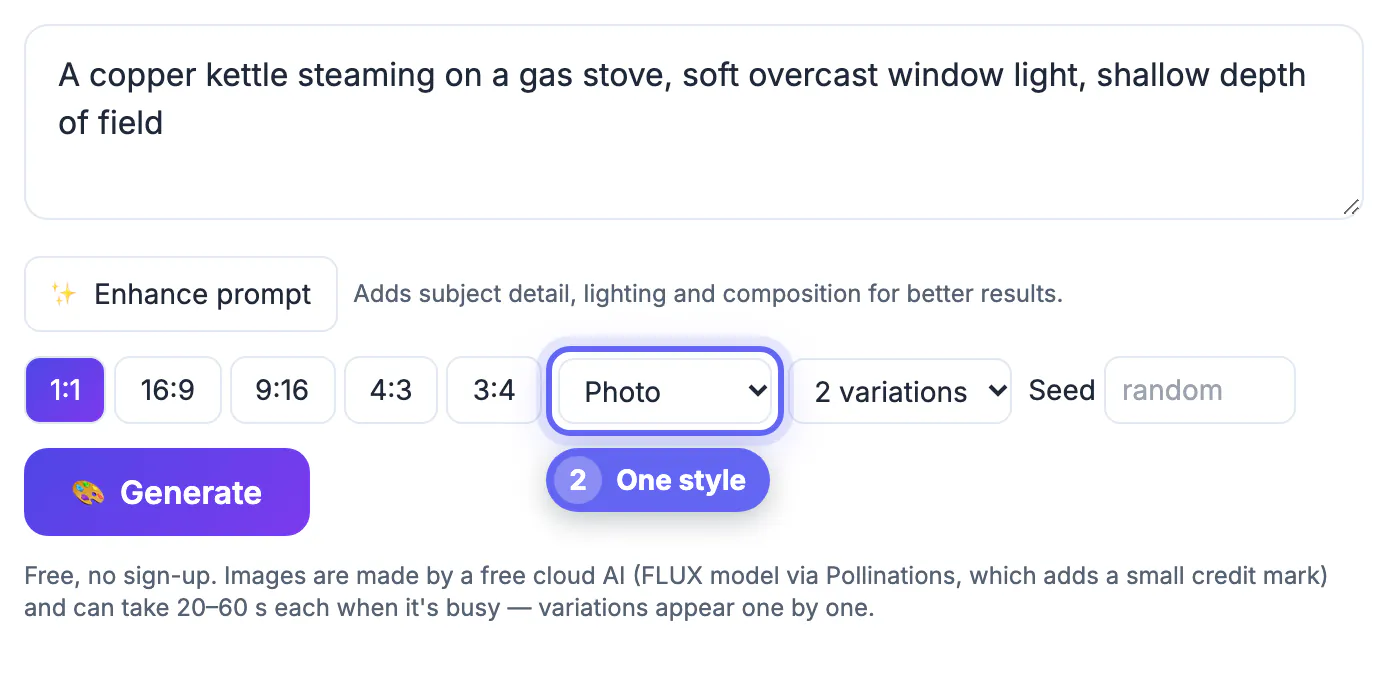
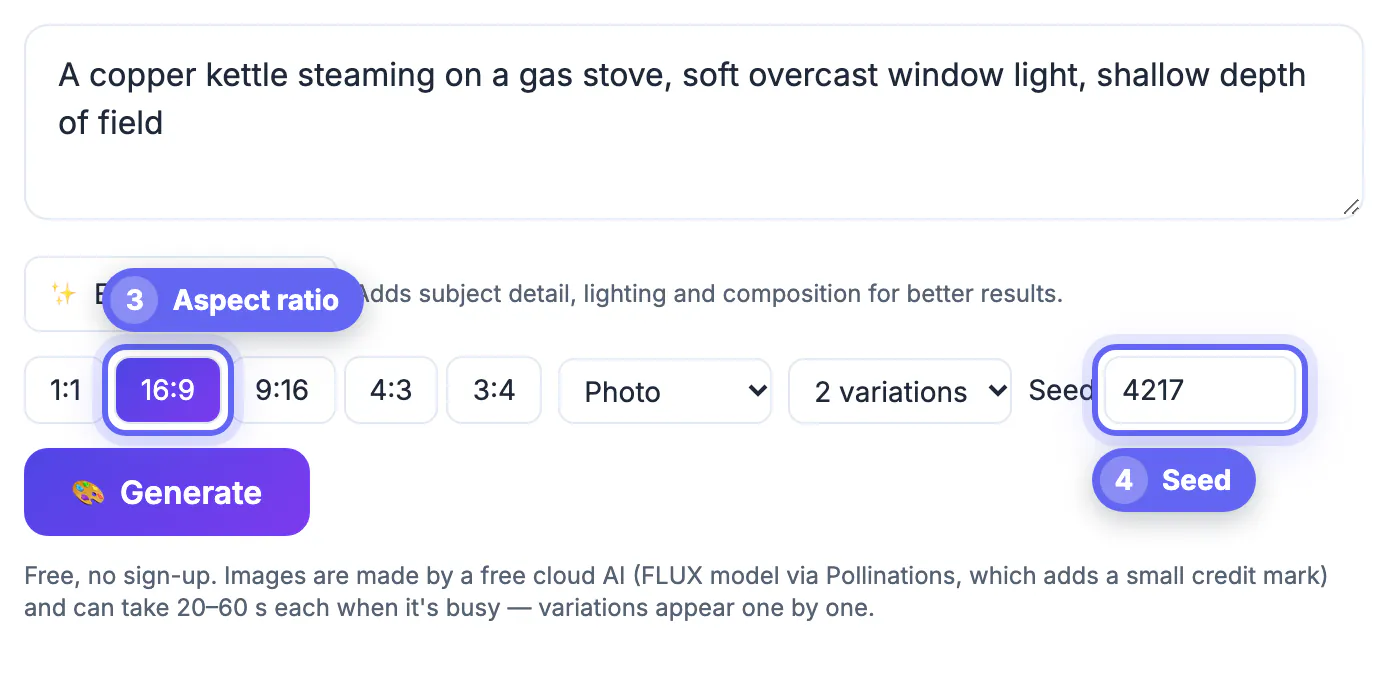
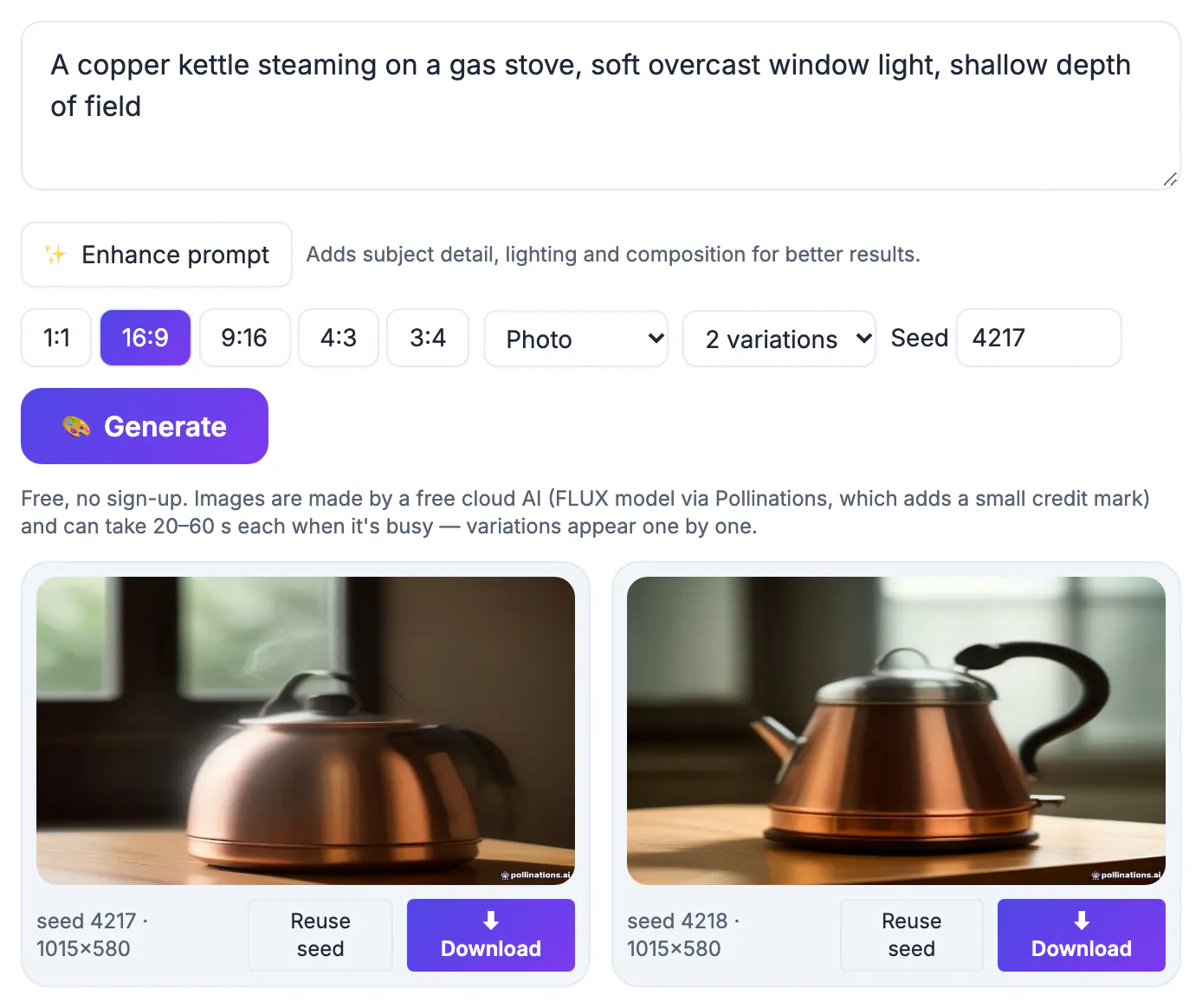
The GrabCast AI Image Generator sends your prompt to the free FLUX model through the Pollinations cloud service, so the text does leave your device. You pick one of five aspect ratios (1:1 at 1024 by 1024, 16:9 at 1344 by 768, 9:16, 4:3 and 3:4), an optional style preset, and one, two or four variations. The style menu simply appends a tested phrase to your prompt; Photo, for example, adds photorealistic, natural light, 50mm photo, sharp focus.
Every result shows its seed number. A seed fixes the random starting noise, so the same prompt plus the same seed reproduces the same composition. Click Reuse seed, change one word, and render again: now you are seeing the effect of that word alone instead of a completely new roll of the dice. Variations use consecutive seeds, which is handy when you want four takes on one idea.
- Enhance prompt turns a short idea into a fuller description using a cloud AI
- Eight presets plus No style: Photo, Cinematic, Illustration, Anime, 3D render, Watercolor, Flat vector and 3D icon
- Downloads are JPG files named with the seed, which makes keepers easy to track
- Ctrl or Cmd plus Enter starts a render without reaching for the mouse
Fixing prompts that misfire
When a render goes wrong, diagnose before you rewrite. Lock the seed, change exactly one thing, and compare. Most failures fall into a handful of patterns with predictable fixes.
- Detail ignored: move it to the front or give it its own short clause
- Cluttered scene: delete adjectives until only the strongest three remain
- Wrong mood: swap the lighting phrase and leave the subject untouched
- Garbled lettering: render the art without words and add text later in an editor
- Extra fingers or warped hands: crop tighter, or pose the hands out of frame
Honest limits apply. Free FLUX output is roughly one megapixel, fine for web and social use but soft for large prints; run it through an upscaler for a 2x boost. The shared service can also queue requests during busy hours, so a retry a minute later often succeeds where the first attempt stalled.
Once you have a good image, the AI Image Upscaler can enlarge it, and the Remove Image Background tool can cut out the subject for a clean, transparent version.
Step-by-step
Common mistakes to avoid
Pro tips
Frequently asked questions
What makes an AI image prompt work?
A concrete subject at the start, one clear style, a short lighting phrase and a framing choice. Specific nouns beat clever wording, and one or two sentences is usually enough.
How long should a prompt be?
Roughly 20 to 55 words. Shorter prompts leave too much to chance, while very long ones blur the priorities, so the model gives each idea less weight.
What does the seed number do?
It fixes the random starting point. The same prompt plus the same seed gives the same composition, which lets you test the effect of a single word change.
Can I use the pictures commercially?
Check the current terms of the model and service you use, since licenses change. Avoid prompts that copy a living artist, a brand or a real person, and keep a record of the prompt and seed.
Why is the tool slow sometimes?
GrabCast uses a free shared cloud service that can take 20 to 60 seconds per render when busy. Variations are made one at a time, and each one gets up to three automatic attempts before the tool asks you to retry.
Lead with a concrete subject, add one style and a light phrase, choose framing and ratio, then lock the seed and change one word at a time. That loop turns random rerolls into controlled edits and produces series that look like they belong together.
Related guides
Browse more: all AI guides · AI Image Generator