Best Image Upscalers: Free, Private and Pro Picks
The best image upscaler for most people in 2026 is the one that matches the job: Topaz Gigapixel for professional prints, Photoshop's Super Resolution if you already pay for Adobe, Upscayl for free desktop use, and a browser tool like GrabCast when you want a quick private 2x without installing anything. Online services such as Let's Enhance add convenience at the cost of uploads and credits. Here is how they differ on quality, scale, privacy and price model.
🔼 Try AI Image Upscaler now — freeOpen →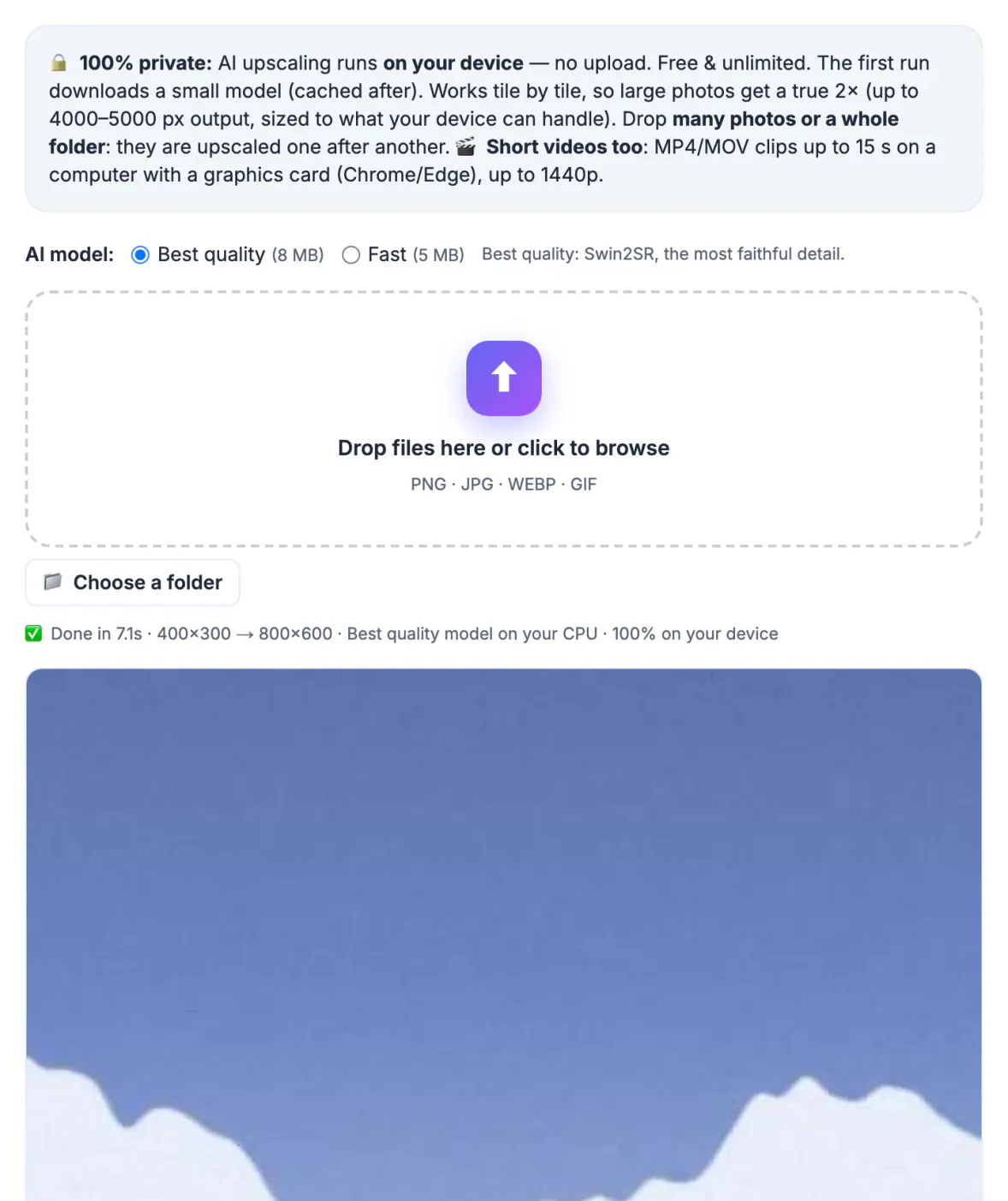
Every AI upscaler guesses detail that is not in the file, and each model was trained on different material. Some are tuned for faces and photos, some for anime line art, some for print-size enlargement. The same 800-pixel picture can come out crisp in one tool and waxy in another, so matching the model to the content matters more than the headline scale factor.
The upscalers worth knowing
Six options cover almost every need, from free and private to professional print work. All are established, widely used products.
- Topaz Gigapixel: paid desktop app for Windows and Mac with several specialized models and large enlargement factors; a favorite among photographers for print work
- Adobe Photoshop Super Resolution: part of Camera Raw and Lightroom; doubles width and height in one click, included with Adobe's photography plans
- Upscayl: free, open-source desktop app for Windows, Mac and Linux built on Real-ESRGAN models; needs a compatible GPU
- Let's Enhance and similar web services: upload-based, credit or subscription pricing, convenient batch features
- waifu2x and Real-ESRGAN anime models: excellent for illustrations and line art, less so for real faces
- GrabCast AI Image Upscaler: free, runs in your browser, 2x only, nothing uploaded
Phone apps, including features built into gallery and editing apps, can also enlarge pictures, but results vary a lot between versions and devices, so test before trusting one with an important file.
Head-to-head on quality, privacy and cost
Judged qualitatively on typical phone pictures and web graphics, the differences look like this:
- Photo detail at 2x: Topaz and Photoshop are the most natural; Upscayl and GrabCast are solid; heavy settings anywhere can look waxy
- Big enlargements of 4x and beyond: Topaz, Upscayl and web services handle them directly; GrabCast and Photoshop Super Resolution are 2x tools
- Illustrations and anime: waifu2x and anime-tuned Real-ESRGAN models lead
- Privacy: desktop apps and GrabCast keep files local; web services require uploading
- Cost model: Upscayl and GrabCast are free; Topaz is paid; Photoshop needs an Adobe plan; web services use credits
Speed depends heavily on hardware. A desktop GPU runs Upscayl and Topaz far faster than a laptop's integrated graphics, and browser tools are fastest in WebGPU-capable Chrome or Edge. On an older phone, any on-device model can be slow or run out of memory with big files.
What GrabCast's free upscaler does, and its limits
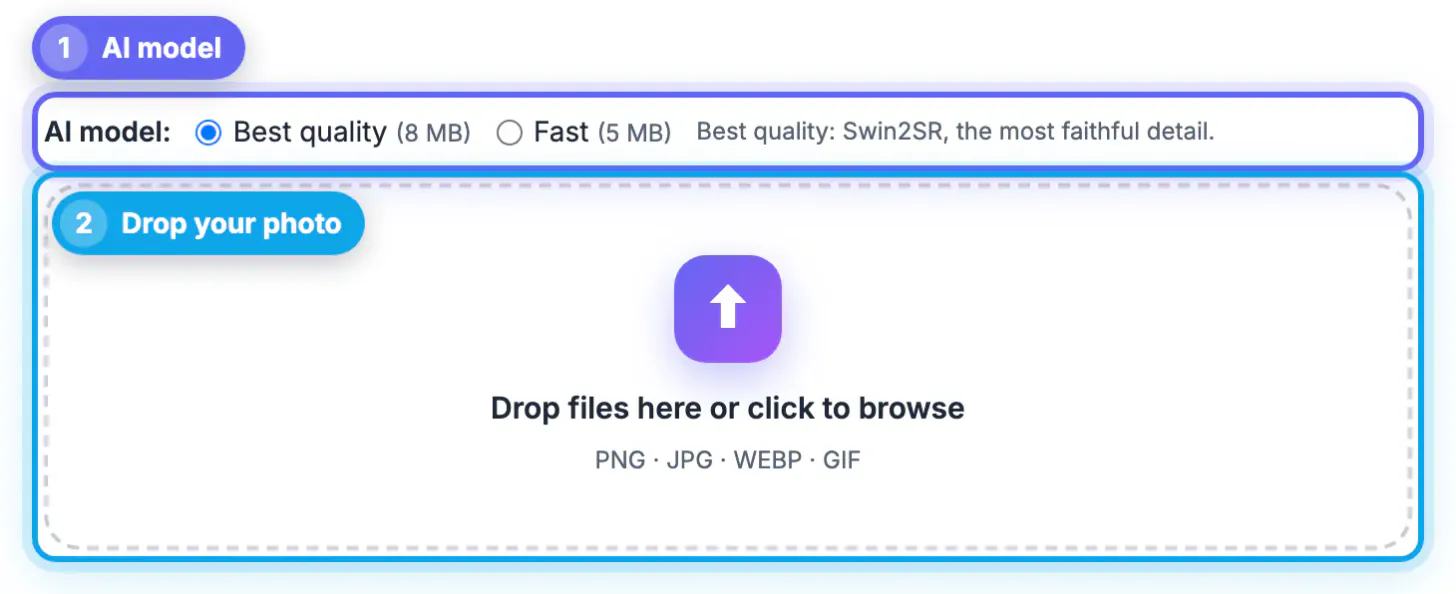
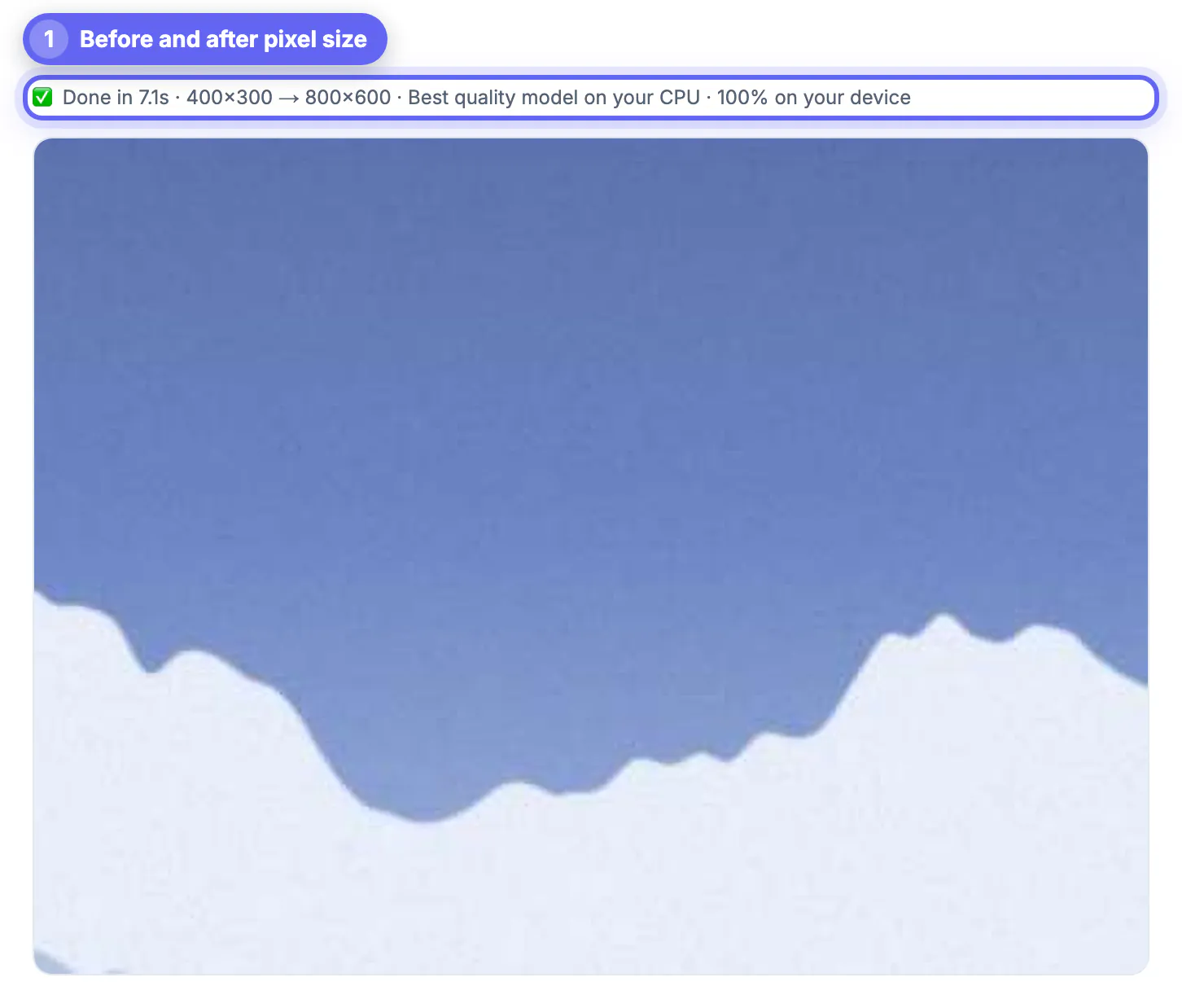
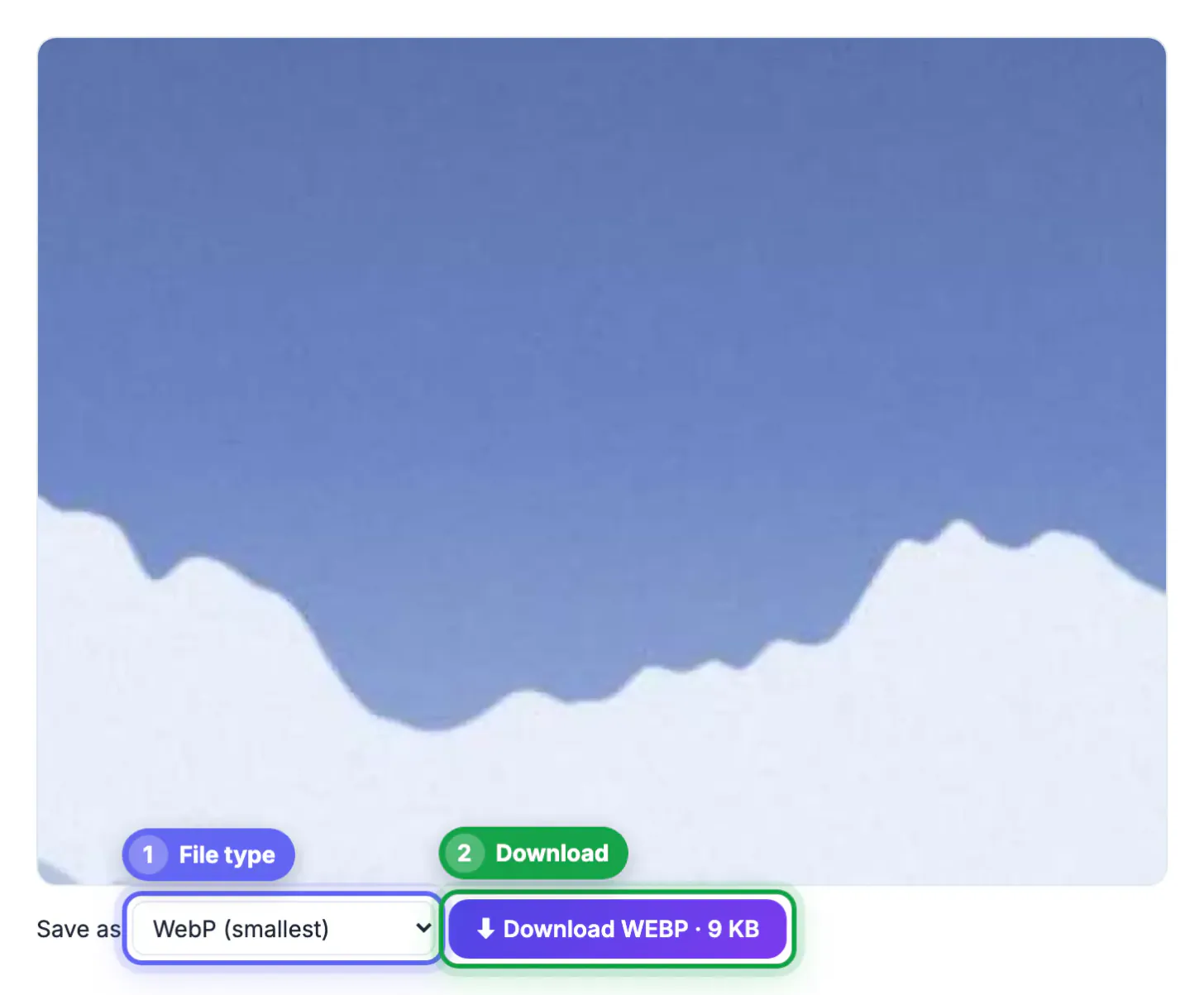
GrabCast runs a lightweight Swin2SR model with Transformers.js directly in the page. The model downloads once and is cached; after that, each picture is split into 320-pixel tiles, enlarged 2x, and stitched back together, so the output is a true double of your input, saved as a lossless PNG. It uses WebGPU when available and WebAssembly otherwise.
Limits are worth stating plainly. It is 2x only, so a 4x result means running it twice. Inputs above 2000 pixels on the long side are fitted to 2000 first, capping output near 4000 pixels. There is no face-specific model, no denoise slider and no batch mode. Very large pictures can run out of memory on phones or older laptops.
- Ideal for: web graphics, product shots, screenshots, profile pictures under 1500 pixels
- Skip it for: large prints, anime at 4x, or already-large camera files
Choosing an upscaler for your workflow
- Occasional web use where privacy matters: GrabCast in the browser
- Free and frequent, with a decent GPU: Upscayl
- Photographer already on Adobe: Photoshop or Lightroom Super Resolution
- Print sales and archival enlargements: Topaz Gigapixel
- Team batch jobs without installing software: a web service like Let's Enhance, if uploading is acceptable
- Anime and illustration: waifu2x or an anime-tuned Real-ESRGAN model
Whatever you choose, start with the best source you have. Upscaling a heavily compressed download amplifies its artifacts; asking for the original, or rescanning a print at a higher dpi, often beats any model. Compare results at 100 percent zoom on the same crop before deciding.
A fair test takes five minutes: pick one crop with a face, one with fine texture such as fabric or foliage, and one with small text. Run all three through your top two candidates and look for invented detail in eyes, repeated patterns in foliage and warped letters. The tool that fails least on your own content is the right one, whatever the rankings say, and that answer can differ between a wedding photographer, an online seller and an anime fan.
After upscaling, you can resize the result to an exact size and compress it if the file got too heavy for sharing.
Step-by-step
Common mistakes to avoid
Pro tips
Frequently asked questions
What is the best free image upscaler?
Upscayl is the strongest free desktop option if you have a compatible GPU. For a quick private 2x without installing anything, GrabCast runs in the browser.
Is Photoshop Super Resolution good?
Yes for photos. It doubles width and height with natural results and is included in Adobe's photography plans, but it is 2x only.
Which upscaler keeps my pictures private?
Desktop apps such as Upscayl, Topaz and Photoshop, and in-browser tools such as GrabCast, process files locally. Web services upload them.
Can an upscaler make any picture print-ready?
Only within limits. Doubling a 1200-pixel file to 2400 gives a decent 8 by 10 at 240 dpi, but tiny sources still look artificial at poster size.
Is AI upscaling the same as enhancing?
Not exactly. Upscaling adds pixels and reconstructs edges; enhancing can also mean color, noise and face fixes, which some tools bundle and others, like GrabCast, leave to a separate editor.
Match the tool to the job: Topaz for prints, Photoshop if you are already on Adobe, Upscayl for free desktop power, waifu2x for anime, and GrabCast for a quick private 2x in the browser. Start from the best source, compare crops at 100 percent, and keep a PNG master.
Related guides
Browse more: all AI guides · AI Image Upscaler